
Are you looking for a simple way to make your WordPress blog posts easier to navigate? Adding a table of contents can help your readers find exactly what they need without scrolling endlessly.
It not only improves user experience but also boosts your SEO, making your content more visible on search engines. You’ll learn step-by-step how to add a table of contents to your WordPress posts quickly and effortlessly. By the end, your readers will stay longer, and your blog will look more professional.
Let’s get started!
Benefits Of Adding A Table Of Contents
Adding a table of contents to your WordPress blog post brings many benefits. It helps organize content and makes your post easier to read. Visitors can quickly find the information they want. This small feature improves the overall quality of your blog.
Improved Navigation
A table of contents lets readers jump to sections fast. They do not need to scroll through the whole post. It saves time and keeps readers on your page longer. Clear navigation reduces frustration and confusion.
Enhanced User Experience
Readers enjoy a well-structured post with a table of contents. It breaks down the content into simple parts. This makes reading less tiring. Users feel more in control and satisfied with your blog.
Seo Advantages
Search engines like organized content. A table of contents helps them understand your post better. It increases your chances of ranking higher in search results. Also, it can create jump links shown in search snippets.
Credit: www.wpbeginner.com
Methods To Add A Table Of Contents
Adding a table of contents (TOC) to your WordPress blog post helps readers navigate long articles. It improves user experience and keeps visitors on your site longer. Several methods exist to add a TOC, each suited to different skill levels and needs. Choose one that fits your comfort with WordPress and coding.
Manual Creation
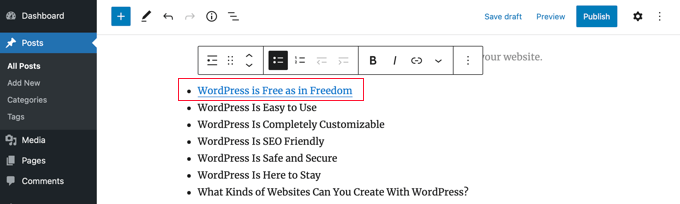
Manual creation involves adding a list of links to your post sections. First, assign unique IDs to your headings using the HTML anchor tag. Then, create a list of clickable links pointing to each ID at the start of your post. This method gives full control over TOC style and placement. It requires basic HTML knowledge but no extra plugins.
Using Plugins
Plugins simplify adding a TOC with little effort. Popular TOC plugins automatically detect headings and insert a table of contents. They offer customization options for design and behavior. Installing a plugin is quick and beginner-friendly. This method is ideal for users who want a ready-made solution without coding.
Block Editor Options
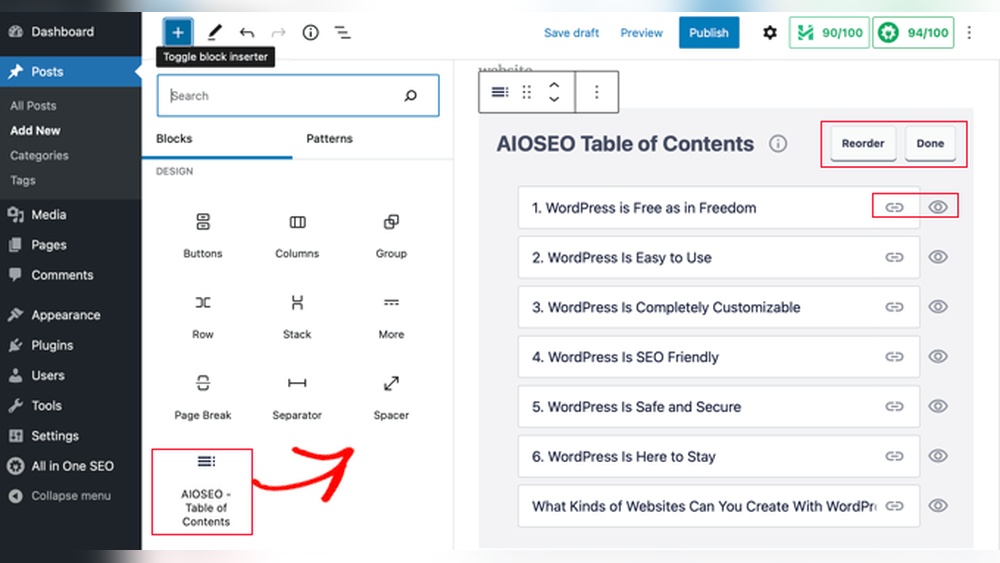
The WordPress block editor includes built-in options for creating a TOC. Some themes or blocks provide a table of contents block. You can add this block anywhere in your post and configure it easily. This method fits well with the WordPress block editor’s visual approach. It works best for users comfortable with blocks but new to plugins or code.
Popular Table Of Contents Plugins
Adding a table of contents to your WordPress blog post helps readers find information fast. Plugins make this task simple and efficient. Several popular plugins offer easy setup and useful features. Each plugin has unique options for customizing your table of contents.
Easy Table Of Contents
Easy Table of Contents is user-friendly and works well for beginners. It automatically creates a table of contents based on your headings. You can customize its appearance and position on the page. This plugin supports smooth scrolling and multiple content types.
Table Of Contents Plus
Table of Contents Plus is a powerful plugin with many settings. It lets you choose which headings to include or exclude. You can display the table of contents in pages, posts, or custom post types. It also provides a sitemap feature for better site navigation.
Luckywp Table Of Contents
LuckyWP Table of Contents is flexible and lightweight. It supports drag-and-drop ordering of headings. You can style the table of contents with colors, fonts, and borders. This plugin works well on mobile devices and improves user experience.
Step-by-step Plugin Installation
Adding a table of contents to your WordPress blog post helps readers find information fast. Plugins make this task easy. Follow these simple steps to install and set up a plugin for your table of contents.
Searching For Plugins
Log in to your WordPress dashboard. Go to the “Plugins” menu on the left side. Click “Add New.”
Type “table of contents” in the search bar. A list of plugins will appear. Look for one with good ratings and many installs.
Check the plugin details. Make sure it is compatible with your WordPress version. This avoids future problems.
Installing And Activating
Click the “Install Now” button next to your chosen plugin. WordPress will download and install it automatically.
Once installed, the “Install Now” button changes to “Activate.” Click “Activate” to enable the plugin on your site.
You will see a new menu or settings page added by the plugin. This means the plugin is ready to use.
Basic Configuration
Open the plugin’s settings page from the WordPress dashboard. Look for options to customize the table of contents.
Choose where to display the table of contents, such as before the post or after the first paragraph.
Set the heading levels to include, for example, H2 and H3. This controls what sections appear in the table.
Save your settings. Now your table of contents will appear automatically in your blog posts.
Customizing The Table Of Contents
Customizing the table of contents helps your readers navigate your post easily. You can change how it looks, where it appears, and which headings show up. This makes your content clear and user-friendly. Let’s explore key customization options to improve your WordPress blog post.
Appearance Settings
Choose colors, fonts, and styles that match your blog’s design. Set the background and border colors for better contrast. Adjust the font size so the text is easy to read on any device. Many plugins offer preset themes to quickly change the look. Customize bullet points or numbers to suit your style.
Positioning Options
Select where the table of contents will appear in your post. Common spots include above the first paragraph or after the introduction. You can also place it in a sidebar for constant visibility. Some plugins let you make the table of contents sticky, so it stays on screen while readers scroll. Choose the position that fits your layout best.
Heading Levels To Include
Decide which heading levels to show in the table of contents. Usually, H2 and H3 headings are enough for clear structure. You can include deeper levels like H4 if your post is long or detailed. Avoid too many levels to keep the table simple and clean. This helps readers find important sections quickly.
Credit: blog.hubspot.com
Adding A Table Of Contents Without Plugins
Adding a table of contents without plugins keeps your blog light and fast. It gives readers easy navigation through long posts. This method uses basic HTML, so no extra tools are needed. Perfect for those who want a simple, clean way to organize content.
Using Html Anchors
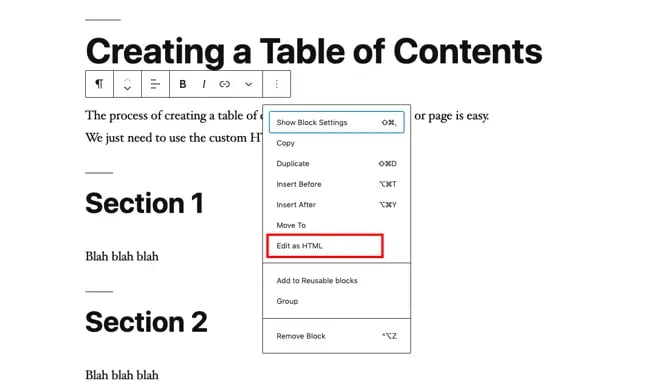
HTML anchors create links that jump to specific parts of a page. First, add an id attribute to each heading you want to link. Example: Section 1
href="section1". This setup helps readers jump directly to each section.
Linking Headings Manually
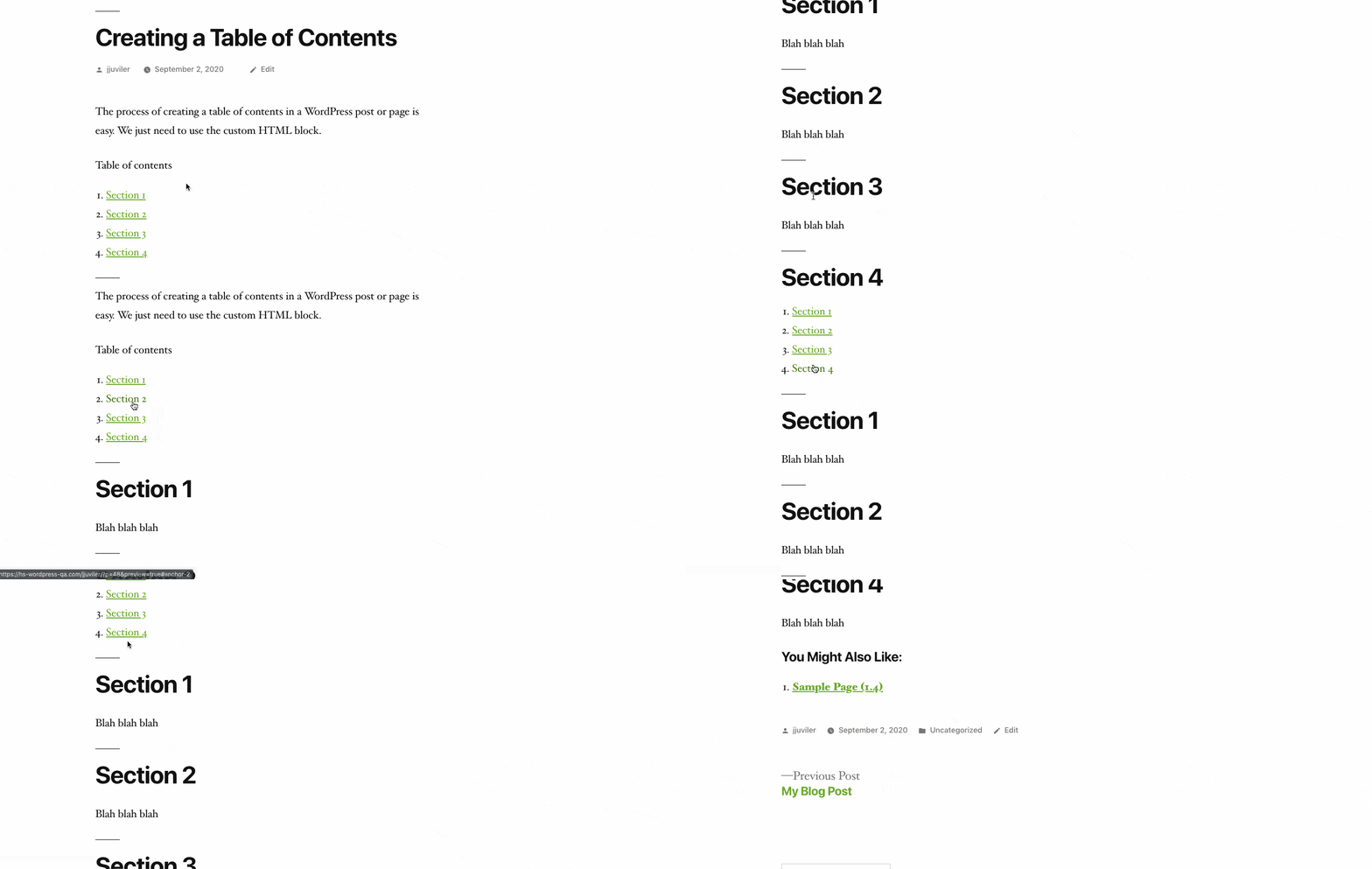
Write a list of headings at the start of your post. Use the tag with href pointing to each heading’s id. For example, Section 1. This manual linking creates a simple table of contents. It is easy to edit and update as needed.
Troubleshooting Common Issues
Adding a table of contents to a WordPress blog post can improve navigation. Sometimes, issues may stop it from working properly. This section helps fix common problems fast. Clear instructions make your blog user-friendly.
Table Not Showing
Check if the table of contents plugin is active. Sometimes, it may be disabled by mistake. Refresh the page after enabling it. Confirm the post contains headings. Without headings, the table has nothing to list. Clear your browser cache to see recent changes. Try disabling other plugins to find conflicts. Update your WordPress and plugin to the latest versions.
Incorrect Links
Ensure all headings have unique IDs. Duplicate IDs cause wrong links. Check if the plugin settings match your heading levels. Sometimes, links break if headings are missing or formatted oddly. Edit headings to use correct HTML tags (H1, H2, H3). Avoid special characters in headings. Test links by clicking them to verify they go to the right section.
Styling Conflicts
Table of contents may look odd due to theme styles. Inspect the page using browser developer tools. Look for CSS rules that override the table style. Add custom CSS to fix colors, fonts, or spacing. Use simple styles that fit your blog design. Avoid complex CSS that may cause more issues. Check plugin documentation for style guides or options.
Tips For Effective Table Of Contents
Creating a useful table of contents (TOC) helps readers find information quickly. It improves the blog’s structure and user experience. A well-made TOC guides visitors through the post smoothly. Follow these tips for an effective table of contents.
Keep It Concise
Limit the number of items in the TOC. Too many points make it confusing and cluttered. Focus on main sections only. Short and clear entries work best. This keeps the TOC neat and easy to scan.
Use Clear Headings
Choose headings that explain the content well. Avoid vague or technical terms. Simple language helps all readers understand. Good headings improve navigation and reduce bounce rates. Make sure each heading matches the section content precisely.
Update Regularly
Check the TOC after editing your post. Remove outdated points and add new ones. Keep links working and accurate. An updated TOC reflects the post’s true structure. This builds trust and keeps readers engaged longer.
Credit: blog.hubspot.com
Frequently Asked Questions
What Is A Table Of Contents In WordPress?
A table of contents lists the main topics in a WordPress blog post. It helps readers navigate long articles quickly. Adding one improves user experience and SEO by making content easier to scan and understand.
How Do I Add A Table Of Contents In WordPress?
You can add a table of contents using plugins like Easy Table of Contents or by manually inserting HTML anchors. Plugins automatically detect headings and create a clickable list for easier navigation.
Are Table Of Contents Plugins Free For WordPress?
Yes, many WordPress table of contents plugins offer free versions. These free plugins provide basic features like automatic TOC generation and customization options, suitable for most blog posts.
Does A Table Of Contents Improve Seo Rankings?
Yes, a table of contents enhances SEO by improving site structure and user experience. Search engines favor organized content, which increases the chance of higher rankings and better click-through rates.
Conclusion
Adding a table of contents helps readers find information fast. It makes your blog easier to use and more organized. WordPress offers simple tools to add this feature quickly. You can choose plugins or use built-in options. A clear table of contents improves your site’s SEO and user experience.
Try adding one today to keep visitors engaged and satisfied. It’s a small step that brings big benefits. Keep your blog neat and reader-friendly.



