
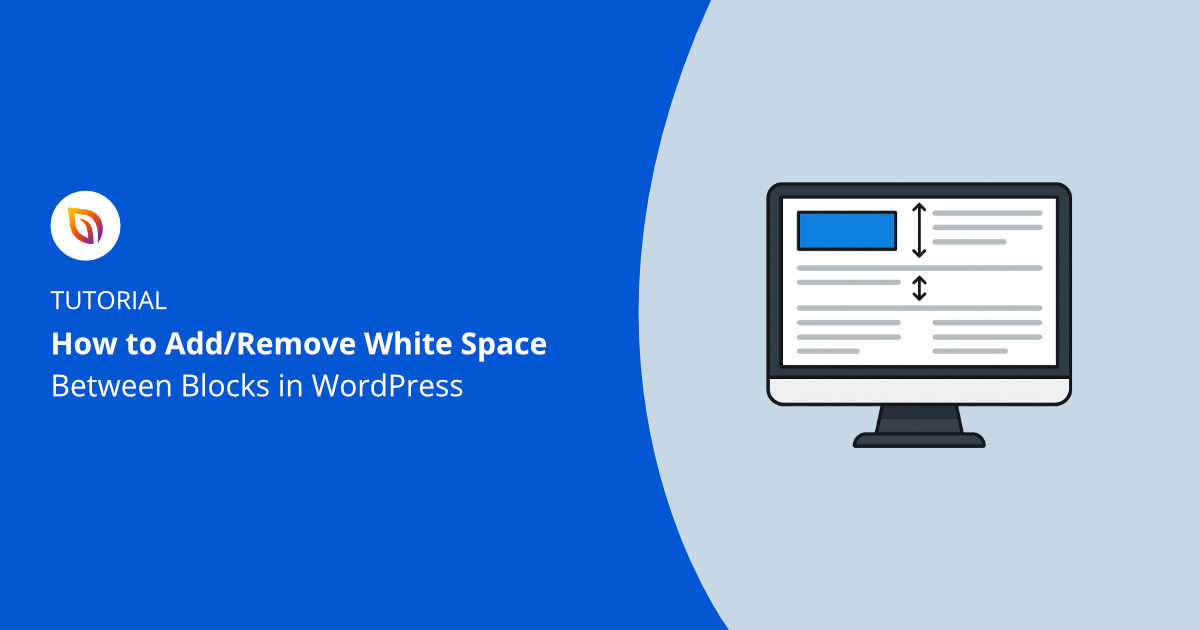
Are you struggling to create the perfect layout for your WordPress site because you don’t know how to add space where it matters? Small gaps and proper spacing can make your content easier to read and your site look more professional.
But if you’ve tried and failed to get the right spacing, you’re not alone. You’ll discover simple, step-by-step methods to add space in WordPress without needing any coding skills. By the end, you’ll have full control over your site’s appearance, making your pages look clean and inviting—just the way you want.
Keep reading to unlock these easy tricks that can instantly improve your website’s design.
Why Space Matters In WordPress
Space plays a key role in WordPress design. It shapes how visitors interact with your site. Proper spacing helps organize content and guides readers through your pages. Without enough space, pages look crowded and hard to follow.
Good use of space improves the whole experience on your website. It makes your content easier to read and more inviting to explore. Space also helps highlight important parts and reduces confusion. This section explains why space matters in WordPress.
Impact On User Experience
Space makes navigation simple and clear. Visitors find what they want faster. Too little space causes frustration and quick exits. Proper spacing helps users feel relaxed and focused. It keeps visitors on your site longer.
Influence On Readability
Text with enough space is easier to read. Lines and paragraphs that are too close look messy. Space between elements prevents eye strain. It helps readers absorb information better. Clear layout supports better understanding.
Effect On Visual Appeal
Space creates balance and harmony in design. It avoids clutter and chaos. A clean layout draws attention to key messages. Proper spacing gives your site a polished look. Visitors see your site as professional and trustworthy.
Credit: www.greengeeks.com
Types Of Space In WordPress Layouts
Space in WordPress layouts shapes how content looks and feels. It controls the distance between elements. Proper spacing improves reading and makes sites look clean. Different types of space serve different roles in design. Understanding them helps create balanced pages.
Margin Vs Padding
Margin is the space outside an element’s border. It pushes elements away from each other. Padding is the space inside the border, around the content. Padding keeps content away from edges. Margins separate blocks, padding adds room inside blocks.
Line And Letter Spacing
Line spacing adjusts the gap between lines of text. More space makes text easier to read. Letter spacing changes the space between letters. It affects the style and clarity of words. Both help improve text appearance on your site.
White Space Importance
White space is empty space around elements. It prevents clutter and gives the eyes a break. White space guides visitors through the content smoothly. It highlights important parts and improves focus. Using white space well creates a neat, inviting design.
Using WordPress Block Editor For Spacing
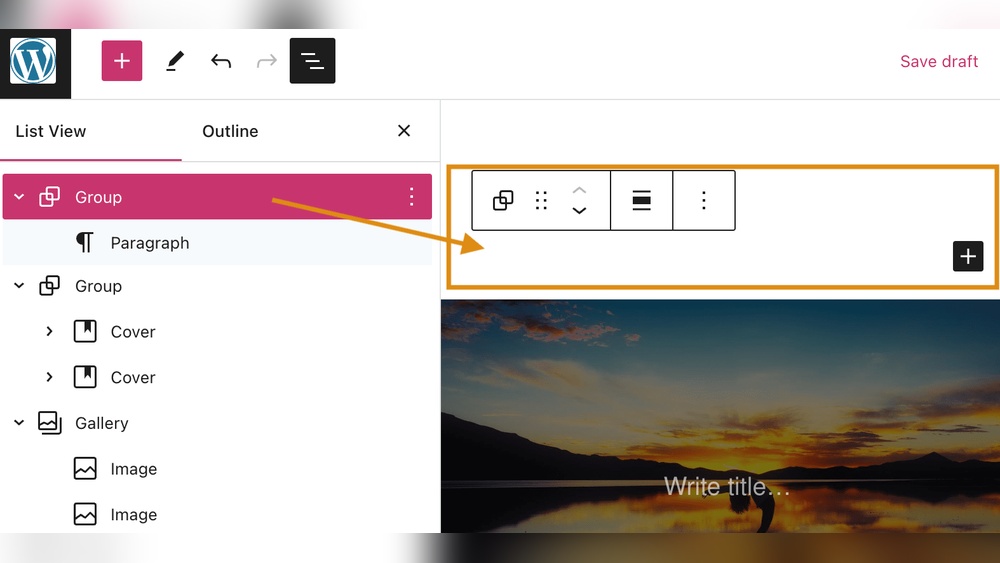
The WordPress Block Editor offers easy ways to add space in your posts and pages. It helps control how content looks by adjusting space around blocks. Good spacing makes your site clear and neat. You can change margins, add padding, and use special blocks for space. These tools work well for beginners and experts alike.
Adjusting Block Margins
Margins create space outside a block. You can change margins to move blocks apart. Select the block you want to edit. Look for margin settings in the block toolbar or sidebar. Increase or decrease values to add space above, below, or on the sides. This method helps separate content cleanly without extra blocks.
Customizing Padding In Blocks
Padding adds space inside a block. It pushes content away from the block’s edges. Click on a block to open its settings. Find padding controls in the sidebar under layout or spacing. Adjust top, bottom, left, and right padding as needed. Padding improves readability by preventing text or images from touching edges.
Spacing With Spacer And Separator Blocks
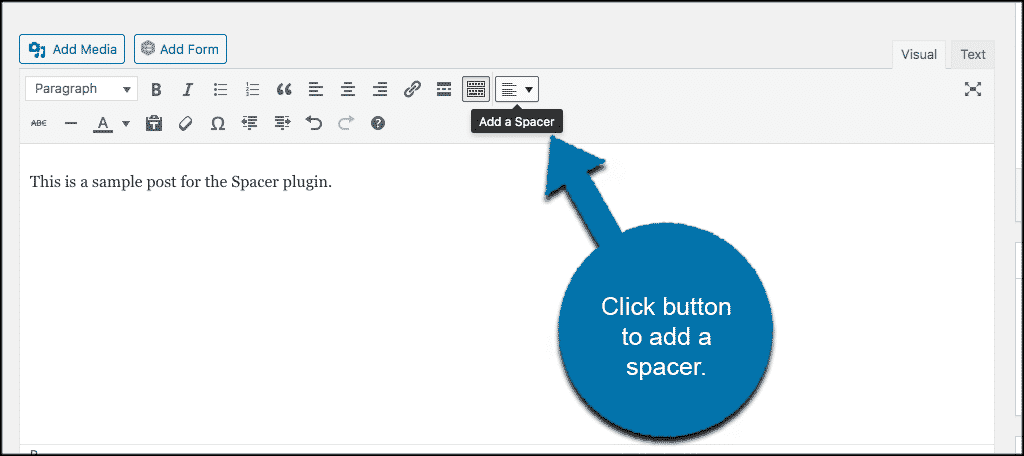
Spacer blocks create empty space between content. Add a spacer block between two blocks to increase gap. You can set the height of the spacer for exact spacing. Separator blocks add a line with space above and below. They visually divide content and add space at the same time. Both blocks are simple tools to organize page layout.

Credit: www.youtube.com
Custom Css For Precise Spacing
Custom CSS lets you control spacing in WordPress with exact precision. It goes beyond default editor options. You can adjust margins and padding to shape your page’s look. This method helps create clean, balanced layouts. It works well for all themes and plugins.
Using CSS means you can add space anywhere on your site. Above or below text blocks, images, buttons, or menus. The changes stay consistent across all pages. This keeps your design neat and professional.
Adding Margin And Padding Via Css
Margin adds space outside an element’s border. Padding adds space inside, between content and border. Use simple CSS rules like margin: 20px; or padding: 15px;. You can set values in pixels, em, or percentages. This controls how much space appears around elements.
For example, to add space below a paragraph, write:
p { margin-bottom: 20px; }This adds 20 pixels below all paragraphs. Padding works similarly but affects inside space.
Targeting Specific Elements
Custom CSS works best when targeting exact elements. Use class or ID selectors to change specific parts. Classes start with a dot, like .button. IDs start with a hash, like header. This way, only chosen items get new spacing.
For example, to add padding only to a button:
.button { padding: 10px 20px; }This adds top and bottom padding of 10px and left and right padding of 20px.
Using Browser Inspect Tools
Browser inspect tools help find CSS selectors quickly. Right-click an element on your page and choose “Inspect.” The developer panel opens, showing HTML and CSS. Hover over code to highlight page elements.
Use this to find the right classes or IDs. Test margin and padding live in the panel. Adjust numbers to see how space changes. Then copy the CSS into your WordPress customizer or child theme.
Inspect tools make CSS editing faster and more precise. No guesswork needed.
Plugins To Enhance Spacing Control
Plugins to enhance spacing control in WordPress make editing easier. They help you adjust space without coding. These tools give you more options to design pages and posts. They save time and improve the look of your site.
Using plugins, you can add margin, padding, and line spacing. This makes your content clear and neat. Plugins suit beginners and advanced users. They work well with most themes and editors.
Top Spacing Plugins
Several plugins help you manage space in WordPress. “Advanced Editor Tools” adds spacing options to the block editor. “Spacer Block” lets you insert empty space blocks easily. “WP Page Builder” offers drag-and-drop space controls for sections. These plugins have simple interfaces. They fit different needs and skill levels.
How To Configure Spacing Settings
After installing a plugin, activate it from the dashboard. Open the editor where you want to add space. Select the block or section to adjust. Use plugin controls to set margin or padding values. Preview changes before saving. Adjust spacing step-by-step to get the right look. Save settings and check your live site.
Benefits Of Using Plugins
Plugins give precise control over space without coding. They speed up editing and reduce mistakes. Plugins keep your design consistent across pages. They work with different devices and screen sizes. Using plugins makes your site more user-friendly and neat.
Credit: www.seedprod.com
Tips For Responsive Spacing
Responsive spacing helps your WordPress site look good on all devices. Space affects readability and user experience. Proper spacing keeps content clear and neat on any screen size.
These tips focus on how to control space for mobile phones, tablets, and desktops. You will learn simple ways to adjust spacing with code and tools. Testing your layout on different screens is also important.
Spacing On Mobile Devices
Mobile screens are smaller. Space needs to be tighter but still easy to read. Use smaller margins and padding on mobiles. Avoid large gaps that push content off screen. Keep text blocks close but not crowded.
Use WordPress block editor to add spacing only on mobiles. Some blocks have mobile spacing options. This saves time and improves mobile design.
Using Media Queries
Media queries help change space based on screen size. Add CSS rules for different devices. For example, add more padding on desktops and less on phones. This keeps your site flexible and neat.
Use simple CSS like @media (max-width: 600px) { ... }. Inside, adjust margins or padding. This code runs only on small screens. It customizes spacing without affecting bigger screens.
Testing Layouts Across Screens
Test your WordPress site on many devices. Check phones, tablets, and desktops. Make sure spacing looks right everywhere. Use browser tools to simulate different screen sizes.
Fix spacing problems by adjusting CSS or block settings. Testing helps find areas with too little or too much space. Good spacing means visitors enjoy reading your content.
Common Spacing Mistakes To Avoid
Spacing plays a key role in making a WordPress site easy to read and pleasant. Many beginners make simple mistakes that hurt the site’s look and user experience. Avoiding common spacing errors helps keep your content clear and inviting.
Overcrowding Content
Putting too many elements close together makes the page look messy. Visitors find it hard to focus on important parts. Break content into smaller sections with enough space between. Use margins and padding wisely to give breathing room.
Inconsistent Spacing
Uneven gaps between text, images, and blocks confuse readers. Consistency creates a smooth flow and professional appearance. Stick to a spacing pattern throughout your pages. It helps users navigate and understand content better.
Ignoring Mobile Layouts
Many sites look fine on desktops but are cramped on phones. Mobile users may struggle with tiny text or buttons too close together. Test spacing on different devices to ensure readability and comfort. Mobile-friendly spacing improves user satisfaction and site success.
Frequently Asked Questions
How Do I Add Space Between Paragraphs In WordPress?
To add space between paragraphs, use the Block Editor’s spacing options or insert blank blocks. You can also add custom CSS to control paragraph margin for precise spacing.
What Is The Easiest Way To Add Space In WordPress Posts?
The easiest way is using the Block Editor’s Spacer block. It lets you visually add vertical space anywhere within your content.
Can I Add Space Using Css In WordPress?
Yes, you can add space by editing your theme’s CSS. Use margin or padding properties on specific elements to control spacing.
How To Add Space Between Images In WordPress?
Add space between images by using the Spacer block or adjusting image block margins in the editor settings for better layout.
Conclusion
Adding space in WordPress is easy and helps your site look clean. Use simple tools like the editor or custom CSS. Small changes can make your content easier to read. Try different methods to see what fits your style best.
Keep your pages neat and user-friendly. Regular updates keep your site fresh and inviting. Don’t forget to preview changes before publishing. Making your site look good takes only a few steps. Keep practicing, and you will get better at spacing.
Your visitors will enjoy a clearer, more attractive website.



