
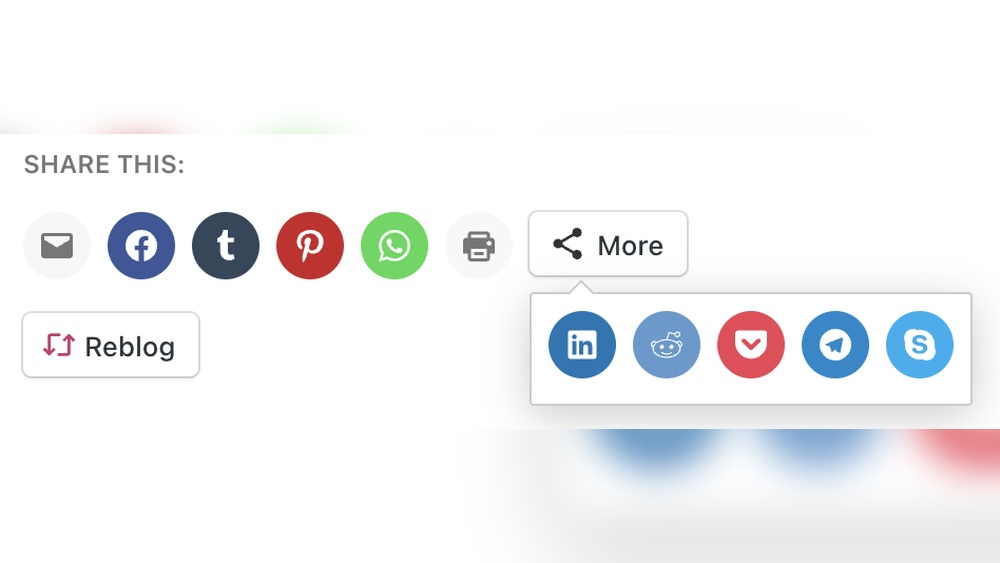
Want more people to share your WordPress content with just one click? Adding social share buttons is the easiest way to boost your website’s reach and engagement.
Imagine your readers spreading your posts across their favorite platforms without any extra effort from you. In this guide, you’ll learn simple, step-by-step methods to add social share buttons that fit your site perfectly. Keep reading, and you’ll discover how a few clicks can turn your visitors into powerful promoters of your content.
Credit: www.wpbeginner.com
Choosing The Right Plugin
Choosing the right plugin is important for your WordPress site. It affects your site speed and user experience. A good plugin makes sharing easy for visitors. It should work well with your theme and other plugins. Consider what features you need before selecting one.
Popular Social Share Plugins
Several plugins are popular for adding social share buttons. Some well-known options include Social Warfare, Monarch, and ShareThis. Each plugin offers different designs and placement options. Choosing a plugin used by many can ensure support and updates.
Key Features To Look For
Look for plugins that offer simple setup and customization. Buttons should be responsive and fast-loading. Support for multiple social networks is useful. Some plugins let you track shares and clicks. Easy placement options like floating or inline buttons help. Check if the plugin offers mobile-friendly designs.
Free Vs Paid Options
Free plugins work well for basic sharing needs. They often have limited features and designs. Paid plugins offer advanced options and better support. Some paid versions include analytics and more social network choices. Decide based on your budget and feature needs.
Manual Method With Code
Adding social share buttons manually gives full control over design and placement. It needs basic coding skills but works well without extra plugins. This method improves site speed and avoids plugin conflicts.
Start by creating the button’s look with simple HTML and CSS. Then add JavaScript for share actions. Finally, insert the code into your theme files to show buttons on posts or pages.
Using Html And Css
Create button elements using HTML. Use anchor tags for each social network link. Add icons or text inside these tags for clear buttons.
Style the buttons with CSS. Choose colors and shapes that match your site. Use hover effects to make buttons interactive and easy to notice.
Adding Javascript For Functionality
Use JavaScript to open share windows on click. Write simple functions to open small popup windows. Each button should trigger the correct share URL for the social site.
This script keeps users on your page. It also prevents full page reloads. JavaScript helps share actions work smoothly and fast.
Placing Buttons In Theme Files
Open your theme folder and find files like single.php or page.php. These control post and page layouts.
Insert the HTML code where you want buttons to appear. Usually near the post content or at the end of the article.
Save changes and upload files back to your server. Check your site to see the new share buttons in action.
Installing And Activating Plugins
Adding social share buttons to WordPress is simple with plugins. Plugins help you add features without coding. Installing and activating plugins is the first step. This section explains how to do it.
Searching Plugins In Dashboard
Log in to your WordPress dashboard. Find the menu on the left side. Click on “Plugins” and then “Add New.” Use the search bar to type “social share buttons.” A list of plugins will appear. Choose one with good reviews and many installs.
Step-by-step Installation
After selecting a plugin, click the “Install Now” button. WordPress will download and install the plugin automatically. Wait a few seconds. The button will change to “Activate.” Do not close the page during installation.
Activating The Plugin
Click the “Activate” button to enable the plugin. Activation allows the plugin to work on your site. Some plugins may ask for extra setup. Follow the instructions in the plugin settings if needed. Your social share buttons are now ready to use.
Configuring Social Share Buttons
Configuring social share buttons is a key step in making your content easy to share. Proper setup helps visitors spread your posts across their favorite networks. This boosts your site’s reach and engagement.
Each setting you adjust affects how users interact with your content. Choosing the right networks, styles, and placement improves user experience. Let’s explore how to configure these buttons effectively.
Selecting Social Networks
Choose social networks that match your audience’s preferences. Popular options include Facebook, Twitter, LinkedIn, and Pinterest. Avoid adding too many networks to keep the interface clean. Focus on platforms where your readers are active. This ensures higher chances of shares and clicks.
Customizing Button Styles
Button style influences how noticeable the share options are. Pick styles that match your website’s theme and colors. Options include flat, rounded, or icon-only buttons. Adjust size and shape for easy clicking on all devices. Clear and attractive buttons encourage more shares.
Setting Button Placement
Placement affects how often visitors see the share buttons. Common spots include above or below posts, or floating on the side. Place buttons where they do not block content but remain visible. Test different positions to find the best spot for your audience. Easy access increases the chance of sharing.
Testing And Troubleshooting
Testing and troubleshooting social share buttons ensure they work well for your visitors. It helps improve user experience and boosts sharing rates. Run checks after adding buttons to catch any problems early. This saves time and avoids visitor frustration.
Checking Button Functionality
Click each social share button on your site. Confirm it opens the correct sharing window. Make sure the shared link matches the page URL. Test buttons in different browsers like Chrome and Firefox. This finds browser-specific issues. Check buttons on various pages, not just the homepage.
Fixing Common Issues
Slow loading buttons? Try using a faster plugin or tool. Buttons not showing? Clear your site cache and browser cache. Overlapping buttons? Adjust spacing in your theme or plugin settings. Sharing wrong content? Update meta tags for title and description. Broken buttons often need plugin updates or reinstalling.
Optimizing For Mobile
Open your site on a phone or tablet. Check if buttons are easy to tap and visible. Resize issues? Use responsive design settings in your plugin. Avoid buttons that cover text or other elements. Mobile-friendly buttons encourage more shares from mobile users.
Credit: happyaddons.com
Boosting Engagement With Share Buttons
Social share buttons help visitors spread your content across their networks. They make sharing easy and quick. This action can increase your site’s reach and bring more visitors.
Adding these buttons encourages users to share valuable posts with friends. More shares lead to more traffic and better visibility online. Social share buttons also improve user interaction on your site.
Encouraging Shares
Place share buttons where visitors can easily see them. Use clear icons that show which social networks are available. Encourage sharing by adding simple messages like “Share this.”
Make sure buttons work on both desktop and mobile devices. Fast-loading buttons keep visitors from leaving your page. Use bright colors to attract attention but keep the design clean.
Using Analytics To Track Performance
Track which buttons get the most clicks. Use tools like Google Analytics or plugin reports. Check which social networks bring the most visitors to your site.
Analytics help you understand what content people like to share. Adjust your strategy based on these insights. Remove underperforming buttons to keep the site neat and focused.
Updating Buttons For Trends
Social media trends change often. Keep your share buttons updated with popular networks. Add new platforms when they become widely used.
Remove old or unused social networks to avoid confusion. Update button styles to match current design trends. This keeps your site fresh and appealing to visitors.
Credit: wpcode.com
Frequently Asked Questions
What Are Social Share Buttons In WordPress?
Social share buttons allow visitors to share your content on social media platforms. They boost engagement and increase traffic. WordPress plugins or manual code can add these buttons easily to your posts and pages.
Which Plugin Is Best For Adding Social Share Buttons?
Popular plugins include Social Warfare, Monarch, and AddToAny. They offer customization, easy integration, and responsive design. Choose a plugin based on your site’s needs and desired social networks.
Can I Add Social Share Buttons Without A Plugin?
Yes, you can add share buttons manually using HTML and JavaScript. This method offers more control but requires coding skills. It’s ideal for lightweight sites or custom button designs.
How Do Social Share Buttons Improve Seo?
Share buttons increase content visibility and drive social traffic. Higher engagement signals content value to search engines. This can improve your site’s rankings and organic reach.
Conclusion
Adding social share buttons boosts your WordPress site’s reach. Visitors can easily share your content with friends. This helps increase traffic and grow your audience. Choose simple plugins or manual methods to fit your needs. Keep buttons visible but not distracting.
Test them to ensure they work well on all devices. Sharing becomes easy and encourages engagement. Start adding share buttons today to see positive results. Small steps make your site more social and user-friendly.



