

Are you looking to make your WordPress homepage more engaging and visually appealing? Adding a slider is one of the best ways to grab your visitors’ attention right away.
Imagine showcasing your top content, offers, or images in a smooth, eye-catching way that keeps people exploring your site longer. If you’ve ever wondered how to add a slider to your WordPress home page without any hassle, you’re in the right place.
This guide will walk you through simple, step-by-step instructions so you can create a stunning slider that fits your style and boosts your website’s impact. Ready to transform your homepage? Let’s dive in!
Choose The Right Slider Plugin
Choosing the right slider plugin is key to a great WordPress home page. The plugin you pick affects your site’s look, speed, and usability. A good slider plugin should be easy to use and fit your needs perfectly.
Popular Slider Plugins
Many slider plugins are available for WordPress. Some popular ones include MetaSlider, Smart Slider 3, and Soliloquy. These plugins have good reviews and regular updates. They work well with most themes and are beginner-friendly.
Features To Look For
Look for features like responsive design so sliders work on phones and tablets. Easy drag-and-drop editors help create slides quickly. Support for images, videos, and text adds flexibility. Fast loading times keep your site speedy. Check if the plugin offers animation effects and SEO-friendly options too.
Free Vs Premium Options
Free slider plugins offer basic features and are good for simple needs. Premium plugins cost money but provide extra features and support. Premium options often include more templates, advanced effects, and better customization. Decide based on your budget and the features you want.
Credit: slocumthemes.com
Install And Activate The Plugin
Installing and activating a slider plugin is the first step to add a slider on your WordPress home page. This process helps you display images or content in a dynamic way. Plugins make it simple to create sliders without coding.
Choose a reliable plugin that fits your needs. After that, install and activate it to start building your slider. The steps are quick and easy to follow.
Plugin Installation Methods
You can install a slider plugin in two main ways. The easiest way is through the WordPress dashboard. Go to Plugins > Add New. Use the search box to find your slider plugin. Click “Install Now” and wait a moment. The plugin will download and install automatically.
Another way is by uploading the plugin files manually. Download the plugin ZIP file from the developer’s website. In your dashboard, go to Plugins > Add New > Upload Plugin. Select the ZIP file and click “Install Now.” This method works well if you have a premium plugin.
Activating Your Slider Plugin
After installation, activate the plugin to use it. Click the “Activate” button on the plugin page. Once activated, the plugin adds new options to your WordPress menu.
Go to the plugin settings or slider section to start creating your slider. Activation ensures the plugin functions correctly on your website. Without activation, the slider will not appear on your home page.
Create Your First Slider
Creating your first slider on a WordPress home page is simple. A slider shows images or content in a neat, moving display. This section guides you through building a slider from scratch. You will learn how to add slides, customize them, and set smooth transitions.
Adding Slides
Start by opening your slider plugin or theme slider tool. Click on the option to add a new slide. Upload images or select them from your media library. You can add as many slides as you want. Each slide can have a unique image or text.
Customizing Slide Content
After adding slides, adjust the text and buttons on each slide. Use clear, short titles and descriptions. Choose font styles and colors that match your website. Add links to direct visitors to important pages. Keep the content simple and easy to read.
Setting Slide Transitions
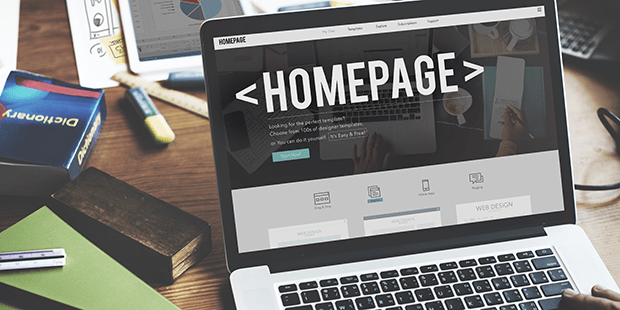
Slide transitions control how slides change on your page. Pick effects like fade, slide, or zoom. Set the speed of each transition to be smooth and not too fast. You can also decide if slides change automatically or by user click. Test different settings to see what looks best.
Credit: soliloquywp.com
Configure Slider Settings
Configuring slider settings is key to making your homepage slider work well. Proper settings ensure the slider looks good and feels smooth. It lets you control size, speed, and how the slider behaves on all devices.
Adjusting Size And Layout
Set the width and height to fit your homepage design. Choose full width for a wide look or fixed size for a compact slider. Pick a layout style like boxed or full screen. This controls how the slider fits with other page elements. Adjust margins and padding to keep space around the slider clean.
Timing And Animation Options
Control how fast slides change by setting the slide duration. Choose animation types like fade, slide, or zoom to add movement. Adjust animation speed to keep it smooth and natural. Enable or disable autoplay based on user preference. Add pause on hover to give visitors time to read the slide content.
Responsive Design Settings
Make the slider adapt to all screen sizes. Set different image sizes for desktop, tablet, and mobile. Enable touch swipe for easy navigation on smartphones. Test the slider on multiple devices to ensure it looks great everywhere. Responsive settings help keep visitors engaged, no matter their device.
Add The Slider To Your Home Page
Adding a slider to your WordPress home page makes it more attractive. It helps show important images or offers clearly. You can use different ways to place the slider on your site. Choose the method that fits your skills and theme.
Using Shortcodes
Many slider plugins provide shortcodes. These are small codes that insert the slider anywhere. Copy the shortcode from the plugin settings. Then, paste it into the content area of your home page. This method is simple and needs no coding skills. It works well with most page builders and editors.
Widget Placement
Widgets let you add sliders to widget-ready areas. Check if your theme supports widget areas on the home page. Go to Appearance > Widgets in the WordPress dashboard. Find the slider widget provided by your plugin. Drag and drop it into the desired widget area. Configure the widget settings and save changes. This method is quick and does not require editing files.
Editing Theme Files
Editing theme files gives full control over slider placement. Use this if other methods do not fit your needs. Access your theme’s home page template file, usually named front-page.php or home.php. Insert the slider’s PHP code or shortcode directly into the file. Save the changes and upload the file back to your server. This method needs basic PHP and WordPress knowledge. Always back up your theme files before editing.
Credit: createaprowebsite.com
Optimize Slider Performance
Optimizing your slider’s performance is key to keeping your website fast and user-friendly. A slow slider can hurt user experience and lower your search ranking. Focus on reducing load times and avoiding issues that slow your site down. Here are simple steps to make your slider smooth and efficient.
Image Optimization Tips
Use images with smaller file sizes. Compress photos without losing quality. Choose the right format: JPEG for photos, PNG for graphics with few colors. Resize images to fit your slider’s display area. Avoid uploading very large images and letting the browser shrink them. This reduces load time and saves bandwidth.
Lazy Loading Techniques
Lazy loading delays image loading until they appear on screen. This speeds up the initial page load. Many WordPress slider plugins support lazy loading. Enable this feature to load only visible slides first. It helps visitors see content faster and reduces server load.
Avoiding Plugin Conflicts
Use only one slider plugin to prevent conflicts. Multiple slider plugins can slow down your site or cause errors. Keep all plugins updated to avoid compatibility issues. Test your slider after each plugin update. Disable other plugins temporarily if problems arise. This helps keep your slider running smoothly.
Enhance Slider Design
Enhancing your slider design helps make your WordPress home page more attractive. A well-designed slider grabs visitors’ attention fast. It also improves user experience by making your site look professional and clean. Focus on clear fonts, appealing colors, and smooth animations. These details bring your slider to life and keep visitors engaged.
Choosing Fonts And Colors
Select fonts that are easy to read on all devices. Use simple, clean styles like Arial or Helvetica. Limit font types to two or three for a neat look. Pick colors that match your website’s theme. Contrast text color with the background for better visibility. Avoid bright colors that strain the eyes. Stick to a consistent color palette to create harmony.
Adding Captions And Buttons
Captions provide context and explain your slider images. Keep captions short and clear. Use simple language that anyone can understand. Buttons guide visitors to take action, like “Learn More” or “Shop Now.” Place buttons where they are easy to see but not distracting. Use colors that stand out but fit your design. Make sure buttons are large enough to click on all devices.
Incorporating Animation Effects
Animations add movement and interest to your slider. Use fade, slide, or zoom effects for smooth transitions. Keep animations slow enough to read captions comfortably. Avoid too many effects that can confuse visitors. Test animations on mobile devices to ensure they work well. Subtle animations help highlight your message without distraction.
Troubleshooting Common Issues
Adding a slider to your WordPress home page can boost its look and user experience. Sometimes, sliders don’t work as expected. Knowing how to fix common problems saves time and frustration. This section helps you solve usual slider issues fast and easy.
Slider Not Showing
First, check if the slider plugin is active. Deactivate and reactivate it to reset. Clear your browser cache to see changes. Make sure you inserted the slider shortcode or block correctly. Confirm the slider has slides added. Empty sliders do not display. Check if your theme supports sliders. Some themes need extra settings to show sliders.
Display Problems On Mobile
Sliders may look broken on phones or tablets. Test on different devices to find the issue. Resize images to fit small screens better. Use responsive slider settings if available. Turn off autoplay if it causes lag. Check if your theme has mobile-specific options. Sometimes, custom CSS can fix display problems on mobile.
Plugin Compatibility Issues
Plugins can conflict and stop sliders from working. Disable other plugins one by one to find conflicts. Update all plugins and WordPress to the latest versions. Older versions may cause issues. Read plugin documentation for known conflicts. Choose popular and well-supported slider plugins. This reduces compatibility problems.
Frequently Asked Questions
What Is The Easiest Way To Add A Slider To WordPress Homepage?
The easiest way is to use a dedicated slider plugin like Smart Slider 3 or MetaSlider. Install, activate, create slides, and embed the shortcode on your homepage. This method requires no coding and offers customizable options for professional sliders.
Can I Add A Slider Without Using Plugins In WordPress?
Yes, you can add sliders manually using custom code or by editing your theme’s files. However, this method requires HTML, CSS, and JavaScript knowledge. Plugins are recommended for simplicity, faster setup, and better compatibility with WordPress updates.
How Do I Customize Slider Appearance On WordPress Homepage?
Most slider plugins offer settings to customize layout, transition effects, speed, and navigation controls. You can also add images, text, and links. Custom CSS can further enhance the design. Always preview changes before publishing to ensure proper appearance.
Are WordPress Sliders Mobile-friendly And Responsive?
Yes, most modern slider plugins automatically create responsive sliders that work well on all devices. Responsive sliders adjust size and layout based on screen resolution, improving user experience on smartphones and tablets without extra configuration.
Conclusion
Adding a slider to your WordPress home page can enhance your site’s look. It helps showcase important content in a clear way. You can choose plugins or themes that support sliders. Adjust settings to fit your style and needs. Keep your images and messages simple for best results.
A well-made slider grabs visitors’ attention quickly. Try different layouts until you find the right one. This small change can make your site more inviting and easy to use. Start adding a slider today and see the difference.



