
Are you looking to make your WordPress site more user-friendly and engaging? Adding a sidebar can be a game-changer.
It’s where you can showcase important links, recent posts, or even your social media profiles—right where your visitors can see them. But if you’re unsure how to add a sidebar or want to customize it to fit your style, you’re in the right place.
Keep reading, and you’ll learn simple, step-by-step ways to add and personalize a sidebar that keeps your visitors coming back for more.
Credit: bytescout.com
Benefits Of Using A Sidebar
Sidebars offer many benefits for WordPress websites. They provide space to display extra information without cluttering the main content. This space helps visitors find what they need quickly. Sidebars improve the overall user experience and make the site easier to use.
Enhance Navigation
Sidebars help users move through your site with ease. They can show menus, links, or categories. This allows visitors to find pages or posts faster. Clear navigation keeps visitors on your site longer.
Increase User Engagement
Sidebars encourage visitors to interact more. You can add features like recent posts or popular articles. These elements invite readers to explore more content. More engagement means visitors stay and read more.
Promote Important Content
Sidebars highlight key information or offers. You can feature announcements, ads, or special deals. This draws attention to important messages. Visitors notice these highlights without interrupting the main content.
Types Of Sidebars In WordPress
Sidebars in WordPress give your website a clean, organized look. They help show extra information or tools alongside your main content. Different types of sidebars serve different purposes. Knowing their types helps you choose the best one for your site.
Static Sidebars
Static sidebars stay the same on every page of your site. They do not change based on the content you view. This type is simple and easy to set up. You can show fixed menus, links, or contact info here. Visitors see the same sidebar everywhere on your website.
Dynamic Sidebars
Dynamic sidebars change depending on the page or post. They show content related to the current page. For example, a blog post might have a sidebar with recent posts or categories. This makes your site feel more relevant and useful. Dynamic sidebars adjust automatically without extra effort.
Widget-ready Sidebars
Widget-ready sidebars allow you to add blocks called widgets. Widgets are small tools for showing calendars, search bars, or social links. These sidebars make your site flexible and easy to customize. You can add or remove widgets without coding. Most WordPress themes support widget-ready sidebars by default.
Preparing Your WordPress Site
Preparing your WordPress site is an important first step before adding a sidebar. This preparation ensures your site is ready for changes without issues. It also helps keep your site safe and working smoothly. Follow these steps to get started with confidence.
Choosing A Compatible Theme
Pick a theme that supports sidebars easily. Some themes have built-in sidebar areas ready to use. Others may need extra customization or plugins. Check your theme’s documentation to see if sidebars are available. Using a compatible theme saves time and avoids layout problems.
Backing Up Your Site
Always create a full backup before making changes. A backup protects your data if something goes wrong. Use a reliable backup plugin or your hosting provider’s backup tool. Store the backup file safely on your computer or cloud storage. This step keeps your content and settings safe.
Installing Necessary Plugins
Install plugins that help manage sidebars if your theme lacks features. Sidebar plugins add extra options like custom widgets and layouts. Choose plugins with good reviews and frequent updates. Activate and configure them to match your site’s style. Plugins extend sidebar functions without coding.
Adding A Sidebar Using Widgets
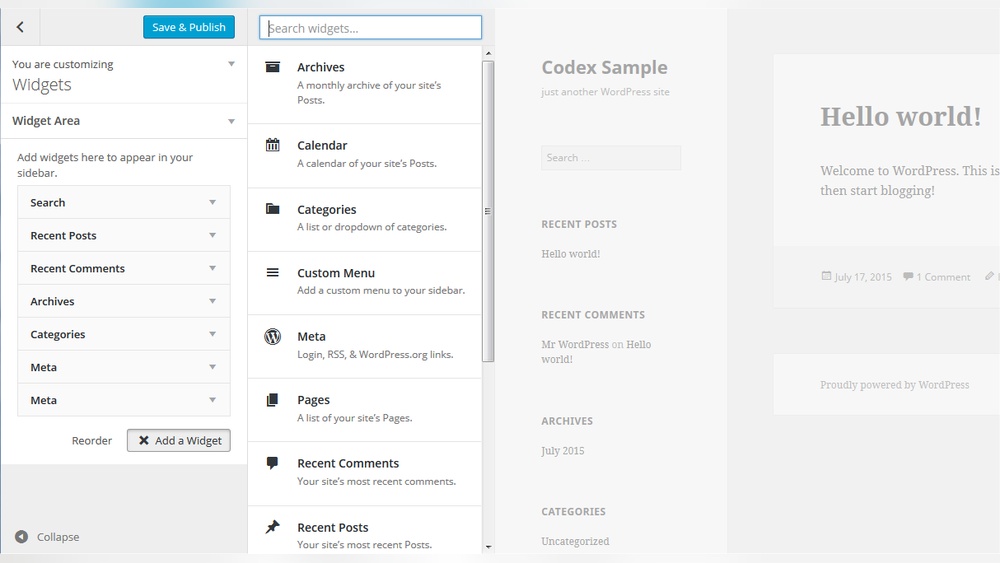
Adding a sidebar using widgets is a simple way to enhance your WordPress site. Widgets let you place different content blocks in your sidebar. These blocks can show recent posts, search bars, or categories.
Widgets are easy to manage and do not require coding skills. You can change what appears in your sidebar anytime. This makes your site more dynamic and user-friendly.
Accessing The Widget Area
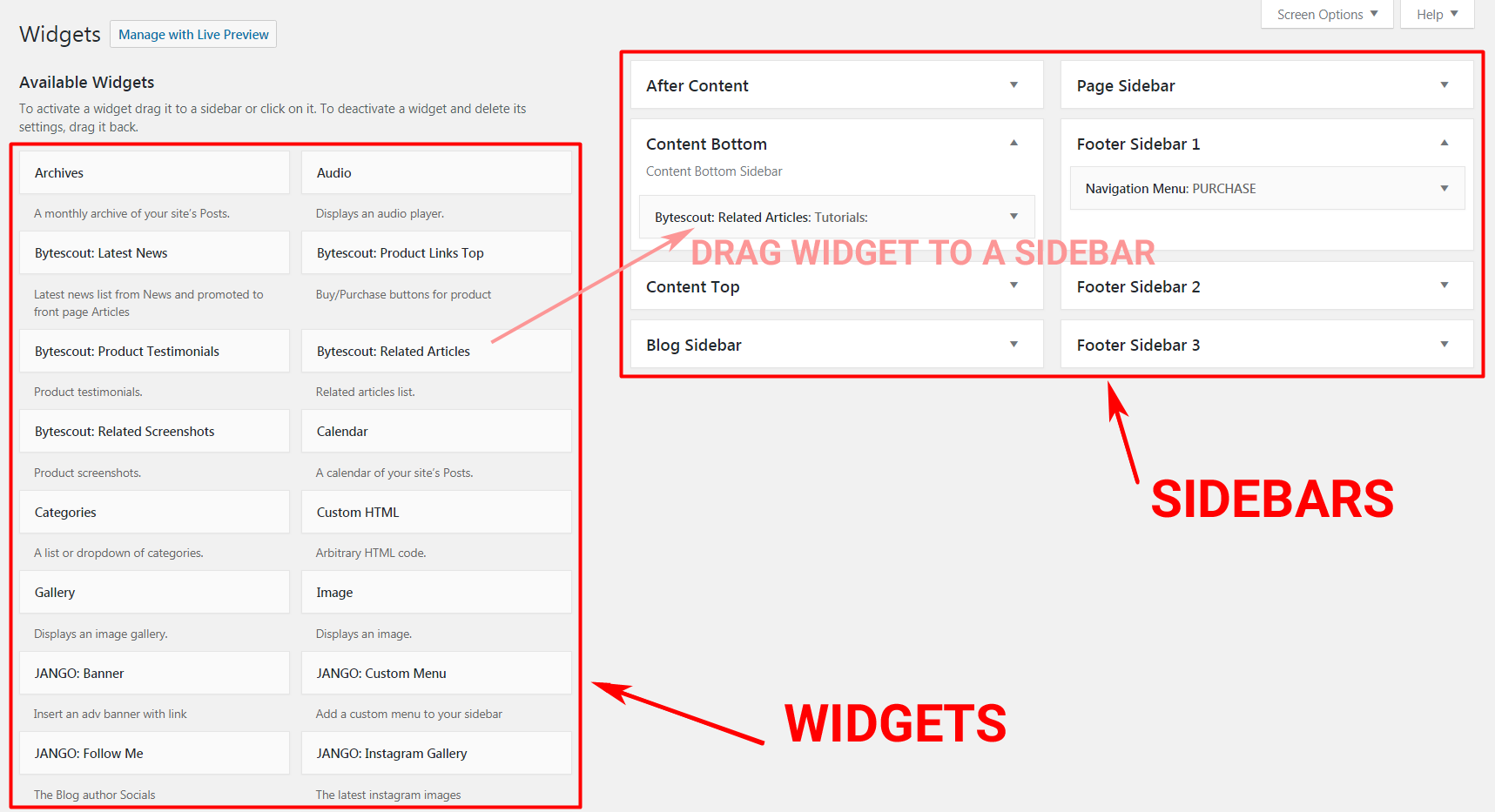
Log in to your WordPress dashboard. Find the “Appearance” menu on the left side. Click on “Widgets” to open the widget area.
This area shows all available sidebars and widget spots. You can see which sidebars your theme supports. Select the sidebar where you want to add widgets.
Selecting And Adding Widgets
On the left, you will find a list of available widgets. Drag the widget you want into the sidebar area on the right. Drop it where you want it to appear.
You can add multiple widgets to the sidebar. Common widgets include text, images, recent posts, and search bars. Each widget adds a different function to your sidebar.
Customizing Sidebar Widgets
After adding a widget, click its title to open settings. You can change the widget’s title or content here. Some widgets have extra options, like choosing categories or dates.
Save your changes to update the sidebar. Preview your site to see how the sidebar looks. Adjust widgets anytime to improve user experience.
Creating A Custom Sidebar
Creating a custom sidebar in WordPress allows you to display unique content on different parts of your website. It helps improve navigation and user experience. Custom sidebars can show widgets, menus, or other information tailored to specific pages or posts.
This section guides you through creating custom sidebars easily. You will learn how to install a sidebar plugin, set up new sidebars, and assign them to pages.
Installing A Sidebar Plugin
Start by installing a sidebar plugin from the WordPress plugin directory. Some popular options include Custom Sidebars or Simple Page Sidebars. These plugins let you create and manage multiple sidebars without coding.
Go to your WordPress dashboard. Click on “Plugins” then “Add New.” Search for a sidebar plugin. Click “Install Now” and then “Activate.”
Setting Up New Sidebars
After activating the plugin, find its settings in the dashboard menu. Click on the plugin to open the sidebar creation page. Click “Add New Sidebar” or similar options.
Name your sidebar clearly. Choose where it will appear, like the blog area or a specific page. Save your new sidebar to use it later.
Assigning Sidebars To Pages
Open the page or post where you want the custom sidebar. In the editor, find the sidebar options box. Select the sidebar you created from the dropdown menu.
Save or update the page. Visit your site to see the new sidebar in action. This method lets you show different content for each page easily.
Credit: motopress.com
Editing Sidebar Layout With Code
Editing the sidebar layout with code gives you full control over your WordPress site’s design. You can change the look and function of your sidebar beyond what plugins or themes offer. Coding allows you to place widgets exactly where you want and customize them deeply.
This method requires basic knowledge of PHP, HTML, and CSS. Making changes directly to theme files affects your site immediately. Always work carefully to avoid breaking your website.
Modifying Theme Files
Start by locating your theme’s sidebar file. It is usually named sidebar.php. Open this file in a code editor. You can add, remove, or change the HTML structure here. Editing this file changes the sidebar on all pages that use it.
Next, adjust the PHP code to control which widgets appear. Use WordPress functions like dynamic_sidebar() to display widget areas. Save your changes and upload the file back to your server. Refresh your site to see the updates live.
Adding Sidebar Code Snippets
Code snippets help you create new sidebar areas. Add these snippets to your theme’s functions.php file. Use register_sidebar() to define a new sidebar. Give it a unique name and description.
After registering, call your new sidebar in the theme files. Use dynamic_sidebar('your-sidebar-id') to show it. This lets you place sidebars in different locations. Customize each sidebar with widgets from the WordPress dashboard.
Using Child Themes For Safety
Editing theme files directly can cause problems during updates. Use a child theme to keep your changes safe. A child theme inherits the parent theme’s features but allows custom edits.
Create a child theme folder and add a style.css and functions.php file. Copy the sidebar file to the child theme and edit it there. This way, updates to the parent theme won’t erase your work.
Using a child theme keeps your site stable and your custom sidebar intact. It is the safest way to edit WordPress themes with code.
Optimizing Sidebar For Mobile Devices
Optimizing the sidebar for mobile devices is essential for user experience. Many visitors use phones or tablets to browse websites. A sidebar that looks good on a desktop might not work well on small screens. Mobile users need easy navigation without clutter. The sidebar should be clear, simple, and fast loading.
Responsive Design Tips
Use flexible grid layouts to adjust sidebar width on different screens. Set sidebar width in percentages, not fixed pixels. Hide unnecessary widgets on small screens to save space. Use CSS media queries to change sidebar styles for mobiles. Ensure text and buttons inside the sidebar are large enough to tap. Avoid heavy images that slow down loading time.
Testing Sidebar On Different Screens
Check how the sidebar looks on phones, tablets, and desktops. Use browser developer tools to simulate various screen sizes. Test on actual devices if possible. Look for issues like overlapping content or hard-to-read text. Make sure sidebar links are easy to click on small screens. Adjust design based on test results for smooth navigation.
Common Sidebar Issues And Fixes
Adding a sidebar to your WordPress site can improve navigation and user experience. Yet, some common issues can stop your sidebar from working well. These problems can affect your site’s look and speed. Fixing them quickly keeps your website smooth and user-friendly.
Sidebar Not Showing
Sometimes, the sidebar does not appear on your site. This can happen if your theme does not support sidebars. Also, the sidebar might be empty if no widgets are added. Check your theme settings to enable the sidebar. Add widgets in the Appearance > Widgets section. Clear your site cache to see changes immediately.
Widget Overlap Problems
Widgets in the sidebar may overlap or look crowded. This often happens due to CSS conflicts. Inspect your site’s CSS or try a different theme to fix this. Use custom CSS to add space between widgets. Avoid adding too many widgets to keep the sidebar clean.
Performance Impact
Sidebars can slow down your website if they contain heavy elements. Widgets that load many images or scripts affect page speed. Limit the number of widgets and choose lightweight plugins. Test your site speed regularly to ensure good performance. Fast-loading sites keep visitors happy and engaged.
Tips To Maximize Sidebar Impact
The sidebar is a powerful tool on your WordPress site. It helps visitors find important content quickly. Using the sidebar smartly boosts user experience and site engagement. Follow these tips to make your sidebar more useful and clear.
Choosing Relevant Widgets
Select widgets that match your site’s content and goals. Avoid adding too many unrelated widgets. Pick those that provide value to your visitors. Common useful widgets include recent posts, categories, and search bars. These help users explore your site easily.
Keeping Sidebar Clean And Simple
A cluttered sidebar can confuse visitors and slow your site. Use white space to keep it tidy. Limit the number of widgets to the essentials only. Clear design helps users focus on what matters. Keep text short and easy to read for better results.
Using Calls To Action
Calls to action (CTAs) guide visitors to take steps. Use buttons or links for newsletter signups or special offers. Place CTAs in visible spots within the sidebar. Clear and direct CTAs improve visitor interaction. Make sure each CTA has a simple, strong message.

Credit: www.library.illinois.edu
Frequently Asked Questions
How Do I Add A Sidebar In WordPress?
To add a sidebar, go to Appearance > Widgets in your WordPress dashboard. Drag and drop widgets to the sidebar area. Save changes to display the sidebar on your site.
Can I Customize My WordPress Sidebar Content?
Yes, you can customize sidebar content by adding or removing widgets. Use plugins for advanced features or custom HTML for unique designs.
Which WordPress Themes Support Sidebars?
Most WordPress themes support sidebars. Check your theme documentation or preview layout options to confirm sidebar availability before customization.
How To Make A Sidebar Appear On All Pages?
Ensure your theme’s sidebar widget area is enabled. Some themes allow sidebar settings per page in page editor or theme customizer.
Conclusion
Adding a sidebar to your WordPress site can improve user experience. It helps visitors find important content quickly. You can customize the sidebar to fit your site’s style. Widgets make it easy to add features like search bars or recent posts.
Keep the sidebar simple to avoid clutter. Test different layouts to see what works best. With a clear sidebar, your site looks organized and professional. Start adding sidebars today to enhance your website’s navigation and keep visitors engaged.



