
Are you struggling with long content or overflowing sections on your WordPress site? Adding a scroll bar can make your pages look cleaner and easier to navigate.
Imagine giving your visitors a smooth way to browse through information without endless scrolling. You’ll learn simple, effective steps to add a scroll bar to your WordPress site—no coding skills required. Keep reading, and you’ll discover how to improve your site’s user experience and keep your visitors engaged longer.
Why Add A Scroll Bar
Adding a scroll bar to your WordPress site helps manage content more effectively. It makes your pages cleaner and easier to use. Scroll bars allow visitors to see more information without endless page length. This small feature can improve how visitors interact with your site.
Enhance User Experience
Scroll bars let users control what they want to see. Visitors don’t get overwhelmed by too much content at once. It keeps pages neat and tidy. Users can focus on one section at a time. This simple tool makes browsing smooth and pleasant.
Improve Site Navigation
Scroll bars make moving through content faster. Users find what they want without clicking many links. It reduces frustration caused by long pages. Visitors can scroll up or down easily. This helps keep users on your site longer.
Handle Long Content
Long articles or lists look better with a scroll bar. It fits large content into smaller spaces. Pages load faster without showing all content at once. This keeps your site clean and well-organized. Visitors see all information without endless scrolling.
Types Of Scroll Bars
Scroll bars help users move through content that does not fit the screen. They improve the user experience by making navigation easier. Different types of scroll bars serve different purposes.
Understanding the types can help you choose the right one for your WordPress site. This section explains the main scroll bar types and their uses.
Vertical Scroll Bars
Vertical scroll bars let users move content up and down. They appear on the side of the webpage or container. This type is common for long articles or lists. Vertical scrolling is natural for reading and browsing.
Horizontal Scroll Bars
Horizontal scroll bars allow side-to-side movement of content. They show up at the bottom of the page or section. Use them for wide images, tables, or galleries. Horizontal scrolling helps display content that does not fit width-wise.
Custom Scroll Bars
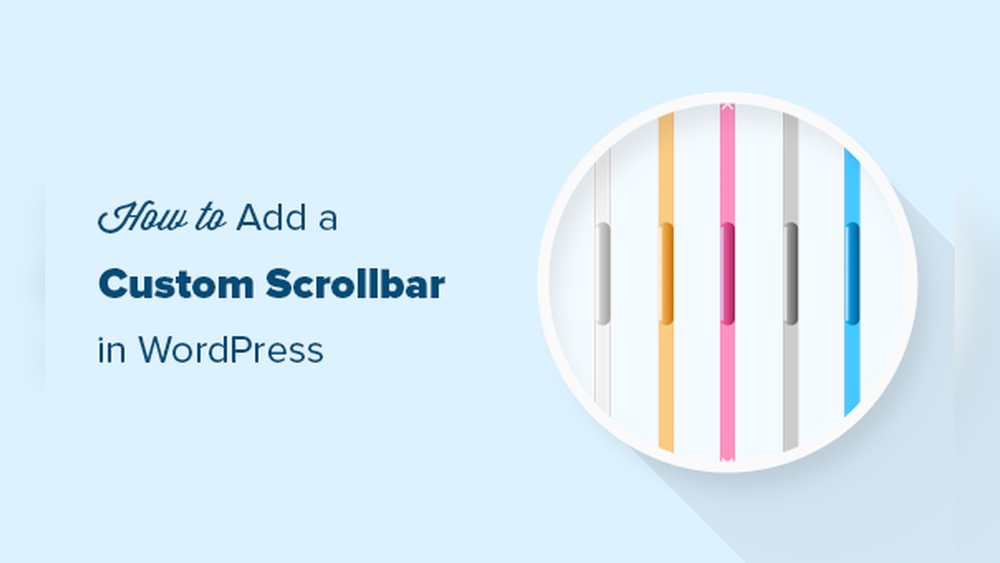
Custom scroll bars change the look and feel of standard scroll bars. They can match your website’s design and colors. Custom scroll bars improve site branding and user experience. You can create them using CSS or plugins in WordPress.
Built-in WordPress Scroll Options
WordPress offers several built-in options to add scroll bars. These options help display long content neatly. You can control scroll behavior without extra plugins. Simple tweaks in themes or widgets can create smooth scrolling areas. Let’s explore how to use these features effectively.
Theme Scroll Features
Many WordPress themes include scroll options by default. These features allow scrolling within specific sections like sidebars or content boxes. You can enable vertical or horizontal scroll bars through theme settings. Some themes let you customize scroll speed and style. Check your theme’s customization panel for scroll-related controls. This method keeps your site clean and fast.
Using Widgets For Scroll
Widgets can also add scroll bars to your site. Place widgets inside sidebars or footer areas that need scrolling. Some widgets support scrollable content automatically. Others require you to set a fixed height to activate scrolling. Use text or custom HTML widgets for scrollable content blocks. Widgets provide an easy way to manage scroll bars without coding.

Credit: wpklik.com
Adding Scroll Bar With Plugins
Adding a scroll bar to your WordPress site improves user experience. It helps visitors view long content easily. Plugins make this task simple. They offer ready-made scroll bars without coding. You can customize scroll bars to match your website style.
Top Plugins For Scroll Bars
Several plugins add scroll bars to WordPress pages. “Simple Custom Scrollbar” is lightweight and easy to use. “Scrollbar Customizer” lets you change colors and size. “Perfect Scrollbar” adds smooth scrolling effects. Choose a plugin that fits your needs and updates often.
Installation And Setup
Go to your WordPress dashboard. Click “Plugins” then “Add New.” Type the plugin name in the search box. Click “Install Now” and then “Activate.” After activation, find the plugin settings in the dashboard menu. Follow on-screen steps to set up the scroll bar.
Customizing Scroll Behavior
Most plugins let you change scroll speed and direction. You can set scroll bar color to match your website. Adjust thickness and style for better visibility. Enable smooth scrolling for a better user feel. Save changes and check your site to see the effect.
Manual Scroll Bar With Css
Adding a manual scroll bar with CSS in WordPress helps control content visibility. It lets users scroll through text or images inside a set area. This method improves site design and user experience. You do not need extra plugins for this. Just a bit of CSS code can do the job well.
Basic Css For Scroll Bars
Start by setting a fixed height or width for the container. Use overflow-y: scroll; for vertical scroll bars. For horizontal scroll bars, use overflow-x: scroll;. Here is a simple example:
.scroll-container { height: 200px; overflow-y: scroll; }This code creates a vertical scroll bar if the content is taller than 200 pixels. It keeps the layout clean and neat.
Advanced Styling Tips
You can style scroll bars to match your site’s look. Use CSS pseudo-elements like ::-webkit-scrollbar and others. Change colors, width, and track design easily. Example:
.scroll-container::-webkit-scrollbar { width: 8px; } .scroll-container::-webkit-scrollbar-thumb { background-color: 888; border-radius: 4px; }This code makes the scroll thumb gray and rounded. It works well in most modern browsers.
Responsive Scroll Bars
Make scroll bars responsive for different screen sizes. Use media queries to adjust size and style. For example:
@media (max-width: 600px) { .scroll-container { height: 150px; } .scroll-container::-webkit-scrollbar { width: 6px; } }This code reduces scroll bar size on small screens. It helps keep your site user-friendly on mobiles and tablets.
Javascript Enhancements
JavaScript can improve the scroll bar experience on WordPress sites. It offers control over how the scroll behaves and looks. These enhancements make browsing smoother and more enjoyable. Simple scripts can change scrolling speed, visibility, and animations.
Using JavaScript, you can customize scroll bars beyond default styles. This helps match your site’s design. It also makes navigation easier for visitors. Let’s explore key ways to enhance scroll bars with JavaScript.
Smooth Scrolling Effects
Smooth scrolling creates a gentle move when users scroll the page. It replaces sudden jumps with fluid transitions. JavaScript uses functions like window.scrollTo() with options for smooth behavior. This method reduces strain on eyes and improves user focus.
Adding smooth scrolling is simple. A small script listens for scroll events and adjusts the animation. It works well for menu links or internal page navigation. The effect feels natural and keeps users engaged longer.
Scroll Bar Visibility Control
JavaScript can control when the scroll bar appears or hides. You might want the scroll bar visible only while scrolling. This reduces clutter on the screen. Scripts detect user actions and toggle the scroll bar’s CSS styles.
For example, the scroll bar can fade out after a few seconds of inactivity. It reappears once the user starts scrolling again. This technique keeps the interface clean and modern without losing functionality.
Scroll Animation Techniques
Scroll animation adds dynamic effects tied to scrolling movements. JavaScript libraries like GSAP or ScrollMagic help create these animations. Elements can slide, fade, or zoom based on the scroll position.
Animations guide user attention and highlight important content. They make the site feel interactive and lively. Implementing scroll animations requires careful timing and testing to avoid distractions.
Troubleshooting Scroll Bar Issues
Troubleshooting scroll bar issues in WordPress can be tricky. Scroll bars sometimes don’t appear or behave strangely. This can affect user experience and site navigation. Understanding common problems and fixes will help you solve these issues quickly. Let’s explore some key points to consider.
Common Problems
Scroll bars may not show due to CSS conflicts. Hidden overflow settings often block scroll bars. Sometimes JavaScript errors stop scroll bars from working. Themes or plugins can also cause scroll bar issues. Identifying the source is the first step to fix the problem.
Fixing Compatibility Issues
Check if your theme supports custom scroll bars. Switch to a default theme to test scroll bar behavior. Disable plugins one by one to find conflicts. Use browser developer tools to inspect CSS and scripts. Update all plugins and themes to ensure compatibility.
Performance Optimization
Heavy scripts may slow down scroll bar response. Optimize images and remove unused plugins. Use caching to speed up your site. Minify CSS and JavaScript files for better performance. A fast site ensures smooth scrolling and better user experience.

Credit: bmhonline.wordpress.com
Credit: www.wpbeginner.com
Frequently Asked Questions
How Do I Add A Scroll Bar In WordPress?
To add a scroll bar in WordPress, use CSS overflow properties. Apply overflow: auto; or overflow-y: scroll; to your container. This enables vertical scrolling when content exceeds container height, improving layout and user experience.
Can I Add A Scroll Bar Without Plugins?
Yes, you can add a scroll bar using custom CSS in WordPress. Navigate to Appearance > Customize > Additional CSS and add the scroll bar styles directly to your theme or specific element.
Which Css Property Creates A Scroll Bar In WordPress?
The CSS property overflow controls scroll bars. Use overflow: auto; to show scroll bars only when needed, or overflow-y: scroll; for a permanent vertical scroll bar in WordPress elements.
How To Customize Scroll Bar Appearance In WordPress?
Customize scroll bars with CSS pseudo-elements like ::-webkit-scrollbar. Adjust width, color, and style to match your site design. Note this works mainly in WebKit browsers such as Chrome and Safari.
Conclusion
Adding a scroll bar to your WordPress site is simple and useful. It helps visitors see more content without cluttering the page. You can use plugins or custom CSS for this task. Choose the method that fits your skill level and site needs.
Remember to test the scroll bar on different devices. This small change can improve user experience and site navigation. Keep your site clean and easy to browse. Now, your visitors can enjoy smooth scrolling on your WordPress pages.



