

Are you looking to add a custom script to your WordPress page but don’t know where to start? You’re not alone.
Many website owners want to enhance their pages with extra features like tracking codes, chat widgets, or special effects, but the process can feel confusing. What if you could easily add your script without breaking your site or needing advanced coding skills?
You’ll discover simple, clear steps to add scripts safely and effectively. Keep reading, and by the end, you’ll have the confidence to boost your WordPress page exactly how you want.

Credit: wordpress.com
Why Add Scripts To WordPress Pages
Adding scripts to WordPress pages lets you enhance your website’s features. Scripts are small codes that run tasks or add elements. They help customize your site beyond default settings. You can improve user experience and site functionality with scripts. Many website owners use scripts to make their pages unique and interactive.
Benefits Of Custom Scripts
Custom scripts allow you to control how your website looks and works. They can speed up tasks and automate processes. Scripts can improve site speed and performance. You can track visitor behavior with analytics scripts. They help add interactive forms, sliders, and animations. Custom scripts also enable better communication with visitors.
Common Use Cases
Scripts often add contact forms to WordPress pages. They insert chat boxes for live support. Many use scripts for social media sharing buttons. Tracking codes for Google Analytics are common too. Scripts help embed videos or maps easily. They can create pop-ups for special offers or newsletters.

Credit: mbrsolution.com
Choosing The Right Script
Choosing the right script is important for your WordPress page. The script should fit your website’s purpose and work well with your theme and plugins. Picking the wrong script can slow down your site or cause errors. A good script adds features without causing problems.
Types Of Scripts You Can Add
Many scripts work with WordPress. JavaScript is common for interactive features like sliders or forms. HTML snippets add content or style changes. CSS scripts change how your page looks. PHP scripts add advanced functions but need careful handling. Choose a script type that matches your goal.
Checking Script Compatibility
Not all scripts work smoothly with every WordPress setup. Check if the script matches your WordPress version. Test scripts on a staging site before live use. Look for conflicts with existing plugins or themes. Use scripts from trusted sources to avoid security issues. Compatibility ensures your site runs fast and error-free.
Using WordPress Block Editor
The WordPress Block Editor lets you create pages easily. It uses blocks to add different content types. Scripts can be added using special blocks too. This method keeps your site clean and organized. You can insert JavaScript or other scripts directly into your page.
Adding scripts with the Block Editor is simple. You do not need to touch theme files. This keeps your site safe from errors. It also makes updating easier. Below are ways to add scripts safely using the Block Editor.
Adding Scripts With Custom Html Block
Use the Custom HTML block to add scripts. Click the plus (+) icon to open the block menu. Search for “Custom HTML” and select it. Paste your script code inside the block area. This block lets you write HTML, JavaScript, or CSS code.
After adding the script, preview the page. Check if the script works as expected. Make sure no errors appear on the page. Save or update the page to keep your changes.
Tips For Safe Script Insertion
Always test scripts on a staging site first. This avoids breaking your live site. Avoid scripts from unknown sources. They can harm your site or visitors.
Use simple scripts with clear purpose. Keep script code clean and small. Avoid multiple scripts in one block to reduce errors. Back up your site before adding scripts.
Check if your theme or plugins allow scripts. Some block access to scripts for safety. Use trusted plugins to add complex scripts safely.
Inserting Scripts Via Theme Editor
Inserting scripts directly into your WordPress site can improve functionality and add new features. The Theme Editor lets you place scripts in your site’s header or footer. This method is useful for adding tracking codes, custom CSS, or JavaScript.
Editing theme files requires care. Mistakes can break your site or slow it down. It is best to back up your site before making changes.
Editing Header And Footer Files
To add scripts, open the Theme Editor in WordPress. Find the header.php file for scripts that load at the top of pages. Insert your code just before the closing tag.
For scripts that load after the page content, edit footer.php. Place your code before the closing tag. This keeps your pages fast and smooth.
Save changes and check your site to ensure everything works well.
Precautions When Editing Theme Code
Always create a backup before editing theme files. This protects your site if errors occur.
Use a child theme for customizations. This keeps your changes safe during theme updates.
Test scripts on a staging site first. Avoid adding large or complex scripts that may slow your site.
Keep code clean and simple. Avoid duplicate or conflicting scripts to prevent errors.
Using Plugins To Add Scripts
Using plugins to add scripts on a WordPress page is an easy and safe way. Plugins let you insert code without changing your theme files. This method helps keep your site secure and updates safe. Most plugins support JavaScript, CSS, and HTML scripts.
You can control where and how the scripts load. Some plugins offer options to add scripts in the header, footer, or specific pages. This flexibility improves site speed and user experience. Plugins also help organize scripts and avoid conflicts.
Popular Plugins For Script Management
Several plugins work well for managing scripts in WordPress. Insert Headers and Footers is simple and effective. It allows adding code in the header or footer easily. Header Footer Code Manager offers more control over script placement. It supports conditions to show scripts only on certain pages.
Simple Custom CSS and JS lets you add custom scripts with an editor. It also supports loading scripts in specific areas. WPCode is another popular plugin. It offers a library of code snippets and easy script insertion.
Step-by-step Plugin Setup
First, go to your WordPress dashboard. Select Plugins > Add New. Search for the script management plugin you want. Click Install Now, then Activate.
Next, find the plugin’s settings page. Usually, it appears under Settings or as a new menu item. Open the script insertion area. Paste your script code in the box provided. Choose where to place the script: header, footer, or page.
Set any additional options, like page rules or user roles. Save your changes. Visit your WordPress page to check if the script works. Clear cache if you don’t see changes immediately.
Testing And Troubleshooting Scripts
Testing and troubleshooting scripts is a vital step after adding code to a WordPress page. Scripts may not work as expected right away. Testing helps you check if the script runs correctly. Troubleshooting finds and fixes problems fast. This process saves time and keeps your site working smoothly.
How To Test Script Functionality
Start by viewing the page where you added the script. Check if the script does what it should. Use different browsers like Chrome, Firefox, or Edge. Scripts can behave differently across browsers. Clear your browser cache before testing. This ensures you see the latest changes.
Use the browser’s developer tools to inspect the script. Press F12 or right-click and select “Inspect.” The Console tab shows errors or warnings. If the script runs without errors, it is working well. Test all features triggered by the script to confirm full functionality.
Common Errors And Fixes
One frequent error is a missing or incorrect script URL. Double-check the link you used to load the script. Another issue is script conflicts with plugins or themes. Try disabling other plugins one by one to find conflicts.
Syntax errors in the script code cause it to break. Look for missing semicolons or brackets. Use online code validators to find mistakes quickly. If a script does not load, check file permissions and paths. Ensure your WordPress site allows scripts to run.
Best Practices For Script Management
Managing scripts on your WordPress site is important for smooth operation. Good script management helps keep your site fast and easy to update. It also stops errors and conflicts between scripts. Follow simple steps to make script handling effective and safe.
Keeping Scripts Organized
Keep all scripts in one folder to find them quickly. Use clear names for each script file. Group scripts by function or page. This makes updating and troubleshooting easier. Avoid duplicate scripts to prevent slow loading and bugs. Document where and why each script is used. This helps when you or others edit the site later.
Ensuring Website Performance
Load scripts only on pages that need them. This reduces page size and speeds up loading. Use asynchronous or deferred loading to avoid blocking page display. Minify scripts by removing spaces and comments. This shrinks file size and improves speed. Test your site after adding scripts to check performance. Remove any script that causes delays or errors.
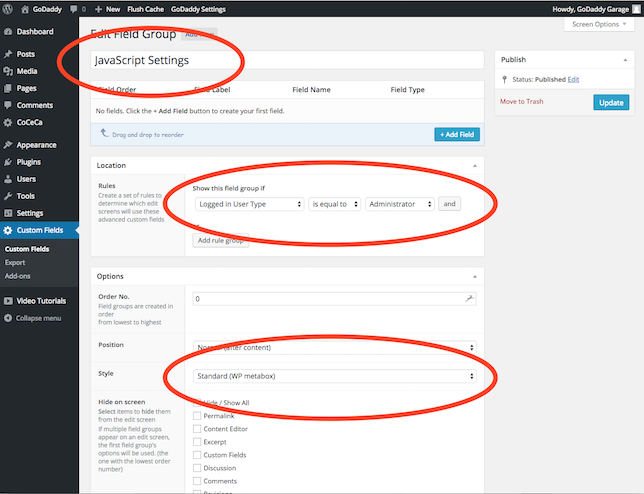
Credit: www.godaddy.com
Frequently Asked Questions
How Do I Add A Script To A WordPress Page?
To add a script, use the WordPress editor’s HTML block. Paste your script code directly inside the block. Alternatively, use plugins like “Insert Headers and Footers” for easier script management.
Can I Add Javascript Without A Plugin In WordPress?
Yes, you can add JavaScript using the HTML block in the page editor. This method is simple and avoids extra plugins. Ensure your code is correctly formatted to avoid conflicts.
Where Should I Place Scripts In WordPress Pages?
Place scripts in the page’s HTML block or header/footer sections using plugins. Avoid adding scripts in the content area unless necessary, to keep the page clean and load times fast.
Is Adding Custom Scripts Safe On WordPress Pages?
Yes, if you use trusted code and avoid malicious scripts. Always backup your site before adding custom scripts. Test scripts on a staging site to ensure they don’t cause errors.
Conclusion
Adding scripts to your WordPress page is simple and useful. It helps you add new features and improve your site’s look. Just follow the steps carefully to avoid errors. Always test your page after adding a script. This way, you ensure everything works well.
Keep your site safe by using trusted scripts only. Now, you can make your WordPress pages more dynamic and interesting. Try it out and see the difference yourself.



