
Are you struggling to find the right way to access your WordPress website? Whether you’re new to WordPress or just can’t remember the steps, gaining quick and easy access is crucial.
Imagine how frustrating it feels when you want to update your site, but don’t know where to start. In this guide, you’ll discover simple, clear steps to get inside your WordPress dashboard fast. By the end, you’ll have the confidence to manage your site anytime, without confusion or delay.
Keep reading to unlock your website’s full potential now.
Credit: www.hostinger.com
Locate Your Login Url
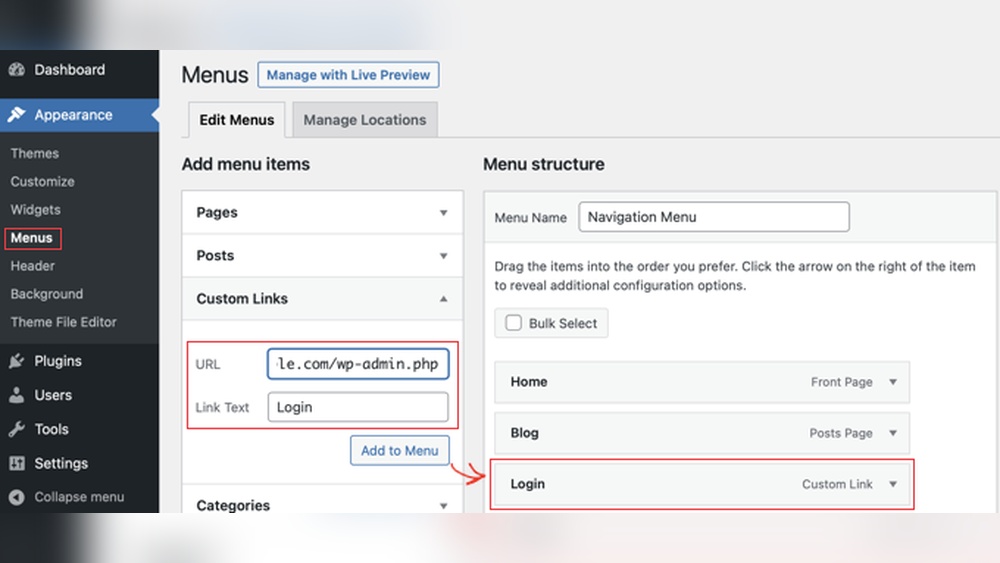
Finding your WordPress login URL is the first step to managing your website. The login page is where you enter your username and password. Without this URL, you cannot access your site’s dashboard. Sometimes, the login page uses the default path. Other times, it may be changed for security reasons. Knowing how to locate this URL saves time and avoids frustration.
Default WordPress Login Paths
Most WordPress sites use standard login URLs. The common one is /wp-login.php. You add this after your website address. For example, www.yoursite.com/wp-login.php. Another common path is /wp-admin. This also leads to the login page if you are not signed in. These default URLs work for most websites.
Custom Login Urls
Some website owners change the login URL. This hides the login page from hackers. Custom URLs look different from the default ones. They might be something like /login or /myadmin. You can find the custom URL in your WordPress settings or plugin options. If you do not know it, contact your web developer or host. Using a custom URL improves site security.

Credit: jetpack.com
Use The Login Page
Accessing your WordPress website is simple with the login page. This page is the gateway to your site’s dashboard. From here, you manage posts, pages, and settings. Knowing how to use the login page saves time and avoids confusion.
Entering Username And Password
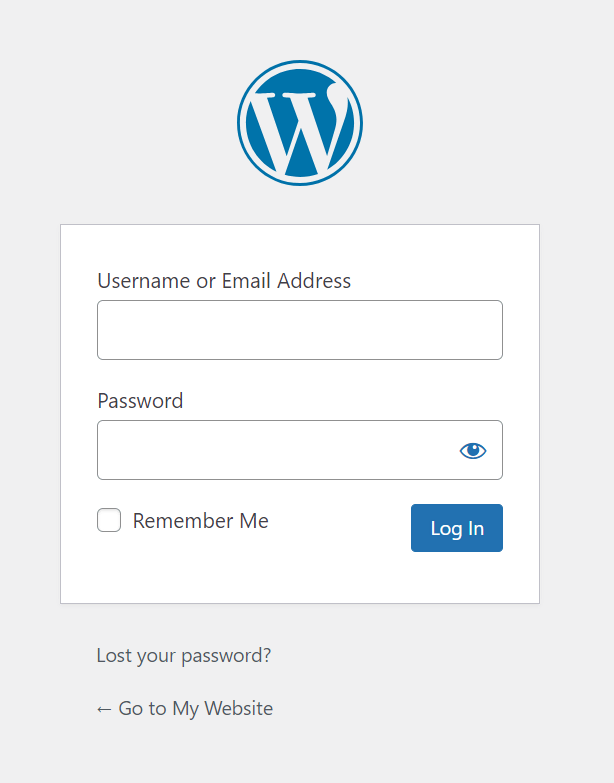
First, open your website’s login page. Usually, it is found at yoursite.com/wp-login.php. Enter your username or email address in the first box. Next, type your password in the second box. Make sure your password is correct to avoid errors. Click the “Log In” button to proceed. If your details are right, you will reach your dashboard.
Remember Me Option
Below the password box, you will see a “Remember Me” checkbox. Tick this box to stay logged in for a while. This avoids typing your password every time you visit. Use this option only on personal devices. Avoid it on public or shared computers for safety reasons.
Recover Lost Credentials
Lost your WordPress login details? It happens to many website owners. Recovering your credentials is simple and quick. This section explains how to find or reset your password and username. Follow these easy steps to regain access fast.
Resetting Your Password
Go to your WordPress login page. Click the “Lost your password?” link. Enter the email address linked to your account. Check your email inbox for a reset link. Click the link to create a new password. Choose a strong password you can remember. Save the changes and try logging in again.
Retrieving Username
Visit the WordPress login page. Click on “Lost your password?” as well. Enter your email address used for registration. Your username will be sent to your email. Check both inbox and spam folders. Use the username to log in with your password.
Troubleshoot Login Issues
Login problems can stop you from accessing your WordPress site. These issues may happen due to browser errors or conflicts with plugins. Fixing them is simple and takes only a few steps. Try these easy methods to get back into your site quickly.
Clearing Browser Cache
Your browser saves site data to load pages faster. Sometimes this cache causes login problems. Clear your browser cache to remove old files. This helps the login page load fresh and work properly.
Open your browser settings. Find the option to clear browsing data. Select cache and cookies. Clear them and restart your browser. Try logging in again. This often solves the problem.
Disabling Plugins Temporarily
Plugins add features to WordPress but can cause conflicts. A bad plugin may block your login. Disable all plugins to check if one is the cause.
Access your site files using FTP or your hosting panel. Rename the “plugins” folder to something else like “plugins_old.” This turns off all plugins at once. Try logging in now. If successful, rename the folder back and turn on plugins one by one to find the problem.
Enhance Login Security
Keeping your WordPress login secure is very important. Many attacks target weak login details. Protecting your site helps avoid hacks and data loss. A few simple steps can make your login much safer.
Enable Two-factor Authentication
Two-factor authentication adds an extra step to login. It asks for a code from your phone or email. This makes it harder for hackers to access your site. Many plugins offer easy setup for two-factor authentication. Use this feature to add strong protection.
Use Strong Passwords
Strong passwords are the first defense against attacks. Use a mix of letters, numbers, and symbols. Avoid common words or easy patterns. Change passwords regularly to keep accounts safe. Use a password manager to store complex passwords securely.
Access Via Hosting Control Panel
Accessing your WordPress website through the hosting control panel is a simple and effective way to manage your site. The control panel provides tools to handle files, databases, and settings without needing advanced technical skills.
Most hosting providers offer popular control panels like cPanel or Plesk. These panels allow you to manage your WordPress installation quickly. You can upload files, change configurations, and even access your database directly.
Using Cpanel Or Plesk
cPanel and Plesk are user-friendly control panels for website management. Log in to your hosting account to reach these tools. From there, find the file manager to view WordPress files.
Both panels include easy options to manage domains, emails, and backups. You can install WordPress or update plugins here too. These panels help keep your website running smoothly.
Direct Database Access
Your WordPress data is stored in a database. Accessing it via the control panel helps with troubleshooting and backups. Use tools like phpMyAdmin, often available inside cPanel or Plesk.
phpMyAdmin lets you view, edit, or export your WordPress database. This control helps fix errors or move your website to a new server. Always back up your database before making changes.

Credit: www.reddit.com
Frequently Asked Questions
How Do I Log Into My WordPress Website?
To log into your WordPress site, go to yourdomain. com/wp-admin. Enter your username and password, then click “Log In. ” Ensure your credentials are correct to access your dashboard securely and manage your site effectively.
What If I Forget My WordPress Login Password?
Click the “Lost your password? ” Link on the login page. Enter your email or username to receive a password reset link. Follow the instructions to create a new password and regain access to your WordPress site.
Can I Access WordPress Without An Internet Connection?
No, you cannot access WordPress without internet. WordPress is web-based, requiring an active internet connection to reach your site’s dashboard and make any changes or updates.
How Do I Access WordPress Website Files Directly?
Access your WordPress files via FTP or your hosting control panel’s file manager. Use FTP clients like FileZilla with your hosting credentials to manage and edit site files safely.
Conclusion
Accessing your WordPress website is simple with the right steps. Always remember your login URL and credentials. Keep your password safe and update it often. Use a secure internet connection to protect your site. Regularly check your website for any issues.
These habits help keep your site running smoothly. Stay confident while managing your WordPress site. Now, you can easily access and control your website anytime.



