
Are you trying to add a script to your WordPress header but don’t know where to start? You’re not alone.
Adding scripts can seem tricky, especially if you want to avoid breaking your site. But what if you could do it quickly, safely, and without any coding headaches? In this guide, you’ll learn exactly how to add scripts to your WordPress header step-by-step.
By the end, you’ll have the skills to enhance your site’s functionality and performance like a pro. Ready to make your website work smarter for you? Let’s dive in!

Credit: kinsta.com
Why Add Scripts To WordPress Header
Adding scripts to the WordPress header helps control how your website loads and works. Scripts in the header run before the page content appears. This can improve user experience and site functionality.
Many important tools rely on header scripts to work correctly. These scripts can track visitors, add styles, or enhance site features. Placing scripts in the header ensures they load early and do not slow down the page.
Benefits Of Header Scripts
Header scripts load before the main content. This helps features work smoothly right away.
They improve site tracking and analytics by starting early.
Header scripts can also boost site performance by managing how elements load.
Some designs and plugins need header scripts to function properly.
Common Script Types
Analytics scripts track visitor behavior and site stats.
CSS and JavaScript files help style and animate the website.
Verification scripts confirm site ownership for search engines.
Third-party tools like chatbots or ad networks often require header scripts.

Credit: wordpress.com
Methods To Add Scripts
Adding scripts to your WordPress header is important for customizing your site. Scripts can improve functionality or add new features. There are different ways to add scripts depending on your comfort level with code and tools.
This section explains three common methods to add scripts to your WordPress header. Each method has its own steps and uses.
Using Theme Editor
The Theme Editor lets you directly edit your theme files. It is a quick way to add scripts in the header. Go to Appearance > Theme Editor in your WordPress dashboard. Then select the header.php file. Insert your script code just before the closing tag. Save the changes.
Be careful. Editing theme files can break your site if done wrong. Always back up your site before making changes.
Using Functions.php File
Another method is to add scripts using the functions.php file. This file controls your theme’s functions. Use the wp_head action hook to insert scripts into the header. Add a function that prints your script code and hook it to wp_head.
This method keeps your scripts organized and avoids editing core files. It works well for custom scripts or small codes.
Using Plugins
Plugins are the easiest option for adding scripts. They provide a user-friendly interface to insert code into the header. Popular plugins allow you to paste scripts without touching code files.
This method is safe and good for beginners. It also keeps your scripts separate from theme files, so updates won’t remove them.
Adding Scripts Via Theme Editor
Adding scripts to your WordPress header can improve site functionality. Using the Theme Editor is a direct way to insert scripts. It lets you place code exactly where needed in the header section. This method suits those comfortable editing theme files carefully.
Accessing Header.php
First, log in to your WordPress dashboard. Go to Appearance, then select Theme Editor. Find the file named header.php in the right-hand list. This file controls the code in your site’s header. Click on it to open the editor window. Always back up this file before making changes.
Inserting Script Code Safely
Locate the closing tag in the header.php file. Insert your script code right before this tag. Use proper script tags, such as and . Avoid adding scripts inside other HTML tags. Check the code for errors to prevent site issues.
Saving Changes
After adding your script, scroll down and click the Update File button. WordPress will save your changes immediately. Refresh your website to confirm the script works correctly. If the site breaks, restore the backup to fix errors. Editing carefully avoids common mistakes.
Credit: wordpress.org
Adding Scripts Using Functions.php
Adding scripts through the functions.php file is a clean way to include JavaScript or CSS in your WordPress header. This method helps keep your site organized and improves performance. You avoid editing theme files directly, which can cause problems during updates.
Use this approach to safely add scripts that load on every page. It also gives you control over where and how scripts load. Follow the steps below for the best results.
Creating A Child Theme
A child theme lets you customize your site without changing the parent theme. It keeps your changes safe after updates. To create one, make a new folder in the wp-content/themes directory.
Inside that folder, create a style.css file with the child theme info. Add a functions.php file to enqueue your scripts. Activate the child theme in your WordPress dashboard.
Enqueueing Scripts Properly
Use the wp_enqueue_script function inside functions.php. This tells WordPress to load your script correctly. Write a function to enqueue your file, then hook it to wp_enqueue_scripts.
Example:
function custom_header_scripts() { wp_enqueue_script('custom-script', get_stylesheet_directory_uri() . '/js/custom.js', array(), null, false); } add_action('wp_enqueue_scripts', 'custom_header_scripts'); The last argument false ensures the script loads in the header.
Avoiding Common Errors
Always check the script path is correct. Wrong paths cause scripts not to load. Do not hardcode scripts directly in the header.
Use unique names for script handles to prevent conflicts. Avoid enqueuing the same script multiple times. Test your site after adding scripts to catch issues early.
Using Plugins To Add Header Scripts
Using plugins to add header scripts in WordPress is a simple way to manage code snippets. Plugins help insert scripts without editing theme files. They keep your site safe from errors and make script management easier.
These tools suit beginners and those who want fast script additions. Plugins often offer options to control where and how scripts load. This method saves time and reduces the risk of breaking the site’s design or functionality.
Popular Header Script Plugins
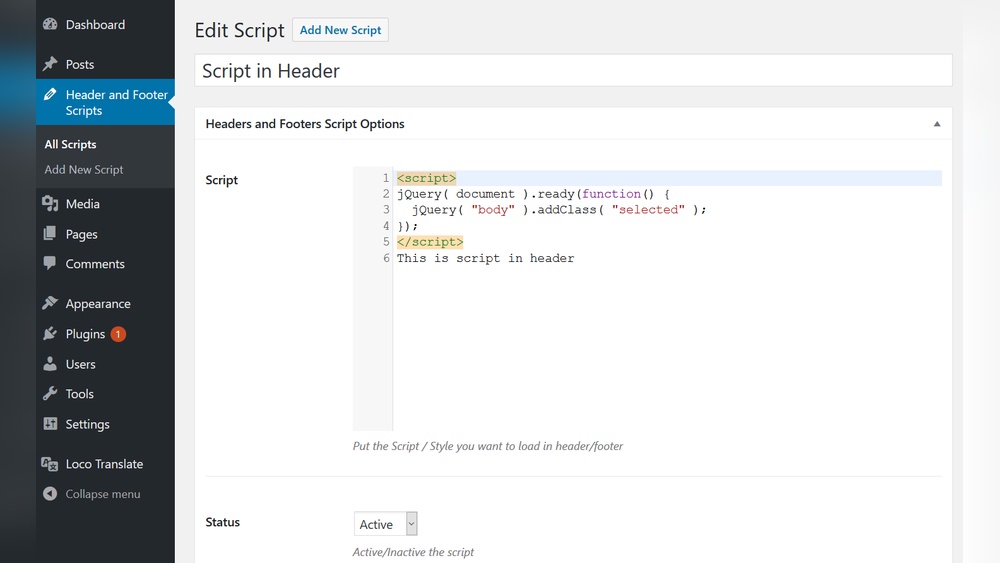
Several plugins offer easy header script management. “Insert Headers and Footers” is widely used for its simplicity. “Header and Footer Scripts” is another choice that supports many script types. “WPCode – Insert Headers and Footers” also provides advanced features for script control. These plugins work well on most WordPress sites.
Step-by-step Plugin Setup
First, go to your WordPress dashboard. Click “Plugins” and then “Add New.” Type the plugin name in the search box. Click “Install Now” and then “Activate.”
Next, find the plugin settings. Usually, it appears under “Settings” or directly in the sidebar. Paste your script into the header section box. Save the changes to apply the script on your site.
Managing Scripts With Plugins
Plugins let you add, edit, or remove scripts anytime. You can place scripts in the header or footer. This control improves site speed and functionality. Some plugins allow script loading on specific pages only. Managing scripts this way keeps your site clean and organized. Always test your site after adding scripts to avoid issues.
Best Practices For Adding Scripts
Adding scripts to the header of your WordPress site can enhance functionality and design. Following best practices keeps your website safe and fast. It also helps avoid conflicts and errors.
These tips help you add scripts the right way. They make sure your site runs smoothly after changes.
Testing Script Compatibility
Check if the script works well with your theme and plugins. Test on different browsers to see if it loads correctly. A script that breaks your site can cause user problems. Use a staging site to try scripts before going live. Confirm the script does not slow down your site.
Optimizing Site Performance
Place scripts in the header only if needed early on. Use asynchronous loading to prevent blocking page rendering. Minimize script size by removing unnecessary code. Combine multiple scripts to reduce server requests. Fast sites keep visitors longer and improve search rankings.
Backup Before Changes
Create a full backup of your WordPress site before adding scripts. Backups protect your data if something goes wrong. Use plugins or your hosting provider’s backup tools. Keep backups stored safely and test restoring them. This step saves time and stress in case of errors.
Frequently Asked Questions
How Do I Add A Script To My WordPress Header?
To add a script in the WordPress header, you can use the theme’s header. php file or a plugin like “Insert Headers and Footers. ” This method lets you safely insert code without altering core files, ensuring your script loads on every page.
Can I Add Scripts Without Editing Theme Files?
Yes, using plugins like “Insert Headers and Footers” or “Header Footer Code Manager” lets you add scripts easily. These plugins avoid direct theme file edits, making it safer and update-proof to add scripts to your WordPress header.
Why Add Scripts To The WordPress Header Section?
Adding scripts to the header ensures they load early for functionality like analytics, fonts, or tracking codes. Proper header scripts improve site performance and user experience by initializing necessary tools before page content loads.
Is Adding Scripts To Header Safe For Seo?
Yes, adding scripts correctly in the header doesn’t harm SEO. Ensure scripts don’t slow page speed and use async or defer attributes when possible. Proper script placement enhances tracking and site functionality, benefiting SEO.
Conclusion
Adding scripts to your WordPress header is simple and useful. It helps your site load tools and features quickly. Always back up your site before making changes. Use the right method that suits your skill level. Test your site after adding scripts to avoid errors.
Keep your code clean and organized for easy updates. This small step can improve your website’s function and user experience. Try it today and see the difference it makes!



