
Are you looking to keep your website fresh and engaging without spending hours creating new content? Adding an RSS feed to your WordPress site can be the simple solution you need.
With an RSS feed, you can automatically display updates from your favorite blogs, news sites, or even your own content in one place. This not only saves you time but also keeps your visitors coming back for the latest information.
In this guide, you’ll learn exactly how to add an RSS feed to your WordPress website—step by step. By the end, you’ll have a dynamic site that stays current and grabs your audience’s attention effortlessly. Let’s get started!
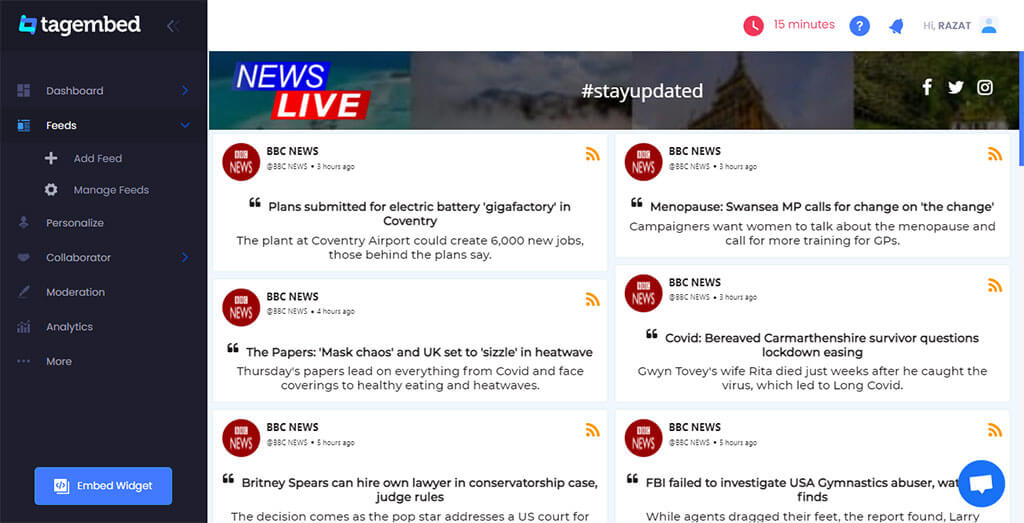
Credit: tagembed.com
Choose The Right Rss Feed
Choosing the right RSS feed is key to adding useful content to your WordPress site. It affects what your visitors see and how often new info updates. Picking a good feed makes your site fresh and helpful. Focus on quality and relevance to keep your audience interested.
Find Reliable Feed Sources
Start with trusted websites or blogs in your niche. Reliable feeds provide accurate and timely updates. Avoid sources that post low-quality or spammy content. Check if the site updates its feed regularly. Consistent updates keep your site active and engaging.
Check Feed Compatibility
Make sure the RSS feed format works with WordPress. Most feeds use standard XML format and work well. Some feeds may have special tags or scripts that cause errors. Test the feed before adding it to your site. Compatible feeds display correctly and avoid technical issues.
Credit: wordpress.org
Use WordPress Built-in Rss Widget
The WordPress built-in RSS widget makes adding feeds simple. It helps show updates from other websites or your own feed. No need for extra plugins. This widget fits well in sidebars or footers. It is easy to set up and customize.
Access The Widgets Section
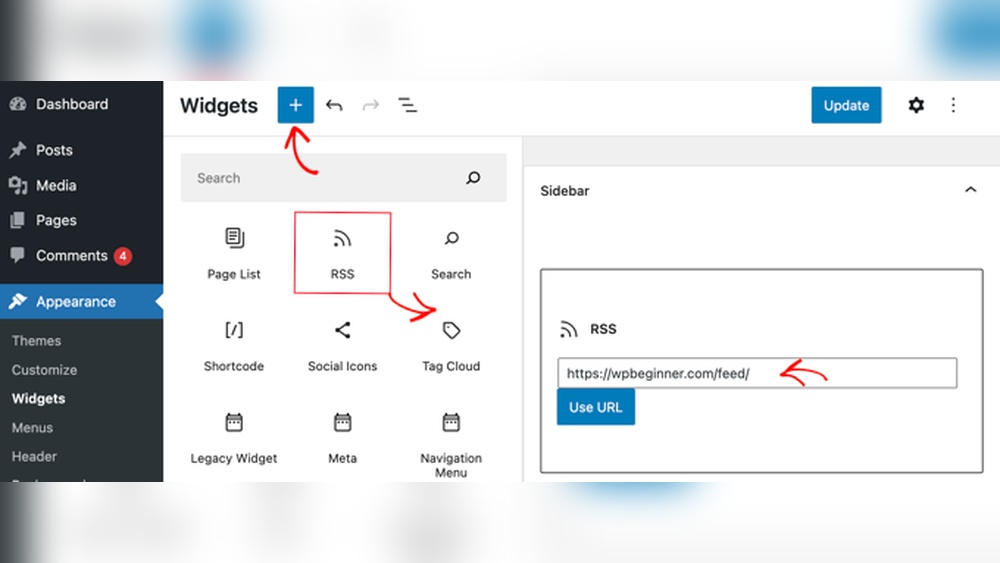
Log in to your WordPress dashboard. Go to Appearance and select Widgets. This area shows all available widgets. You can manage and add widgets here. Find the RSS widget in the list.
Add Rss Widget To Sidebar
Drag the RSS widget to the sidebar area. Sidebars display on your website pages. You can also add it to the footer or other widget areas. Place the widget where visitors will see it.
Configure Widget Settings
Click the RSS widget to open settings. Enter the RSS feed URL you want to show. Add a title for the widget, like “Latest News.” Choose how many items to display. Tick options to show item dates or authors. Save your changes to apply the settings.
Install Rss Feed Plugins
Installing RSS feed plugins on your WordPress website makes managing feeds simple. These plugins help you display, import, or customize RSS feeds easily. They save time and add functionality without coding.
Choose the right plugin to fit your website’s needs. Many plugins come with useful features for RSS feed control. Let’s explore how to find and use these plugins effectively.
Explore Popular Rss Plugins
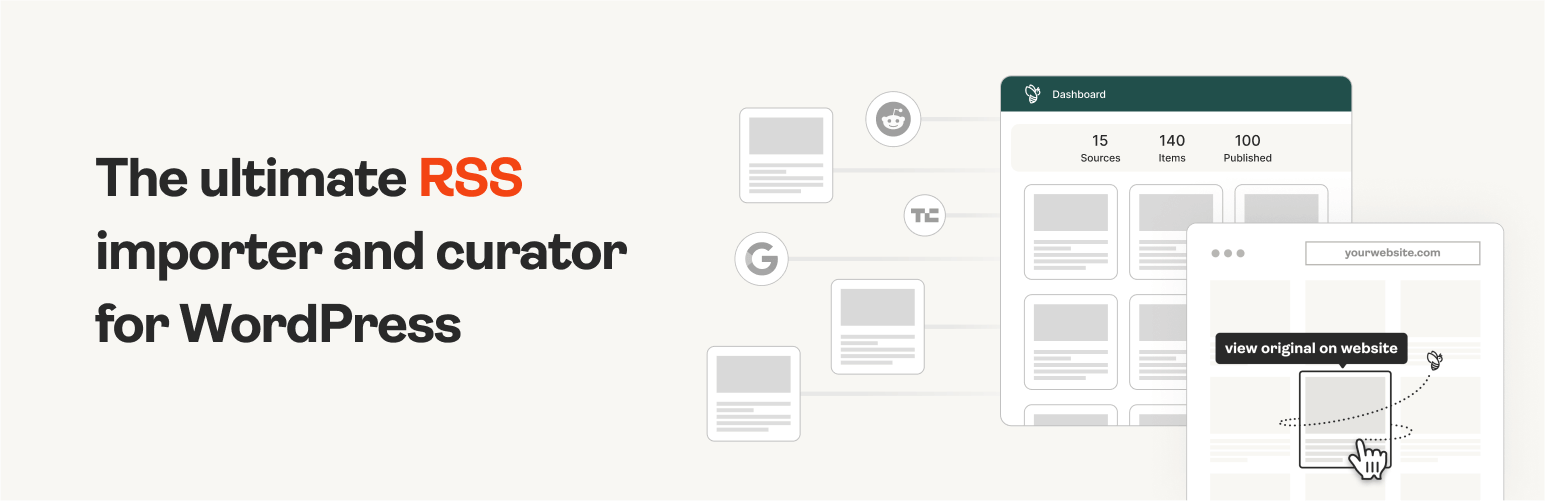
Several RSS feed plugins work well with WordPress. Some popular ones include WP RSS Aggregator, Feedzy RSS Feeds, and RSSImport. Each offers different tools for adding and customizing feeds. Check plugin reviews and ratings before choosing.
Install And Activate Plugin
Go to your WordPress dashboard. Click on “Plugins” and select “Add New.” Type the plugin name in the search box. Click “Install Now” and then “Activate.” The plugin will be ready to use on your site.
Customize Plugin Options
After activation, find the plugin’s settings in your dashboard. Adjust options like feed URL, display style, and update frequency. Save changes and view your site to see the RSS feed in action. Tailor settings to match your site’s design and goals.
Embed Rss Feed With Shortcodes
Embedding an RSS feed with shortcodes is a simple way to show updates from other websites. It keeps your site fresh with new content automatically. This method saves time and helps visitors find new posts easily.
Shortcodes are small pieces of code you place inside your pages or posts. They tell WordPress to display the RSS feed content. No need for complex coding or plugins.
Generate Rss Shortcodes
First, find the RSS feed URL you want to display. It usually ends with .xml or /feed. Next, use a shortcode generator or a plugin that creates RSS shortcodes. Enter the feed URL and select the display style.
The shortcode will look like this: [rss feed="http://example.com/feed"]. You can customize it to show more items or change the layout. Copy the shortcode once ready.
Place Shortcodes On Pages Or Posts
Open the WordPress editor for the page or post where you want the feed. Paste the shortcode into the text or shortcode block. Make sure to save or update your content afterward.
Check the page on your site. The RSS feed should appear with the latest posts. Refresh the page to see new updates automatically. Shortcodes keep your site dynamic and engaging.
Troubleshoot Common Issues
Troubleshooting common issues with RSS feeds can save time and keep your website running smoothly. Problems with feeds can cause errors or stop updates from showing. Understanding how to fix these issues helps maintain visitor trust and engagement. Below are simple steps to solve common RSS feed problems on your WordPress site.
Fix Feed Display Errors
Feed display errors often occur due to invalid XML code. Check your feed URL for typos or broken links. Use an online XML validator to find mistakes in your feed. Remove extra spaces or characters in your theme’s functions.php file. Clear any cache that might store old feed data. Update WordPress and plugins to ensure compatibility. Disable conflicting plugins one by one to identify issues.
Resolve Loading Problems
Slow or failed feed loading can result from server issues. Increase your PHP memory limit to improve performance. Check your hosting provider’s status for outages or limits. Disable heavy plugins that slow down your site. Use a caching plugin to speed up feed requests. Confirm your feed source is active and not blocked. Test your feed on multiple devices and browsers for consistency.
Optimize Rss Feeds For Seo
Optimizing RSS feeds for SEO helps improve your website’s visibility. It makes your content easier to find and share. Proper optimization also drives more traffic to your site. Small changes can make a big difference in search rankings.
Use Descriptive Titles And Descriptions
Choose clear and specific titles for your RSS feed items. Titles should tell what the content is about in a few words. Avoid vague or generic titles. Write descriptions that summarize the content accurately. Use keywords naturally in titles and descriptions. This helps search engines understand your content better. It also attracts readers to click and visit your site.
Manage Feed Update Frequency
Set a regular schedule for updating your RSS feed. Frequent updates keep your feed fresh and relevant. Avoid updating too often, which may overwhelm subscribers. Too few updates can reduce engagement and interest. Find a balance that fits your content creation pace. Consistent updates signal search engines that your site is active. This can improve your SEO ranking over time.

Credit: www.sociablekit.com
Frequently Asked Questions
How Do I Find My WordPress Rss Feed Url?
You can find your WordPress RSS feed by adding /feed/ to your site’s URL. For example, www. yoursite. com/feed/. This URL automatically generates the latest posts in RSS format.
Can I Customize Rss Feed Content In WordPress?
Yes, WordPress allows you to customize RSS feed content. You can use plugins or add code snippets to control what appears in your feed, such as excerpts or full posts.
Which Plugins Help Add Rss Feeds To WordPress?
Popular plugins like Feedzy RSS Feeds and WP RSS Aggregator simplify adding RSS feeds. They offer easy integration, customization options, and automatic feed updates for your site.
Is It Possible To Display Multiple Rss Feeds On WordPress?
Yes, WordPress supports displaying multiple RSS feeds. Using plugins or widgets, you can aggregate different feeds and show them on your website in various formats.
Conclusion
Adding an RSS feed to your WordPress site keeps visitors updated. It brings fresh content directly to your readers. Setting it up is simple and quick. Choose the right plugin or use built-in tools. Customize the feed to fit your site’s style.
Regular updates help grow your audience over time. Keep your site active and engaging. Try adding an RSS feed today to see the difference. Your readers will appreciate easy access to new posts.



