
Are you struggling to control how search engines see your WordPress site? Adding a robots.txt file can be the simple fix you need.
This small but powerful file tells search engines which pages to crawl and which to ignore. If you want to boost your site’s SEO and protect sensitive content, learning how to add robots. txt in WordPress is a must. Keep reading, and you’ll discover easy steps to take full control of your site’s visibility online.
Role Of Robots.txt In Seo
The robots.txt file plays a key role in SEO for WordPress sites. It tells search engines which pages to crawl and which to skip. This helps control what content appears in search results. Proper use of robots.txt improves your site’s visibility and ranking.
What Robots.txt Does
Robots.txt is a simple text file stored in your website’s root folder. It guides search engine bots on which parts of your site to explore. You can block private or duplicate pages from being indexed. This saves crawl budget and prevents unwanted pages from showing up in searches.
The file works by giving instructions to bots before they visit your site. It does not guarantee blocking but is a strong guideline. Search engines like Google respect these rules to keep your site organized in their index.
Why It Matters For WordPress Sites
WordPress generates many pages automatically, like archives and tags. Some of these pages offer little value for SEO. Robots.txt helps stop search engines from wasting time on low-value pages. This focus improves the ranking of your main content.
It also helps protect sensitive areas like admin pages from being crawled. This keeps your website safer and reduces server load. Using robots.txt properly makes your WordPress site cleaner in search results and easier to manage.
Accessing Robots.txt In WordPress
Accessing the robots.txt file in WordPress is a key step for managing how search engines crawl your website. This file guides search engines on which pages to index or ignore. WordPress creates a virtual robots.txt file by default, but you can also create a custom one for better control. There are two main ways to access or edit this file: through the WordPress dashboard or by using FTP or your hosting file manager. Each method suits different user needs and skill levels.
Using WordPress Dashboard
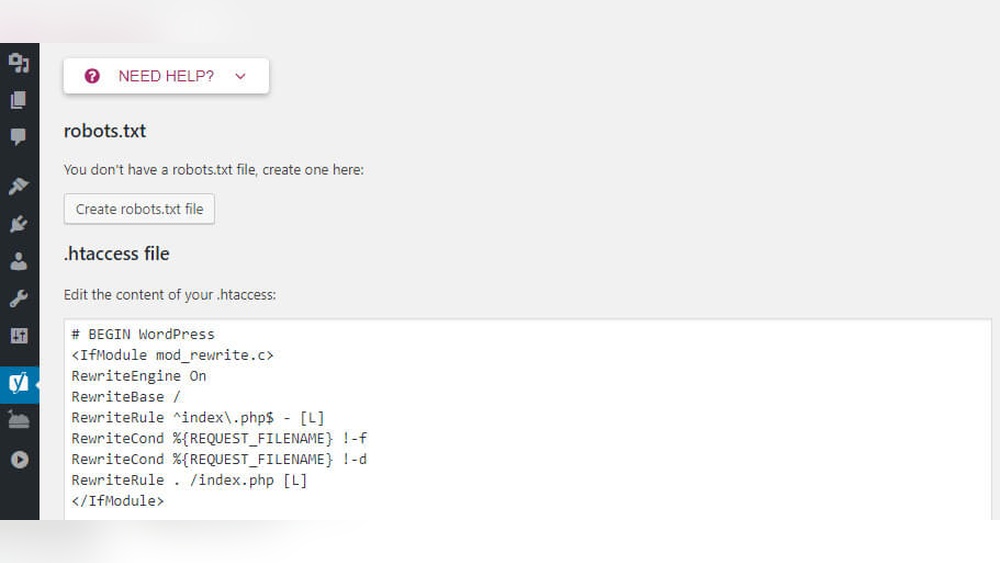
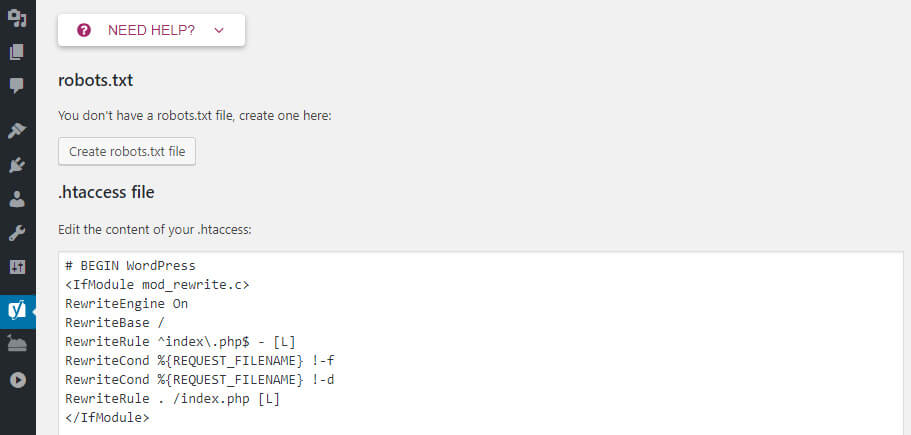
Accessing robots.txt through the WordPress dashboard is simple. Some SEO plugins, like Yoast SEO or Rank Math, offer direct access to edit the robots.txt file. Navigate to the plugin’s tools or file editor section. You can view and modify the file content there. Save changes to update your robots.txt instantly. This method is user-friendly and does not require technical knowledge.
Via Ftp Or Hosting File Manager
Using FTP or the hosting file manager gives full control over the robots.txt file. Connect to your website’s server using an FTP client or log in to your hosting account. Locate the root directory, usually named public_html or www. The robots.txt file should be there if it exists. You can download, edit, or create a new file with a text editor. After saving, upload the file back to the root directory. This method is best for advanced users familiar with server files.
Creating A Robots.txt File
Creating a robots.txt file is an important step in managing your WordPress site’s SEO. It tells search engines which pages to crawl and which to avoid. This control helps improve your site’s visibility and prevents sensitive or unnecessary pages from appearing in search results.
The robots.txt file is a plain text file placed in your website’s root directory. It follows simple rules and syntax that search engines understand. Learning how to create and customize this file will give you better control over your site’s indexing.
Basic Syntax And Rules
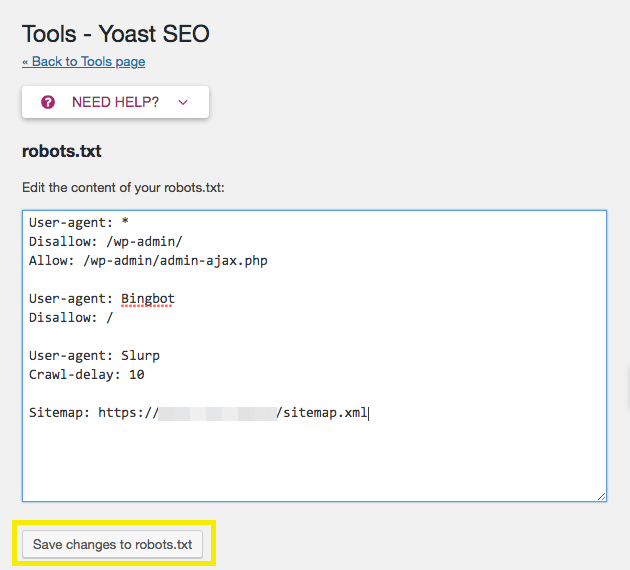
The robots.txt file uses simple commands to control web crawlers. Each rule starts with a user-agent line, naming the crawler the rule targets. Use an asterisk () to apply the rule to all crawlers. Next, add directives like “Disallow” or “Allow” to block or permit access to specific folders or pages.
Each directive must be on its own line. Paths are relative to your website’s root. Use a forward slash (/) before folder or page names. Leave a blank line between different user-agent groups to separate rules clearly.
Common Directives To Include
Disallow blocks crawlers from accessing certain parts of your site. For example, disallowing the admin area protects sensitive files. Allow permits crawling of specific pages within a disallowed folder.
Sitemap directive points crawlers to your sitemap URL. This helps search engines find and index your pages faster. Crawl-delay sets the wait time between crawler requests. Use it to reduce server load if needed.
Include only necessary rules to keep your robots.txt simple and effective. Avoid blocking important content by mistake. Test your file with online tools before uploading it to your server.
Adding Robots.txt With Plugins
Managing your robots.txt file in WordPress is simple using plugins. Plugins provide an easy way to create, edit, and control this important file without coding. They let you customize how search engines crawl your website.
Using a plugin saves time and reduces errors. It also helps beginners handle SEO tasks with confidence. Choose the right plugin and follow simple steps to set up your robots.txt file.
Top Plugins For Robots.txt Management
Several plugins help manage robots.txt in WordPress. One popular choice is Yoast SEO. It offers a built-in editor for robots.txt. Another option is the All in One SEO plugin. It also supports robots.txt customization. WP Robots Txt is a lightweight plugin made for this purpose. It has a simple interface for quick edits. These plugins work well and are easy to use.
Step-by-step Plugin Setup
First, install the plugin from the WordPress dashboard. Go to Plugins > Add New, then search by name. Click “Install Now” and “Activate” the plugin.
Next, find the plugin settings in the dashboard menu. Look for a section called “Tools,” “SEO,” or “Robots.txt.”
Open the robots.txt editor. You can add rules like “Disallow” or “Allow” for pages or folders. For example, to block a folder, write “Disallow: /folder-name/”.
Save your changes after editing. The plugin updates the robots.txt file automatically on your site.
Finally, check the robots.txt file by visiting yoursite.com/robots.txt in a browser. Make sure it shows your new settings correctly.
Manual Robots.txt Upload
Manual Robots.txt upload lets you control your website’s crawl rules directly. This method gives more control than plugins. It suits those who want to customize robots.txt fully. You create and upload the file yourself. This ensures the file is exactly how you want it.
Editing Robots.txt Locally
Start by creating a plain text file on your computer. Name it robots.txt. Use a simple text editor like Notepad or TextEdit. Add the rules you want search engines to follow. For example, use User-agent: to target all bots. Use Disallow: /private/ to block a folder.
Save the file without formatting. Make sure the extension is .txt. Check your rules twice to avoid mistakes. This local file is ready for upload.
Uploading Via Ftp
Next, connect to your website using an FTP client. FileZilla is a popular and free choice. Use your hosting FTP details to log in. Navigate to the root directory of your WordPress site. This is usually the public_html folder.
Upload the robots.txt file here. Overwrite any existing file if needed. After upload, test the file by visiting yourdomain.com/robots.txt. The file should display correctly in the browser. This confirms the manual upload works.
Credit: www.hostinger.com
Testing And Validating Robots.txt
Testing and validating your robots.txt file is essential after adding it to WordPress. This step ensures search engines read the file correctly. It helps avoid mistakes that can block important pages from indexing. Proper testing improves your site’s visibility and SEO performance.
Using Google Search Console
Google Search Console offers a tool to test your robots.txt file. Go to the “Robots Testing Tool” section. Paste your robots.txt content or use your live file. The tool shows if Googlebot can access your pages. It highlights any blocked URLs and errors. Use this feedback to fix your robots.txt file quickly.
Common Errors To Avoid
One common error is blocking the entire site by mistake. This stops search engines from indexing your content. Another mistake is using incorrect syntax or misspelled directives. Forgetting to update robots.txt after site changes also causes issues. Double-check file location and permissions to ensure it loads properly. Avoid these errors for better site indexing and ranking.
Tips For Optimizing Robots.txt
Optimizing your robots.txt file helps control how search engines crawl your website. A well-crafted robots.txt file improves your site’s visibility. It guides crawlers to important pages and blocks irrelevant content. This keeps your site organized and easier to index.
Blocking Unwanted Crawlers
Stop bots that waste your server resources. Use the “Disallow” command to block them. Common targets include spam bots and scrapers. Blocking these reduces unnecessary traffic. It also protects sensitive areas of your site.
Be careful not to block good bots like Googlebot. Test your robots.txt file to avoid mistakes. Use online tools to check which bots can access your site.
Allowing Important Pages
Make sure search engines can find your key pages. Use the “Allow” command to open access. Important pages include your homepage, blog posts, and product pages. Allowing these helps improve your search rankings.
Keep the path clear for these pages in your robots.txt file. Prevent blocking by mistake. This ensures search engines can index your best content fully.
Credit: wpengine.com

Credit: kinsta.com
Frequently Asked Questions
What Is The Purpose Of Robots.txt In WordPress?
Robots. txt guides search engines on which pages to crawl or avoid. It helps control site indexing and improves SEO performance.
How Do I Create A Robots.txt File In WordPress?
You can create robots. txt via WordPress SEO plugins or manually upload it to your site’s root directory using FTP.
Can I Edit Robots.txt Without A Plugin In WordPress?
Yes, by accessing your site’s root folder through FTP or hosting file manager, you can directly edit the robots. txt file.
What Rules Should I Include In My Robots.txt File?
Disallow sensitive pages, block duplicate content, and allow important pages. Proper rules help search engines index your site efficiently.
Conclusion
Adding a robots. txt file in WordPress helps control search engine access. It guides which pages to show or hide from search results. This small step improves your website’s SEO and protects private content. Editing the file is simple and does not require coding skills.
Regularly check your robots. txt to keep your site optimized. Start today to manage your site’s visibility with ease.



