
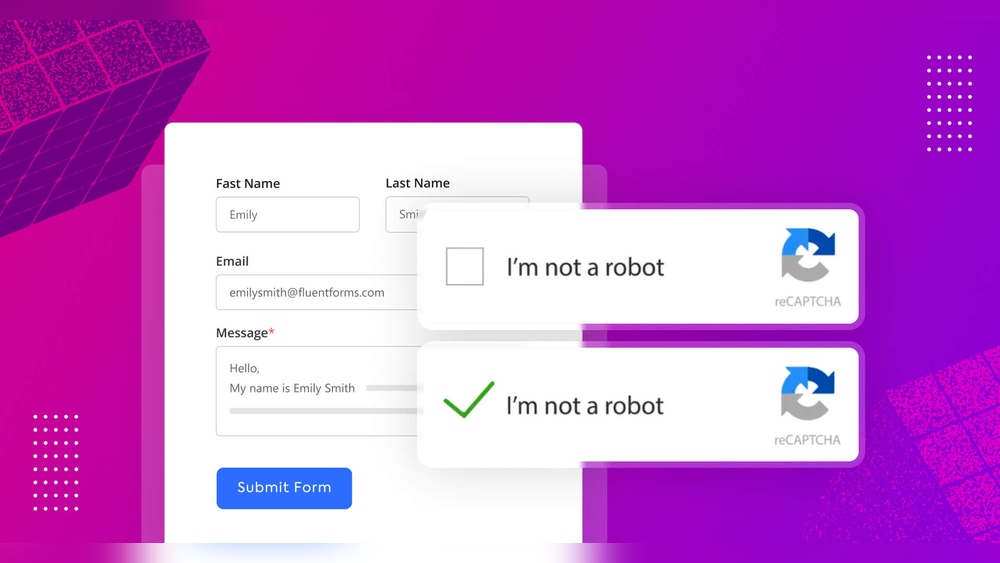
Are you tired of spam flooding your WordPress site’s contact forms? Adding reCAPTCHA is the simple fix you need to protect your website and keep those annoying bots away.
In this guide, you’ll learn exactly how to add reCAPTCHA to your WordPress site quickly and easily—no technical skills required. Keep reading, and you’ll have your site secured in just a few steps, giving you peace of mind and more time to focus on what really matters.
Why Use Recaptcha
Using reCAPTCHA on your WordPress site helps protect it from spam and abuse. It stops bots from submitting fake forms or comments. This keeps your site clean and trustworthy.
reCAPTCHA also improves user experience by blocking unwanted traffic. It works quietly in the background or with simple tests. This way, real visitors can use your site without trouble.
What Is Recaptcha?
reCAPTCHA is a free service from Google. It checks if a user is a real person or a robot. It uses tests like clicking checkboxes or solving puzzles. This stops automated systems from harming your site.
How Recaptcha Protects Your Site
Spam bots can flood your site with fake messages or signups. reCAPTCHA blocks these bots easily. It keeps your site safe from unwanted actions. This helps your site run smoothly and securely.
Benefits For Website Owners
reCAPTCHA reduces spam and saves time. You do not need to manually delete fake comments. It also protects your site’s reputation. Visitors will trust your site more if it is secure.
Helps Improve Seo
Search engines notice safe and clean websites. Less spam means better rankings in search results. Using reCAPTCHA can help your site appear higher. This brings more real visitors to your site.

Credit: www.youtube.com
Choose The Right Recaptcha Version
Choosing the right reCAPTCHA version is important for your WordPress site. It helps stop spam and keeps your site safe. Different versions work in different ways. Pick the one that fits your needs and user experience best.
Recaptcha V2 Options
Recaptcha v2 asks visitors to check a box or solve a puzzle. This version shows a challenge only if the system is unsure. It is easy to use and clear for most users. You can choose between “I’m not a robot” checkbox or image challenges. This version suits sites needing clear user verification.
Recaptcha V3 Benefits
Recaptcha v3 works without user interaction. It runs in the background and scores traffic based on behavior. You get a score that shows if a visitor is human or a bot. It helps reduce interruptions and keeps the user flow smooth. Best for sites wanting less hassle and strong protection.
Get Recaptcha Api Keys
To use Google reCAPTCHA on your WordPress site, you first need API keys. These keys connect your website with Google’s reCAPTCHA service. Getting these keys is quick and free. It only takes a few steps to generate them.
Having the API keys lets you add reCAPTCHA to forms and protect your site. This stops spam bots from submitting fake data. The keys come in pairs: a site key and a secret key. Each has a special role in the process.
Visit The Google Recaptcha Website
Start by going to the official Google reCAPTCHA page. Use a browser and type “Google reCAPTCHA.” Click the first link that appears. This will take you to the registration page.
Register Your Website
On the registration page, enter your website’s name. Choose the reCAPTCHA type you want to use. Usually, reCAPTCHA v2 or v3 works well for WordPress sites. Add your site’s domain name without “http://” or “https://.”
Accept Terms And Submit
Read the terms of service carefully. Check the box to agree. Then click the “Submit” button at the bottom. Google will process your request and create your keys.
Copy The Site Key And Secret Key
After submission, Google shows you two keys. Copy the site key and secret key. Save them somewhere safe. You will need these keys to connect reCAPTCHA with WordPress plugins.
Install A Recaptcha Plugin
Adding a Recaptcha plugin to your WordPress site helps stop spam and bots. This step protects your forms and keeps your website safe. Installing a plugin is easy and does not require coding skills.
Choose a plugin that fits your needs and follow the setup instructions. Most plugins work right after activation. You can control where Recaptcha appears, like on login or comment forms.
Popular Plugins To Consider
Several plugins offer reliable Recaptcha features. Google Captcha (reCAPTCHA) by BestWebSoft is simple and supports multiple forms. reCAPTCHA by WPForms works well if you use WPForms for contact forms.
Advanced noCaptcha & invisible Captcha adds invisible Recaptcha for a smooth user experience. All these plugins have good ratings and regular updates.
Manual Vs Automatic Installation
Automatic installation is the easiest. Go to your WordPress dashboard, open Plugins, and click Add New. Search for your chosen Recaptcha plugin and click Install. Activate it and follow the setup steps.
Manual installation requires downloading the plugin from a website. Upload it via FTP or the WordPress plugin uploader. Then activate it in the dashboard. This method suits those with hosting access.
Automatic installation is faster and beginner-friendly. Manual gives more control but is more complex. Choose based on your comfort with WordPress tools.
Configure Recaptcha Settings
Configuring the Recaptcha settings is a key step to protect your WordPress site. This process ensures bots cannot spam your forms. Proper setup helps keep your site safe and user-friendly.
Enter Api Keys
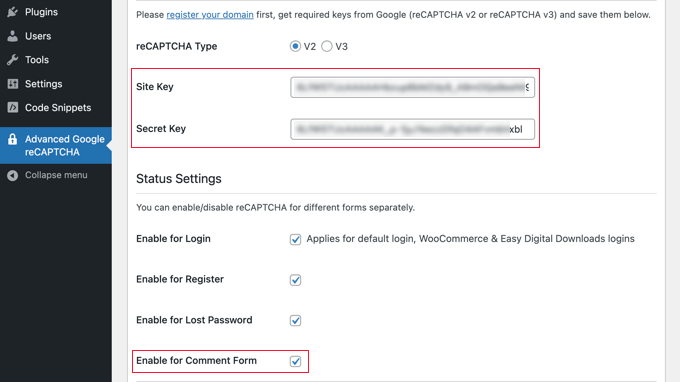
Start by getting your site and secret keys from Google Recaptcha. These keys link your site to Google’s security system. Paste the keys into the plugin settings in WordPress. This step activates Recaptcha on your forms. Without the keys, Recaptcha won’t work properly.
Customize Appearance And Behavior
Choose how Recaptcha looks on your site. You can select between light or dark themes. Pick the size that fits your form best. Also, set where Recaptcha will appear, such as login or comment forms. Adjust behavior settings to control when challenges show. These options help balance security and user experience.
Add Recaptcha To Login And Registration Forms
Adding Recaptcha to login and registration forms helps protect your WordPress site from spam and bots. It blocks automated attacks and ensures only real users can access your forms. This step is crucial for site security and user trust.
You can add Recaptcha easily using plugins or manual code. It works by asking users to prove they are human. This simple test stops fake registrations and login attempts.
Add Recaptcha Using A Plugin
Choose a trusted plugin like Google Captcha (reCAPTCHA) by BestWebSoft. Install and activate it from your WordPress dashboard. Go to the plugin settings and enter your Google Recaptcha keys. These keys connect your site with Google’s service.
After setup, enable Recaptcha for login and registration forms. Save changes. The forms will now display the Recaptcha challenge for users to complete.
Manually Add Recaptcha To Your Forms
Get your site and secret keys from the Google Recaptcha website. Add the Recaptcha code to your theme’s login and registration form files. This requires editing PHP files like functions.php or form templates.
Insert the Recaptcha widget code where the form appears. Then, add backend verification code to check the user’s response during form submission. This ensures the form only accepts valid, human inputs.
Test Your Recaptcha Integration
Visit your login and registration pages. Check if the Recaptcha widget appears correctly. Try submitting the form without completing Recaptcha to confirm it blocks submission.
Complete the Recaptcha and submit the form. It should accept the submission if the test is passed. This confirms your Recaptcha works well.
Test Recaptcha Functionality
Testing Recaptcha functionality is important. It ensures your website is protected from spam and bots. You confirm that Recaptcha works correctly before going live.
Testing also helps find any issues early. This way, you can fix problems before visitors see them. Proper testing improves user experience and security.
Check Recaptcha On Your Forms
Visit the pages with Recaptcha forms. Try submitting the form without filling required fields. See if Recaptcha asks you to verify you are human. This confirms Recaptcha is active.
Verify Recaptcha Challenges Display
Interact with the Recaptcha widget. It should show challenges like images or checkboxes. If challenges appear, Recaptcha works as expected. No challenges mean Recaptcha may not be set up properly.
Test On Different Devices And Browsers
Open your website on phones, tablets, and computers. Use popular browsers like Chrome, Firefox, and Safari. Recaptcha should function the same on all devices and browsers. This ensures wide compatibility.
Review Backend Submission Logs
Check your WordPress admin panel for form submissions. Confirm that forms blocked by Recaptcha do not reach your inbox. This confirms Recaptcha stops spam effectively. Regularly monitor these logs for security.
Credit: www.wpbeginner.com
Troubleshoot Common Issues
Adding reCAPTCHA to WordPress can stop spam and protect your site. Sometimes, problems may occur during setup or use. Troubleshooting common issues helps keep reCAPTCHA working smoothly. This section covers frequent problems and simple fixes.
Incorrect Site Key Or Secret Key
Using wrong keys is a frequent cause of reCAPTCHA failure. Double-check the keys from the Google reCAPTCHA site. Make sure the site key goes into the public key field. The secret key must be in the private key field. Even one wrong character can break it.
Plugin Conflicts
Some plugins do not work well with reCAPTCHA. This can cause errors or stop it from showing. Deactivate other plugins one by one to find conflicts. Clear your site cache after each test. Update all plugins to their latest versions.
Theme Compatibility Issues
Your WordPress theme might block reCAPTCHA scripts. Switch to a default theme like Twenty Twenty-Three. See if reCAPTCHA works with the default theme. If yes, the issue is with your theme. Contact the theme developer for support.
Invisible Recaptcha Not Triggering
Invisible reCAPTCHA may not appear if JavaScript is blocked. Check browser console for JavaScript errors. Disable ad blockers or security extensions during testing. Make sure your site loads all reCAPTCHA scripts correctly.
Recaptcha Not Showing On Forms
Check if reCAPTCHA is enabled for the correct forms. Some plugins require manual activation on each form. Clear your browser cache and refresh the page. Confirm that you configured the plugin settings properly.
Credit: www.wpbeginner.com
Frequently Asked Questions
What Is Recaptcha In WordPress?
ReCAPTCHA is a security tool that protects WordPress sites from spam and bots. It verifies real users during form submissions. This helps maintain site integrity and prevents automated abuse. Adding reCAPTCHA improves user experience by reducing unwanted spam entries.
How Do I Add Recaptcha To WordPress Forms?
To add reCAPTCHA, install a WordPress plugin like Google Captcha or WPForms. Then, get reCAPTCHA keys from Google’s site. Enter the keys into the plugin settings. Finally, enable reCAPTCHA on your desired forms to activate protection.
Which Recaptcha Version Is Best For WordPress?
Google offers reCAPTCHA v2 and v3 for WordPress. Version 2 shows a checkbox or challenge, while v3 runs invisibly. Choose v3 for seamless user experience or v2 for explicit user verification. Both effectively reduce spam on WordPress sites.
Can Recaptcha Improve My WordPress Website Security?
Yes, reCAPTCHA blocks automated bots and spam attacks. It helps secure login, registration, and contact forms. This reduces hacking attempts and unwanted submissions. Implementing reCAPTCHA strengthens overall WordPress website security and reliability.
Conclusion
Adding reCAPTCHA to your WordPress site helps stop spam easily. It keeps your forms safe and your visitors happy. The steps are simple and quick to follow. Just pick a plugin, get your keys, and set it up. Your site will feel more secure right away.
Keep your site clean and trustworthy with reCAPTCHA. Try it today and see the difference yourself.



