

Are you looking for a simple way to add a QR code to your WordPress site? Imagine giving your visitors a quick and easy way to access your content, promotions, or contact info with just a scan.
Adding a QR code can boost engagement and make your site more interactive. In this post, you’ll learn step-by-step how to create and insert a QR code in WordPress without any hassle. Keep reading—you’ll be surprised how fast and easy it is to connect with your audience in a whole new way.
Why Use Qr Codes On WordPress
QR codes offer a simple way to share information quickly on WordPress sites. They help visitors access content without typing long URLs. Using QR codes improves user experience and increases engagement. Many WordPress users add QR codes to connect offline and online channels easily.
Benefits Of Qr Codes
QR codes save time for website visitors. Scanning a code opens links instantly on mobile devices. They reduce errors from typing web addresses. QR codes can store different types of data like URLs, text, and contact details. They work well on printed materials and digital screens. Adding QR codes to WordPress helps track scans and user behavior. This data guides marketing and content strategies effectively.
Common Use Cases
Businesses use QR codes to share product details quickly. Event organizers share tickets or schedules via QR codes on WordPress pages. Bloggers link to social media profiles or newsletters easily. Restaurants display QR codes for digital menus and ordering. Educational sites provide quick access to resources or videos. QR codes also support contactless payments and customer feedback. These uses make websites more interactive and user-friendly.

Credit: wpwax.com
Choosing The Right Qr Code Generator
Choosing the right QR code generator is important for your WordPress site. It affects how your QR codes look and work. Picking the best tool helps you create codes that fit your needs. Some tools offer many features. Others keep it simple. Knowing what you want makes the choice easier.
Free Vs Paid Options
Free QR code generators are easy to use and cost nothing. They often provide basic features like simple code creation. These tools work well for small projects or personal use. Paid options offer more designs and customization. They may include analytics and tracking features. Paid tools can create codes that link to dynamic content. This means you can change the link later without changing the code. Many paid tools also remove ads and add security features.
Key Features To Look For
Look for a generator that creates high-quality QR codes. The codes should scan easily with smartphones. Customization is important. Choose tools that let you change colors, shapes, and add logos. Dynamic QR codes are helpful for updating links. Analytics help track how many people scan your code. Security features keep your data safe. Check if the tool supports multiple formats like URL, text, or email. A simple interface saves time and reduces mistakes.
Creating Your Qr Code
Creating your QR code is a simple step that brings your WordPress site to life. It turns text, links, or contact info into a quick, scannable image. This makes sharing easier and faster for your visitors.
Follow easy steps to create a QR code that fits your needs. Focus on the data you want to share and how the QR looks on your site.
Inputting Your Data
Start by choosing what information your QR code will hold. It can be a URL, email, phone number, or plain text. Enter this data into the QR code generator carefully. Double-check for any mistakes. Incorrect data means the QR code won’t work properly. Keep the data short and clear for best results.
Customizing Design And Size
Make the QR code match your site style. Pick colors that fit your theme but keep good contrast. Avoid light colors that scanners can’t read. Adjust the size so it’s easy to scan but not too big. Test the QR code on different devices to ensure it works well. Add a frame or logo if you want, but don’t clutter the design.
Credit: qyrrwp.com
Adding Qr Code To WordPress Site
Adding a QR code to a WordPress site helps visitors access information quickly. It can link to contact details, promotions, or other pages. Many site owners use QR codes to make sharing easier and faster. There are two main ways to add a QR code: using plugins or manual upload and embedding. Both methods work well and depend on your needs and skills.
Using Plugins
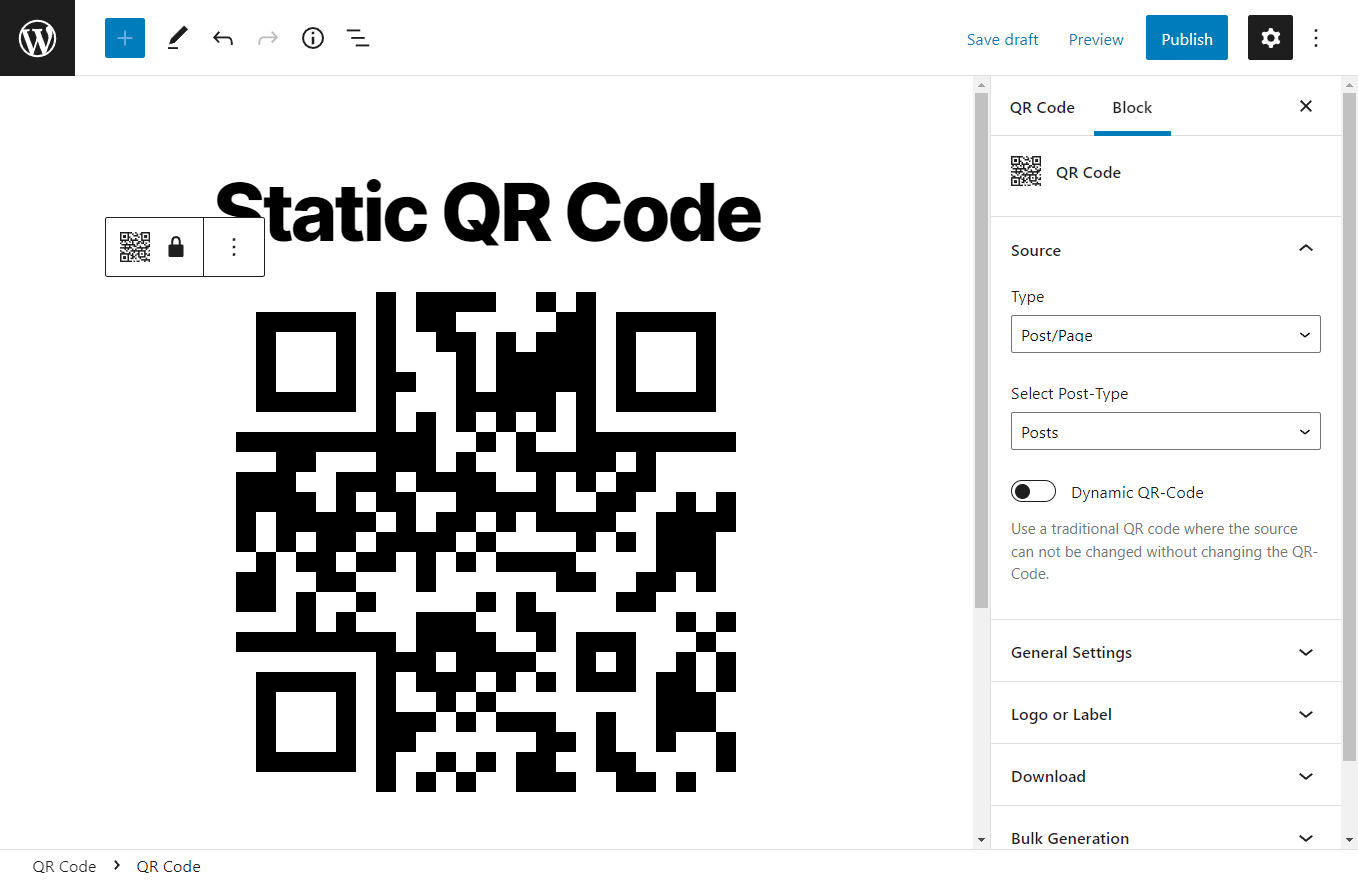
Plugins are the easiest way to add QR codes. They generate codes directly in WordPress. You just install the plugin, enter the link or text, and the QR code appears. Many plugins offer customization options for size and style.
Some popular QR code plugins allow you to place codes in posts, pages, or widgets. This method saves time and does not need coding knowledge. Plugins update automatically and keep your QR codes working correctly.
Manual Upload And Embedding
Manual upload works well for custom QR codes created outside WordPress. You create the QR code on a website or app, then download it as an image file. Next, upload the image to your WordPress media library.
After uploading, embed the QR code image into your posts or pages using the block editor. You can resize and position the QR code as needed. This method gives you full control over the QR code design and placement.
Placing Qr Codes For Maximum Impact
Placing QR codes on your WordPress site can boost user interaction. Proper placement helps visitors find and scan codes easily. Strategic spots increase scan rates and user engagement.
Best Locations On Your Website
Place QR codes where visitors spend most time. The homepage is a great spot. Also, add codes to product pages and blog posts. Footer areas work well for contact info codes. Use sidebars for promotional offers or event details. Keep QR codes visible but not intrusive.
Mobile Responsiveness Tips
Ensure QR codes appear clearly on all devices. Use responsive design to adjust code size. Test codes on phones and tablets. Avoid placing codes too close to edges. Leave enough space around codes for easy scanning. Mobile-friendly placement improves user experience.
Testing And Tracking Qr Code Performance
Testing and tracking your QR code performance is crucial after adding it to WordPress. It ensures the code works well and helps you see how many people use it. This step saves time and improves the user experience.
Verifying Scannability
Check if your QR code scans easily with different devices. Use a smartphone camera or QR code scanner app. Test in various lighting conditions and at different sizes. If the code is hard to scan, adjust its size or contrast. Clear scanning leads to more user engagement.
Using Analytics Tools
Track QR code scans with analytics tools for better insights. Use services like Google Analytics or QR code generator platforms with tracking features. Monitor scan counts, locations, and devices used. This data helps improve your marketing strategy and content placement.
Troubleshooting Common Issues
Troubleshooting common issues helps keep your QR codes working well on WordPress. Problems can stop users from scanning or viewing the codes properly. Fixing these quickly improves user experience and site performance.
Follow these simple tips to solve frequent QR code problems on WordPress.
Qr Code Not Scanning
Check the size of your QR code. Small codes can be hard to scan. Make sure it is at least 150×150 pixels.
Ensure good contrast between the QR code and background. Dark codes on light backgrounds scan best.
Test the QR code with multiple devices. Some scanners may struggle with low-quality images.
Clear any blurriness or distortion. Use high-resolution images for sharp codes.
Verify the QR code’s link or data is correct. Broken or wrong links cause scan failures.
Display Problems On WordPress
Check your theme’s compatibility with QR code plugins. Some themes may block or distort codes.
Clear your site cache. Old files can prevent new QR codes from showing correctly.
Use the correct shortcode or block for your QR code plugin. Mistakes here cause display errors.
Make sure your images are loading properly. Broken image links show empty spaces instead of codes.
Test your site on different browsers. Some display issues only appear on certain browsers.

Credit: www.wpbeginner.com
Frequently Asked Questions
How Do I Generate A Qr Code For WordPress?
You can use online QR code generators or WordPress plugins. Simply enter your URL or data, generate the code, and save it. Then, upload or embed the QR code image into your WordPress site easily.
Which Plugin Is Best For Adding Qr Codes In WordPress?
Popular plugins include “QR Code Generator,” “Kaya QR Code,” and “QR Code Widget. ” These plugins offer easy QR code creation and customization inside your WordPress dashboard.
Can I Customize The Design Of WordPress Qr Codes?
Yes, many QR code plugins allow customization. You can change colors, sizes, and add logos. Custom designs help match your website branding and improve user engagement.
Where Should I Place Qr Codes On My WordPress Site?
Place QR codes in visible areas like sidebars, footers, or contact pages. This ensures visitors can easily scan codes to access promotions or additional info.
Conclusion
Adding a QR code to your WordPress site is simple and useful. It helps visitors get information fast with just a scan. You can create codes for links, contacts, or promotions. Plugins make the process easy, even for beginners. Test the code to ensure it works well on all devices.
Keep your site fresh by updating QR codes when needed. Try this tool to improve user experience and connect better with your audience. Start adding QR codes today and see the difference they make.



