
Are you ready to take your online store to the next level? Knowing how to add products in WordPress is a crucial step that can boost your sales and attract more customers.
Whether you’re just starting out or looking to expand your existing shop, this guide will show you simple, clear steps to get your products online quickly. By the end, you’ll have the confidence to showcase your products in a way that grabs attention and drives buyers straight to your checkout.
Let’s dive in and make your WordPress store shine!
Preparing Your WordPress Site
Preparing your WordPress site is an important first step before adding products. A well-prepared site ensures smooth management and better sales. This preparation includes picking the right tools and setting up your store properly. It creates a strong base for your online shop.
Choosing The Right E-commerce Plugin
Choosing the right e-commerce plugin is key for your online store. WooCommerce is a popular choice, but others like Easy Digital Downloads also work. Consider what products you will sell and what features you need. Pick a plugin that fits your store size and budget. Make sure it is user-friendly and well-supported.
Setting Up Woocommerce
After choosing WooCommerce, install and activate it on your WordPress site. Follow the setup wizard to configure basic options. Enter your store location, currency, and payment methods. This setup guides you through essential steps quickly. It prepares your site to accept orders and payments.
Configuring Basic Store Settings
Configure basic store settings to match your business needs. Set shipping options, tax rates, and email notifications. Organize product categories and inventory settings. Check your store’s appearance and customize it if needed. These settings help your store run smoothly and look professional.
Credit: www.omnisend.com
Creating Your First Product
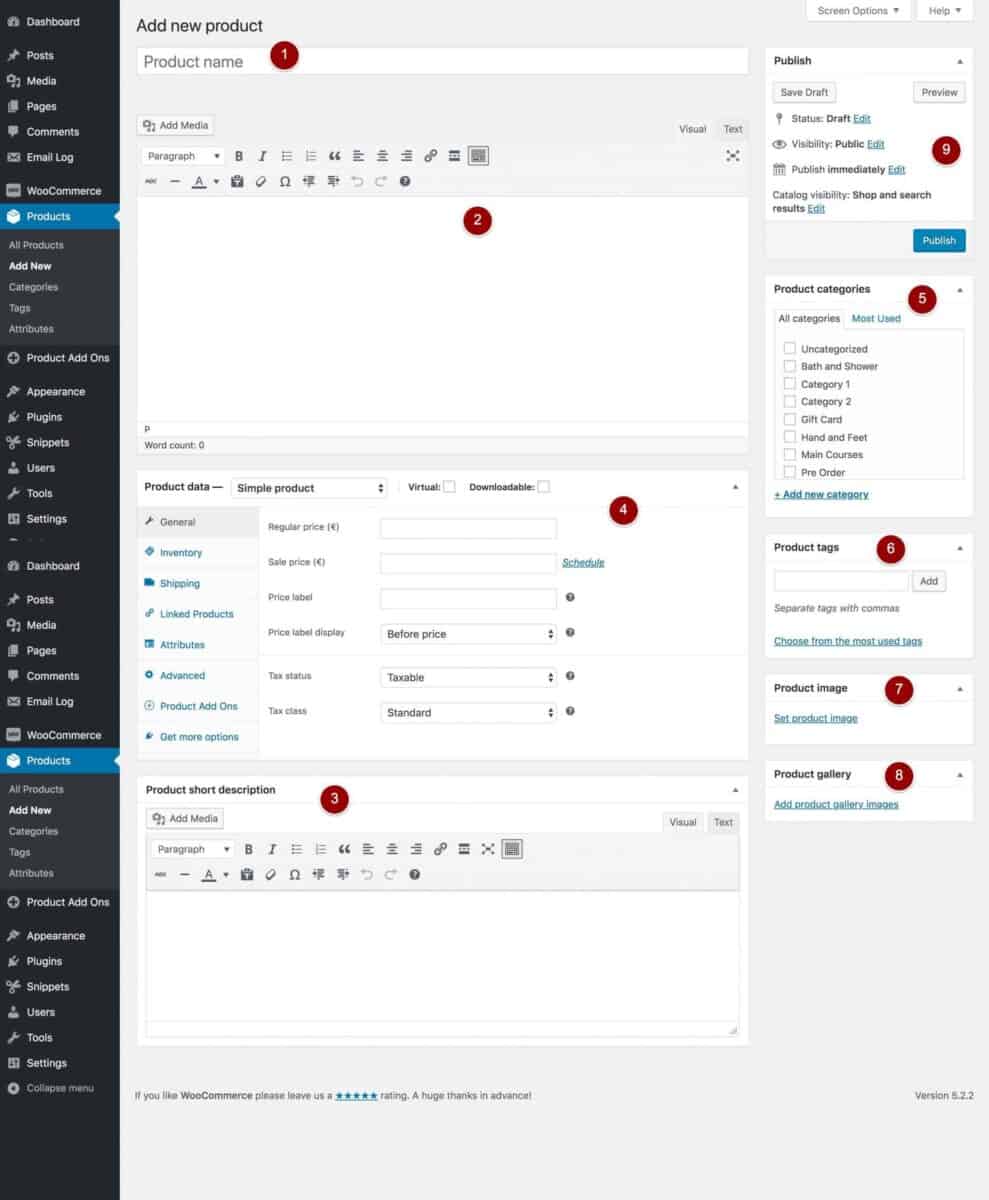
Creating your first product in WordPress is simple and quick. It sets the foundation for your online store. Follow clear steps to make your product stand out. Focus on key parts like title, description, categories, tags, and images. These elements help customers find and understand your product easily.
Adding Product Title And Description
Start by entering a clear product title. Keep it short and descriptive. The title should tell what the product is at a glance. Next, write a product description. Use simple sentences to explain the product’s features and benefits. Highlight what makes your product useful or special. Avoid long paragraphs. Break text into small, easy-to-read chunks.
Setting Product Categories And Tags
Assign your product to a category to organize your store. Categories group similar products together. This helps customers browse easily. Add tags to describe product details. Tags are keywords that improve search and filtering. Choose relevant categories and tags. This improves product visibility and helps users find exactly what they want.
Uploading Product Images
Images show your product clearly and attract attention. Upload high-quality photos with good lighting. Use multiple images to show different angles or features. Make sure images are not too large to keep your site fast. Add alt text to each image for better SEO. Alt text describes the image and helps search engines understand your product.
Configuring Product Details
Configuring product details is a key step in adding products to WordPress. This process helps you present clear information to your customers. It ensures your product pages look professional and complete. Properly set details improve shopping experience and boost sales.
Setting Product Price And Sale Options
Start by entering the regular price of the product. This price shows the usual cost to customers. You can also set a sale price for discounts. Use the sale price to attract buyers during promotions. Schedule the sale period to start and end automatically. This helps manage sales without extra effort.
Managing Inventory And Stock Status
Keep track of stock to avoid selling unavailable items. Enable stock management to update quantities automatically. Enter the number of products available in stock. Set low stock thresholds to receive alerts. Choose the stock status as “In stock,” “Out of stock,” or “On backorder.” This keeps customers informed about product availability.
Adding Product Attributes And Variations
Attributes describe product features like size, color, or material. Add attributes to help customers choose the right product. Use variations to create different versions of the product. Each variation can have its own price, stock, and image. This option is perfect for products with multiple options.
Optimizing Product Pages
Optimizing product pages helps your items sell better and rank higher in search engines. Clear, attractive pages make visitors trust your store. Good optimization means faster sales and better user experience. Each element on the page should work to keep buyers interested and informed.
Writing Seo-friendly Product Descriptions
Write short, clear descriptions that explain the product well. Use simple words that customers search for. Include key features and benefits. Avoid long sentences or complex terms. Use bullet points for easy reading. Add important keywords naturally, without stuffing. Make each description unique to avoid duplicate content issues.
Using Product Reviews And Ratings
Show customer reviews to build trust. Positive reviews help buyers decide faster. Display star ratings clearly near the product name. Encourage buyers to leave honest feedback. Respond to reviews to show you care. Reviews also add fresh content, helping SEO. Avoid fake or spammy reviews, as they harm your credibility.
Customizing Product Layouts
Arrange images and text for easy viewing. Use large, clear product photos from different angles. Place the price and call-to-action buttons near the top. Keep the layout clean and simple. Avoid clutter to help buyers focus on the product. Test your layout on phones and tablets. A good layout improves user experience and sales.
Publishing And Managing Products
Publishing and managing products in WordPress is a key step for any online store. It lets you control what customers see and buy. Proper management keeps your store organized and up to date. This section explains how to save, edit, and manage products efficiently.
Saving And Publishing Products
After adding product details, saving is essential. Click the “Save Draft” button to keep your work without showing it online. To make the product live, use the “Publish” button. This action displays the product on your website for customers. Check all information before publishing to avoid errors.
Editing Existing Products
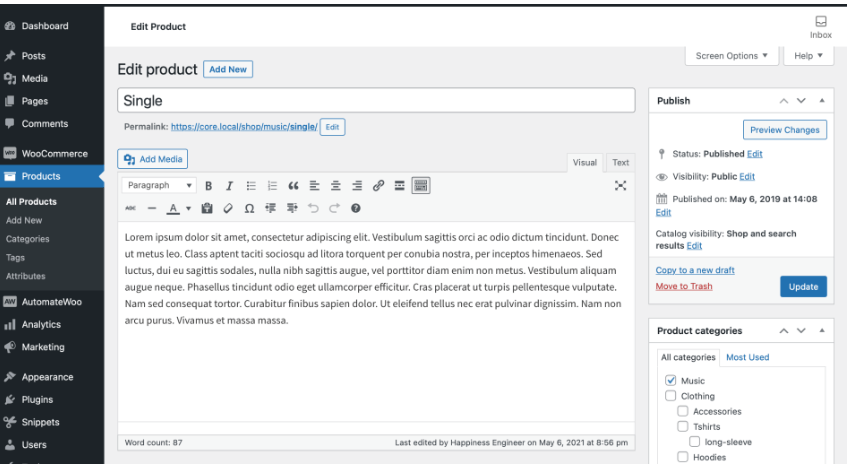
Products may need updates or changes later. Go to the “Products” menu in your WordPress dashboard. Select the product you want to edit. You can update the title, description, price, images, or stock status. After changes, click “Update” to save. This keeps your product info current and accurate.
Bulk Managing Products
Managing many products at once saves time. Use the “Products” page to select multiple items with checkboxes. Apply bulk actions like “Edit,” “Move to Trash,” or “Change Categories.” This method helps update prices, stock, or status quickly. Bulk management is useful for large stores with many products.
Credit: pluginrepublic.com
Troubleshooting Common Issues
Troubleshooting common issues helps keep your WordPress product listings smooth. Problems may arise during product addition but fixing them is simple. Understanding the common errors saves time and effort.
Fixing Image Upload Problems
Images often fail to upload due to file size limits. Check your WordPress media settings to increase upload size. Use JPEG or PNG formats for better compatibility. Clear your browser cache if images do not show. Ensure your internet connection is stable during uploads.
Resolving Pricing Errors
Pricing errors happen when you enter wrong numbers or formats. Double-check the price field for correct values. Use a period for decimals, not a comma. Confirm the currency settings in WooCommerce or your plugin. Save changes after editing prices to update correctly.
Handling Inventory Discrepancies
Inventory discrepancies cause confusion and lost sales. Update stock quantities regularly in your product dashboard. Enable stock management to track items automatically. Check for plugin conflicts that may affect inventory data. Sync your inventory with external sales channels if used.
Credit: aovup.com
Frequently Asked Questions
How Do I Add A New Product In WordPress?
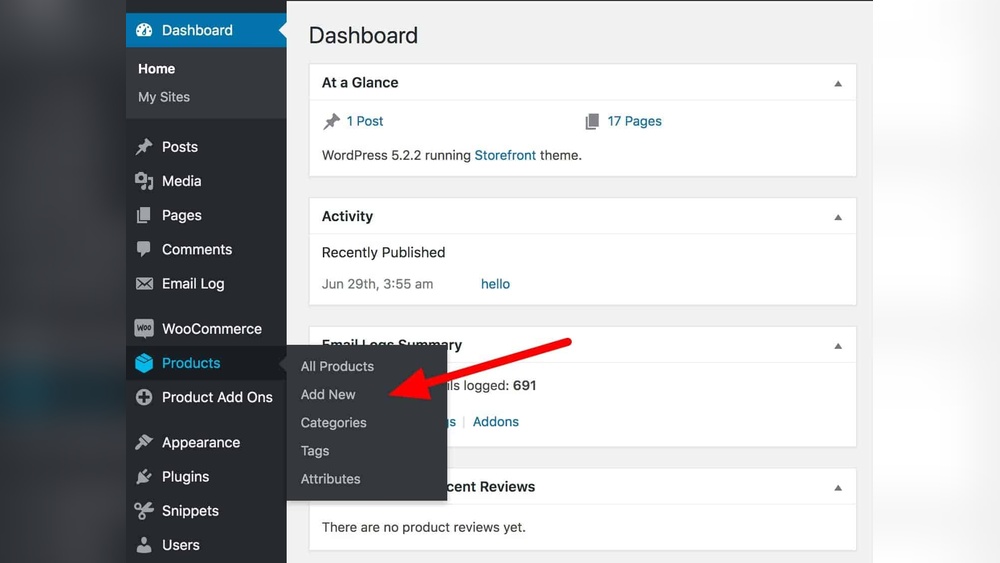
To add a new product, go to your WordPress dashboard. Click on “Products” then “Add New. ” Enter product details like title, description, price, and images. Finally, click “Publish” to make it live on your site.
Can I Add Product Variations In WordPress?
Yes, WordPress with WooCommerce allows product variations. In the product edit page, select “Variable product” from the dropdown. Add attributes like size or color, then create variations with specific prices and stock.
How Do I Optimize Product Listings For Seo?
Use unique product titles and detailed descriptions. Add relevant keywords naturally. Include high-quality images with alt text. Use clean URLs and meta tags to improve search engine rankings.
Is It Possible To Import Products In Bulk?
Yes, you can import products using CSV files. Go to “Products” > “Import” in your dashboard. Upload your CSV file and map the fields correctly. This saves time when adding many products.
Conclusion
Adding products in WordPress is simple and quick. Just follow the steps carefully. Enter clear product details and images to attract buyers. Keep your product information updated for best results. Regularly check your listings to fix any issues. This helps your online store run smoothly.
Start adding products today and grow your website easily.



