
Are you struggling to organize your online store or blog? Adding product categories in WordPress is the key to making your site easy to navigate.
When your visitors find what they need quickly, they stay longer and buy more. In this guide, you’ll learn simple, step-by-step ways to create and manage product categories. By the end, you’ll have a cleaner, more professional website that keeps your customers coming back.
Ready to make your site smarter and more user-friendly? Let’s dive in.
Why Use Product Categories
Product categories help organize your online store clearly. They make it simple for visitors to find products fast.
Using categories improves user experience and increases the chance of sales. Search engines also prefer well-structured sites.
Improved Navigation
Categories create clear paths for users to follow. Visitors can browse items by type or interest. This reduces confusion and saves time.
Better Seo Performance
Search engines read categories to understand your site. Proper categories help your products rank higher in search results. This brings more visitors to your store.
Easy Product Management
Categories help you sort and manage products easily. Group similar items together for quick updates or changes. This keeps your store organized.
Enhanced Shopping Experience
Customers find what they want faster with categories. This leads to happier buyers and more repeat visits. Simple browsing encourages more sales.
Accessing WordPress Dashboard
Accessing the WordPress dashboard is the first step to managing your website. This dashboard is the control center for your site. You can add posts, pages, and product categories here. It also helps you customize your site’s look and settings.
To find the dashboard, start by opening your web browser. Enter your website’s URL followed by /wp-admin. This will take you to the login page. Enter your username and password to log in. Once logged in, you will see the WordPress dashboard screen.
Logging Into WordPress
Open a new browser tab. Type your site address with /wp-admin at the end. Press Enter. The login page appears. Enter your username and password. Click the “Log In” button.
Understanding The Dashboard Layout
The dashboard shows a menu on the left side. This menu has all the tools you need. The main area shows updates, news, and quick links. Use this space to manage your website easily.
Finding The Product Categories Section
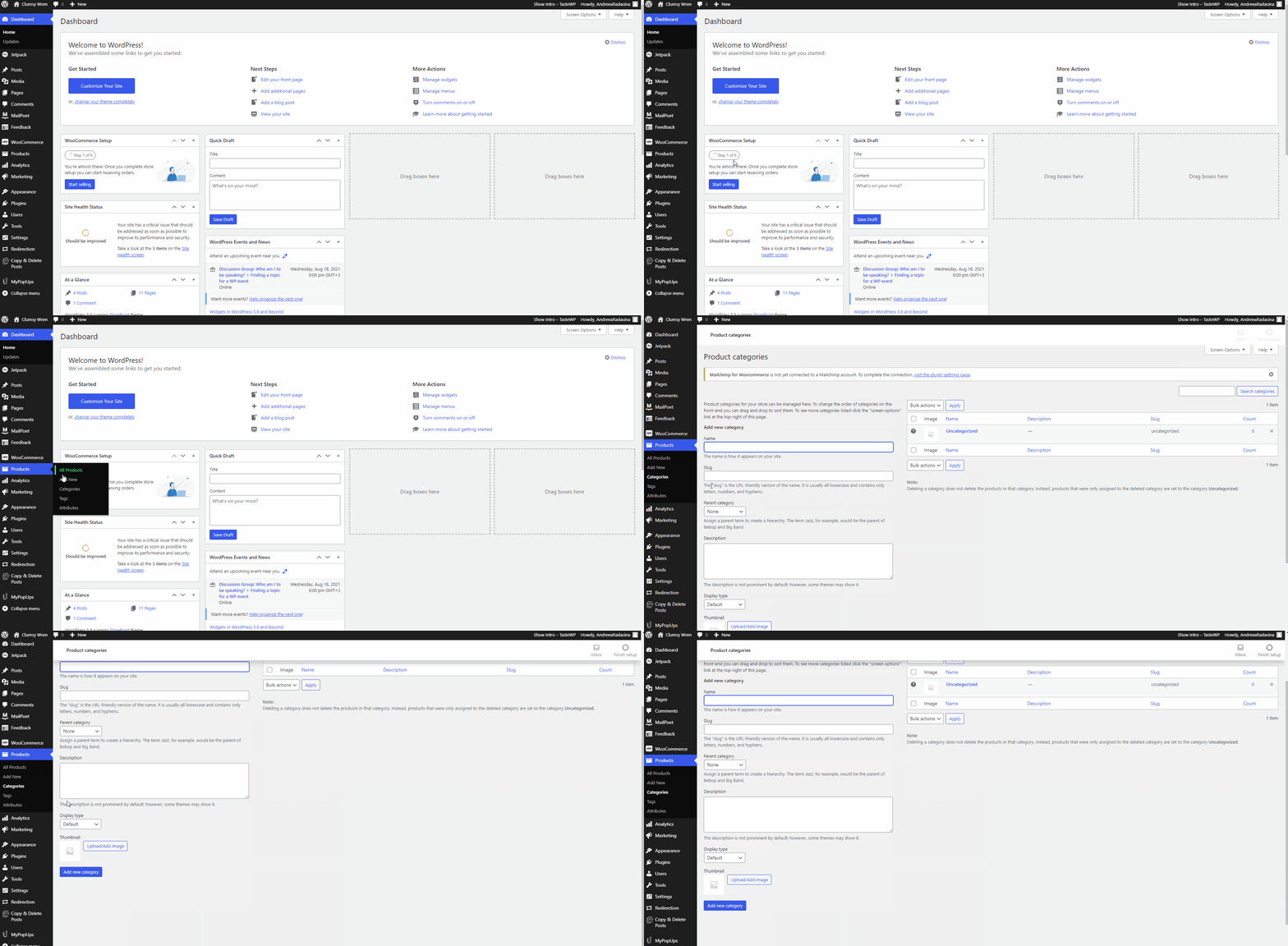
In the left menu, look for “Products.” Click it to expand options. Select “Categories” from the list. This opens the product categories page. Here you can add, edit, or delete categories.
Navigating To Product Categories
Navigating to Product Categories in WordPress is simple. This step is important before adding or managing categories for your products. Finding the right place helps you organize your online store better. Follow clear steps to reach the Product Categories section quickly.
Accessing The WordPress Dashboard
Start by logging into your WordPress admin area. Use your username and password to enter the dashboard. The dashboard is the main control panel for your website.
Locating The Products Menu
Look at the left sidebar on the dashboard. Find the menu item labeled “Products.” This section contains all your product settings and options.
Opening The Product Categories Page
Hover over or click on “Products.” A submenu will appear. Select “Categories” from this list to open the Product Categories page.
This page allows you to add, edit, or delete product categories easily. Organizing products in categories improves your store’s navigation and user experience.
Creating A New Product Category
Creating a new product category in WordPress helps organize your products better. It makes it easy for customers to find what they want. Setting up categories is simple and takes just a few steps.
Naming The Category
Choose a clear and simple name for your category. Use words that describe the products well. Avoid long or confusing names. Short and direct names work best.
Adding Description And Image
Write a brief description for the category. This helps visitors understand what kind of products are included. Upload an image that represents the category. A good image makes the category more attractive and easier to recognize.
Setting Parent Category
Decide if the new category should be a subcategory. Select a parent category if needed. This creates a hierarchy and keeps your store organized. If not, leave it as a main category.
Assigning Products To Categories
Assigning products to categories helps organize your online store. It makes browsing easier for customers. Categories group similar products together. This step improves user experience and boosts sales.
In WordPress, assigning products to categories is simple. You can do this while adding or editing a product. Proper categorization helps search engines understand your site better.
Assign Categories While Adding A New Product
Start by going to the WordPress dashboard. Click on “Products” then “Add New.” On the right side, find the “Product Categories” box. Here, select the categories that fit your product. You can also create a new category if needed. Check the boxes next to the appropriate categories. Then, save or publish your product.
Assign Categories To Existing Products
Go to the “Products” list in your dashboard. Find the product you want to edit and click “Edit.” Locate the “Product Categories” box on the right side. Select or change the categories by checking or unchecking boxes. Update the product to save changes.
Use Bulk Actions To Assign Categories
Managing many products? Bulk editing saves time. In the “Products” list, select multiple products using checkboxes. Choose “Edit” from the bulk actions menu and click “Apply.” In the bulk edit panel, add or remove categories. Click “Update” to apply changes to all selected products.
Credit: crocoblock.com
Managing Existing Categories
Managing existing product categories in WordPress helps keep your online store organized. It allows you to update, fix, or remove categories as your products change. This keeps your website clean and easy to navigate for customers. Regularly managing categories improves user experience and site structure.
Editing Categories
To edit a category, go to the WordPress dashboard. Click on “Products” and then “Categories.” Find the category you want to change. Click the “Edit” link under its name. You can update the name, slug, or description here. Save the changes by clicking the “Update” button. This refreshes the category details on your site instantly.
Deleting Categories
Deleting unused categories prevents clutter on your site. Go to “Products” then “Categories” in the dashboard. Hover over the category you want to remove. Click the “Delete” link that appears. Confirm the deletion if asked. The category will be removed from your store. Products in that category will not be deleted but will lose that category tag.
Displaying Categories On Your Site
Displaying product categories on your WordPress site helps visitors find products faster. It organizes your store and improves user experience. Visitors can browse by category and see all related products easily. Showing categories clearly can boost your sales and site navigation.
Using Widgets
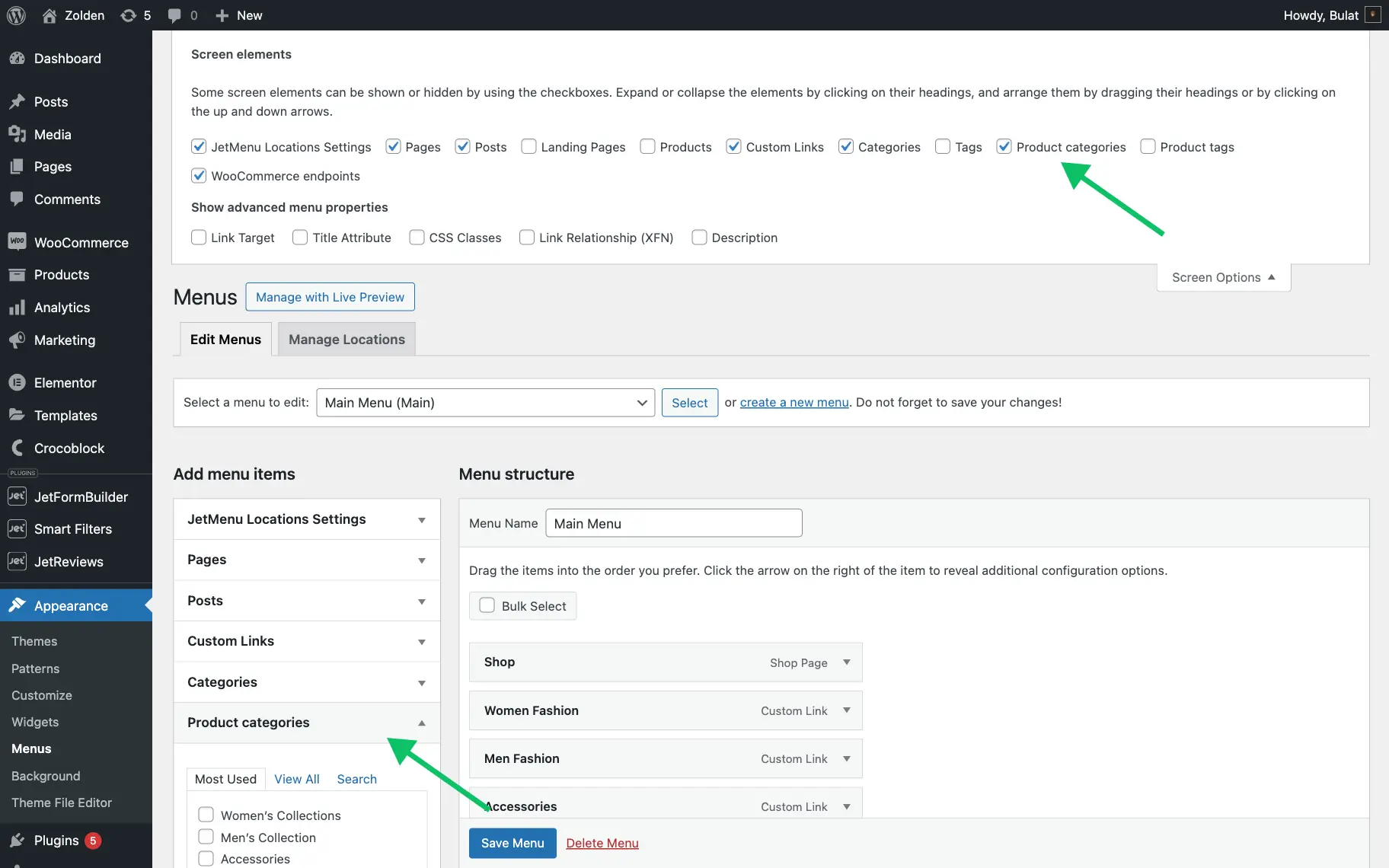
Widgets are simple tools to show product categories on your site. Go to Appearance > Widgets in your WordPress dashboard. Drag the “Product Categories” widget to your sidebar or footer area. Customize the widget to show as a dropdown or list. You can also choose to show product counts next to each category. Widgets update automatically when you add new categories.
Adding Categories To Menus
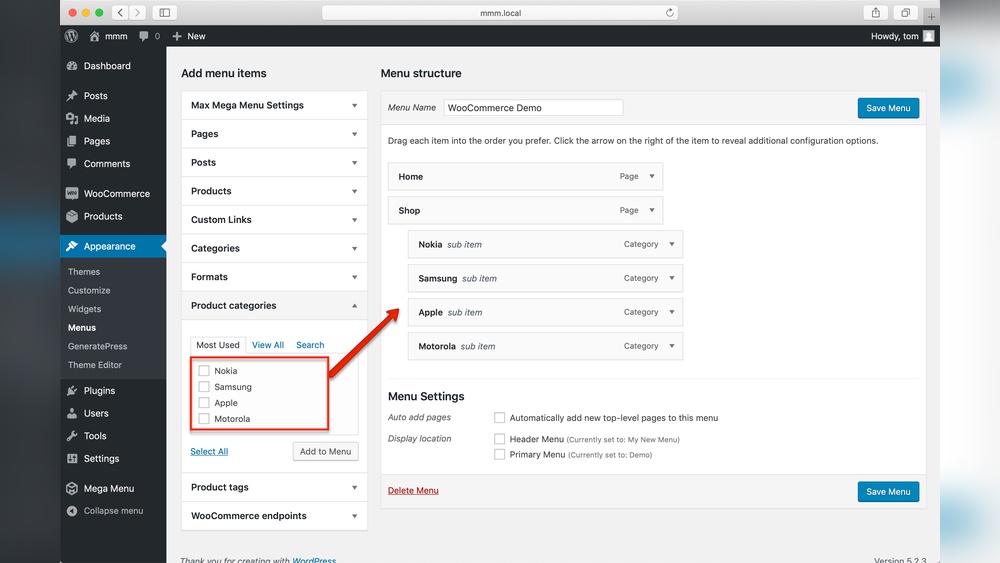
Menus help visitors explore your site quickly. Go to Appearance > Menus in your WordPress dashboard. Select the menu where you want to add product categories. Click “Categories” on the left side and check the boxes for the categories you want to add. Click “Add to Menu” and arrange the categories in order. Save the menu to display categories in your site’s navigation bar.
Credit: docs.themeisle.com
Tips For Organizing Categories Effectively
Organizing product categories clearly helps visitors find items faster. Clear categories improve user experience and increase sales. Simple, logical grouping avoids confusion and keeps your site tidy.
Use consistent naming to keep categories easy to understand. Avoid long or complex names. Short, clear titles help users and search engines.
Use Broad Categories First
Start with broad categories that cover main product types. For example, “Clothing” or “Electronics.” These act as main folders for more specific items.
Create Subcategories For Detail
Break broad categories into smaller groups. For “Clothing,” add “Men’s,” “Women’s,” and “Kids’.” Subcategories help users drill down quickly.
Limit Category Levels
Keep category levels shallow. Two or three levels work best. Deep nesting can confuse users and slow site navigation.
Use Keywords In Category Names
Include common search words in category titles. This helps your site rank better on Google. Use words customers type to find products.
Review Categories Regularly
Check categories often to keep them relevant. Remove or merge unused categories. Fresh categories match current products and customer needs.

Credit: wpzita.com
Frequently Asked Questions
How Do I Create Product Categories In WordPress?
Go to your WordPress dashboard, navigate to Products > Categories. Fill in the category name, slug, and description, then click Add New Category. Your category will be ready to assign to products.
Can I Add Subcategories Under Main Product Categories?
Yes, WordPress allows subcategories. When creating a category, select a parent category under the Parent dropdown. This helps organize products better and improves site navigation.
How To Assign Products To Specific Categories In WordPress?
Edit the product in the dashboard, find the Product Categories box on the right, and check the categories that apply. Save or update the product to apply changes.
Will Adding Product Categories Improve Seo For My Site?
Yes, product categories create better site structure and improve user navigation. This helps search engines understand your product organization, boosting your SEO rankings.
Conclusion
Adding product categories in WordPress helps organize your store better. It makes it easier for customers to find what they want. The steps are simple and do not take much time. Keep categories clear and relevant to your products. This will improve user experience and boost site navigation.
Regularly update categories as your product range grows. A well-structured store can attract more visitors and increase sales. Start categorizing today to make your online shop more user-friendly and efficient.



