
Are you struggling to show your latest blog posts right on your WordPress pages? You’re not alone.
Many website owners want to keep their visitors engaged by displaying fresh content but don’t know the easiest way to do it. Imagine if you could effortlessly add posts to your pages and keep your site dynamic without extra hassle.
In this guide, you’ll discover simple, step-by-step methods to make your WordPress pages more powerful and engaging. Keep reading, and by the end, you’ll have the tools to boost your site’s appeal and keep your audience coming back for more.
Difference Between Posts And Pages
Understanding the difference between posts and pages in WordPress is important. Both are ways to add content, but they serve different purposes. Knowing this helps you organize your site better and use WordPress more effectively.
Posts are for timely content. They show up in reverse order on your blog page. Pages are for static content. They do not change often and stay separate from your blog.
What Are Posts?
Posts are articles or updates. They appear on your blog or news section. Posts have dates and authors. They allow comments from visitors. Posts can be categorized and tagged for easy navigation.
What Are Pages?
Pages contain fixed information. Examples include About Us, Contact, and Privacy Policy. Pages do not have dates or categories. They do not show in blog feeds. Pages usually form the main structure of your site.
Main Differences Between Posts And Pages
Posts are dynamic and timely. Pages are static and long-lasting. Posts encourage interaction with comments. Pages are more formal and less interactive. Posts appear in RSS feeds; pages do not. Posts use categories and tags; pages do not.

Credit: www.youtube.com
Reasons To Add Posts To Pages
Adding posts to WordPress pages helps organize your website better. It creates a clear structure for visitors. You can show fresh content without changing your main page. This method blends static information with dynamic updates smoothly.
Here are key reasons why adding posts to pages works well for many websites.
Enhances User Engagement
Visitors see new posts directly on important pages. This keeps them interested and encourages them to explore more. It reduces the chance of users leaving quickly.
Improves Content Organization
Posts grouped on relevant pages make your site easier to navigate. Readers find related topics in one place. This clear layout helps users find what they want faster.
Boosts Seo Performance
Search engines love fresh and organized content. Posting on pages creates more indexed material. It increases the chance to rank higher in search results.
Allows Better Content Control
You decide which posts appear on each page. This control helps tailor the user experience. It keeps pages focused on specific themes or topics.
Supports Different Website Goals
Adding posts to pages fits blogs, portfolios, and business sites. It adapts to various needs without complex coding. A flexible way to share updates and news.
Using WordPress Blocks To Embed Posts
Using WordPress blocks to embed posts makes your site dynamic and easy to update. Blocks let you show posts directly on pages without coding. This helps visitors see your latest content or specific articles quickly. WordPress offers several blocks for embedding posts with different styles and options.
Latest Posts Block
The Latest Posts block shows your most recent articles automatically. You can choose how many posts to display and the order. This block lets you add post titles, excerpts, dates, and featured images. It fits well on homepages or sidebars to keep content fresh. Customize the layout with grid or list styles to match your site’s look.
Custom Query Block
The Custom Query block gives control over which posts to show. Use filters like categories, tags, or authors to find specific posts. Set the number of posts and sorting order to highlight what matters most. This block suits pages that focus on a topic or event. It helps organize content clearly for your readers.
Embed Block Options
The Embed block supports URLs from your site or others. Paste a post link, and WordPress will display it nicely. Choose between full posts or summaries depending on space. Some embeds show images and links, making posts attractive and clickable. Use this block to mix posts with other content types easily.
Credit: www.greengeeks.com
Creating A Posts Section On A Page
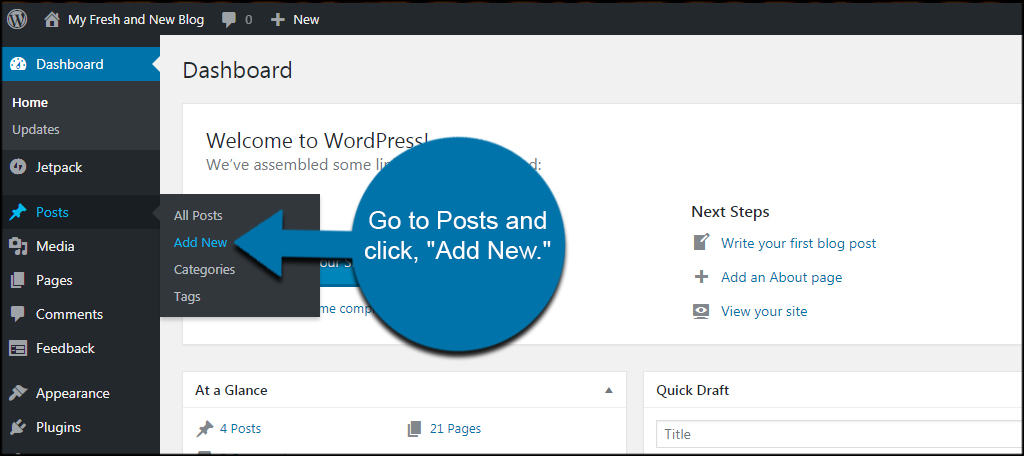
Creating a posts section on a WordPress page helps you show your latest blog updates easily. This section lets visitors see your content without visiting the blog page directly. You can control which posts appear and how they look. Setting up a posts section improves your website’s user experience and keeps content fresh.
Setting Up Categories
Categories organize your posts by topics. Assigning posts to categories helps you display related content together. Go to the WordPress dashboard and select “Posts” then “Categories.” Create new categories that match your page theme. Assign your posts to these categories to keep them organized.
Inserting Post Lists
Use a block or shortcode to add posts to a page. The “Latest Posts” block is simple for beginners. Choose this block and place it where you want the posts list. Select the category to show posts from a specific topic. This method updates automatically when you add new posts.
Adjusting Display Settings
Control how posts appear on your page with display settings. Change the number of posts shown at once. Decide if you want to show post dates, excerpts, or thumbnails. Customize the layout to match your site style. Clear and neat display keeps visitors engaged.
Using Plugins To Add Posts To Pages
Using plugins to add posts to WordPress pages is a simple way to display blog content. Plugins can show posts automatically on any page you choose. They offer options to customize how posts appear. This helps you create a more dynamic website without coding.
Popular Plugins Overview
Several plugins help add posts to pages. “Display Posts” is lightweight and easy to use. “Content Views” offers grid and list layouts. “Post Grid” allows filtering posts by category or tag. Each plugin has unique features for different needs.
Installation And Activation
Go to your WordPress dashboard. Click on “Plugins” then “Add New.” Search for the plugin by name. Click “Install Now” and then “Activate.” The plugin is ready to use after activation.
Customizing Plugin Settings
Access the plugin settings from the dashboard menu. Choose how many posts to show on the page. Select the layout style, such as list or grid. Set filters like categories or dates to narrow posts. Save changes to apply your settings immediately.
Manual Methods With Shortcodes
Manual methods with shortcodes let you place posts directly on WordPress pages. This approach gives control over which posts appear and where. It works without extra plugins and is easy to use once you know the basics.
Shortcodes are small pieces of code you insert into a page. WordPress reads them and shows posts in the spot you choose. This method helps keep your site clean and organized.
Basic Shortcode Usage
Use the default WordPress shortcode to show posts. The most common shortcode is [recent-posts] or [posts], depending on your theme. Place it inside the page editor where you want the posts to appear.
Example:
[recent-posts]This shortcode displays a list of the latest posts. It pulls posts automatically without any extra setup.
Customizing Shortcodes
Shortcodes can be changed with simple options. You can set how many posts show, the order, and what categories to include.
For example, [recent-posts posts="5" category="news"] shows five posts from the news category. You can also order posts by date or title.
Use parameters like posts, category, and order to get the results you want.
Examples And Tips
Try this shortcode to show three posts from the blog category:
[recent-posts posts="3" category="blog"]To display posts in reverse order, add order="DESC":
[recent-posts posts="4" order="DESC"]Shortcodes can also work inside widgets or custom page templates. Use them to highlight specific content easily.
Troubleshooting Common Issues
Adding posts to WordPress pages can sometimes cause problems. These issues can stop your content from showing correctly. Knowing common problems helps fix them fast. This saves time and keeps your site looking great.
Posts Not Showing
Posts may not appear due to incorrect settings. Check if your page uses the right template. Some templates do not display posts automatically. Make sure your posts are published, not drafts. Clear your cache to update the page view. Also, check if your posts are assigned to the correct category.
Formatting Problems
Formatting issues can make posts look messy. Sometimes, copying from other sources adds unwanted code. Use the WordPress editor to clean your text. Avoid using too many fonts or colors. Check for broken HTML tags inside your posts. Preview your page before publishing to spot errors.
Plugin Conflicts
Plugins can interfere with how posts show on pages. Some plugins change content display or block posts. Deactivate plugins one by one to find the problem. Update all plugins to the latest versions. Use plugins from trusted sources only. Avoid installing too many plugins as they slow down your site.
Optimizing Post Displays For Better Engagement
Optimizing how posts appear on your WordPress pages helps keep visitors interested. Well-displayed posts invite clicks and encourage users to explore more. This section covers simple ways to make your posts look better and load faster.
Using Featured Images
Featured images catch attention quickly. They give a visual preview of the post’s content. Choose clear, relevant images that match your topic. Use images with good resolution but keep the file size small. This balance keeps pages attractive and fast.
Adding Excerpts
Excerpts provide a short summary of the post. They help visitors understand what the post is about. Write clear and simple excerpts that highlight key points. Keep them brief—around 40 to 50 words works well. This helps readers decide if they want to read more.
Improving Load Times
Fast-loading pages improve user experience and reduce bounce rates. Compress images before uploading to decrease loading time. Use caching plugins to speed up your site. Limit the number of posts shown on one page. These steps keep your site smooth and easy to use.
Credit: www.youtube.com
Frequently Asked Questions
How Do I Add Posts To WordPress Pages?
To add posts to WordPress pages, use the “Posts” block or a plugin. You can also create a custom query to display posts on any page.
Can I Display Specific Posts On A WordPress Page?
Yes, you can show specific posts by filtering categories or tags using blocks or plugins. This targets relevant content on your pages.
Is It Possible To Show Recent Posts On A WordPress Page?
Yes, use the “Latest Posts” block to automatically display recent posts. It updates dynamically as new posts are published.
What Plugins Help Add Posts To WordPress Pages?
Plugins like “Display Posts” or “Elementor” simplify adding posts. They offer flexible layouts and filtering options for better presentation.
Conclusion
Adding posts to WordPress pages helps keep your site fresh and active. You can share news, updates, or stories easily. Follow simple steps to place posts where visitors can see them. This method improves user experience and site engagement. Try it today and make your website more dynamic.
Keep exploring WordPress features to build a better site. Simple actions can lead to great results.



