
Are you struggling to add posts to your blog page in WordPress? You’re not alone.
Many people find this step confusing, but it’s actually simpler than you think. Imagine your blog page filled with fresh, engaging content that keeps visitors coming back. This guide will show you exactly how to make that happen, step by step.
By the end, you’ll feel confident managing your posts and growing your blog like a pro. Ready to take control of your WordPress blog? Let’s dive in!
Credit: wordpress.org
Set Up Your Blog Page
Setting up your blog page in WordPress is an important step. It helps organize your posts and makes your site look professional. Follow simple steps to create a dedicated blog page and link it properly.
Create A New Page For Blog
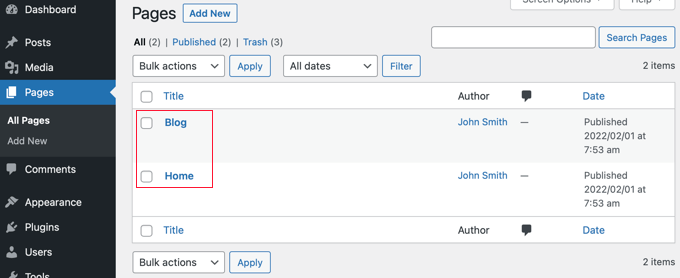
First, go to your WordPress dashboard. Click on “Pages” and select “Add New.” Give your page a clear title like “Blog” or “News.” You don’t need to add any content here. Just save or publish the page. This page will show all your blog posts automatically.
Assign Blog Page In Settings
Next, navigate to “Settings” and then “Reading.” Look for the “Your homepage displays” section. Choose “A static page.” Set the page you want as your homepage. Then, set the new page you created as the “Posts page.” Save your changes. Now, WordPress will show your blog posts on that page.
Create And Publish Blog Posts
Creating and publishing blog posts on WordPress is simple and quick. This process helps you share your ideas, news, or stories easily. You can write directly in WordPress and control how your posts appear to readers.
Follow these steps to add new posts, organize them, and make them live on your blog page.
Add A New Post
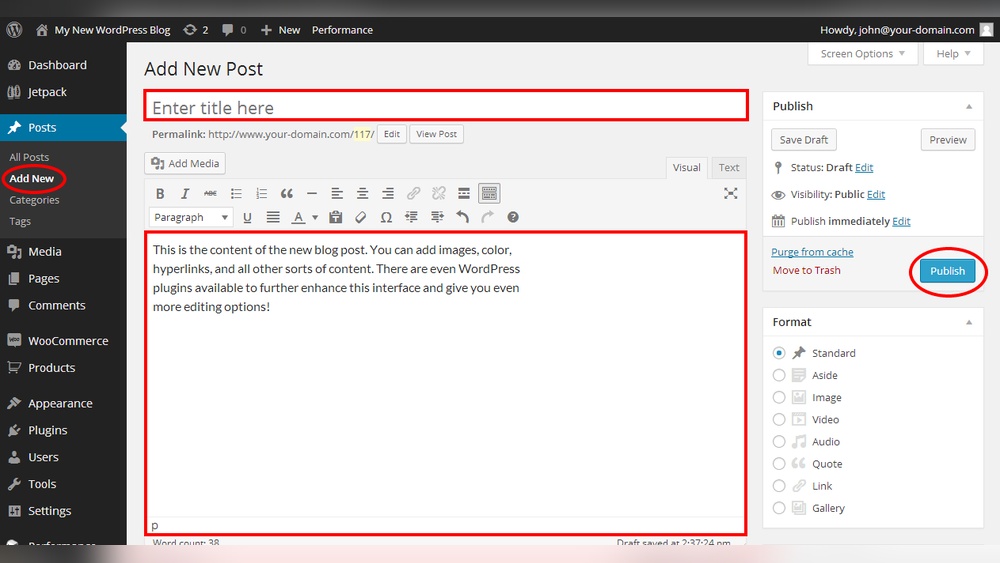
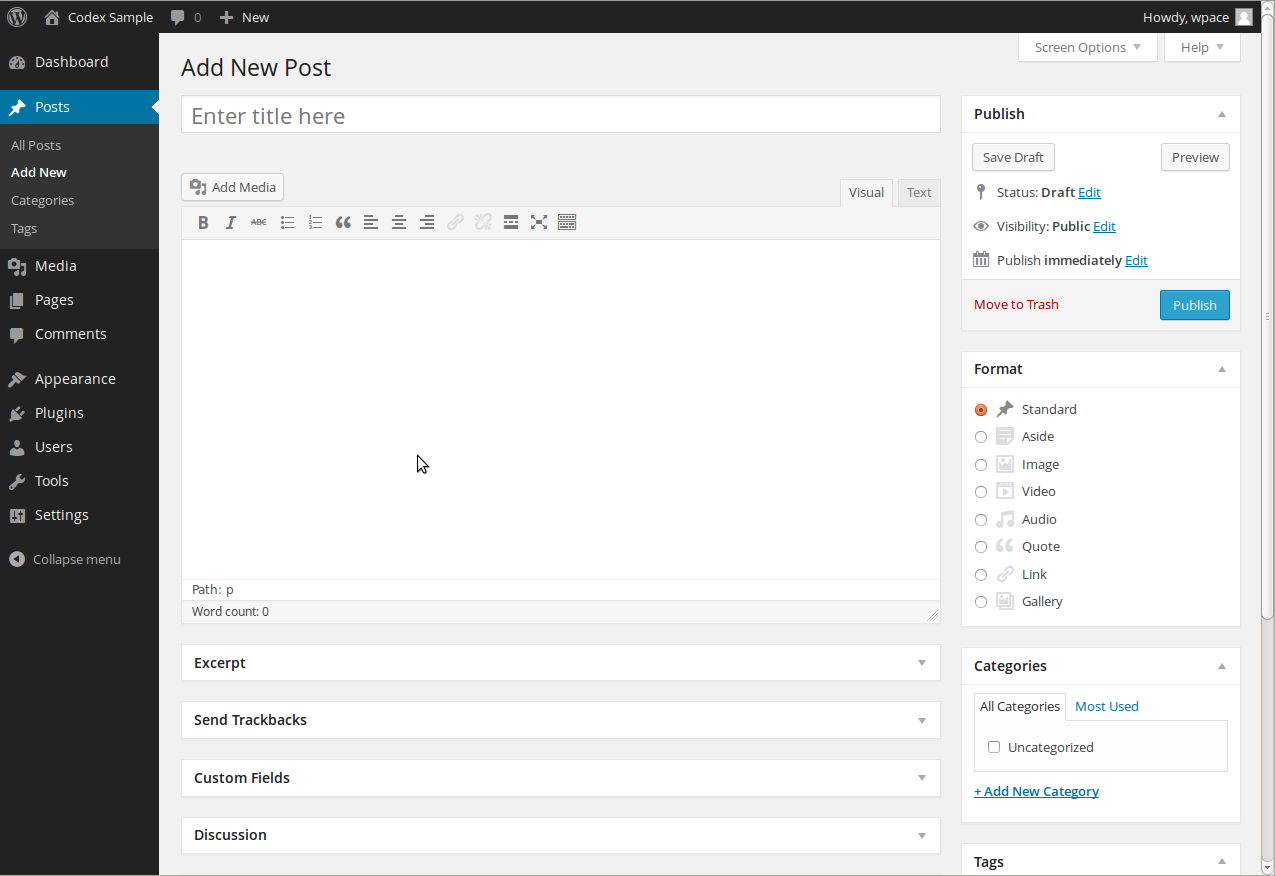
Start by logging into your WordPress dashboard. Find the “Posts” menu on the left side. Click “Add New” to open a blank post editor. This is where you write your blog content. You can add a title and start typing your story or information.
Use The WordPress Editor
The WordPress editor is simple and user-friendly. Use the block system to add text, images, videos, or other media. Each block can be moved or edited easily. You can format your text with bold, italics, and lists. Preview your post to see how it looks before publishing.
Set Categories And Tags
Categories help organize your posts into topics. Choose a category that fits your post’s subject. Tags add more detail and make posts easier to find. Use relevant words as tags, but do not overuse them. Both categories and tags improve your blog’s structure and SEO.
Publish Your Post
After writing and setting categories, it is time to publish. Click the “Publish” button on the top right. WordPress may ask you to confirm. Your post will appear on your blog page instantly. You can also schedule posts to publish later by setting a date and time.
Customize Blog Page Layout
Customizing your blog page layout helps create a unique look for your website. It lets you control how posts appear and how visitors interact. A well-organized layout makes your blog easier to read and more attractive. This section explains simple ways to customize your blog page in WordPress.
Choose A Theme With Blog Support
Select a WordPress theme designed for blogs. Themes with blog support offer built-in layouts for posts. They help display your content clearly and professionally. Pick a theme that matches your style and needs. A good theme also works well on phones and tablets.
Use Widgets For Sidebar Content
Widgets add extra features to your blog sidebar. You can show recent posts, categories, or search bars. Widgets help visitors find content faster. Go to the WordPress dashboard and open Appearance > Widgets. Drag and drop widgets into the sidebar area. Customize the widgets to suit your blog’s theme.
Adjust Blog Settings
WordPress lets you control how posts appear on your blog page. Go to Settings > Reading to find blog options. Choose how many posts show on one page. Decide if you want full posts or summaries. These settings improve your blog’s load speed and user experience. Adjust them to fit your content style.

Credit: wordpress.com
Manage Posts Display
Managing how posts appear on your blog page is key to a great user experience. It helps keep your site clean and easy to read. You can change settings to show just the right amount of content. Visual appeal also plays a big role in attracting readers.
Control Number Of Posts Per Page
WordPress lets you decide how many posts show on each page. This keeps your blog from feeling crowded. Go to the Settings menu, then Reading. Find the option called “Blog pages show at most.” Enter the number you want. Fewer posts make pages load faster. More posts let visitors see more content at once.
Enable Excerpts Or Full Content
Choose whether to show full posts or just excerpts on your blog page. Excerpts are short summaries that save space. They help visitors scan your content quickly. Full posts show everything but can make pages long. You can set this in your theme options or use plugins. Pick what fits your blog style best.
Add Featured Images
Featured images add color and interest to your posts. They catch the eye and make your blog look professional. To add one, open a post in the editor. Find the “Featured Image” box and upload your picture. Use clear, relevant images to match your content. This also helps with search engines and social sharing.
Optimize Blog For Readers
Optimizing your blog for readers helps keep them engaged and encourages them to return. A well-optimized blog makes it easy for visitors to share, comment, and find more content. This creates a better experience and grows your audience.
Add Social Sharing Buttons
Social sharing buttons let readers share posts on platforms like Facebook and Twitter. They make it simple for visitors to spread your content. Add these buttons near the post title or at the end of each article. Choose clear icons and place them where users can easily see.
Enable Comments
Allowing comments invites readers to join the conversation. It creates a sense of community around your blog. Turn on comments in your WordPress settings. Moderate them to keep discussions friendly and relevant. Responding to comments shows you value your readers’ opinions.
Improve Navigation Between Posts
Easy navigation helps readers find more articles they like. Use related posts widgets or links at the end of each post. Add “Next” and “Previous” buttons for smooth browsing. Clear navigation keeps visitors on your site longer and reduces bounce rates.
Credit: www.wpbeginner.com
Frequently Asked Questions
How Do I Add New Posts To My WordPress Blog Page?
To add new posts, go to your WordPress dashboard. Click “Posts” then “Add New. ” Write your content and click “Publish. ” Your post will appear on the blog page automatically.
Can I Customize The Blog Page Layout In WordPress?
Yes, you can customize the blog layout using themes or page builders. Go to “Appearance” then “Customize” to adjust settings like post display and layout style.
How Do I Set A Specific Page As The Blog Page?
In the WordPress dashboard, go to “Settings” > “Reading. ” Under “Your homepage displays,” select “A static page” and set your chosen page as the “Posts page. “
Why Aren’t My New Posts Showing On The Blog Page?
Ensure your blog page is correctly assigned in “Settings” > “Reading. ” Also, check if posts are published, not drafts or scheduled for later.
Conclusion
Adding posts to your WordPress blog page is simple and quick. Just follow the steps carefully. Keep your content clear and organized for readers. Regular updates help your blog stay fresh and interesting. Use categories and tags to make posts easy to find.
Practice often to become more comfortable with WordPress. Your blog can grow with consistent effort and good habits. Start adding posts today and watch your site improve.



