
Are you struggling to show your latest posts on a specific page in WordPress? You’re not alone.
Many website owners want to control exactly where their content appears, but don’t know how to make it happen. Imagine having your posts neatly organized on the exact page you choose—making your site look professional and easy to navigate. In this guide, you’ll discover simple, step-by-step ways to add posts to any page you want.
Keep reading, and you’ll learn how to take full control of your WordPress site’s content display without any hassle.
Choose The Right Page
Choosing the right page to add a post is important for your website’s success. It helps visitors find the content easily. The right page also keeps your site organized and clear. Taking time to pick the right page improves user experience and SEO.
Identify Target Page
First, find the page that fits the post’s topic. Think about where visitors expect to see this content. For example, a blog post fits best on a blog or news page. Avoid placing posts on unrelated pages to keep your site logical.
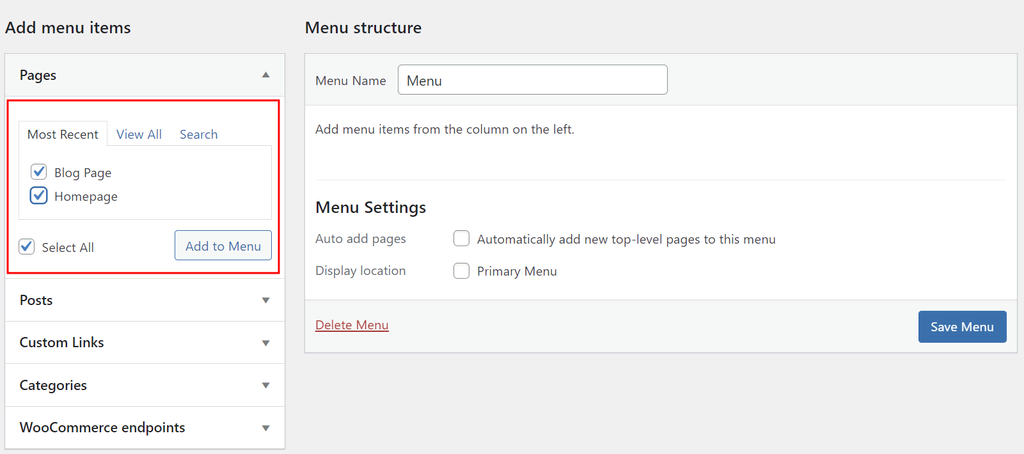
Check your site’s menu or sitemap to spot the right page. Use pages already showing similar content. This makes your site easier to navigate and keeps readers interested.
Check Page Layout And Purpose
Look at how the target page is designed. Some pages have special layouts for posts. Others are made for static content only. Ensure the page supports adding posts without breaking the design.
Consider the page’s main goal. Some pages promote products or services. Others share articles or updates. Match your post with the page’s purpose to keep your site clear and helpful.
Credit: www.hostinger.com
Create Your Post
Creating a post in WordPress is the first step to share your ideas with the world. This process is simple and allows you to express your thoughts clearly. Follow these steps to make your post ready for your website.
Write Content
Start by giving your post a clear and catchy title. Then, write the main text in the editor box. Use short paragraphs to keep readers interested. Write with simple words and clear sentences. Focus on your topic to keep the post easy to understand.
Add Media And Links
Images and videos make your post more attractive. Click the “Add Media” button to upload pictures or videos. Place them where they fit best in your content. Add links to other pages or websites to give extra information. Make sure links open in a new tab for better user experience.
Set Categories And Tags
Categories organize your posts by topic. Choose a category that fits your post well. Tags are like keywords that help people find your post. Add a few tags related to the main ideas in your content. This helps improve your post’s visibility on search engines.
Use Plugins For Post Placement
Using plugins to place posts on specific WordPress pages saves time. Plugins help you control where your posts appear without coding. They make the process simple and flexible for all users.
Select Suitable Plugins
Choose plugins designed for post placement or content display. Check plugin reviews and ratings for reliability. Pick plugins that update often and support your WordPress version. Some popular options include ‘Content Views’ and ‘Post Grid’.
Install And Activate Plugin
Go to your WordPress dashboard and open the Plugins menu. Click ‘Add New’ and search for your chosen plugin. Click ‘Install Now’ and then ‘Activate’ to enable it. The plugin is now ready for use.
Configure Plugin Settings
Access the plugin settings from the dashboard menu. Set rules to display posts on the desired page only. Choose categories, tags, or custom filters to narrow post selection. Save changes and check the page to confirm placement.

Credit: www.youtube.com
Add Posts Manually With Shortcodes
Adding posts manually with shortcodes is a simple way to display specific content on any page. Shortcodes let you pull posts without changing your theme or using complex tools. This method gives control over which posts appear and where.
Shortcodes are small codes that WordPress reads and replaces with dynamic content. They work inside the page editor and show posts based on your settings. Using shortcodes keeps pages clean and easy to manage.
Generate Post Shortcode
First, create a shortcode to show the posts you want. WordPress has built-in shortcodes like [recent-posts]. You can customize these with parameters such as category, number of posts, or order.
For example, use [recent-posts category="news" posts="5"] to show five news posts. Plugins can also help create custom shortcodes if needed. Check your theme or plugin docs for more shortcode options.
Insert Shortcode Into Page
Open the page where you want to add posts. Switch to the editor and find the spot for your posts. Paste the shortcode directly into the content area.
After saving, visit the page to see the posts displayed. You can adjust the shortcode to change which posts appear or how many. This method keeps your site flexible and easy to update.
Embed Posts Using Page Builders
Embedding posts using page builders is an easy way to display blog posts on specific pages. Page builders let you design pages without coding. You can choose how your posts look and where they appear. This method works well for beginners and saves time.
Choose Page Builder Tool
First, pick a page builder plugin. Popular options include Elementor, Beaver Builder, and Divi. Install and activate the plugin on your WordPress site. Each tool offers modules or widgets to add posts. Choose one that fits your needs and skill level.
Drag And Drop Post Modules
Open the page you want to edit with your page builder. Look for a module named “Posts,” “Blog,” or similar. Drag this module onto your page layout. This action places your recent posts or selected posts where you want them. It is simple and visual.
Customize Post Display
After placing the post module, customize its appearance. Set how many posts to show and which categories to include. Adjust layout options like grid, list, or carousel. Change colors, fonts, and spacing to match your site style. Preview your changes before saving.
Use Custom Queries In Templates
Using custom queries in WordPress templates lets you display posts on specific pages. This method gives control over which posts appear and how they look. It helps to create unique content sections without plugins. Custom queries work by changing the default post list to your chosen posts.
Edit Theme Files Safely
Editing theme files directly can cause errors or break your site. Always create a child theme before making changes. A child theme keeps your edits safe during updates. Use a file manager or FTP to access theme files. Backup your site before editing any code. Work in a staging environment if possible. This prevents live site issues.
Write Custom Query Code
Use the WP_Query class to write custom queries. This code selects posts by category, tag, or ID. Place the query inside the template file for the page. Example code:
$args = array( 'post_type' => 'post', 'category_name' => 'news', 'posts_per_page' => 5, ); $query = new WP_Query($args); if ($query->have_posts()) { while ($query->have_posts()) { $query->the_post(); the_title(); the_excerpt(); } } wp_reset_postdata(); Change parameters to fit your needs. This code shows five posts from the news category.
Test And Debug
After adding code, check the page for errors. Look for broken layouts or missing posts. Enable WP_DEBUG to see error messages. Clear your cache to view updates. Test on multiple devices to ensure consistency. Fix any issues in the code or query. Repeat testing until the page works correctly.
Optimize Post Display
Optimizing how posts display on a specific WordPress page improves user experience. Clear and attractive layouts keep visitors interested. Simple tweaks can make posts easier to read and navigate.
Focus on the order, style, and mobile view of your posts. These elements affect how visitors interact with your content. Proper display helps your page look professional and welcoming.
Adjust Post Order And Number
Control the order of posts to highlight the most important content first. Use plugins or custom queries to change post order by date or category. Limit the number of posts shown to avoid clutter. A clean layout helps readers find information quickly.
Style Posts With Css
Use CSS to customize the look of your posts. Change fonts, colors, and spacing to match your site’s theme. Add borders or shadows to make posts stand out. Simple styles improve readability and keep visitors engaged. Keep CSS clean and easy to manage.
Ensure Mobile Responsiveness
Check that your posts look good on phones and tablets. Use responsive design techniques to adjust layout automatically. Large text and buttons work better on small screens. Test your page on multiple devices for best results. A mobile-friendly site reaches more visitors.
Troubleshoot Common Issues
Adding posts to a specific page in WordPress may not always go smoothly. Some common issues can block your progress. Troubleshooting these problems saves time and effort. It helps keep your website running well. Here are simple ways to fix typical problems.
Fix Display Problems
Posts may not show up correctly on your page. Check if your theme supports the layout you want. Switch to a default theme to see if the problem stays. Clear your browser cache to remove old files. Make sure your page uses the right template. Refresh the page after making changes.
Resolve Plugin Conflicts
Plugins can clash and cause errors. Deactivate all plugins temporarily. Check if the post appears on the page. Turn plugins back on one by one. Find the plugin causing the issue. Update or replace faulty plugins for better performance.
Handle Permission Errors
Permission settings may block post additions. Verify your user role allows editing pages. Check file and folder permissions on your server. Correct permissions to allow writing and editing. Contact your hosting provider if you cannot fix it. Proper permissions ensure smooth content updates.
Credit: www.hostinger.com
Frequently Asked Questions
How Do I Add A Post To A Specific WordPress Page?
To add a post to a specific page, use plugins like “Post Content Shortcode” or create a custom page template. Alternatively, use the WordPress block editor to insert post blocks directly on the page. This helps display posts where you want them.
Can I Display Posts On A WordPress Page Without Coding?
Yes, you can use plugins such as “Display Posts Shortcode” or the Gutenberg block editor. These tools allow you to show posts on any page without coding. They offer easy customization and are beginner-friendly.
How To Organize Posts On A Specific WordPress Page?
Organize posts by categories or tags using query parameters in shortcodes or custom templates. This filters posts and displays relevant content. Sorting options improve user experience and page relevance.
Is It Possible To Add Multiple Posts To One WordPress Page?
Yes, WordPress supports adding multiple posts to a single page. Use post grid or list blocks, or employ plugins to showcase multiple posts in various layouts. This enhances content visibility and engagement.
Conclusion
Adding a post to a specific page in WordPress is simple and clear. Follow the steps carefully to place your content where you want. This helps visitors find your information easily. Keep practicing, and it will become second nature. Stay consistent with your updates to keep your site fresh and useful.
Your WordPress site will look neat and organized. Try these tips today and see the difference yourself.



