
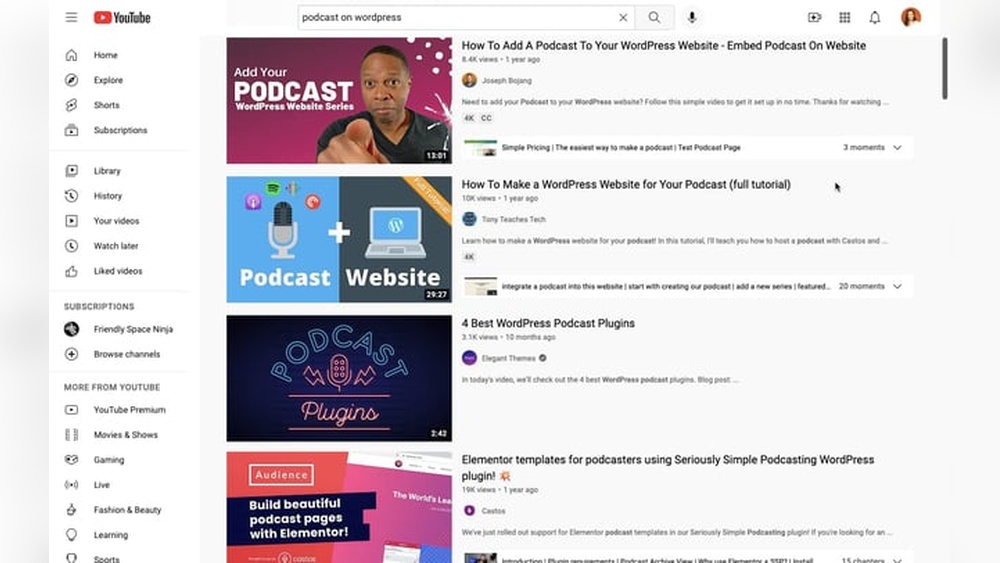
Are you ready to bring your podcast directly to your website visitors? Adding your podcast to your WordPress site can boost your reach, keep your audience engaged, and make it easy for people to listen without leaving your page.
But if you’re wondering how to do it without getting lost in technical details, you’re in the right place. This guide breaks down simple, step-by-step actions you can take right now to showcase your podcast like a pro. Keep reading, and you’ll have your episodes streaming smoothly on your site in no time.
Credit: blog.hubspot.com
Choose The Right Podcast Plugin
Choosing the right podcast plugin is key to a smooth podcast experience on your WordPress site. The right plugin helps you share episodes easily and keep your listeners engaged. Not all plugins are the same. Some offer simple features, while others provide advanced tools. Picking the right one saves time and makes your podcast look professional.
Top Podcast Plugins For WordPress
Several plugins stand out for podcasting on WordPress. PowerPress by Blubrry is popular for its ease and strong support. Seriously Simple Podcasting suits beginners with its simple setup. Podlove Podcast Publisher offers deep customization for advanced users. Each has unique strengths to fit different needs.
Features To Look For
Look for plugins with easy episode uploads and good media player options. Support for multiple podcast formats helps reach wider audiences. Check if the plugin allows RSS feed customization for directories. Integration with popular podcast platforms like Apple Podcasts is useful. Also, consider how well the plugin handles SEO and analytics.
Installation Guide
Go to your WordPress dashboard. Click on “Plugins” then “Add New.” Type the plugin name in the search bar. Click “Install Now” and wait a moment. After installation, click “Activate” to enable the plugin. Follow the plugin’s setup instructions to start uploading episodes quickly.

Credit: help.podbean.com
Set Up Your Podcast Feed
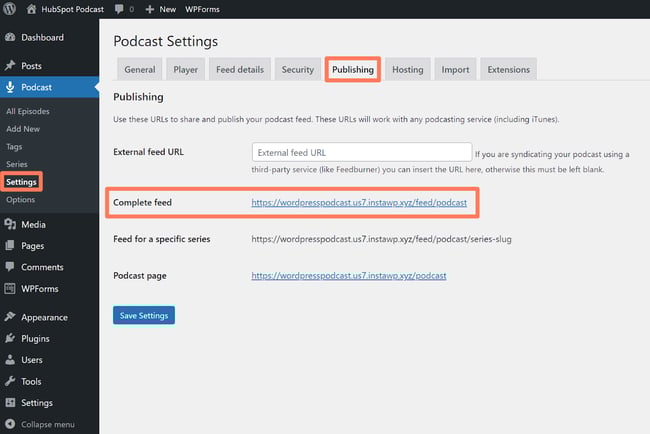
Setting up your podcast feed is the key step to share your episodes on your WordPress site. The feed acts like a bridge between your podcast files and your website visitors. It helps your listeners access your latest episodes easily. Follow these simple steps to get your podcast feed ready.
Create An Rss Feed
An RSS feed is a special file that updates your podcast episodes automatically. Use a podcast hosting service to generate this feed. Services like Libsyn, Podbean, or Anchor create it for you. Copy the URL of your RSS feed. This URL will be important for connecting your podcast to WordPress.
Connect Feed To Plugin
Choose a WordPress podcast plugin like Seriously Simple Podcasting or PowerPress. Install and activate the plugin on your site. Go to the plugin’s settings and paste your RSS feed URL. The plugin will read your feed and display episodes on your site. This makes it easy for visitors to find and listen.
Verify Feed Functionality
Check that your podcast episodes appear on your website after connecting the feed. Play an episode to make sure the audio works properly. Use podcast directories like Apple Podcasts or Spotify to test if the feed updates there too. Fix any errors quickly to keep your podcast running smoothly.
Upload And Manage Episodes
Uploading and managing podcast episodes on your WordPress site is simple. Proper management keeps your content organized and easy to find for your listeners. Regular updates keep your podcast fresh and engaging.
Adding New Episodes
Start by creating a new post or page for each episode. Upload your audio file directly or use a podcast hosting service. Include a clear title and a short description. Add relevant tags and categories for better searchability. Make sure to set the correct episode number and publish date.
Organizing Your Podcast Library
Use categories and tags to group episodes by topic or season. Create playlists or series pages to help visitors browse easily. Maintain a consistent naming system for files and episodes. Regularly review and archive old episodes if needed. A clean library improves user experience and SEO.
Editing And Updating Content
You can edit episode titles, descriptions, and media files anytime. Update show notes with new links or information. Fix any mistakes quickly to keep your content reliable. Re-upload corrected audio if necessary. Keeping content fresh encourages listeners to return.

Credit: help.podbean.com
Customize Your Podcast Player
Customizing your podcast player helps create a better experience for your listeners. A well-designed player fits your website’s style and makes it easy for visitors to play episodes. Small changes can make your podcast look more professional and inviting.
Design Options
Choose colors that match your website’s theme. Pick fonts that are clear and easy to read. Some podcast players let you change the size and shape of buttons. Use these tools to make your player look neat and simple. Avoid clutter and keep the design clean.
Player Placement
Place your podcast player where visitors will see it first. Common spots include the top of your page or the sidebar. You can also add it at the end of blog posts. Test different spots to find what works best. The goal is to make the player easy to find and use.
Mobile Responsiveness
Many people listen to podcasts on their phones. Make sure your player works well on all screen sizes. A responsive player adjusts automatically to fit any device. Test your website on phones and tablets. A good mobile experience keeps listeners coming back.
Optimize For Seo And Discovery
Optimizing your podcast for SEO and discovery helps more people find and listen to your episodes. It improves your podcast’s visibility on search engines and podcast platforms. This process makes your content easier to find for your target audience.
Focus on clear, relevant information and proper promotion. These steps help your podcast reach a wider audience and grow your listener base effectively.
Use Podcast Metadata
Fill in all podcast metadata fields carefully. Use clear titles, descriptions, and keywords for each episode. This information helps search engines understand your content. It also improves how your podcast appears in search results.
Include relevant keywords that match what listeners search for. Write descriptions that explain the episode’s topic simply. Add tags to help categorize your podcast and episodes well.
Submit To Directories
Submit your podcast to popular directories like Apple Podcasts, Spotify, and Google Podcasts. These platforms have millions of users searching for new content daily. Being listed there increases your podcast’s chances of discovery.
Follow each directory’s submission guidelines carefully. Update your podcast feed regularly to keep your listings fresh. Check your listings often to ensure all information is correct.
Promote On Social Media
Share your podcast episodes on social media platforms. Use short, catchy descriptions to attract attention. Post regularly to keep your audience engaged and remind them of new episodes.
Engage with your followers by asking questions or encouraging comments. Join groups or communities where your target audience spends time. This builds interest and drives more listeners to your podcast.
Troubleshoot Common Issues
Troubleshooting is an important step when adding a podcast to your WordPress site. Problems can stop your podcast from working right. Fixing these issues helps keep your listeners happy and your site running smoothly.
Common problems include playback errors, feed issues, and conflicts with plugins. Each needs a clear solution to get your podcast back online quickly. Below are simple ways to solve these typical problems.
Fixing Playback Errors
Playback errors happen when audio files don’t play properly. Check if your audio files are in the correct format, like MP3 or AAC. Make sure the file size is not too large. Large files can cause slow or failed playback.
Clear your browser cache and try again. Sometimes, outdated cache causes playback to stop. Test your podcast on different devices and browsers to spot where the error occurs.
Resolving Feed Problems
Your podcast feed must follow strict rules to work well. Validate your feed using online tools to find errors. Fix any broken links or missing tags in your RSS feed.
Keep your feed URL consistent. Changing it can cause subscribers to lose access. Update your feed regularly with new episodes to keep listeners engaged.
Plugin Conflicts
Plugins can clash and cause your podcast to fail. Deactivate all plugins except the one for your podcast. Check if the problem still happens.
Reactivate plugins one by one to find the conflict. Update all plugins and WordPress to their latest versions. Old versions may not work well together.
Frequently Asked Questions
How Do I Add A Podcast To My WordPress Site?
To add a podcast, install a podcast plugin like Seriously Simple Podcasting. Upload episodes, add RSS feed, and display player on pages.
What Is The Best WordPress Plugin For Podcasts?
Seriously Simple Podcasting and PowerPress are top plugins. They offer easy episode management and built-in podcast players.
Can I Embed Podcast Episodes Directly On WordPress?
Yes, you can embed episodes using podcast plugins or by inserting audio embed codes from platforms like Spotify or Apple Podcasts.
How Do I Create A Podcast Rss Feed In WordPress?
Use a podcast plugin to generate an RSS feed automatically. This feed submits your podcast to directories like Apple Podcasts.
Conclusion
Adding a podcast to your WordPress site helps reach more listeners. It makes your website more lively and interesting. You control how your episodes appear and share them easily. Choose the right plugin and follow simple steps to upload your audio files.
Keep your content fresh and update regularly to keep visitors coming back. This small effort can grow your audience over time. Start today and enjoy sharing your voice with the world.



