
Are you looking to add a custom PHP page to your WordPress site but don’t know where to start? You’re not alone.
Many WordPress users want more control over their website’s functionality but feel stuck when it comes to adding PHP pages. The good news is, it’s easier than you think. In this guide, you’ll discover simple steps to create and add your own PHP page, making your site more dynamic and tailored to your needs.
Keep reading, and by the end, you’ll have the confidence to customize your WordPress site like a pro.

Credit: www.geeksforgeeks.org
Prepare Your Environment
Before adding a PHP page to WordPress, you need a proper setup. This step makes your work safe and easy. Preparing your environment helps avoid errors. It also protects your existing website data.
Start by deciding where you want to work on your site. Then, create a backup of your WordPress files and database. These actions keep your site safe from accidental problems.
Choose A Local Or Live Setup
Work on a local setup if you want to test changes safely. A local setup runs on your computer only. It does not affect your live website. Tools like XAMPP or Local by Flywheel help create this setup.
Choose a live setup if you want to edit your real website directly. This method needs more caution. Make sure you have backups before changing any files on the live site.
Backup Your WordPress Site
Backing up your site saves your current data and files. Use plugins like UpdraftPlus or BackupBuddy for easy backups. You can also create manual backups by copying files and exporting the database.
Store backups in a safe place. This step helps you restore your site if anything goes wrong. Always backup before making any changes to your WordPress site.
Create A New Php File
Creating a new PHP file in WordPress allows you to add custom features or pages. This process helps you extend your website’s functionality. It is simple and does not require advanced coding skills.
Start by accessing your theme folder. Then, write a basic PHP template for your new page. Follow these steps carefully to avoid errors and keep your site safe.
Access Theme Folder
First, open your WordPress installation folder. Go to wp-content, then themes. Find the folder of your active theme. This is where you will create the new PHP file.
You can access the theme folder using an FTP client or your hosting file manager. Make sure to back up your theme files before making changes. This protects your site in case something goes wrong.
Write Basic Php Template
Create a new file and name it with a .php extension. For example, custom-page.php. Open the file in a text editor or code editor.
Start by adding the basic PHP template code:
php / Template Name: Custom Page / get_header(); ? Hello, this is a custom PHP page
php get_footer(); ? This code tells WordPress to use the header and footer of your theme. The Template Name comment allows you to select this template in the WordPress page editor.
Save the file. Now, you can assign this template to a page in WordPress and see your new PHP page in action.
Integrate Php Page With WordPress
Integrating a PHP page into WordPress allows custom features to blend smoothly with your site. This process ensures your PHP page matches the look and feel of your WordPress theme. It also keeps your website organized and easy to manage.
To integrate properly, you must include WordPress headers and footers in your PHP file. Using WordPress functions helps to keep your page dynamic and compatible with your site’s core functions.
Add Header And Footer
Start by including the WordPress header at the top of your PHP page. Use get_header(); to load the site’s header. This step makes sure your page uses the same menu and style as other pages.
At the bottom of your PHP file, include the footer using get_footer();. This adds the site’s footer section, keeping the design consistent. These functions help your PHP page feel like a natural part of the website.
Use WordPress Functions
Use WordPress functions to access site data and features easily. Functions like the_title() and the_content() display your post title and content dynamically. This approach avoids hardcoding content and makes updates simple.
Using WordPress functions also ensures your PHP page works with plugins and themes. It keeps your custom page flexible and compatible with future WordPress updates.

Credit: www.youtube.com
Register The Php Page
Registering a PHP page in WordPress means making WordPress recognize your custom PHP file. This step allows you to use your PHP page as part of your WordPress site. It involves creating a custom page template and linking it to a new WordPress page. This process helps keep your site organized and functional.
Create Custom Page Template
First, create a new PHP file in your theme folder. Name it clearly, like custom-page.php. At the top of this file, add a comment block to define it as a template:
php / Template Name: Custom Page / ? After this, add your PHP code below the comment. This code controls what shows on the page. Save the file and upload it to your theme directory.
Assign Template To New Page
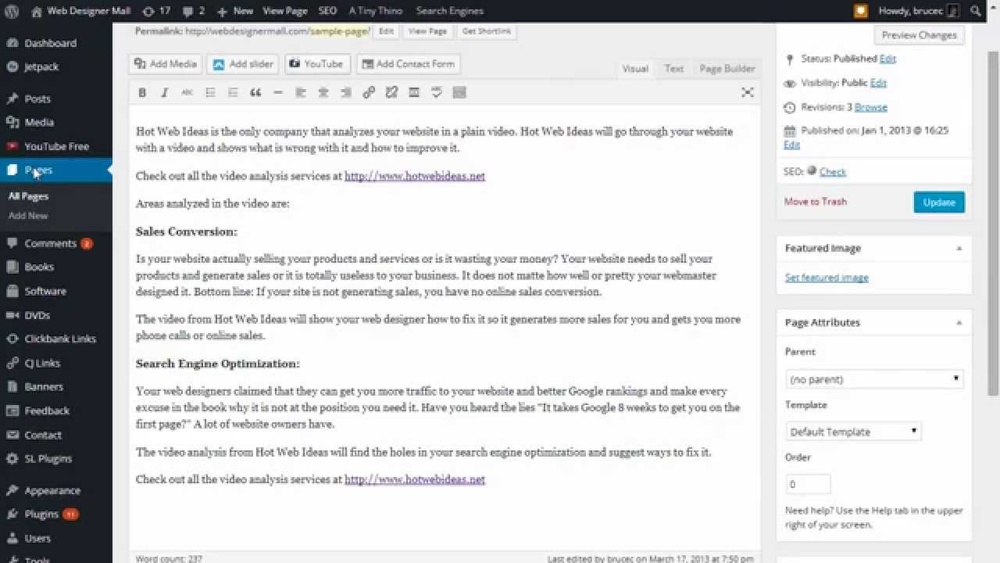
Next, go to your WordPress dashboard and open Pages > Add New. Give your page a title. On the right side, find the Page Attributes box. In the Template dropdown, select your custom template, for example, “Custom Page”. Publish the page. Now, WordPress uses your PHP file for this page.
Test Your Php Page
Testing your PHP page is crucial after adding it to WordPress. It ensures the page works correctly and displays as expected. Testing helps find issues early. Fixing errors before going live saves time and avoids user frustration.
Check Page Display
Open your WordPress site in a browser. Enter the URL of your new PHP page. Look for the correct layout and content. Make sure images and text appear properly. Test the page on different devices. Check if it loads fast and without errors. A clean display means your page is ready.
Debug Common Errors
Errors can appear as blank pages or error messages. Check your PHP code for syntax mistakes. Use tools like the WordPress debug mode. It shows error details to help you fix problems. Common errors include missing semicolons or wrong file paths. Fix these issues and refresh the page. Repeat testing until the page works smoothly.
Best Practices
Following best practices ensures your PHP pages work well with WordPress. It keeps your site safe and easy to manage. Clean and organized code helps you find problems fast. It also makes future updates easier and safer.
Keep Code Organized
Organize your PHP files clearly. Use folders to separate templates, functions, and assets. Name files with clear, simple words. Avoid mixing unrelated code in one file. Clean code saves time and reduces errors. Comment your code to explain complex parts. This helps anyone who works on your site later.
Avoid Direct File Edits On Live Site
Never edit PHP files directly on a live website. Mistakes can break your site and hurt visitors’ experience. Use a local environment to test changes first. Upload files only after testing is complete. Backup your site before making updates. This protects your content and data from loss.
Credit: www.greengeeks.com
Frequently Asked Questions
How Do I Create A Php Page In WordPress?
To create a PHP page, add a new file in your theme folder. Write your PHP code there, then call it via a custom template or shortcode.
Can I Add Php Code Directly In WordPress Posts?
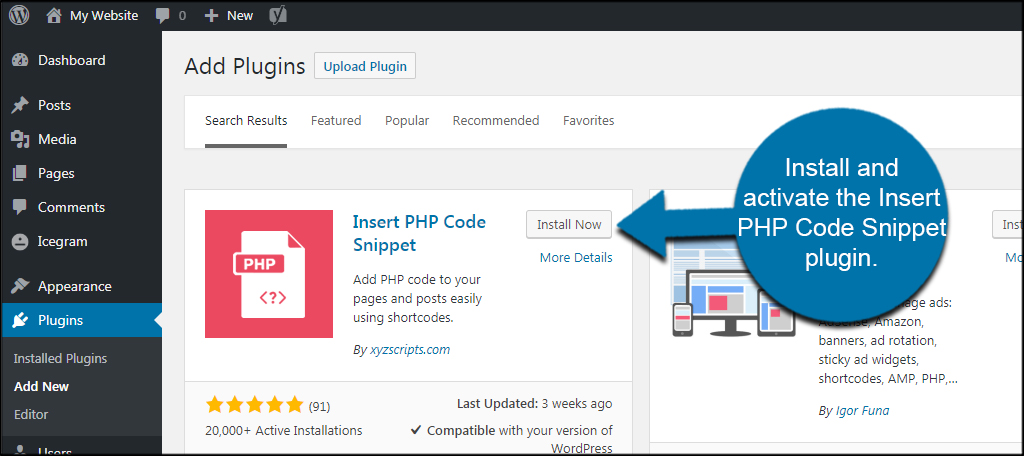
WordPress doesn’t allow PHP code in posts by default. Use plugins like “Insert PHP” to safely add PHP within post content.
Where Should I Place Custom Php Files In WordPress?
Place custom PHP files inside your active theme or child theme folder, usually under /wp-content/themes/your-theme/.
How To Link A Php Page To WordPress Menu?
First, create the PHP page and upload it. Then add a custom link in Appearance > Menus pointing to that page URL.
Conclusion
Adding a PHP page to WordPress is simple with these steps. You create your PHP file and place it in the right theme folder. Then, you link it inside WordPress for easy access. This method lets you add custom features or designs.
Keep your code clean and test it well. Doing this helps your site stand out and work smoothly. Try it yourself and see the difference it makes.



