
Want to share important documents with your website visitors? Adding a PDF to your WordPress site is a simple way to do that.
Whether it’s a product brochure, a guide, or a report, having PDFs easily accessible can boost your site’s value. You will learn clear, step-by-step instructions to upload and display PDFs on your WordPress site—no technical skills needed. By the end, you’ll be able to offer your audience useful content in a professional and user-friendly way.
Ready to make your site more engaging? Let’s dive in!

Credit: www.wpbeaverbuilder.com
Preparing Your Pdf For Upload
Preparing your PDF for upload is an important first step. It ensures your file works well on your WordPress site. A well-prepared PDF loads faster and is easier for visitors to use. Follow these tips to get your PDF ready before uploading.
Optimizing File Size
Large PDF files slow down your website. Visitors may leave if pages take too long to load. Reduce file size by compressing images inside the PDF. Use online tools or software like Adobe Acrobat. Aim for a balance between quality and size. Smaller files improve user experience and site speed.
Naming Your Pdf File
Choose a clear and simple name for your PDF. Use words that describe the content well. Avoid spaces and special characters. Use hyphens or underscores instead. For example, “product-guide.pdf” is better than “guide final v2.pdf”. Good names help with SEO and make files easy to find.
Checking Pdf Security Settings
Check if your PDF has any restrictions. Some PDFs block printing or copying. Remove unnecessary restrictions before uploading. Make sure the file is safe to share. Avoid adding passwords unless needed. Clear security settings help all visitors access your content easily.
Credit: www.monsterinsights.com
Uploading Pdfs Using The WordPress Media Library
Uploading PDFs using the WordPress Media Library is a simple way to share documents on your site. This method keeps files organized and easy to manage. It also lets you insert PDFs into posts or pages without extra plugins.
The Media Library acts as a central place for all your files. You can upload, view, and delete PDFs here anytime. Let’s explore how to use this tool step-by-step.
Accessing The Media Library
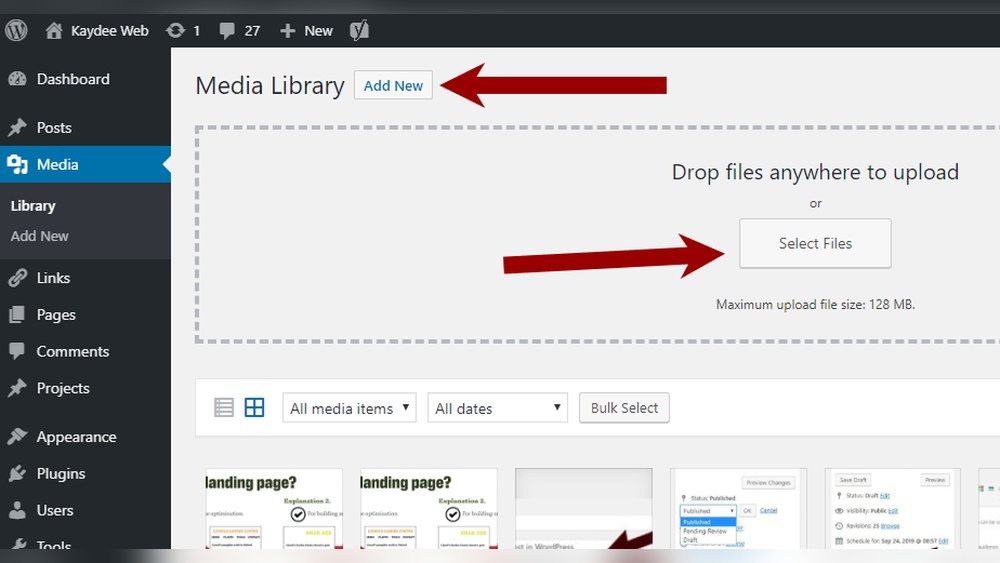
Start by logging into your WordPress dashboard. On the left menu, find and click “Media.” This opens the Media Library.
The library shows all images, videos, and documents you have uploaded. Use the search bar to find specific files quickly.
Uploading The Pdf File
Inside the Media Library, click the “Add New” button at the top. A box appears where you can drag and drop your PDF file.
Wait a few moments while WordPress uploads the file. After upload, you will see the PDF in your library list.
Managing Uploaded Pdfs
Click on any PDF in the library to see its details. You can edit the file name or add a description here.
Use the “Delete Permanently” option to remove files you no longer need. Keep your library tidy for easy access.
Embedding Pdfs In Posts And Pages
Embedding PDFs in posts and pages allows visitors to view documents without leaving your site. This keeps readers engaged and provides easy access to important files. WordPress offers simple methods to embed PDFs directly within your content.
Using The Block Editor
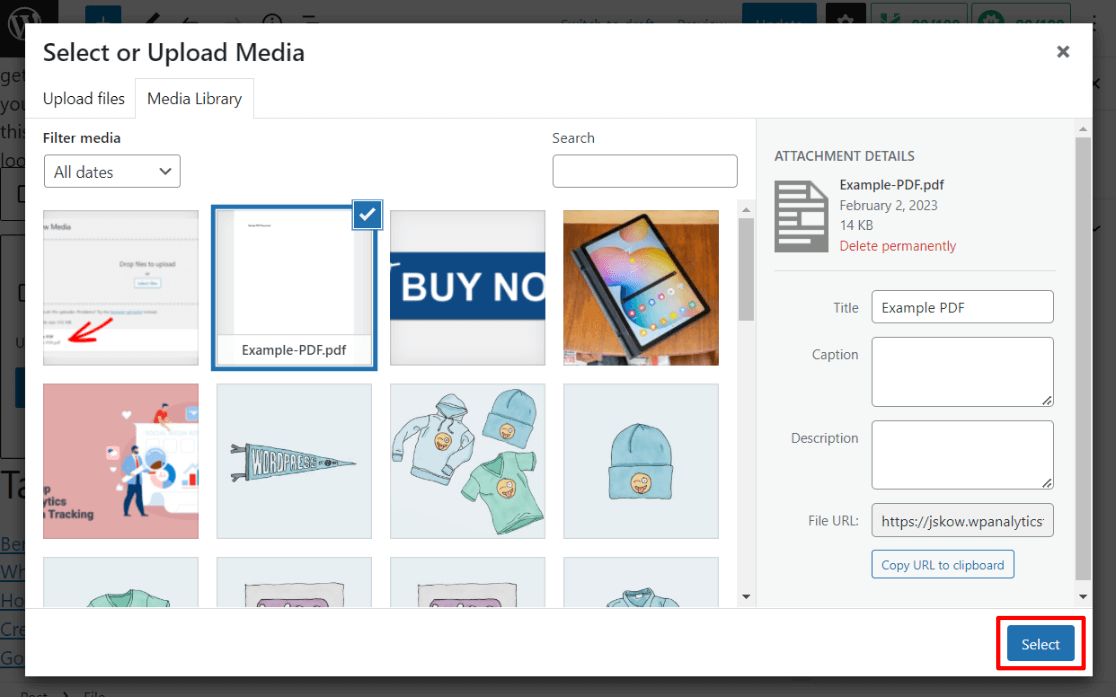
The WordPress Block Editor has a built-in PDF block. To use it, click the plus (+) icon and search for the “File” block. Upload your PDF or select one from the media library. The block displays a download button and a preview of the file.
This method is fast and requires no extra plugins. You can add PDFs anywhere in your posts or pages with just a few clicks.
Adding Pdf Links
You can also add a link to your PDF file. Highlight the text where you want the link. Click the link icon and paste the URL of the PDF. The URL is found in the media library after uploading the file.
PDF links are simple and do not take up much space. Visitors click the link to open or download the document.
Customizing Pdf Display
WordPress allows some customization of how PDFs appear. Using the File block, you can change the button text to match your content. You can also add a caption below the PDF preview.
For more advanced display options, consider plugins that embed PDFs with scrollable viewers. These let visitors read PDFs directly on the page without downloading.
Using Plugins For Advanced Pdf Features
Adding PDFs to your WordPress site can be simple or advanced. Basic uploads show the file, but plugins offer more. These tools improve how PDFs appear and work on your pages. They let visitors view, download, or even interact with the files directly.
Plugins help customize the PDF display. You can add zoom buttons, page navigation, or embed forms. Some plugins also protect your files from unauthorized downloads. This section explains how to choose, install, and use these plugins effectively.
Choosing The Right Pdf Plugin
Select a plugin that fits your needs and skill level. Check if it supports the file size and format you use. Look for features like embedding, downloading options, and security settings. Read user reviews and ratings to see real experiences. Pick a plugin updated regularly for compatibility and security.
Installing And Activating Plugins
Go to your WordPress dashboard and find the Plugins menu. Click on “Add New” and type the plugin name in the search box. Click “Install Now” next to the plugin you want. After installation, click “Activate” to enable it on your site. Configure the plugin settings as needed for your PDFs.
Embedding Pdfs With Plugins
Most plugins add a button in the WordPress editor for easy embedding. Click the button, then upload or select your PDF file. Adjust the display options like size, zoom, or toolbar visibility. Insert the PDF shortcode into your post or page. Preview the page to ensure the PDF appears correctly.
Troubleshooting Common Pdf Upload Issues
Uploading PDF files to a WordPress site can sometimes cause problems. These issues often stop your PDFs from appearing or working correctly. Knowing how to fix common PDF upload problems helps keep your site smooth and user-friendly.
File Size Limitations
WordPress and many web hosts limit the size of files you can upload. Large PDF files may not upload at all. Check the maximum upload size in your WordPress settings. Compress PDF files to reduce their size. Use tools that make PDFs smaller without losing quality. This helps your upload finish without errors.
Unsupported File Types
WordPress only allows certain file types by default. PDF files are usually supported but sometimes restrictions exist. Some sites block PDF uploads for security reasons. You can add PDF support by changing settings or using plugins. Make sure your PDF file ends with “.pdf” to avoid errors.
Broken Links And Display Problems
After uploading, PDFs might not show or open correctly. Broken links happen if the file URL is wrong. Confirm the link points to the right PDF location. Some themes or plugins may block PDF display. Try disabling plugins one by one to find conflicts. Use the WordPress media library for reliable file management.
Best Practices For Pdf Management On WordPress
Managing PDFs on a WordPress site is key to a smooth user experience. Proper handling keeps your site clean and makes documents easy to find. Good PDF management also helps your site load faster and stay organized. Follow these best practices to handle PDFs well.
Organizing Pdf Files
Store PDFs in clear folders inside your WordPress media library. Use descriptive file names that match the content. Group similar PDFs together by topic or date. This makes it easier to update or remove files later. Avoid clutter by deleting old or unused PDFs regularly.
Ensuring Mobile Compatibility
Many visitors use phones or tablets to access your site. Check that your PDFs open correctly on all devices. Use plugins that allow PDFs to display within pages without extra downloads. Choose PDF viewers that resize automatically for smaller screens. This improves user experience and keeps visitors on your site.
Regularly Updating Pdf Content
Keep PDF information current and relevant. Review PDFs often to fix errors or update details. Replace old versions with new ones to avoid confusion. Notify visitors if a PDF changes significantly. Fresh content helps build trust and keeps your site reliable.
Credit: kaydee.net
Frequently Asked Questions
How Do I Upload A Pdf To My WordPress Site?
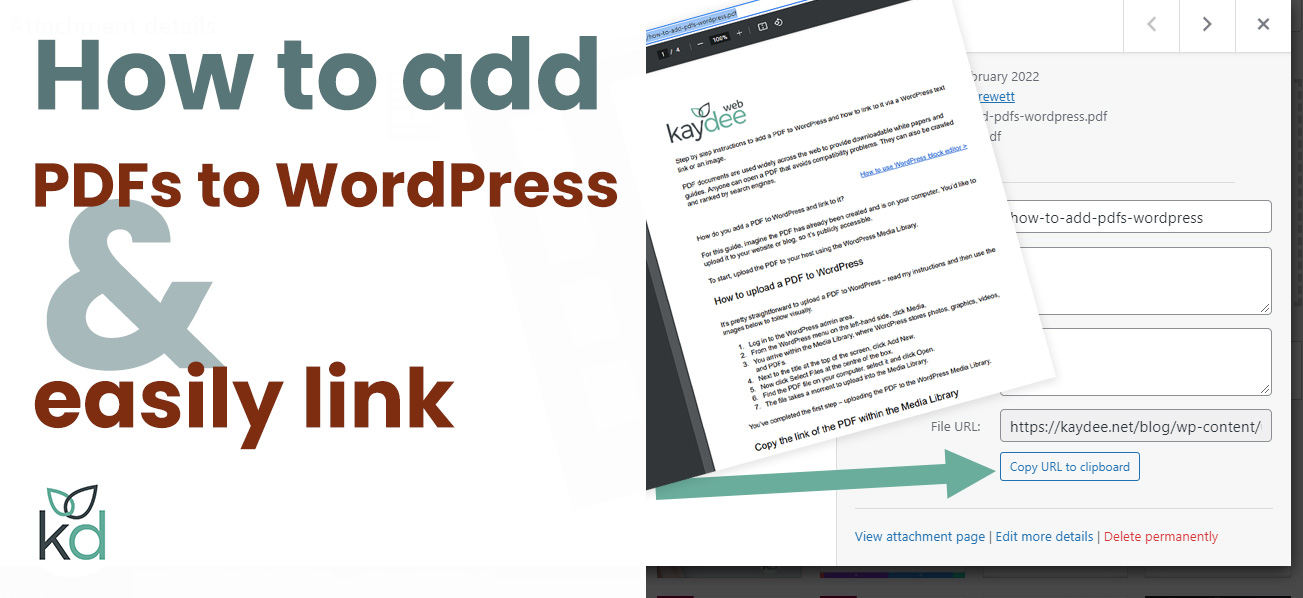
To upload a PDF, go to your WordPress dashboard, click “Media,” then “Add New. ” Select your PDF file and upload it. Once uploaded, copy the file URL to use in posts or pages.
Can I Embed A Pdf Directly Into A WordPress Post?
Yes, you can embed PDFs using the WordPress block editor. Add a “File” or “PDF Embedder” block, then upload or select your PDF. This allows visitors to view the document without downloading it.
Are There Plugins To Help Add Pdfs To WordPress?
Yes, plugins like PDF Embedder and Embed Any Document simplify adding PDFs. They offer features like inline viewing, download buttons, and customization options for better user experience.
How Do I Link A Pdf In A WordPress Page?
Highlight the text or image you want to link, click the link icon, and paste the PDF URL. Save your changes. Visitors can click the link to view or download the PDF.
Conclusion
Adding a PDF to your WordPress site is simple and useful. It helps visitors find important documents quickly. Use the built-in tools or plugins to upload files easily. Always check the PDF links to avoid broken files. Keep your site organized by naming files clearly.
Sharing PDFs can improve user experience and site value. Try these steps on your site today. Easy, fast, and effective.



