

Are you looking to share important documents on your WordPress site? Adding a PDF link is one of the easiest ways to do that.
Imagine your visitors clicking a simple link and instantly accessing your files without any hassle. In this guide, you’ll learn exactly how to add a PDF link to your WordPress site quickly and effortlessly. By the end, you’ll have a clear, step-by-step method that anyone can follow—no tech skills needed.
Keep reading to make your website more useful and professional right now!
Credit: kaydee.net
Benefits Of Adding Pdf Links
Adding PDF links to your WordPress site offers several benefits. It helps share detailed information easily. Visitors can download or view documents without leaving your site. This feature supports a smoother browsing experience and keeps users engaged longer.
Enhancing User Experience
PDF links let users access extra content quickly. They do not need to navigate away from your page. This convenience keeps visitors focused on your site. Users appreciate easy access to guides, manuals, or reports. It creates a positive impression and builds trust.
Improving Content Accessibility
PDF files work well on many devices and browsers. People can open them on phones, tablets, or computers. This makes your content available to a wider audience. PDFs also support text search and zoom options. These features help users with different needs read your content easily.
Preparing Your Pdf File
Preparing your PDF file is an important step before uploading it to WordPress. Proper preparation makes your PDF easier to use and faster to load. It also helps search engines understand your file better. Two key tasks are optimizing the file size and naming the file properly.
Optimizing Pdf Size
Large PDF files take longer to load and can slow down your website. Reducing the file size helps visitors access your content quickly. Use tools like Adobe Acrobat or online compressors to shrink your PDF. Remove unnecessary images or reduce image quality without losing clarity. Aim for a balance between file size and readability.
Naming Your File Properly
Choose a clear, descriptive name for your PDF file. Use simple words that explain the content. Avoid spaces and special characters; use hyphens instead. For example, use “monthly-report-2024.pdf” rather than “Report April 2024.pdf”. This makes the file easier to find in search engines and helps with SEO. Keep the file name short and relevant.
Uploading Pdfs To WordPress
Uploading PDFs to WordPress is a simple task. It lets you share documents with your visitors. PDFs can include guides, menus, reports, or any important files. WordPress has built-in tools to help you upload and manage these files easily.
Using The Media Library
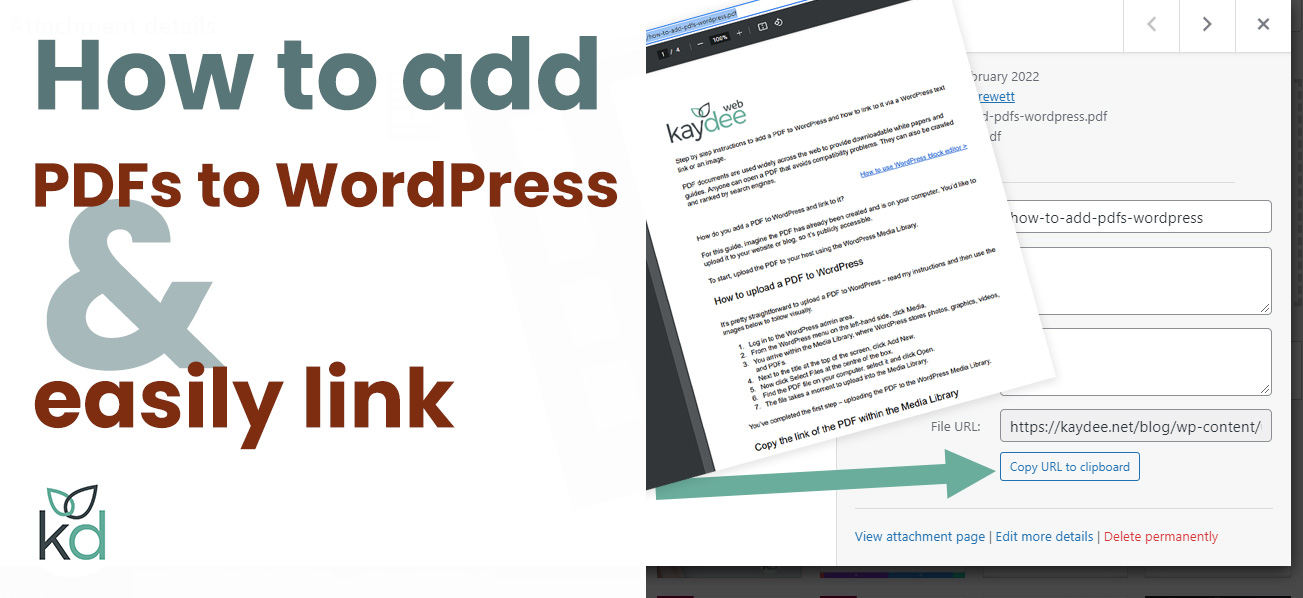
The Media Library is the main place to upload PDFs in WordPress. Go to your dashboard and click “Media.” Then choose “Add New.”
Drag and drop your PDF file or click “Select Files” to upload. After uploading, WordPress stores your PDF safely.
You can view all uploaded files in the Media Library. Each file shows its name and size. Click on a PDF to get its URL. This URL is important to link the PDF in your posts or pages.
Organizing Files For Easy Access
Organize your PDFs well for quick access. Use folders or categories in the Media Library with plugins. This helps keep your files tidy.
Name your PDF files clearly. Use simple names that describe the content. This makes finding files easier later.
Regularly check your Media Library. Delete outdated or unused PDFs. A clean library improves site speed and user experience.
Credit: formidableforms.com
Inserting Pdf Links In Posts
Adding PDF links to your WordPress posts helps share important documents easily. Readers can click the link and open the PDF directly in their browser or download it. This improves user experience and provides access to detailed information without cluttering your post.
WordPress offers two main ways to insert PDF links: the Block Editor and the Classic Editor. Both methods are simple and require only a few steps. Follow the instructions below to link your PDFs quickly.
Adding Links Via Block Editor
Start by opening the post or page where you want to add the PDF link. Click the plus (+) icon to add a new block. Choose the “File” block from the list.
Upload your PDF file or select one from the media library. WordPress will automatically create a link to the PDF. You can change the link text to something clear, like “Download PDF” or “View Document.”
This method makes adding PDFs fast and neat. You also get a download button below the link automatically.
Using Classic Editor For Links
Open the post in the Classic Editor. Place your cursor where you want to insert the PDF link. Click the “Add Media” button above the editor toolbar.
Upload your PDF or select it from the media library. Click “Insert into post.” WordPress adds a link to the PDF in your content. You can edit the link text right in the editor.
This traditional method works well if you prefer the old WordPress interface. It gives full control over where the link appears in your text.
Creating Pdf Links In Menus And Widgets
Creating PDF links in menus and widgets helps visitors access important files quickly. Menus and widgets are visible on many pages. Adding PDF links here improves user experience. It lets users find documents without searching deep inside the site.
Use this method to share guides, brochures, or reports easily. The process is simple and takes just a few steps. You only need the PDF file URL and WordPress menu or widget tools.
Adding Pdf Links To Navigation Menus
Open your WordPress dashboard. Go to Appearance > Menus. Select the menu where you want the PDF link. Click “Custom Links” on the left side. Paste the PDF URL in the URL box. Enter the link text, like “Download PDF”. Click “Add to Menu”. Drag to reorder if needed. Save the menu. The PDF link appears in your site’s navigation bar.
Inserting Pdf Links In Sidebar Widgets
Go to Appearance > Widgets in your dashboard. Choose the Sidebar or widget area. Add a “Text” or “Custom HTML” widget. Paste the link code using Link Text. Example: Download PDF. Save the widget. The PDF link now shows on your sidebar. Visitors can click and open the PDF directly from any page.
Using Plugins For Advanced Pdf Management
Plugins help manage PDFs easily on WordPress. They offer more features than basic links. You can display PDFs directly on your site. Control how users interact with your files. Save time and improve user experience with these tools.
Top Pdf Plugins For WordPress
Several plugins make PDF management simple. PDF Embedder lets you show PDFs on pages. WP PDF Viewer offers responsive viewing for all devices. Embed Any Document supports multiple file types, including PDFs. These plugins provide easy setup and good customization. Choose one that fits your needs and skill level.
Embedding Pdfs With Viewer Plugins
Viewer plugins let visitors read PDFs without downloads. They add a clean frame right on your page. Scroll, zoom, and navigate inside the PDF smoothly. These tools keep users on your site longer. Most plugins use simple shortcodes or blocks. Just upload your PDF, then embed it with one click. No coding skills required at all.
Troubleshooting Common Issues
Troubleshooting is key when adding PDF links in WordPress. Problems can stop your visitors from accessing your content. Fixing these issues improves user experience and site performance.
Common issues include broken links and PDF compatibility problems. Knowing how to fix these helps keep your site professional and reliable. Below are simple steps to solve these challenges.
Fixing Broken Links
Broken links happen if the PDF file moves or deletes. Check the URL carefully for typos. Use WordPress media library to upload your PDF again. Copy the correct link from the media library. Replace the old link with the new one in your post.
Clear your browser cache to see the changes. Test the link on different devices to ensure it works. Use link checker plugins to find broken links quickly. Fixing broken links keeps your site trustworthy.
Ensuring Pdf Compatibility
Not all PDF files open well on every device. Use standard PDF formats to avoid issues. Avoid large file sizes that slow down loading. Compress PDFs before uploading to improve speed.
Test your PDF link on mobile and desktop. Confirm the file opens in common PDF readers. Update your PDF if it shows errors or does not load. Compatible PDFs provide a smooth user experience.

Credit: www.youtube.com
Frequently Asked Questions
How Do I Upload A Pdf To WordPress?
To upload a PDF, go to your WordPress dashboard, click Media > Add New, then select your PDF file. Once uploaded, copy the file URL for linking.
How Can I Add A Pdf Link To A WordPress Post?
In the post editor, highlight text or select an image, click the link icon, paste the PDF URL, and save. This creates a clickable PDF link.
Can I Embed A Pdf Directly In WordPress?
Yes, use the Gutenberg PDF block or a plugin like PDF Embedder to display PDFs directly within your posts or pages.
Is It Possible To Make Pdf Links Open In A New Tab?
Yes, when adding a link, check the “Open link in a new tab” box in the link settings to enhance user experience.
Conclusion
Adding a PDF link in WordPress is simple and quick. You just need to upload the file and copy its link. Then, insert the link into your post or page. This helps visitors access important documents easily. Keep your website user-friendly by sharing useful files.
Practice these steps to improve your content. Soon, adding PDF links will feel natural and easy. Try it today and see the difference on your site.



