
Are you looking to expand your WordPress website but not sure how to add new pages? Adding pages is one of the easiest ways to make your site more organized and user-friendly.
Whether you want to create an About page, a Contact page, or something unique, you can do it quickly—even if you’re not a tech expert. In this guide, you’ll discover simple, step-by-step instructions to add pages to your WordPress site with confidence.
Keep reading, and by the end, you’ll have the skills to grow your website exactly how you want.
Creating New Pages
Creating new pages on your WordPress website is simple and quick. Pages help organize your site and share important information. You can add pages for different topics, services, or contact details.
Follow clear steps to create pages easily. This section guides you through the process from start to finish.
Accessing The Dashboard
First, log in to your WordPress account. The dashboard is your control center. It shows all the tools you need to manage your site. Look for the login page by adding “/wp-admin” after your website address.
Navigating To Pages Section
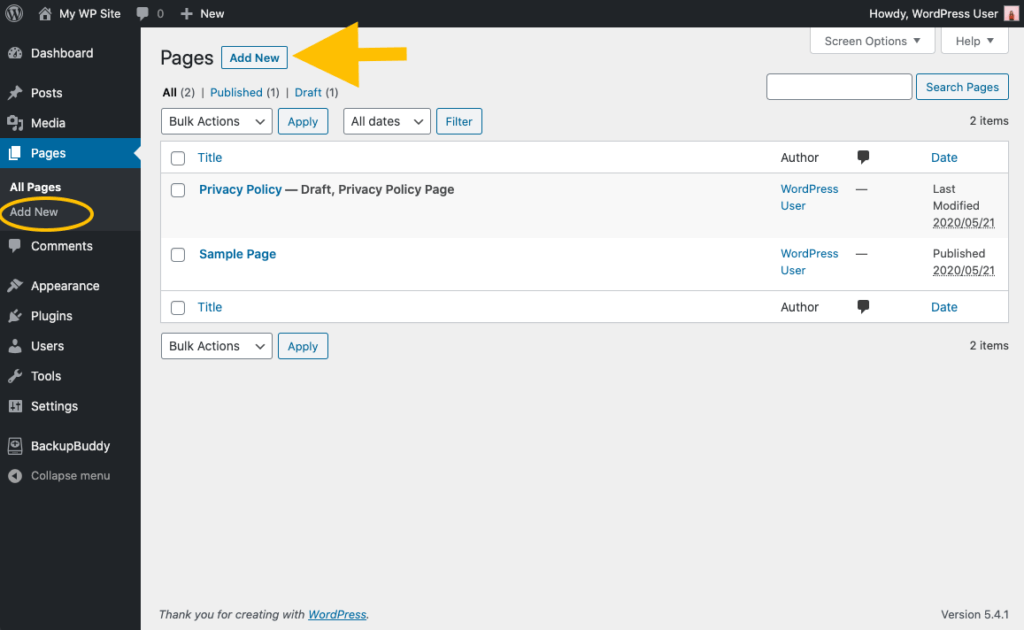
Once inside the dashboard, find the menu on the left side. Click on “Pages” to open the pages section. This area lists all pages on your site. You can edit, delete, or add new pages here.
Starting A New Page
Click the “Add New” button at the top of the Pages section. A blank page editor will open. Enter your page title and content here. Use simple text and images to make your page clear. When done, click “Publish” to make the page live on your site.
Credit: visao.app
Customizing Page Content
Customizing page content is key to making your WordPress site unique. It lets you control what visitors see and how they interact. You can change text, add pictures, and include videos easily. This helps your site look professional and engaging. Editing content is simple, even for beginners.
Using The Block Editor
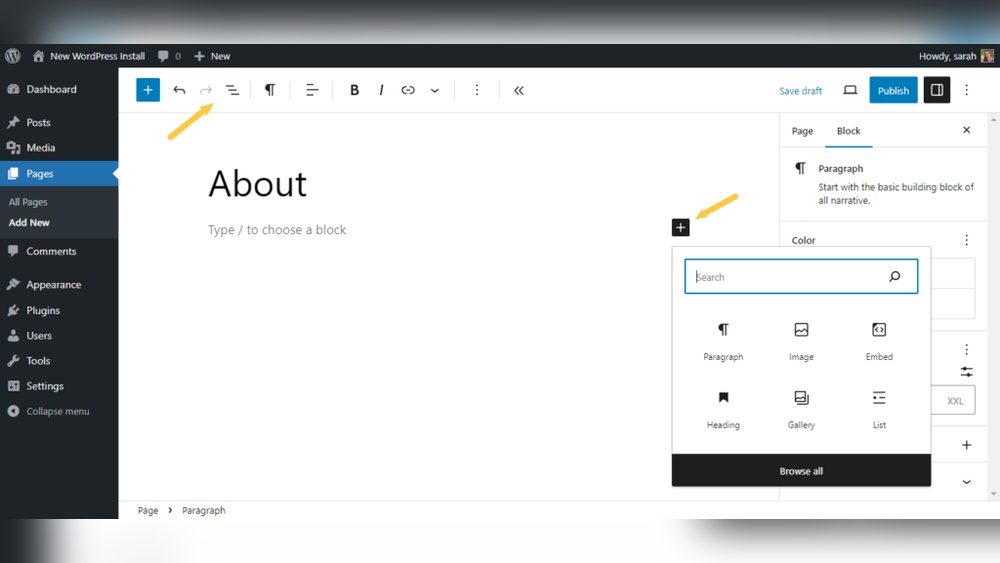
The Block Editor is WordPress’s tool for building pages. It uses blocks for each content type. You can add, move, or delete blocks quickly. Each block can hold text, images, or other elements. The editor shows a live preview of your changes. It helps you design pages without coding skills.
Adding Text And Images
Start by adding a text block for your content. Click the “+” button to insert a paragraph block. Type your message clearly and simply. To add images, use the image block. Upload pictures from your computer or select from the media library. Resize and align images for better layout. Text and images together make pages more attractive.
Inserting Multimedia Elements
You can add videos, audio, and other media easily. Use the video block to upload or embed videos. Audio blocks work for podcasts or music files. Embed content from platforms like YouTube or SoundCloud by pasting the link. Multimedia makes your pages interactive and keeps visitors interested.
Setting Page Attributes
Setting page attributes helps organize your WordPress website. It controls how pages relate and display. These settings affect navigation and page layout. Adjusting attributes makes your site clear and user-friendly.
Choosing A Parent Page
Choose a parent page to create a page hierarchy. This means your new page becomes a child of another. It helps group related pages together. For example, “About Us” can be a parent to “Our Team.” This structure improves site navigation and order.
Selecting A Template
Templates control the page’s look and layout. Your theme offers different templates for pages. Pick the one that fits your content style. Some templates have full-width or sidebar options. Selecting the right template makes your page visually appealing and clear.
Adjusting Page Order
Page order defines the sequence of pages in menus. Lower numbers show pages first. Higher numbers push pages down the list. Setting order helps highlight important pages. It ensures visitors find key content easily and quickly.
Publishing And Managing Pages
Publishing and managing pages is a key part of running a WordPress website. It lets you control what visitors see. You can easily make pages live or update them later. This gives you full control over your content.
Managing pages also means you can fix mistakes or remove old pages. WordPress makes these tasks simple. You do not need special skills to keep your site fresh and organized.
Previewing Your Page
Previewing a page lets you see how it looks before publishing. Click the “Preview” button on the editor screen. This opens a new tab showing your page exactly as visitors will see it. You can check text, images, and layout. This step helps avoid errors and ensures your page looks good.
Publishing Options
WordPress offers several ways to publish pages. Click the “Publish” button to make your page live immediately. You can also schedule a page to publish later by setting a date and time. Another option is saving a page as a draft. This keeps it private until you are ready to publish.
Editing And Deleting Pages
Editing pages is easy. Go to the “Pages” section in your dashboard. Find the page you want to change and click “Edit.” Make your updates and save them. To delete a page, select it and click “Trash.” You can restore it later or delete it permanently. Managing pages keeps your site updated and tidy.
Adding Pages To Navigation Menus
Adding pages to your navigation menus helps visitors find important content quickly. It improves website structure and user experience. You can control which pages appear in your menus and in what order. This section explains how to add pages to navigation menus on your WordPress site.
Accessing Menu Settings
Start by logging into your WordPress dashboard. Go to the Appearance section and click on Menus. This opens the menu editor where you manage your navigation menus. Select the menu you want to edit or create a new one. This area controls what appears in your site’s navigation bar.
Including Pages In Menus
On the left side, find the Pages box. You will see a list of your published pages. Check the boxes next to the pages you want to add. Click the Add to Menu button. The selected pages appear in the menu structure on the right. Save the menu to apply changes to your website.
Rearranging Menu Items
Drag and drop menu items to change their order. Place important pages at the top for easy access. You can also create sub-menus by dragging items slightly to the right. This creates a dropdown effect in your navigation. After arranging, click Save Menu to update your site navigation.
Credit: www.youtube.com
Using Plugins To Enhance Pages
Plugins help make your WordPress pages better and easier to build. They add new tools and features without needing to code. Using plugins lets you create unique pages that fit your website’s needs.
Many plugins work as page builders. They allow you to drag and drop elements like text, images, and buttons. Other plugins help add forms or improve your pages’ SEO. These tools save time and make your site look professional.
Popular Page Builder Plugins
Page builder plugins let you design pages with simple clicks. Elementor is a popular choice. It offers many templates and widgets. Beaver Builder is another option, known for its user-friendly interface. Divi Builder provides many design options and is great for beginners. These plugins work well with any WordPress theme.
Adding Contact Forms
Contact forms let visitors send messages easily. Plugins like WPForms and Contact Form 7 help add forms quickly. These plugins include drag-and-drop form builders. You can create simple or detailed forms. They also support spam protection to keep your site safe.
Seo Optimization Tips
SEO plugins improve your page ranking on search engines. Yoast SEO and All in One SEO Pack are popular tools. They guide you to use keywords, add meta descriptions, and create sitemaps. These plugins also check readability and help fix errors. Use them to make your pages easy to find online.

Credit: libroediting.com
Frequently Asked Questions
How Do I Create A New Page In WordPress?
To create a new page, log in to your WordPress dashboard. Go to Pages > Add New. Enter the page title and content, then click Publish.
Can I Add Multimedia To WordPress Pages?
Yes, WordPress allows you to add images, videos, and audio. Use the block editor to insert multimedia elements easily.
How Do I Organize Pages In WordPress?
You can organize pages by creating parent and child pages. Set a parent page in the Page Attributes section when editing.
How Do I Edit An Existing WordPress Page?
Go to Pages > All Pages in the dashboard. Click the page you want to edit, update the content, and click Update.
Conclusion
Adding pages to your WordPress website is simple and fast. Just follow the steps carefully. Each new page helps your site grow and share more information. Keep your pages clear and organized for visitors to understand easily. Regularly update your content to keep your site fresh.
This way, your website stays useful and interesting. Now, you can confidently add pages and improve your WordPress site.



