
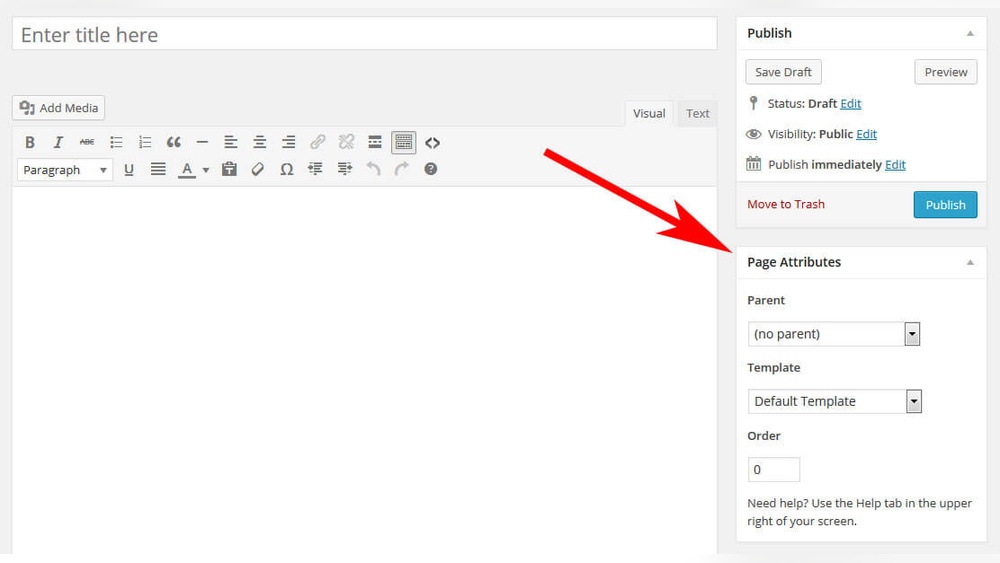
Are you looking to give your WordPress site a fresh, unique look? Adding a custom page template can help you do just that.
It lets you control how specific pages appear, making your website stand out and work better for your visitors. You’ll learn exactly how to add a page template in WordPress—step by step, with simple instructions you can follow even if you’re not a tech expert.
By the end, you’ll have the power to create pages that fit your style and needs perfectly. Ready to make your site truly yours? Let’s get started!
Why Use Page Templates
Page templates give you control over your WordPress site’s design. They let you create different layouts for different pages. This helps make your site look unique and organized. You can show content in many ways without changing the whole theme.
Using page templates saves time. You don’t need to build each page from scratch. Templates keep your site consistent and easy to update. They work well for blogs, portfolios, or business sites.
What Are Page Templates?
Page templates are files in your theme. They tell WordPress how to display a page. You can create custom templates for special pages. For example, a contact page or a full-width landing page.
Improve User Experience
Different page designs help visitors find information fast. A clean layout keeps readers focused. Templates allow you to highlight important content. This makes your site easier to use and more attractive.
Save Time And Effort
Templates reduce repetitive work. Build a page layout once and reuse it. This speeds up website creation. It also cuts mistakes and keeps your design uniform.
Increase Site Flexibility
Page templates let you change page styles easily. You can test new layouts without affecting other pages. This helps keep your site fresh and relevant.
Preparing Your Theme
Preparing your theme is the first step in adding a page template in WordPress. It sets the foundation for a smooth and safe customization process. Proper preparation helps keep your website stable and easy to update. Follow the steps carefully to avoid issues later.
Locate Theme Folder
Every WordPress theme has a folder in your website files. This folder contains all theme files, including templates and stylesheets. Find it using an FTP client or your hosting file manager. The folder is inside the wp-content/themes directory. Knowing this location helps you manage and edit files easily.
Create Child Theme
Creating a child theme protects your changes from being lost. A child theme is a separate folder that inherits the parent theme’s style. It lets you add new templates without editing the original files. Start by making a new folder in the themes directory. Add a style.css file and a functions.php file to link the child to the parent. This setup keeps your site safe during updates.
Creating A New Page Template
Creating a new page template in WordPress lets you control the design of specific pages. You can build unique layouts that match your needs. This process requires basic knowledge of PHP and access to your theme files.
Start by creating a new template file in your theme folder. Then, add a special header to recognize it as a template. This method helps WordPress list your template when creating or editing pages.
Create Php File
Open your theme folder using a file manager or FTP. Inside the folder, create a new file with a .php extension. Name it clearly, like custom-template.php. This file will hold your custom page layout.
Keep the file simple at first. You can add HTML and PHP code later to design the page. Save the file and prepare to add the template header.
Add Template Header
At the top of your new PHP file, add a comment block. This block tells WordPress this file is a page template. Use this format:
php / Template Name: Custom Template / ? Replace “Custom Template” with your desired template name. This name will show in the WordPress editor under the page template dropdown. The header must be exact for WordPress to detect it correctly.
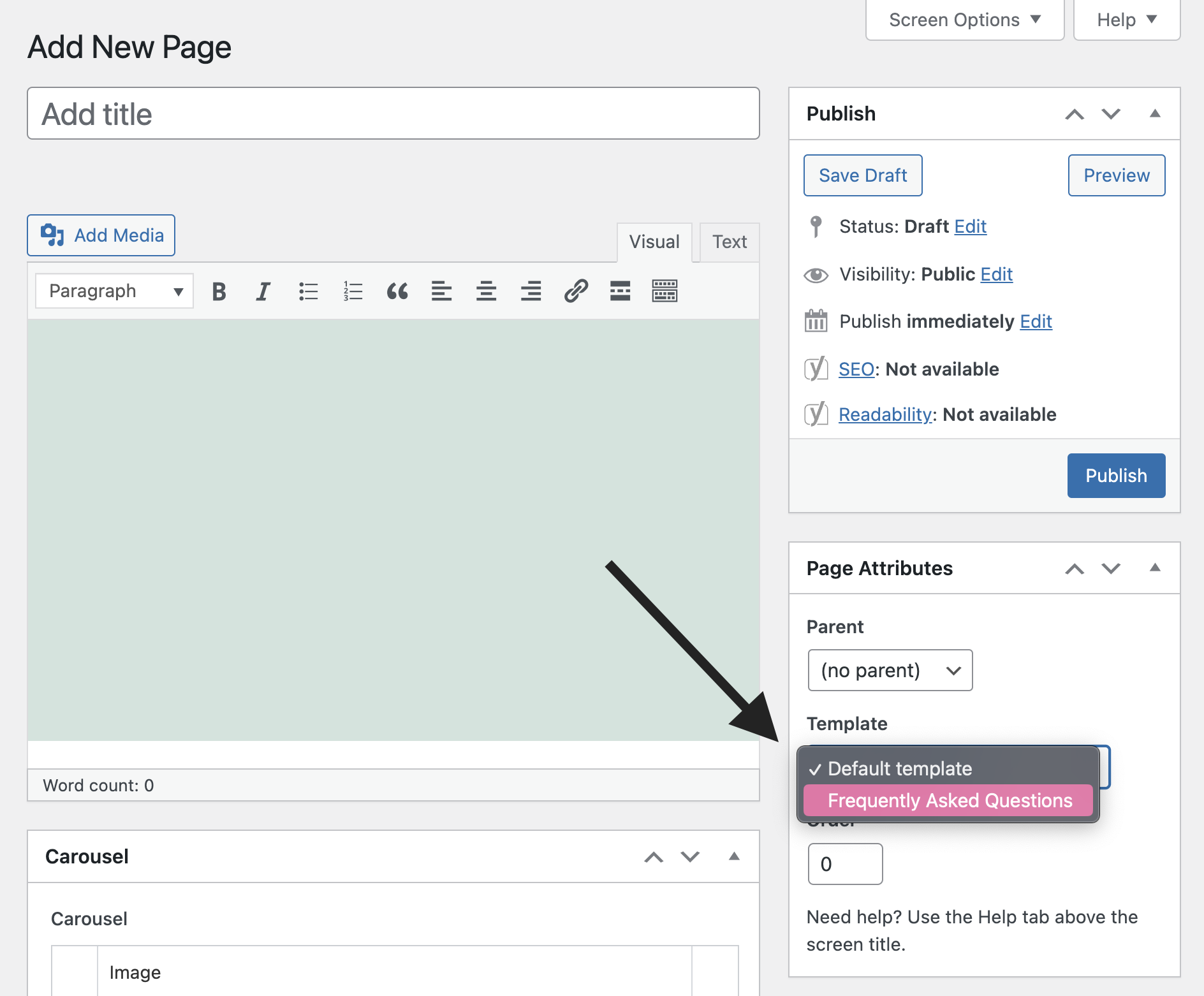
After adding the header, upload the file if needed. Go to your WordPress dashboard, create or edit a page, and select your new template. Your page will now use the custom design you created.
Credit: savvy.co.il
Customizing The Template
Customizing a WordPress page template lets you control how pages look and function. You can change layouts, add special features, or show unique content. This section explains simple ways to personalize your template.
Add Custom Code
Adding custom code helps you tailor the template to your needs. You can insert HTML, CSS, or PHP directly into the template file. This allows you to change styles, add new sections, or modify existing elements.
Open your template file in a text editor or the WordPress theme editor. Then, add your code where you want changes to appear. Save the file and refresh your page to see the updates.
Include Template Parts
Template parts let you reuse sections across different pages. For example, you can create header, footer, or sidebar parts separately. Then, include them in your main template file.
Use the get_template_part() function to add these parts. This keeps your code organized and easy to update. Changing a part updates all pages using it.
Uploading And Activating Template
Uploading and activating a page template in WordPress is a simple process. It lets you customize pages with unique layouts. This step guides you through getting your template ready to use.
Upload To Theme Directory
First, you need to upload the template file to your theme folder. Use an FTP client or your hosting file manager. Navigate to /wp-content/themes/your-theme/. Place the template file here. The file should have a .php extension. This makes WordPress recognize it as a template.
Select Template In WordPress
Next, go to your WordPress dashboard. Open the page editor for the page you want to change. Find the “Page Attributes” box on the right side. Under “Template,” choose your uploaded template from the dropdown menu. Click “Update” or “Publish.” The page will now use your new template design.

Credit: www.youtube.com
Testing The New Template
Testing the new template is a key step after creating it. This step ensures your page looks right and works well. You must check the template on a live page. This helps catch any design or layout problems early.
Assign Template To Page
First, open your WordPress dashboard. Go to Pages and select the page you want. On the right side, find the Template option. Click the dropdown menu and pick your new template. Save or update the page to apply changes.
Verify Frontend Display
Visit the page on your website’s frontend. Check if the new template appears as expected. Look for layout, colors, and content placement. Test on different devices like phones and tablets. Make sure everything loads fast and looks neat.
Troubleshooting Common Issues
Troubleshooting is key when adding page templates in WordPress. Problems can stop your template from working. Fixing these issues helps your site run smoothly.
Many common problems have simple solutions. Understanding these problems saves time and frustration. Below are two frequent issues and how to solve them.
Template Not Showing
Sometimes, your new template does not appear in the page editor. This often happens if the template file is not in the right folder. Make sure it is inside your theme’s main directory.
Check the template file name and header. The template must start with a proper comment block like:
php / Template Name: Your Template Name / ?
Without this, WordPress will not list the template. Also, clear your browser cache. Sometimes old data hides the new template.
Php Errors
PHP errors break templates and stop your site from working. These errors often show as white screens or error messages. Check your code carefully for mistakes.
Common errors include missing semicolons, wrong function names, or syntax issues. Enable debugging mode in WordPress by adding this line to wp-config.php:
define('WP_DEBUG', true);This shows errors on your site. Fix the errors you see. Use a code editor with syntax checking to avoid errors.

Credit: wordpress.com
Frequently Asked Questions
What Is A Page Template In WordPress?
A page template is a custom layout file for WordPress pages. It controls the design and structure of a page. Templates help you create unique page styles without changing your theme. You can assign different templates to different pages easily.
How Do I Create A Custom Page Template?
To create a custom page template, create a new PHP file in your theme folder. Add a template name comment at the top. Then, code your layout using HTML and PHP. Finally, upload the file to your theme directory to use it.
Can I Use Page Templates With Any WordPress Theme?
Most modern WordPress themes support page templates. However, some themes may have limited or no template options. Check your theme’s documentation to confirm. Using child themes helps preserve templates during theme updates.
How Do I Assign A Page Template In WordPress?
Edit the page you want to customize in the WordPress dashboard. In the “Page Attributes” box, select your desired template from the “Template” dropdown. Save or update the page to apply the new layout instantly.
Conclusion
Adding a page template in WordPress is simple and useful. It helps you create unique layouts for different pages. You can customize your site without extra plugins or coding. Just follow the steps carefully and test your changes. This way, your website looks professional and fits your needs.
Keep practicing, and your site will improve over time. Don’t be afraid to try new templates and designs. Your visitors will notice the difference right away.



