
Are you struggling to add a “Next Page” button to your WordPress site? You’re not alone.
Many website owners miss out on this simple feature that can keep visitors engaged longer and improve your site’s navigation. Imagine your readers easily clicking through your content without confusion or frustration. You’ll discover straightforward steps to add a next page link that works smoothly on your WordPress site.
Keep reading, and you’ll learn how to make your site more user-friendly and boost your visitors’ experience right now.

Credit: shellcreeper.com
Why Add A Next Page Link
Adding a next page link on your WordPress site helps users move through content easily. It guides visitors to continue reading or explore more. This simple feature keeps people engaged longer and improves how they interact with your site.
Improving User Experience
Next page links make reading smoother. Visitors do not need to scroll endlessly or search for more content. They just click and go to the next section. This keeps users happy and less frustrated.
Enhancing Site Navigation
Good navigation helps users find information fast. Next page links create clear paths through your pages. Visitors know where to go next without confusion. This makes your site easier to use.
Boosting Seo
Search engines like well-structured sites. Next page links help spread link value across your pages. They improve how search engines index your content. This can help your site rank higher in search results.

Credit: wordpress.org
Methods To Add Next Page
Adding a next page link helps visitors navigate your WordPress site easily. It breaks content into smaller parts. This improves user experience and site speed. There are several ways to add a next page in WordPress. Some methods require no coding, while others give more control. Choose the method that fits your needs and skills.
Using Default WordPress Pagination
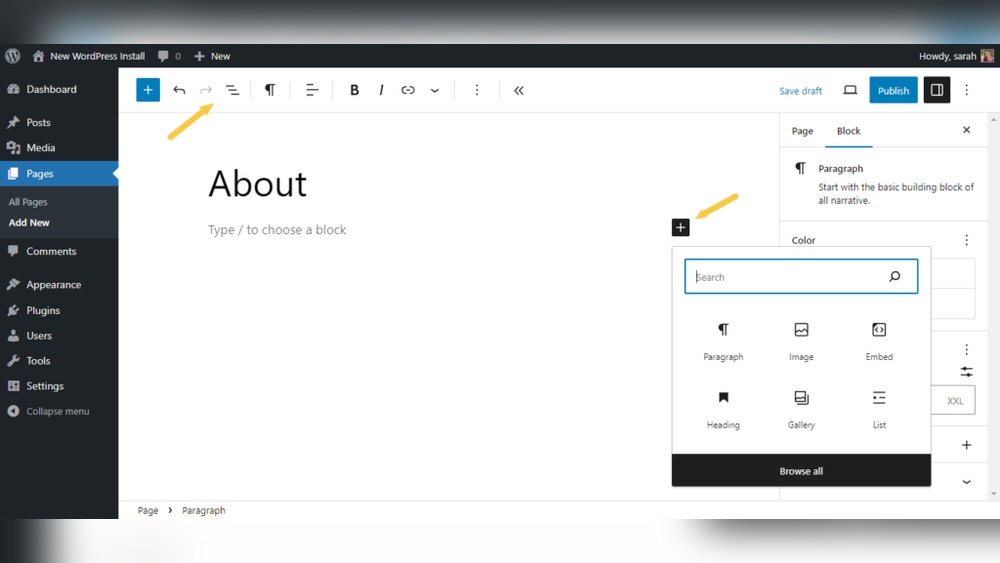
WordPress has built-in pagination for posts and pages. Many themes support this feature. You can enable it without any extra tools. To use default pagination, split your content with the nextpage tag in the post editor. WordPress automatically adds “Next Page” links between sections. This method is simple and fast. It works well for long articles or guides.
Adding Next Page Manually With Html
You can add a next page link by writing HTML code. This method gives full control over link style and placement. Use an anchor tag like Next Page to create the link. Replace “URL” with your next page address. Place this code at the bottom of your page or post. It requires basic HTML knowledge but offers flexibility.
Using Plugins For Pagination
Plugins simplify adding next page navigation. They offer customizable buttons and styles. Popular pagination plugins include WP-PageNavi and Pagination by BestWebSoft. Install and activate the plugin in your dashboard. Configure settings to match your website design. Plugins handle the coding automatically. This method is user-friendly and powerful for beginners and advanced users.
Step-by-step Guide With Default Pagination
Adding a next page button in WordPress helps visitors see more content easily. This guide shows how to use the default pagination step by step. No coding skills needed. Follow the steps to make your site user-friendly and organized.
Enabling Pagination In Theme Settings
First, check if your theme supports pagination. Go to the WordPress dashboard. Click on Appearance, then Customize. Look for a section called Layout or Blog Settings. Find the pagination option and enable it. Save your changes. Your site now shows next page links automatically on posts or archive pages.
Customizing Pagination Appearance
Next, customize how pagination looks. Still in the Customize menu, find Pagination or Navigation style. Choose from simple numbers, next and previous text, or arrows. Pick the style that fits your site design. Preview changes live before saving. This makes your site look neat and helps users navigate easily.
Credit: solidwp.com
Manual Next Page Link Setup
Setting up a manual next page link in WordPress helps control navigation between content pages. This method gives you full control over where and how the next page links appear. It is useful for long posts or guides split into multiple pages.
Manual setup requires adding special tags inside your post or editing theme files. Both methods let you customize the link text and style. This section explains how to do each step clearly and simply.
Inserting Next Page Tag In Posts
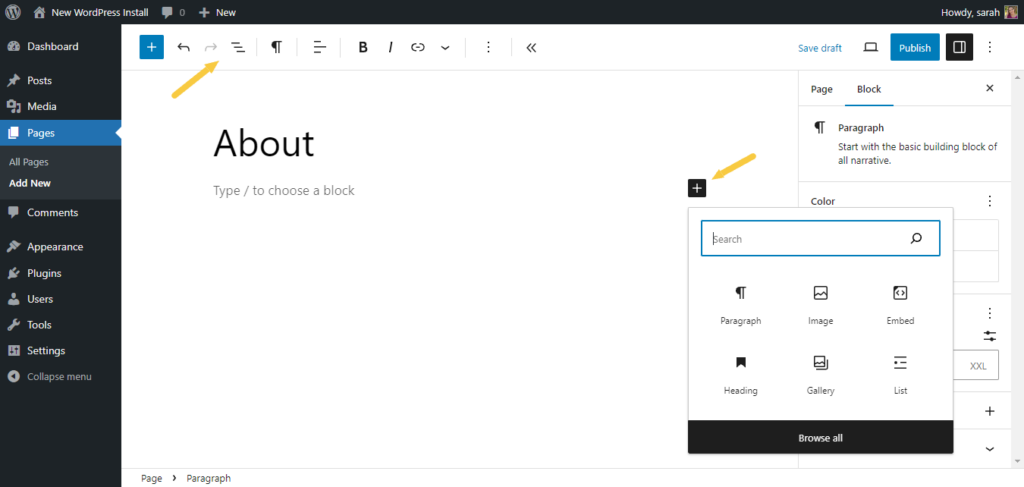
Start by opening the post in the WordPress editor. Place the cursor where you want to split the content. Then add the tag nextpage exactly there.
This tag divides the post into multiple pages automatically. WordPress will create a next page link after each split. You can add this tag as many times as needed.
Save or update your post. Visit the post page to see the new pagination links. The next page link usually appears at the bottom of the content.
Editing Theme Files For Custom Links
To customize next page links, edit your theme’s template files. Locate the file that controls single post display, often single.php or content-single.php.
Find the code that calls wp_link_pages(). This function outputs the next page links. You can add parameters to change the link text and style.
Example code:
wp_link_pages(array( 'before' => '', 'after' => '', 'next_or_number' => 'next', 'nextpagelink' => 'Next Page »', ));Save the changes and upload the file back to your server. Check your posts to see the customized next page links. This method gives you more control over link appearance and placement.
Popular Pagination Plugins
Pagination helps visitors navigate large websites easily. It breaks content into smaller pages. This makes sites faster and user-friendly. WordPress offers many plugins to add pagination. These plugins simplify adding “Next Page” buttons. They work with most themes and page builders.
Here are some popular pagination plugins you can try. Each has unique features to suit different needs.
Wp-pagenavi
WP-PageNavi is a widely used pagination plugin. It replaces the default WordPress navigation with numbered links. Visitors can jump to any page directly. The plugin is easy to set up. It offers customization options for link styles and text. WP-PageNavi improves site usability and navigation.
Pagination By Bestwebsoft
This plugin adds simple numeric pagination to posts and pages. It supports custom post types and archives. You can change the number of visible page links. It works well with responsive themes. Pagination by BestWebSoft is lightweight and fast. It enhances user experience with clear page controls.
Page Links To
Page Links To lets you link pages to any URL. It is helpful for custom pagination setups. You can create “Next” or “Previous” buttons pointing anywhere. This plugin is flexible for unique navigation needs. It is easy to use and integrates smoothly. Page Links To extends pagination beyond normal limits.
Troubleshooting Pagination Issues
Pagination issues can disrupt a website’s flow and confuse visitors. These problems affect user experience and site navigation. Troubleshooting pagination ensures smooth browsing across pages. This section covers common problems and simple fixes.
Fixing Broken Links
Broken links in pagination stop users from moving to the next page. Check the URL structure in your pagination settings. Make sure the links follow the correct format for your WordPress site.
Use plugins like Broken Link Checker to find errors fast. Replace or fix broken URLs promptly to keep pages connected. Clear your site cache after changes to update links properly.
Resolving Theme Conflicts
Themes sometimes clash with pagination features. Test your pagination on a default WordPress theme like Twenty Twenty-Three. If it works there, your theme likely causes the issue.
Update your theme to the latest version. If problems persist, contact the theme developer for support. Avoid editing theme files directly unless you know what you do.
Improving Load Speed
Slow loading pages can make pagination seem broken. Optimize images and reduce large files on your site. Use caching plugins to speed up page delivery.
Limit the number of posts shown per page to improve load time. Fast pages keep visitors engaged and reduce bounce rates. Test your site speed regularly for best results.
Frequently Asked Questions
How Do I Add A Next Page Link In WordPress?
To add a next page link, use the WordPress pagination function. Insert in your theme’s template file. This creates a clickable link to the next set of posts, improving navigation on multi-page blogs.
Can I Create Next Page Buttons Without Plugins?
Yes, you can add next page buttons by editing your theme files. Use built-in WordPress pagination functions like next_posts_link() and previous_posts_link(). This method keeps your site lightweight and enhances user experience without extra plugins.
What Theme Files Control WordPress Pagination?
Pagination is commonly controlled in index. php, archive. php, or search. php files. Edit these files to add next page links. Ensure your theme supports pagination functions to maintain smooth navigation between posts or pages.
Does WordPress Support Automatic Next Page Navigation?
By default, WordPress supports automatic pagination on multi-page posts. Use the



