
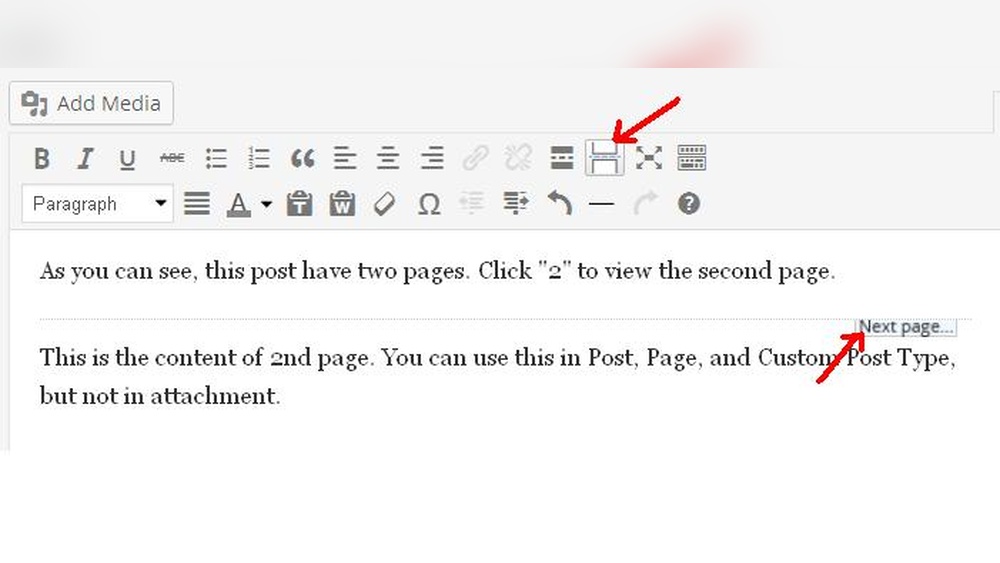
Are you looking to make your WordPress site easier to navigate? Adding a Next Page button can help your visitors move smoothly through your content without getting lost.
If you want to keep your readers engaged and improve their experience, this simple feature can make a big difference. You’ll learn exactly how to add a Next Page button to your WordPress site—step by step and without any technical headaches.
Keep reading, and you’ll soon have a cleaner, more user-friendly site that keeps people coming back for more.
Why Use A Next Page Button
Adding a Next Page button on your WordPress site helps visitors move smoothly through your content. It breaks long articles into smaller parts, making reading easier. This simple feature keeps users engaged and encourages them to explore more pages. Understanding the benefits helps you see why this button is useful.
Benefits For User Experience
The Next Page button improves how users interact with your site. It reduces the need to scroll through long posts. Readers can focus on one section at a time. This makes content less overwhelming and easier to digest. Users stay longer and enjoy a clear, simple reading flow.
Improving Site Navigation
This button guides visitors through your content step-by-step. It acts like a signpost, pointing to the next part of the story. Visitors do not get lost or confused about where to go next. Good navigation lowers bounce rates and increases page views. It also helps search engines understand your content better.
Credit: www.greengeeks.com
Preparing Your WordPress Site
Preparing your WordPress site is the first step to adding a next page button. This step ensures your site works smoothly and looks good. A well-prepared site makes navigation easier for your visitors. You need to choose the right theme and install essential plugins before adding new features.
Choosing The Right Theme
The theme controls the look and feel of your site. Choose a theme that supports pagination. Pagination includes buttons like “next page” and “previous page.” A simple, clean theme often works best for this feature. Avoid themes that are too complex or slow. Check if the theme updates regularly and has good reviews. A reliable theme keeps your site secure and fast.
Installing Essential Plugins
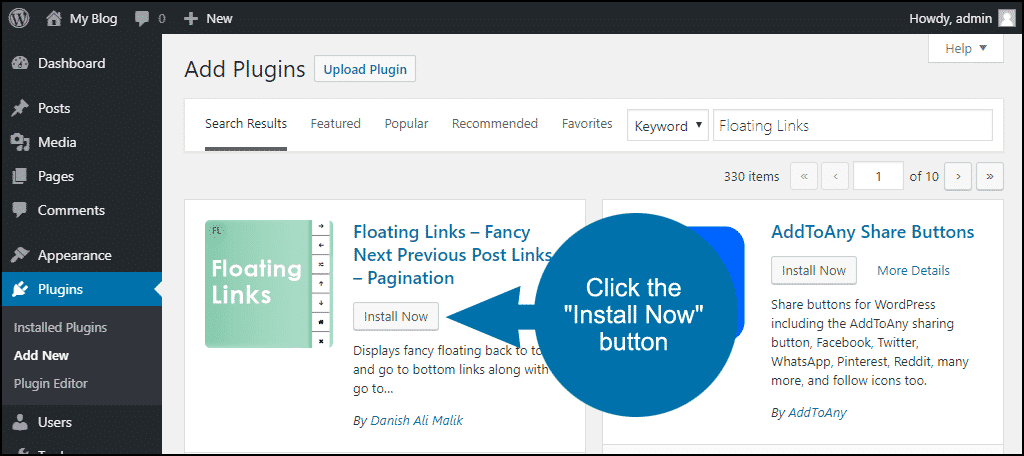
Plugins add extra functions to your WordPress site. For a next page button, some plugins help manage pagination easily. Search for plugins that support custom navigation buttons. Check plugin ratings and last update dates. Avoid plugins that are outdated or have few downloads. Installing the right plugin saves time and effort. It also ensures your new button works without issues.
Methods To Add Next Page Button
Adding a next page button improves user experience on your WordPress site. Visitors can navigate easily between pages. There are several ways to add this button. Each method suits different skill levels and needs. Choose the one that fits your website best.
Using Built-in WordPress Functions
WordPress offers built-in functions for pagination. The next_posts_link() function creates a next page button. It works well for blog archives or post listings. You can add it to your theme’s template files. This method requires basic knowledge of PHP and WordPress theme files. It keeps your site fast without extra plugins.
Adding Button With Plugins
Plugins simplify adding a next page button. Many free plugins offer easy setup and customization. Plugins like “WP-PageNavi” or “Pagination by BestWebSoft” add buttons with no coding. They provide style options to match your site design. This method suits beginners who want quick results. Keep your plugins updated for security and performance.
Custom Code Approach
Custom code gives full control over the button’s look and function. You can write your own HTML, CSS, and PHP. This method fits advanced users or developers. Custom code can integrate seamlessly with your theme. It allows unique styles and behaviors not possible with plugins. Test your code carefully to avoid errors on your site.
Step-by-step Guide For Built-in Method
Adding a next page button in WordPress helps visitors navigate your site easily. This guide shows how to use the built-in method step-by-step. It uses simple code changes in your theme files. The process is safe and effective for most WordPress themes.
Editing Theme Files Safely
Before editing, back up your theme files. Use a child theme to avoid losing changes after updates. Access your site files via FTP or the WordPress theme editor. Locate the correct template file, often index.php or archive.php. Open the file for editing. Make small changes and save frequently. This protects your site from errors or crashes.
Inserting Pagination Code
Find the place where posts loop ends in the file. Insert this code to add the next page button:
php next_posts_link('Next Page'); ?This code creates a clickable link to older posts. To show a previous page button, add:
php previous_posts_link('Previous Page'); ?Save the file and refresh your site to see the buttons. Test the navigation to ensure it works well. Adjust text inside quotes to change button labels.
Step-by-step Guide Using Plugins
Adding a next page button in WordPress helps users navigate your site easily. Plugins simplify this process. They let you add pagination without coding. Follow this step-by-step guide to use plugins for pagination.
Selecting A Pagination Plugin
First, choose a plugin that fits your needs. Search for “pagination” in the WordPress plugin library. Pick plugins with good ratings and recent updates. Popular options include WP-PageNavi and Pagination by BestWebSoft. Check the plugin’s description and reviews. Confirm it supports your WordPress version. Download and install the plugin from your dashboard.
Configuring Plugin Settings
After activation, go to the plugin settings page. Customize how the next page button looks and works. Set the button text, style, and position. Some plugins let you choose numbers or arrows for navigation. Save your changes. Preview your site to see the button in action. Adjust settings if needed for better user experience.
Customizing The Next Page Button
Customizing the Next Page button helps improve your website’s look and feel. It makes navigation clear and simple. Visitors can easily find the next page. This boosts user experience and keeps readers engaged longer.
Simple changes can make a big impact. You can change colors, shapes, and fonts. Animation effects add a modern touch. Small tweaks help the button stand out on your page.
Changing Button Style
Start by choosing the button’s color. Pick a color that matches your website theme. Next, adjust the button’s size and shape. Rounded corners give a smooth, friendly look. Square edges offer a sharp, clean feel.
Fonts matter too. Use clear, easy-to-read fonts. Change font size for better visibility. Bold text makes the button label stand out. You can also add shadows or borders for depth.
Adding Animation Effects
Animations grab visitor attention. A subtle hover effect works well. For example, the button can change color when hovered. Another option is a slight zoom or pulse effect. These make the button interactive and fun.
Use CSS animations for smooth results. Keep animations fast and simple. Too much movement can distract visitors. Test your button on different devices. Ensure animations work well everywhere.
Troubleshooting Common Issues
Troubleshooting common issues helps keep your WordPress site running smoothly. Problems with the next page button can stop visitors from browsing your content. Fixing these issues improves user experience and site navigation.
Understanding why the next page button does not show or why pagination conflicts occur helps you solve problems fast. This section explains common issues and easy solutions.
Button Not Showing
The next page button may not appear due to theme settings. Some themes disable pagination by default. Check your theme options to enable navigation buttons.
Another cause is missing or incorrect code in your template files. Ensure your theme uses the the_posts_navigation() or paginate_links() functions. Without these, WordPress cannot display the button.
Plugins can also hide buttons. Disable plugins one by one to find conflicts. Clear your site cache to see changes immediately.
Pagination Conflicts
Pagination conflicts happen when multiple plugins or themes use different methods. This causes buttons to malfunction or show wrong pages. Use only one pagination plugin at a time.
Custom queries in your theme can interfere with default pagination. Make sure your WP_Query has correct parameters and uses paginate_links() properly.
Check for URL issues. Sometimes, permalink settings cause pages to link incorrectly. Reset permalinks by going to Settings > Permalinks and clicking Save.
Credit: www.34sp.com
Tips For Better Pagination
Good pagination improves how users navigate your site. It helps visitors find content fast and keeps them on your pages longer. Simple, clear page buttons work best. Avoid clutter and confusion for better user experience. Follow these tips to create smooth and effective pagination.
Optimizing Load Speed
Fast pages keep users happy. Slow loading makes visitors leave. Use caching plugins to speed up your WordPress site. Limit the number of posts per page. Smaller pages load quicker. Compress images and use lightweight themes. Check your hosting service for speed performance. Speed matters a lot for pagination.
Enhancing Mobile Experience
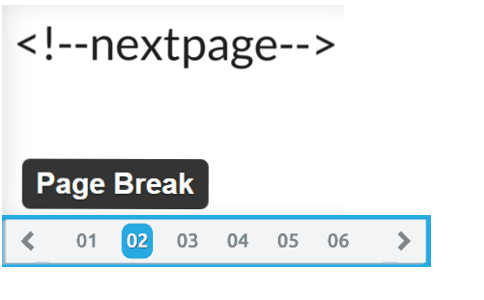
Many visitors use phones or tablets. Your next page button must be easy to tap. Make buttons large enough and spaced well. Avoid small links that are hard to click. Test pagination on different screen sizes. Use responsive design to fit all devices. Mobile-friendly pagination keeps users engaged longer.
Credit: www.how2shout.com
Frequently Asked Questions
How Do I Add A Next Page Button In WordPress?
To add a next page button, use WordPress’s built-in pagination functions. Insert the_posts_pagination() or next_posts_link() in your theme files. This enables easy navigation between post pages, improving user experience and SEO.
Can I Customize The Appearance Of The Next Page Button?
Yes, you can customize the next page button using CSS. Target the pagination class in your theme’s stylesheet. Modify colors, fonts, and sizes to match your website design for a cohesive look and feel.
Is A Next Page Button Important For Seo?
Yes, a next page button helps search engines crawl your content efficiently. It improves user engagement and reduces bounce rates by guiding visitors to more pages. Proper pagination enhances your website’s overall SEO performance.
Which WordPress Plugins Add Next Page Buttons Easily?
Popular plugins like WP-PageNavi and Pagination by BestWebSoft simplify adding next page buttons. They offer easy setup, customization options, and better control over pagination without coding knowledge.
Conclusion
Adding a Next Page button helps visitors navigate your WordPress site. It makes content easier to find and read. This small change improves user experience and keeps readers engaged longer. Follow simple steps, and you can add the button quickly.
Keep your site organized and user-friendly. Try it today and see the difference in how people explore your pages.



