
Are you ready to give your WordPress site a fresh new look? Changing or adding a new theme can completely transform how your website feels and functions.
But if you’re not sure where to start, don’t worry—this guide will walk you through every simple step to add a new theme to your WordPress site. By the end, you’ll have a stylish, customized website that grabs attention and keeps visitors coming back.
Let’s dive in and make your site stand out!
Credit: thimpress.com
Choosing The Right Theme
Choosing the right theme is crucial for your WordPress site. It affects how your site looks and works. A good theme makes your site easy to use and attractive. It also helps your visitors find what they need quickly. Take time to pick a theme that fits your needs. Think about your goals and your audience. This choice sets the tone for your entire website.
Free Vs Premium Themes
Free themes are easy to find and use. They work well for simple sites or blogs. Many free themes come with basic features and designs. Premium themes cost money but offer more options. They often include better support and updates. Premium themes can give your site a unique look. Choose based on your budget and needs.
Considering Website Purpose
Your website’s purpose guides your theme choice. A blog needs a clean and readable design. An online store requires a theme with shopping features. Business sites benefit from professional and formal themes. Portfolios need themes that showcase images well. Match the theme to what you want your site to do.
Checking Theme Compatibility
Not all themes work with every plugin or WordPress version. Check if the theme updates regularly. Make sure it supports popular plugins you plan to use. A compatible theme prevents errors and slow loading. Test the theme on different devices and browsers. This ensures your site works well for all visitors.
Preparing Your WordPress Site
Preparing your WordPress site is a key step before adding a new theme. It helps avoid problems during the installation and keeps your site safe. Taking a few minutes to prepare ensures a smooth theme change without losing data.
Backing Up Your Website
Start by backing up your entire website. This includes your database and all files. A backup protects your data if something goes wrong. Use a plugin or your hosting provider’s tools to create a full backup. Save it safely before you continue.
Updating WordPress Core
Update WordPress to the latest version. New themes often require the newest WordPress features. An updated core improves security and compatibility. Check your dashboard for updates and install them quickly. This step keeps your site running smoothly.
Disabling Conflicting Plugins
Deactivate plugins that might conflict with the new theme. Some plugins affect the design or functionality of your site. Disabling them prevents errors during theme activation. You can reactivate them after testing the new theme. This avoids unwanted issues.
Installing A Theme Via Dashboard
Installing a theme via the WordPress dashboard is the easiest way to change your website’s look. This method requires no coding and can be done in a few simple steps. You can browse thousands of free themes directly from your dashboard. Preview themes to see how they fit your site. Then activate the one you like best.
Accessing The Theme Section
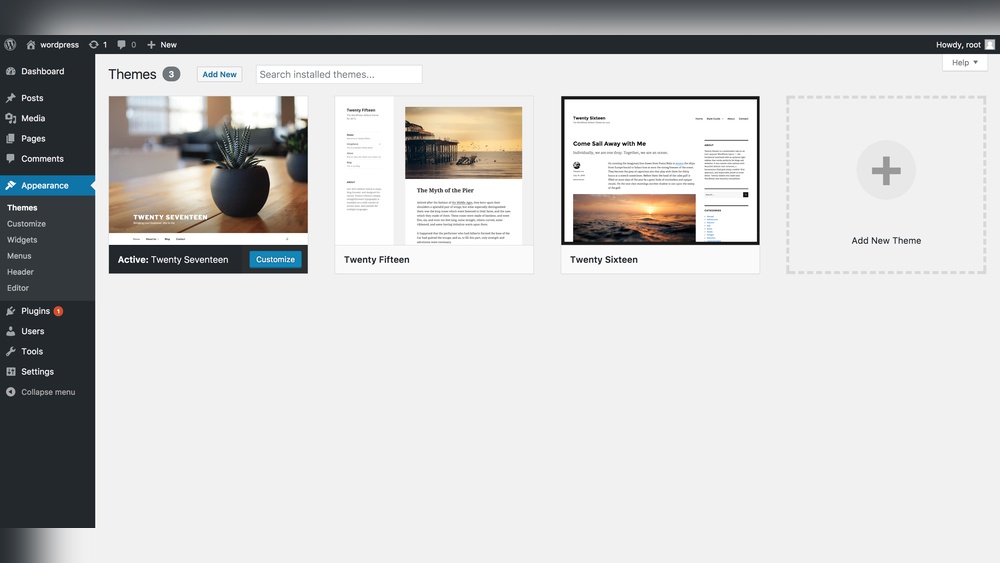
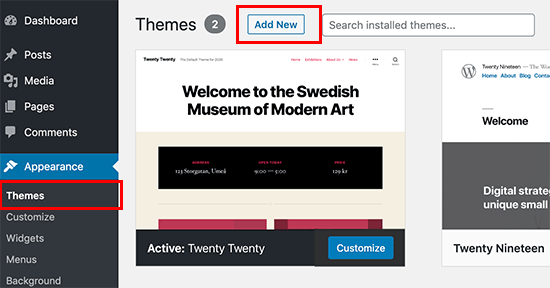
Start by logging into your WordPress admin area. On the left menu, find and click Appearance. Under Appearance, select Themes. This opens the theme management page. Here, you see your current themes and options to add new ones.
Searching And Previewing Themes
Click the Add New button at the top. Use the search bar to find themes by name or feature. You can also filter themes by popularity, latest, or specific features. Hover over a theme and click Preview to see how it looks on your site. This helps you pick the best design without changing anything yet.
Activating The New Theme
After previewing, click the Install button. WordPress downloads and installs the theme automatically. Once installed, click Activate. Your website now uses the new theme. Check your site to ensure everything looks right. You can always switch back or try another theme later.

Credit: wpmarmite.com
Uploading A Theme Manually
Uploading a theme manually to WordPress is a simple process. It helps when a theme is not available in the WordPress theme directory. This method also allows you to use premium or custom themes. Follow these steps to upload your new theme easily.
Downloading Theme Files
First, get the theme files from a trusted source. Usually, themes come as a .zip file. Save this file on your computer. Make sure the file is complete and not corrupted.
Using The Upload Feature
Log in to your WordPress dashboard. Go to Appearance > Themes. Click on the “Add New” button at the top. Then, click “Upload Theme.” Choose the .zip file you saved earlier. Click “Install Now” to start the upload.
Activating The Uploaded Theme
After installation, WordPress shows a success message. Click the “Activate” button to use the new theme. Visit your site to see how it looks. Customize the theme settings if needed.
Customizing Your New Theme
Customizing your new WordPress theme lets you make your site truly yours. It shapes how visitors see and interact with your content. Small changes can improve user experience and brand identity.
WordPress offers simple tools to help you adjust your theme’s look and feel. You can change colors, fonts, menus, and widgets without coding. This helps your website look professional and easy to use.
Using The WordPress Customizer
The WordPress Customizer is a built-in tool for theme changes. It shows a live preview of your site as you edit. You can open it by clicking “Customize” under Appearance in the dashboard.
Inside the Customizer, find options like site identity, colors, header image, and more. Each theme has different settings here. Make changes and see them in real time before saving.
Setting Menus And Widgets
Menus help visitors navigate your site easily. Go to Appearance > Menus to create or edit menus. Add pages, posts, or custom links to your menu structure.
Widgets add extra features in sidebars or footers. Visit Appearance > Widgets to drag and drop items. Common widgets include search bars, recent posts, and calendars.
Adjusting Colors And Fonts
Colors and fonts shape your website’s style and tone. Use the Customizer to pick color schemes that match your brand. Choose background, text, and link colors carefully.
Fonts affect readability and mood. Pick simple, clean fonts for body text. Use bold or decorative fonts only for headings or special sections.
Troubleshooting Common Issues
Adding a new theme to WordPress can sometimes cause issues. These problems may affect your site’s look and function. Knowing how to fix common errors helps keep your site running smoothly.
Below are simple steps to solve frequent theme problems. Follow these tips to fix layout errors, plugin conflicts, and more.
Fixing Broken Layouts
Broken layouts often happen when theme files do not load properly. Clear your browser cache first. This can fix many display issues.
Check if all theme files are uploaded. Missing files cause layout problems. Re-upload theme files using FTP if needed.
Some themes need specific plugins or settings. Review the theme’s documentation to configure it correctly.
Resolving Plugin Conflicts
Plugins may clash with your new theme. This can cause errors or strange behavior.
Deactivate all plugins. Then activate them one by one. Watch for any issues that return. This helps identify the problem plugin.
Update plugins to their latest versions. Old plugins often cause conflicts.
Use plugins compatible with your WordPress and theme version.
Reverting To Previous Theme
Sometimes, the new theme may not fit your needs. Switching back to the old theme is easy.
Go to Appearance > Themes in your dashboard. Activate your previous theme from the list.
Check your site after switching. Make sure everything works as before.
Always back up your site before changing themes. This protects your data and settings.
Optimizing Theme Performance
Optimizing theme performance makes your WordPress site faster and more user-friendly. A well-optimized theme improves loading times and reduces bounce rates. Fast websites keep visitors engaged and help with search engine rankings.
Caching And Speed Enhancements
Caching stores copies of your site pages. This reduces the server load and speeds up page delivery. Use caching plugins like W3 Total Cache or WP Super Cache. These tools create static files to serve visitors quickly. Enable browser caching to store site data on users’ devices. This saves time on repeat visits.
Optimizing Images
Large images slow down your website. Resize images to fit your theme layout. Compress images to reduce file size without losing quality. Use tools like TinyPNG or Smush for automatic compression. Choose modern formats like WebP for faster loading. Proper image optimization improves site speed and user experience.
Minimizing Code
Clean and simple code makes your site faster. Remove unnecessary CSS, JavaScript, and HTML. Minify files by eliminating spaces and comments. Use plugins such as Autoptimize to automate this process. Reducing code size lowers page load time. It also helps avoid conflicts and errors.

Credit: wordpress.stackexchange.com
Frequently Asked Questions
How Do I Install A New WordPress Theme?
Go to your WordPress dashboard, click Appearance > Themes > Add New. Search or upload your theme and click Install. Finally, activate it to apply.
Can I Upload A Theme Manually In WordPress?
Yes, download the theme ZIP file. In dashboard, go to Appearance > Themes > Add New > Upload Theme. Choose the ZIP and click Install and Activate.
Will Changing My Theme Affect Website Content?
No, changing your theme won’t delete your posts or pages. It only alters your site’s design and layout, keeping your content intact.
How To Preview A Theme Before Activating It?
In Appearance > Themes, hover over a theme and click Live Preview. This shows how your site looks without activating the theme.
Conclusion
Adding a new theme to WordPress is simple and quick. You just need to choose the theme you like and install it carefully. Changing your site’s look can make it more attractive and user-friendly. Always check the theme’s compatibility with your plugins and WordPress version.
Don’t forget to preview the theme before making it live. This way, you avoid surprises on your website. Keep your website fresh by trying new themes now and then. Enjoy customizing your WordPress site with ease and confidence.



