
Are you looking to give your WordPress site a fresh, unique look? Adding a new template can completely transform your website’s appearance and functionality.
But if you’re not sure where to start, don’t worry—you’re in the right place. This guide will walk you through simple, step-by-step instructions to add a new template to your WordPress site quickly and confidently. By the end, you’ll have the tools to customize your site exactly how you want it.
Ready to make your website stand out? Let’s dive in!

Credit: www.hostinger.com
Choosing The Right Template
Choosing the right template is key for a successful WordPress site. The template shapes the look and feel of your website. It also affects how visitors interact with your content. Picking a good template can save time and avoid future problems. Focus on templates that fit your site’s purpose and style.
Free Vs Premium Templates
Free templates are a great start. They often have basic features and simple designs. Premium templates cost money but offer more customization options. They usually come with better support and regular updates. Consider your budget and needs. Free templates work well for small projects. Premium templates suit larger, more complex sites.
Template Compatibility
Check if the template works with your WordPress version. Some templates may not support the latest features. Compatibility with popular plugins is also important. This ensures your site functions smoothly. Test the template on your staging site before going live. Avoid templates that cause errors or slow down your site.
Responsive Design Importance
Many visitors use mobile devices. A responsive template adapts to different screen sizes. This improves user experience on phones and tablets. Google favors mobile-friendly sites in search results. A responsive design helps keep visitors longer. Choose templates that look good on all devices.
Preparing Your WordPress Site
Preparing your WordPress site before adding a new template is very important. It helps avoid errors and keeps your site safe. This process ensures smooth installation and better performance. Follow these simple steps to get your site ready.
Backup Your Website
Start by backing up your entire website. This includes files, themes, plugins, and database. Use a reliable backup plugin or your hosting provider’s backup tool. Store the backup in a safe place. This step protects your data if anything goes wrong during template installation.
Update WordPress Core
Check that your WordPress version is up to date. Updates fix bugs and improve security. Go to your WordPress dashboard and look for available updates. Install the latest version before adding a new template. This helps avoid compatibility issues and keeps your site stable.
Check Plugin Compatibility
Review your active plugins and check if they work well with the new template. Some plugins may conflict with the new design. Visit the plugin pages to see if updates are available. Update plugins to their latest versions. Disable any plugins that cause problems to keep your site running smoothly.
Finding And Downloading Templates
Finding and downloading templates is the first step to customize your WordPress site. Templates control the look and feel of your website. Choosing the right template can make your site more attractive and user-friendly. You can find templates from different places, each offering unique designs. It is important to pick a template that fits your needs and works well with WordPress.
Using The WordPress Theme Directory
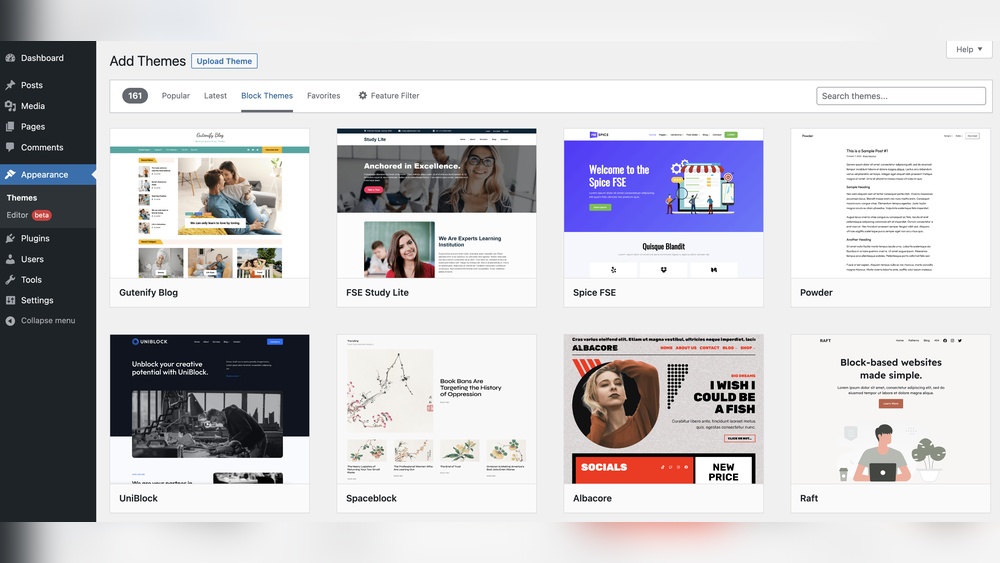
The WordPress Theme Directory is a large collection of free templates. You can browse templates by style, features, or popularity. Each template shows a preview and user ratings. Downloading from this directory is safe and easy. You can install templates directly from your WordPress dashboard without extra steps.
Downloading From Third-party Sources
Many websites offer free and paid WordPress templates. These sites provide more unique and creative designs. Make sure the source is well-known and trusted. Download the template file, usually in ZIP format. Upload the file through your WordPress dashboard to install the template. Some third-party templates offer extra features not found in the WordPress directory.
Ensuring Template Security
Security is very important when choosing templates. Poorly coded templates can harm your website. Always check the template’s reviews and update history. Avoid templates with many negative comments or no updates. Use security plugins to scan new templates. Choose templates from trusted sources to keep your site safe.

Credit: wordpress.com
Installing A New Template
Installing a new template in WordPress is simple and quick. It changes your site’s look and feel without coding. Follow these easy steps to add a new template.
Upload Via WordPress Dashboard
Go to your WordPress dashboard. Click on “Appearance” and then “Themes.” Click the “Add New” button at the top. Choose “Upload Theme” and select the template file from your computer. Click “Install Now” and wait for the upload to finish. This method is fast and user-friendly.
Install Using Ftp
FTP lets you upload templates directly to your server. Use an FTP client like FileZilla. Connect to your web hosting account. Navigate to the /wp-content/themes/ folder. Upload your template folder here. Once done, the template files are on your server. This method works well for large files.
Activate The Template
After installing, you must activate the template. Go back to “Appearance” then “Themes.” Find your new template in the list. Click “Activate” below the template thumbnail. Your website will now use the new design. Activation makes the template live for all visitors.
Customizing Your Template
Customizing your WordPress template helps make your website unique. It lets you change how your site looks and works. Small changes can improve user experience and keep visitors interested.
WordPress offers simple tools to customize templates. You can also add code or plugins to improve your site’s design and function. This section explains easy ways to start customizing your new template.
Using The WordPress Customizer
The WordPress Customizer lets you change your site’s look in real time. Access it by clicking Appearance > Customize in your dashboard. You can adjust colors, fonts, and layouts here.
See changes instantly before saving. This helps you try different styles quickly. The Customizer also lets you add a site logo and set menus.
Adding Custom Css
Custom CSS changes the style of your site beyond basic options. It controls colors, spacing, fonts, and more. Add CSS by going to Appearance > Customize > Additional CSS.
Write short CSS codes to tweak your design. For example, change header color or button style. Always check your site after adding CSS to avoid mistakes.
Installing Required Plugins
Some templates need plugins to work correctly. These plugins add features like sliders, contact forms, or SEO tools. After installing your template, check for plugin recommendations.
Install and activate these plugins from the Plugins menu. Plugins make your template more powerful and useful. Keep plugins updated for security and performance.
Testing Your New Template
Testing your new WordPress template is a crucial step. It ensures your site looks good and works well for all visitors. This process helps find issues before your site goes live. It saves time and improves user experience. Testing covers different areas like browser compatibility, mobile responsiveness, and page speed. Each area affects how visitors see and use your site.
Checking Browser Compatibility
Different browsers show websites in unique ways. Some elements may break or look odd on certain browsers. Test your template on popular browsers like Chrome, Firefox, Safari, and Edge. Check if all images, fonts, and layouts appear correctly. Fix any display problems you find. This step ensures visitors get a consistent experience.
Mobile Responsiveness Test
Many users visit websites on phones or tablets. Your template must adapt to smaller screens. Use tools or simply resize your browser to see how your site looks. Make sure text is readable and buttons are easy to tap. A responsive template keeps users engaged and lowers bounce rates.
Page Speed Analysis
Fast-loading sites keep visitors happy. Test your template’s speed using tools like Google PageSpeed Insights. Look for ways to reduce loading time. Compress images, minimize code, and use caching if needed. A speedy website improves search rankings and user satisfaction.
Troubleshooting Common Issues
Adding a new template in WordPress can sometimes cause issues. These problems can stop your site from looking right or working well. This section helps you fix common problems quickly. Follow the steps to keep your site smooth and attractive.
Fixing Broken Layouts
Broken layouts happen when the template does not fit your content well. Check if the template supports your WordPress version. Clear your browser cache to see changes. Make sure all images and files load correctly. Use the WordPress Customizer to adjust layout settings. Small tweaks can fix most design problems fast.
Resolving Plugin Conflicts
Plugins can stop templates from working properly. Turn off all plugins first. Then, turn them on one by one. Watch for errors after each activation. This method finds the plugin causing trouble. Update all plugins to their latest versions. Sometimes, using fewer plugins improves site speed and stability.
Restoring Backup If Needed
Backups save your site from big problems. Use them if your template breaks the site. Restore the backup from before you added the template. Keep regular backups to avoid losing data. Many hosting providers offer easy backup tools. Restore carefully and check your site after the process.
Credit: www.smashingmagazine.com
Frequently Asked Questions
How Do I Add A New Template In WordPress?
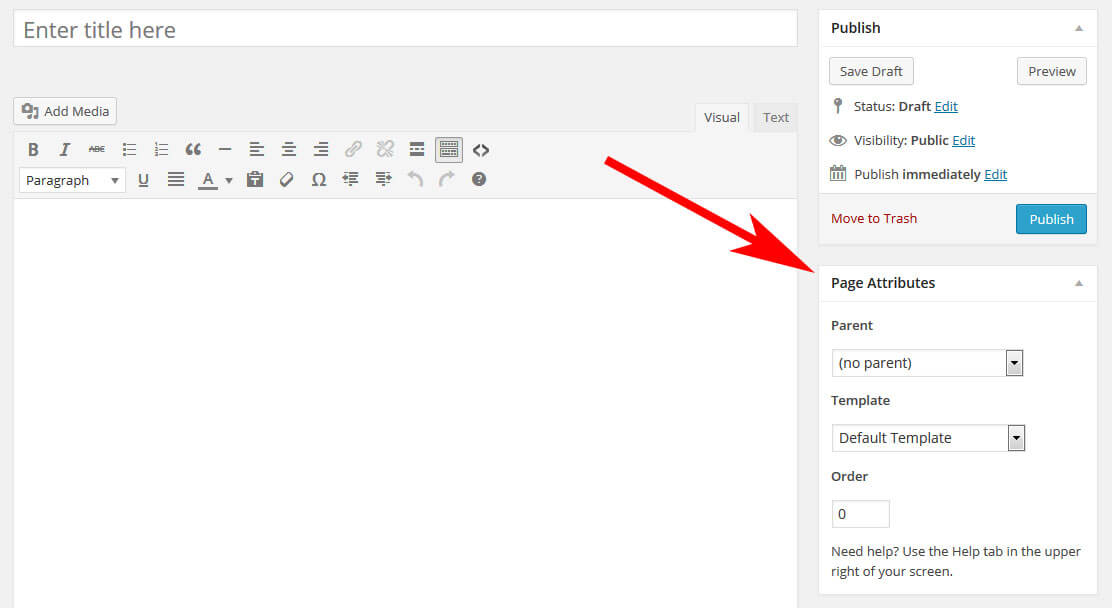
To add a new template, create a PHP file in your theme folder. Add template header comments at the top. Then, select the template in the WordPress page editor under “Template” options.
Can I Use Custom Templates For Specific Pages?
Yes, WordPress allows custom templates for individual pages. Assign a custom template through the page editor. This lets you create unique layouts for different pages easily.
What Coding Skills Are Needed To Create Templates?
Basic PHP, HTML, and CSS knowledge is enough. Templates use these languages to structure and style pages. No advanced coding is required for simple templates.
How To Make A New Template Appear In WordPress?
Ensure the template file has the correct header comment. Save it in your active theme folder. WordPress automatically detects and lists it in the page editor.
Conclusion
Adding a new template in WordPress is simple and quick. Choose the right template that fits your site’s style. Upload or install it carefully to avoid errors. Customize the template to make your website unique. Test your site to see how the new design works.
Keep your templates updated for better performance. This helps your site look fresh and stay user-friendly. Enjoy creating a website that suits your needs perfectly.



