
Are you looking to expand your WordPress website but unsure how to add more pages? Adding new pages is a simple way to grow your site and share more information with your visitors.
Whether you want to create an About page, a Services page, or a blog section, knowing the right steps can save you time and frustration. You’ll discover clear, easy-to-follow instructions that will help you add pages quickly—no technical skills required.
Keep reading, and by the end, you’ll have the confidence to build your site exactly the way you want it.
Creating A New Page
Creating a new page in WordPress is a simple process. Pages help organize your website’s content clearly. Each page can have unique information like contact details or services. Follow these steps to add a new page quickly and easily.
Accessing The WordPress Dashboard
Start by logging into your WordPress site. Use your username and password on the login screen. After login, you reach the WordPress dashboard. The dashboard is the control center of your website. It shows options to manage posts, pages, and settings.
Navigating To The Pages Section
Look at the menu on the left side of the dashboard. Find and click on “Pages.” This section lists all existing pages on your site. It also lets you add new pages. The “Pages” section is where you manage your website’s content structure.
Starting A New Page
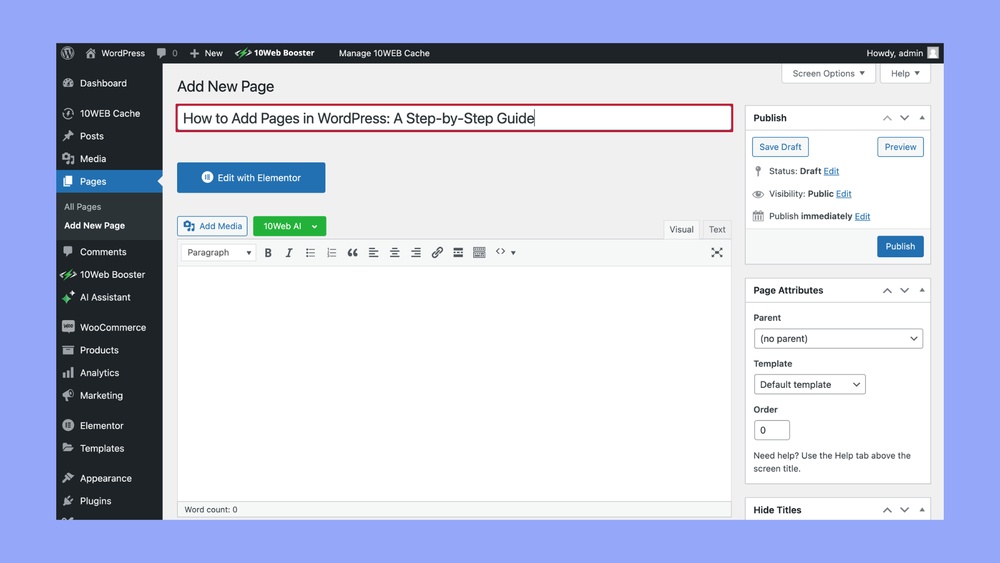
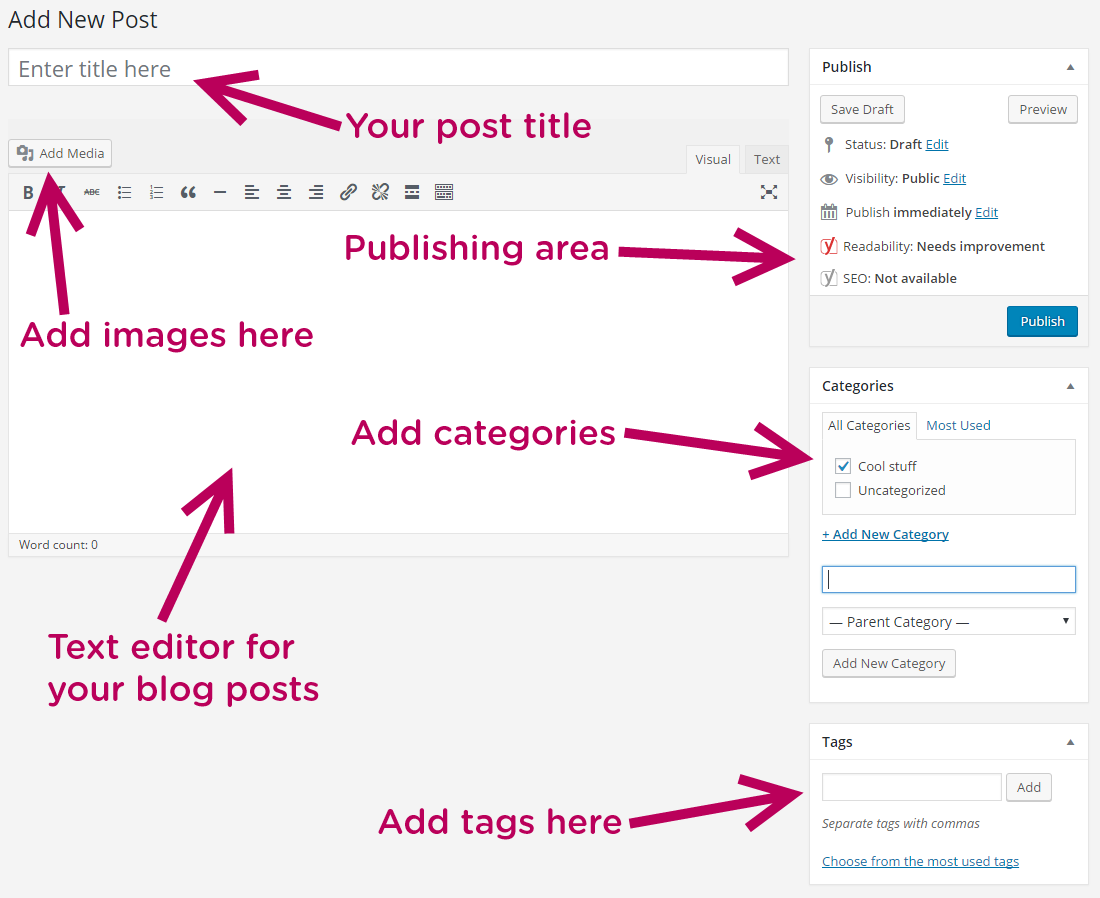
Click the “Add New” button at the top of the Pages screen. This opens a blank page editor. Enter a title for your new page. Add content using the blocks or classic editor. When finished, click “Publish” to make the page live. Your new page is now part of your website.
Credit: www.hostinger.com
Adding Content To Your Page
Adding content to your new WordPress page is simple and fun. It lets you share your ideas clearly and attract visitors. You can include text, images, videos, and other elements to make your page rich and useful.
WordPress uses the Gutenberg editor to help create content easily. This editor works with blocks. Each block holds a different type of content, like paragraphs, images, or videos. This structure makes it easy to organize your page.
Using The Gutenberg Editor
The Gutenberg editor uses blocks to build your page. Each block is a separate part of your content. Click the “+” button to add new blocks. You can move blocks up or down to arrange your page. This gives you full control over the layout.
Inserting Text And Images
To add text, select the paragraph block. Then, type your content directly. You can change the font size and style easily. For images, add an image block. Upload a photo from your computer or select one from your media library. This makes your page more attractive and clear.
Adding Media And Other Elements
You can add videos, galleries, buttons, and more using different blocks. Choose the block that fits your content type. For example, use the video block to upload or embed videos. The button block helps create calls to action. These elements engage your visitors better.
Customizing Page Settings
Customizing page settings helps your WordPress site look professional and organized. It gives you control over how each page appears and functions. Adjusting these settings makes your content clear and easy to find. You can change images, order, and visibility to fit your needs.
Setting A Featured Image
A featured image represents your page visually. It appears in previews and helps attract visitors. To set one, find the “Featured Image” box on the right side of the editor. Click “Set Featured Image,” then upload or select an image from your media library. Choose a clear and relevant picture for better impact.
Adjusting Page Attributes
Page attributes control how your page fits within your site. In the “Page Attributes” section, you can choose a parent page. This creates a hierarchy and organizes your pages logically. You can also set the page order by entering a number. Lower numbers show pages first in menus or lists.
Managing Visibility And Publish Options
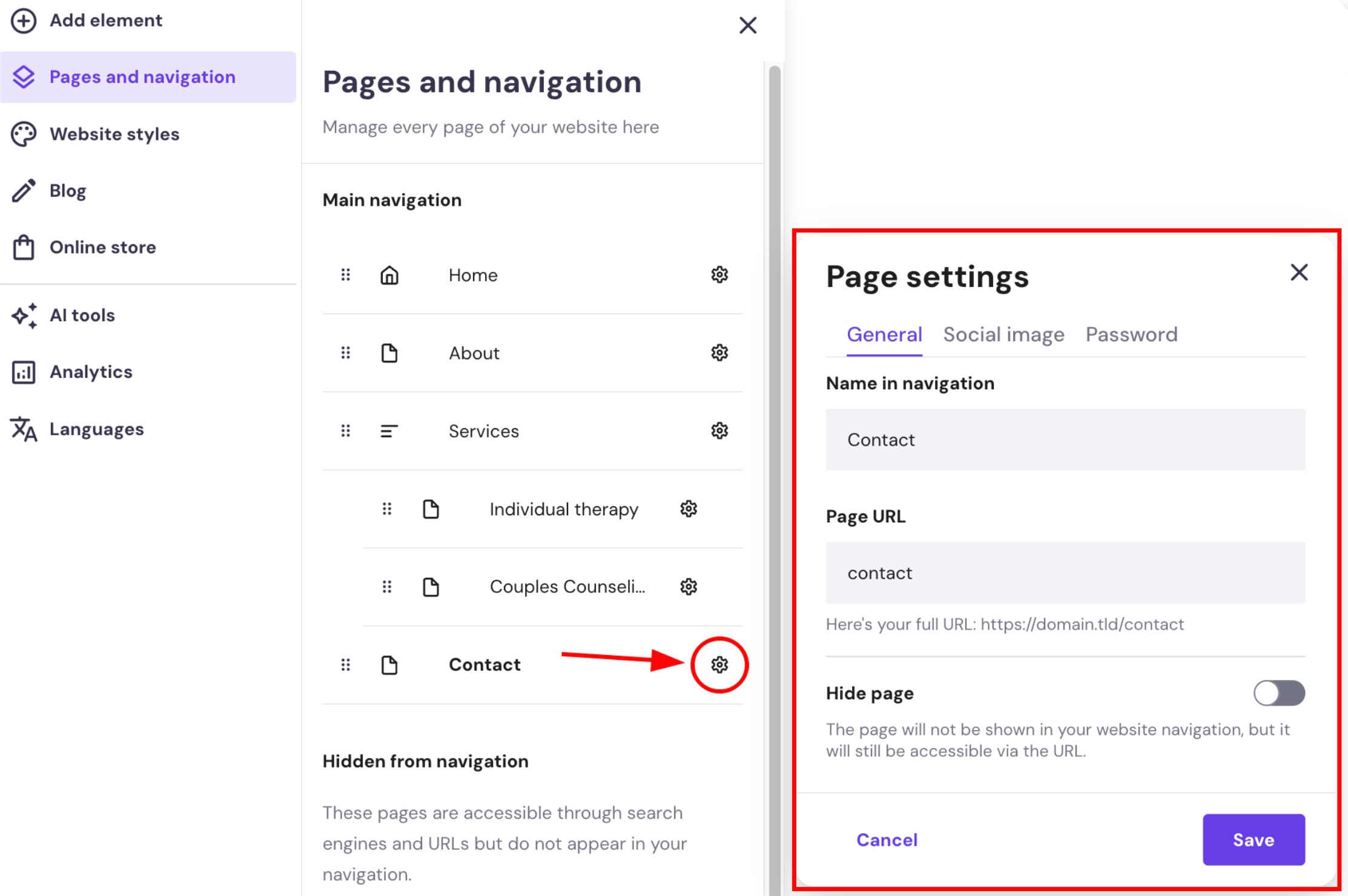
Visibility settings decide who can see your page. You can make it public, private, or password-protected. Public pages are open to all visitors. Private pages are only visible to site admins and editors. Password-protected pages require a password to view. Publish options let you schedule or immediately publish your page. Use these features to control content timing and access.
Credit: www.lcn.com
Organizing Pages
Organizing pages in WordPress helps visitors find content easily. A well-structured site looks professional and is user-friendly. It also improves your site’s SEO by making navigation clear and simple. You can arrange pages in groups and control how they appear on your site.
Creating Parent And Child Pages
Parent pages act as main categories. Child pages belong under these parents and show related content. This creates a hierarchy that organizes your site well. To set this, go to the page editor and find the “Page Attributes” box. Choose a parent page for your new page from the dropdown menu. This makes your site easier to navigate and understand.
Using Menus To Display Pages
Menus show your pages in the site header or footer. You can create custom menus in the WordPress dashboard under Appearance > Menus. Add pages to the menu by selecting them and clicking “Add to Menu.” Arrange them by dragging and dropping. Menus guide visitors to important pages quickly.
Rearranging Page Order
Page order affects how pages appear in menus or lists. You can change this order in the menu editor by dragging pages up or down. Another way is by setting the order number in the “Page Attributes” box when editing a page. Lower numbers appear first. Adjusting order improves user experience and site flow.
Publishing And Editing Pages
Publishing and editing pages in WordPress is simple and straightforward. Once you create a page, you need to preview, publish, or update it. These steps help you control how your content looks and when it goes live. Understanding this process ensures your website stays fresh and accurate.
Previewing Your Page
Previewing lets you see how your page looks before publishing. Click the “Preview” button on the top right of the editor. This opens your page in a new tab. Check text, images, and layout. Make sure everything appears correct. Previewing saves time by catching mistakes early.
Publishing For The First Time
To publish your page, click the “Publish” button. WordPress will ask for confirmation. After confirming, your page is live for visitors. You can always unpublish or delete it later. Publishing shares your content with the world quickly and easily.
Updating Existing Pages
To change a live page, open it in the editor. Make your edits in the content area. When finished, click the “Update” button. This saves your changes and refreshes the live page. Updating keeps your site accurate and engaging for visitors.

Credit: www.youtube.com
Troubleshooting Common Issues
Troubleshooting common issues is essential when adding pages in WordPress. Problems may stop your page from showing or cause errors in the editor. Fixing these issues helps your site work smoothly. Below are common problems and how to solve them quickly.
Fixing Page Not Showing
Sometimes, a new page does not appear on your site. Check if the page is published, not saved as a draft. Clear your browser cache to see recent changes. Disable plugins that may block page display. Also, confirm your theme supports showing new pages.
Handling Permalink Problems
Permalinks are page URLs that must work properly. If you get a 404 error, go to Settings > Permalinks in WordPress. Click “Save Changes” without altering settings to refresh permalinks. This simple step often fixes broken links quickly.
Resolving Editor Errors
Editor errors can stop you from editing pages. Clear your browser cache and try a different browser. Deactivate plugins to find if one causes the error. Update WordPress and your theme to the latest versions. These steps usually fix editor problems fast.
Frequently Asked Questions
How Do I Add A New Page In WordPress?
To add a new page, go to your WordPress dashboard. Click “Pages” then “Add New. ” Enter your content and click “Publish. ” Your new page is live immediately.
Can I Customize The Layout Of New WordPress Pages?
Yes, you can customize layouts using WordPress themes or page builder plugins. These tools let you design pages without coding.
How Do I Organize Pages In WordPress?
Use the “Page Attributes” section to set parent pages. This creates a hierarchy and helps organize your site navigation clearly.
Is It Possible To Duplicate A WordPress Page?
Yes, install a page duplication plugin or use your theme’s built-in feature. This saves time when creating similar pages.
Conclusion
Adding pages in WordPress is simple and quick. You just need to follow a few clear steps. This helps organize your website and share more information. Keep your pages clear and easy to read. Use headings and images to make them attractive.
Practice often to get comfortable with WordPress tools. Soon, you will build a site that looks professional. Start adding pages today and improve your website’s content. It is worth the effort for your visitors and your goals.



