

Are you looking to improve your website’s SEO or add special verification codes to your WordPress site? Adding a meta tag to the head section is a simple yet powerful way to do this.
If you’re unsure how to do it without breaking your site, don’t worry—you’re in the right place. You’ll learn step-by-step how to add meta tags to your WordPress head section quickly and safely. By the end, you’ll have the confidence to optimize your site and unlock new possibilities.
Keep reading—you won’t want to miss these easy tips!
Why Add Meta Tags
Meta tags are small pieces of code placed in the head section of your website. They give important information about your site to search engines and browsers. Adding meta tags helps your website communicate better with these platforms. This improves how your website appears in search results and how users find your content.
Importance For Seo
Meta tags play a key role in search engine optimization (SEO). They tell search engines what your page is about. This helps search engines rank your page correctly. Good meta tags can increase your website’s chances of showing up in search results. Clear and relevant tags make your content easier to find.
Enhancing Website Visibility
Meta tags help make your website more visible online. They provide details like the page title and description. These details appear in search results and can attract visitors. Well-written meta tags encourage users to click on your site. This leads to more traffic and better engagement.
Types Of Meta Tags
Meta tags are small pieces of code placed in the head section of your WordPress site. They provide important information about your webpage to search engines and browsers. Different meta tags serve different purposes, helping improve SEO, control page appearance, and manage user experience.
Understanding the main types of meta tags helps you use them correctly and boost your site’s performance.
Title And Description
The title tag shows the page title in browser tabs and search results. It should be clear and include main keywords. The description meta tag gives a short summary of the page content. It appears below the title in search results. A good description encourages users to visit your site.
Keywords Meta Tag
The keywords meta tag lists important words related to your page. It used to be popular for SEO. Now, most search engines ignore it. Still, some websites use it for internal search or smaller engines. Keep keywords relevant and avoid stuffing.
Viewport Meta Tag
The viewport meta tag controls how your site looks on mobile devices. It sets the page width and scaling. This tag makes your site mobile-friendly. Without it, your site may not display properly on phones or tablets.
Robots Meta Tag
The robots meta tag tells search engines what to do with your page. It can allow or block indexing and following links. Use it to hide pages from search or prevent link crawling. It helps manage what search engines see and rank.
Methods To Add Meta Tags
Adding meta tags to your WordPress site helps improve SEO and control how your pages appear in search results. There are several methods to insert meta tags into the head section of your website. Each method suits different skill levels and needs. Choose the one that fits your comfort and site setup best.
Using Theme Editor
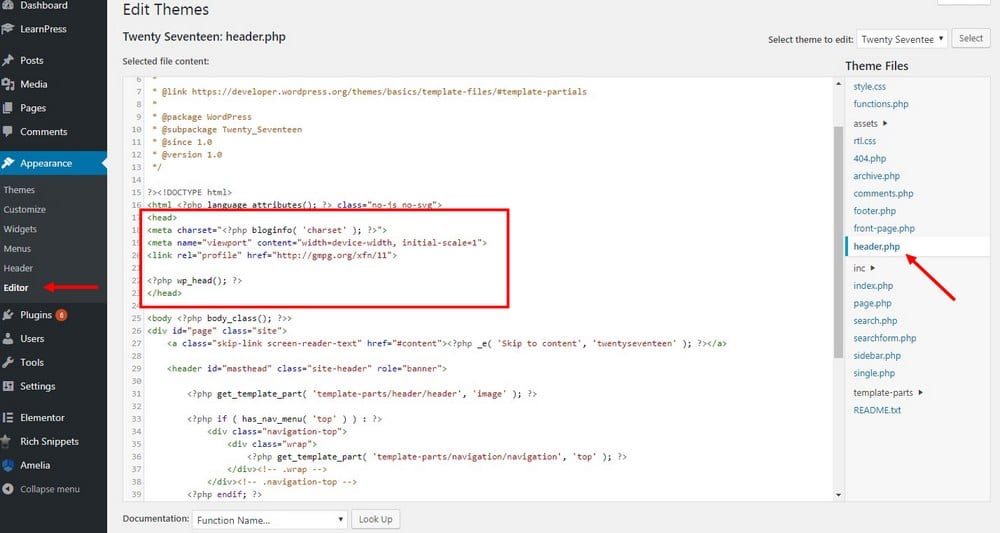
The Theme Editor allows direct editing of your theme files. Go to Appearance > Theme Editor in your WordPress dashboard. Find the header.php file, which contains the head section. Insert your meta tags just before the closing tag. Save the changes. This method is quick but risky if you do not back up your site first.
Adding Via Functions.php
You can add meta tags by editing the functions.php file of your theme. Use the wp_head action hook to insert meta tags dynamically. This method keeps your changes separate from the HTML structure. It is safer for updates but requires basic PHP knowledge. Always back up before editing this file.
Using Seo Plugins
SEO plugins like Yoast SEO or All in One SEO make adding meta tags simple. These plugins offer user-friendly interfaces to enter meta titles, descriptions, and other tags. No coding is needed. Plugins also help manage tags for each page and post automatically. This approach works well for beginners.
Child Theme Approach
Using a child theme is the safest way to customize your site. Create a child theme to override the parent theme files. Add meta tags in the child theme’s header.php or through a function in functions.php. This method prevents losing changes after theme updates. It requires some setup but protects your custom code.
Step-by-step Plugin Method
Adding meta tags to your WordPress site helps search engines understand your content better. Using a plugin makes this process simple and fast. This step-by-step method shows how to install, configure, and verify meta tags without touching any code.
Installing Seo Plugin
Start by logging into your WordPress dashboard. Go to the “Plugins” section and click “Add New.” Search for a popular SEO plugin like “Yoast SEO” or “All in One SEO.” Click “Install Now” and then “Activate.” The plugin is now ready to use.
Configuring Meta Tags
Open the SEO plugin settings from your dashboard menu. Find the section for meta tags or titles and descriptions. Enter your desired meta title and meta description for your homepage or posts. Save your changes. These tags help improve your site’s visibility on search engines.
Verifying Changes
Visit your website and right-click anywhere on the page. Select “View Page Source.” Search for the meta tags you added. If you see them in the head section, the setup is correct. Use online SEO tools to confirm your meta tags work well.
Manual Addition In Theme Files
Adding meta tags manually in your WordPress theme files gives you full control over your site’s head section. This method is useful for custom meta tags that plugins may not support. Editing theme files requires care to avoid errors and site issues. Always back up your site before making changes.
Accessing Header.php
Start by logging into your WordPress dashboard. Go to Appearance > Theme Editor. Find the header.php file in the list on the right. This file controls the content inside the
Inserting Meta Tags Safely
Locate the
tag inside theheader.php file. Insert your meta tags between the and tags. Use simple meta tags like description or viewport. Avoid breaking existing code. Save changes and check your website for errors immediately.Best Practices
Always create a child theme before editing theme files. This protects your changes during theme updates. Use clear and correct meta tag syntax. Keep meta tags relevant to your content. Test your site on different devices after adding tags.
Credit: www.shoshitamam.com
Common Mistakes To Avoid
Adding meta tags in the head section of your WordPress site can improve SEO and site performance. Avoiding common mistakes ensures your meta tags work properly. Mistakes can cause confusion for search engines and affect your site’s ranking.
Pay close attention to how you add meta tags. Small errors can lead to big problems. Here are some common mistakes to watch out for.
Duplicating Meta Tags
Do not add the same meta tag more than once. Duplicate tags confuse search engines. They may ignore all duplicates or pick the wrong one. Check your theme and plugins before adding tags. Avoid repetition to keep your site clean and effective.
Editing Core Files Without Backup
Never edit WordPress core files without a backup. One wrong change can break your site. Always save a copy before making edits. Use child themes or plugins to add meta tags safely. Protect your site from accidental damage.
Ignoring Mobile Optimization
Meta tags must support mobile devices. Mobile users make up most web traffic today. Missing mobile tags can hurt your SEO and user experience. Add viewport meta tags to ensure your site looks good on phones. Optimize for all screen sizes to reach more visitors.
Tools To Test Meta Tags
Testing meta tags is key for SEO success. These tags tell search engines what your page is about. Wrong tags can hurt your site’s visibility. Using the right tools helps you check and fix meta tags fast. Here are some useful tools to test meta tags in WordPress.
Google Search Console
Google Search Console shows how Google views your meta tags. It helps find errors in titles and descriptions. You can submit your site and check indexing status. The tool gives reports on search performance. Use it often to ensure your tags work well.
Browser Inspect Tool
Every browser has an Inspect Tool to check meta tags on a page. Right-click on your webpage and select “Inspect.” Look for the
section where meta tags live. This tool shows the exact tags used by your site. It is quick and easy for spot checks.Seo Audit Tools
SEO audit tools scan your entire site for meta tag issues. They find missing or duplicate tags fast. Popular tools include Ahrefs, SEMrush, and Moz. These tools give detailed reports and suggestions. They help keep your WordPress site optimized over time.

Credit: wpengine.com

Credit: www.youtube.com
Frequently Asked Questions
How Do I Add A Meta Tag In WordPress Head Section?
To add a meta tag in WordPress head, use a plugin like “Insert Headers and Footers” or edit the theme’s header.php file. Paste your meta tag code inside the
section to ensure proper placement and SEO benefits.Can I Add Meta Tags Without Editing Theme Files?
Yes, you can add meta tags without editing theme files by using plugins like “Yoast SEO” or “Insert Headers and Footers. ” These plugins allow easy insertion of meta tags directly from the WordPress dashboard.
Why Are Meta Tags Important For WordPress Seo?
Meta tags improve SEO by providing search engines with page descriptions and keywords. They help increase visibility, improve click-through rates, and enhance website ranking in search results.
Is It Safe To Add Meta Tags Manually In WordPress?
Yes, it is safe if done correctly. Always back up your site before editing theme files. Use child themes to avoid losing changes during updates.
Conclusion
Adding meta tags in your WordPress head section helps improve your site’s SEO. It also makes your content easier for search engines to understand. You can add meta tags using plugins or by editing your theme files. Always back up your site before making changes.
Keep your meta tags clear and relevant to your content. Regularly update them as your site grows. This simple step can help your website perform better in search results. Start adding meta tags today and watch your site become more visible.



