

Are you looking to make your WordPress site more interactive and user-friendly? Adding a map can be the perfect way to help your visitors find your location quickly and easily.
Whether you run a local business, host events, or want to share travel tips, a map adds real value to your site. In this guide, you’ll discover simple steps to add a map to your WordPress site without any hassle.
Keep reading, and by the end, you’ll have a clear, clickable map ready to impress your audience and boost your site’s engagement.
Credit: www.wpbeginner.com
Choosing The Right Map Plugin
Choosing the right map plugin for WordPress can make your site more useful and attractive. A good plugin helps visitors find locations quickly. It must fit your needs and be easy to use. Consider your website type and what features you want.
Popular Map Plugins For WordPress
Some map plugins are widely used and trusted. WP Google Maps is simple and popular for basic maps. MapPress offers easy map creation with Google Maps. Leaflet Maps Marker is great for more control and customization. These plugins have good user reviews and regular updates.
Features To Look For
Check if the plugin supports different map types. Zoom and marker options are important. Look for mobile-friendly designs for better user experience. Easy integration with posts and pages saves time. Some plugins offer extra features like custom markers and directions. Fast loading speed helps your site perform well.
Free Vs Premium Options
Free plugins cover basic needs and suit simple websites. Premium plugins add advanced tools like detailed customization. They provide better support and regular updates. Choose premium if you want more features and better service. Free plugins are good for beginners or small projects.
Installing And Activating A Map Plugin
Installing and activating a map plugin in WordPress is a simple way to show locations on your site. Plugins help add interactive maps without coding. This section explains how to find, install, and set up a map plugin step by step. Follow these instructions carefully to get your map ready quickly.
Finding Plugins In WordPress Dashboard
Start by logging into your WordPress dashboard. On the left menu, click “Plugins.” Then select “Add New.” Use the search bar to type “map.” A list of map plugins appears. Look for one with good ratings and many installs. Check the plugin description to ensure it fits your needs.
Step-by-step Installation Guide
Click “Install Now” next to your chosen plugin. Wait a few seconds while WordPress downloads and installs it. After installation, the button changes to “Activate.” Do not skip this step. Activation makes the plugin ready to use on your site. Installation finishes with just a few clicks.
Activating And Configuring The Plugin
Click “Activate” to enable the plugin. Once active, find the plugin’s settings menu. Usually, it appears in the left sidebar or under “Settings.” Open the settings page to configure the map options. Set your location, map size, and other preferences. Save changes to apply the new settings. Your map is now ready to add to pages or posts.
Creating Your First Map
Creating your first map in WordPress is easy and fun. It helps visitors find locations quickly. A clear, simple map improves user experience and site engagement. This guide shows you how to set up a basic map step-by-step. You will learn to set location, add markers, and customize the look.
Setting Location And Zoom Levels
Start by choosing the main location for your map. Enter the city, address, or coordinates. This sets the center point of the map. Next, adjust the zoom level. Zoom controls how close or far the map shows. A lower zoom shows a wider area. A higher zoom focuses on details. Pick a zoom that fits your purpose.
Adding Markers And Labels
Markers highlight important places on your map. Click on the map to place a marker. Add a label to describe the marker. Labels help users understand what each marker means. You can add many markers for different spots. Keep labels short and clear. This makes the map easy to read.
Customizing Map Appearance
Change colors and style to match your site design. Pick light or dark themes based on your background. You can also adjust marker icons and label fonts. Some plugins offer extra features like street view or satellite mode. Customize these options to make your map stand out. A clean design keeps visitors focused on the map.
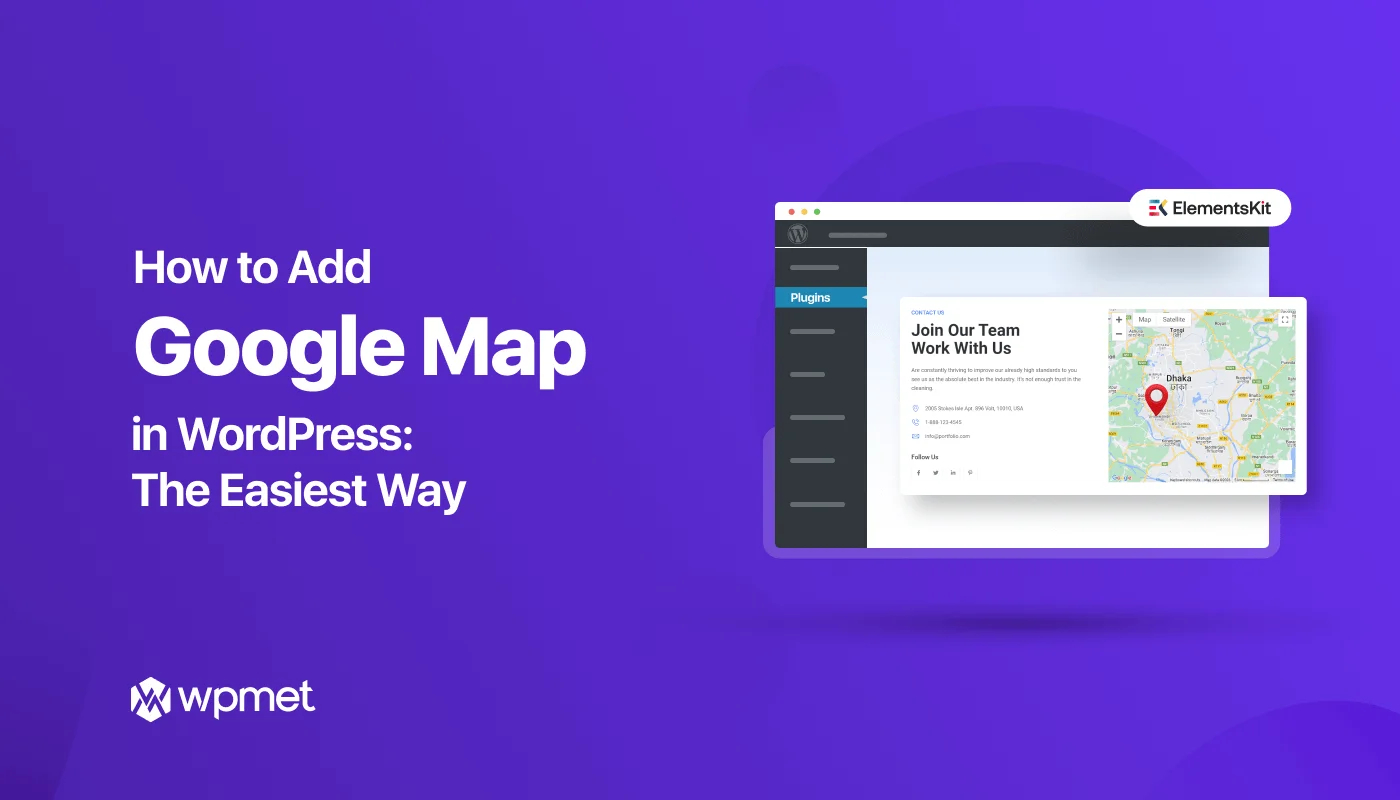
Credit: wpmet.com
Embedding The Map In Your Site
Embedding a map on your WordPress site makes it easy for visitors to find your location. Maps add value and improve user experience. Many tools and plugins let you insert maps in different ways. Choose the method that fits your site best. Below are simple steps to embed maps efficiently.
Using Shortcodes
Shortcodes offer a quick way to add maps anywhere on your site. Many map plugins generate shortcodes after setup. Copy the shortcode provided by the plugin. Paste it into the WordPress editor where you want the map to appear. Shortcodes keep your pages clean and easy to manage. They work well inside posts, pages, or widgets.
Adding Maps To Pages And Posts
Maps can be added directly inside pages and posts using the editor. Open the page or post in WordPress. Click the “Add Block” button and select the map block from your plugin. Enter your location details or embed code. Adjust the map size and settings as needed. Publish or update your content to display the map live.
Placing Maps In Widgets And Sidebars
Widgets allow maps to appear in sidebars and other widget-ready areas. Go to Appearance > Widgets in your WordPress dashboard. Drag the map widget or a text widget with the shortcode to your desired widget area. Paste the shortcode or embed code inside the widget. Save the widget settings. The map will now show in the sidebar or footer sections.
Enhancing Maps For Better User Experience
Enhancing maps on your WordPress site improves how visitors interact with your content. A well-designed map helps users find locations easily and makes your site look professional. Simple, clear features keep users engaged and reduce confusion. Focus on making maps easy to use on all devices and fast to load. These steps increase user satisfaction and keep visitors longer on your site.
Interactive Features To Include
Allow users to zoom in and out on the map. Add clickable markers that show details about places. Include search bars to help users find locations quickly. Use layers to show different types of information. Interactive maps make the experience richer and more helpful.
Mobile Optimization Tips
Ensure maps fit well on small screens. Use responsive design so maps adjust automatically. Make buttons large enough to tap easily. Avoid features that need a mouse or keyboard. Mobile-friendly maps keep users happy on phones and tablets.
Speed And Performance Considerations
Use lightweight map plugins or embed codes. Compress map images to reduce loading time. Limit the number of markers to avoid slow maps. Cache maps when possible to improve speed. Fast maps stop users from leaving your site quickly.
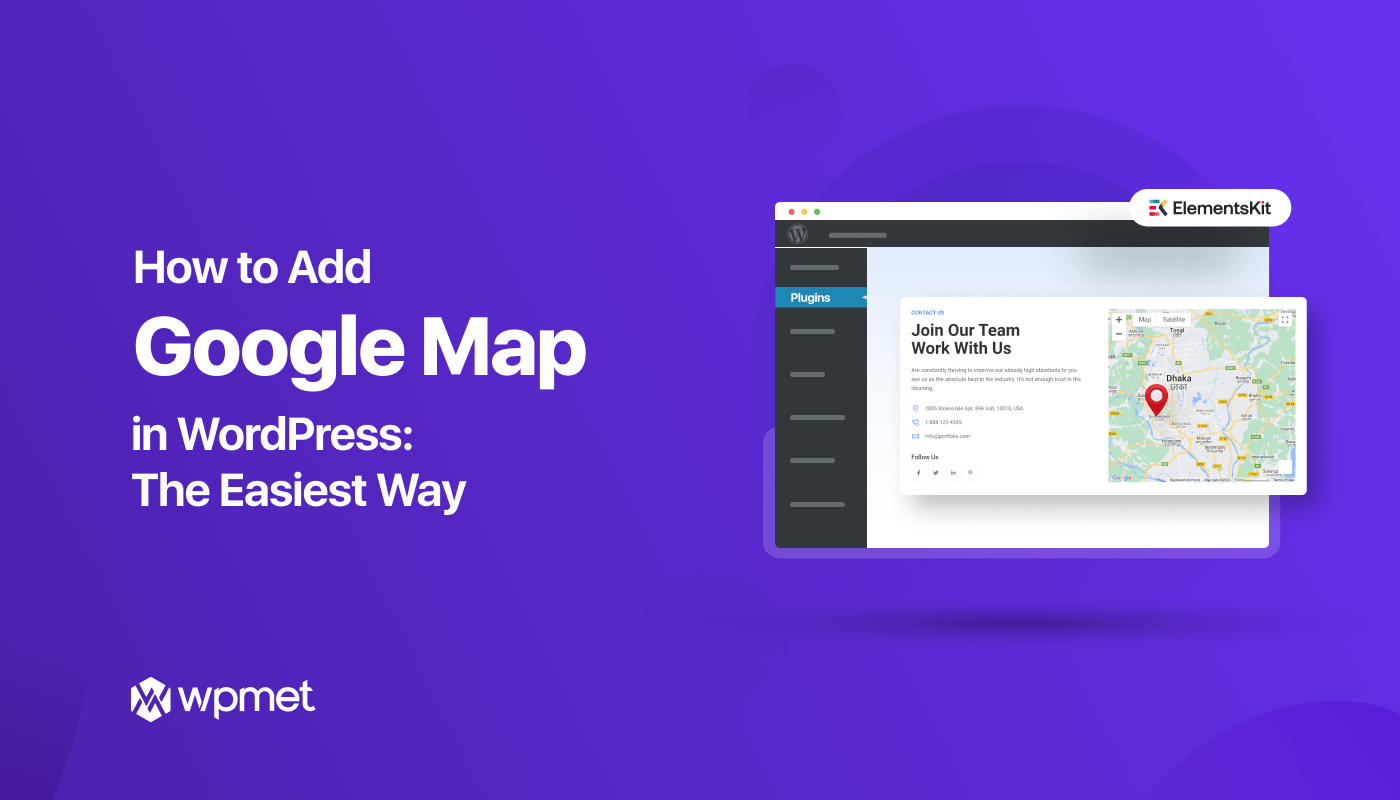
Credit: wpmet.com
Troubleshooting Common Issues
Troubleshooting common issues with maps in WordPress saves time and frustration. Many users face problems that stop maps from showing or working properly. Identifying these issues early helps fix them fast.
This section covers frequent problems like display errors, API key troubles, and plugin conflicts. Each topic explains simple steps to solve the issue. Follow along to keep your map running smoothly.
Map Not Displaying Correctly
Maps may fail to show or appear broken on your page. Check if the map container has enough space and proper size. Empty or zero height containers hide the map.
Clear your browser cache and reload the page. Sometimes, a simple refresh fixes display glitches. Also, ensure your internet connection is stable.
Verify that the map shortcode or block is correctly inserted. A small typo can stop the map from loading. Double-check the code or settings used to embed the map.
Api Key Problems
Most maps need an API key to work. This key connects your site to the map service. If the key is missing, incorrect, or expired, the map will not load.
Visit the map provider’s dashboard to confirm your API key status. Make sure it is active and authorized for your website. Restrictions on the key can block access.
Replace any wrong key with a valid one in your WordPress settings. After updating, clear caches and reload the page. This usually resolves API key errors quickly.
Plugin Conflicts And Updates
Plugins can sometimes conflict with map features. Running many plugins increases this risk. Disable other plugins one by one to find conflicts.
Keep your map plugin updated to the latest version. Updates fix bugs and improve compatibility. Old versions may cause errors or fail to display maps.
Check your WordPress and theme versions too. Outdated software can affect plugin performance. Regular updates ensure smooth map functionality across your site.
Frequently Asked Questions
How Do I Add A Google Map To WordPress?
To add a Google Map, use a plugin like WP Google Maps or embed code. Get your Google Maps API key first, then customize the map. Paste the shortcode or embed code into your post or page.
What Plugins Help Add Maps In WordPress?
Popular plugins include WP Google Maps, MapPress, and Leaflet Maps Marker. These plugins offer easy map creation, customization, and embedding features. Choose one based on your needs and install it from the WordPress plugin directory.
Can I Add Interactive Maps In WordPress?
Yes, interactive maps are possible using plugins or custom code. They allow zooming, markers, and clickable areas. These features enhance user engagement and improve site usability.
Is It Free To Add Maps On WordPress?
Adding basic maps is usually free with most plugins. Google Maps API offers a free tier with usage limits. For high traffic or advanced features, you may need a paid plan.
Conclusion
Adding a map to your WordPress site is simple and useful. It helps visitors find your location fast. Plugins and built-in tools make the process easy. Just follow the steps carefully. You can customize the map to match your site’s style.
A clear map improves user experience and trust. Try adding a map today to guide your audience better. It makes your site more helpful and professional. Small changes like this can make a big difference.



