
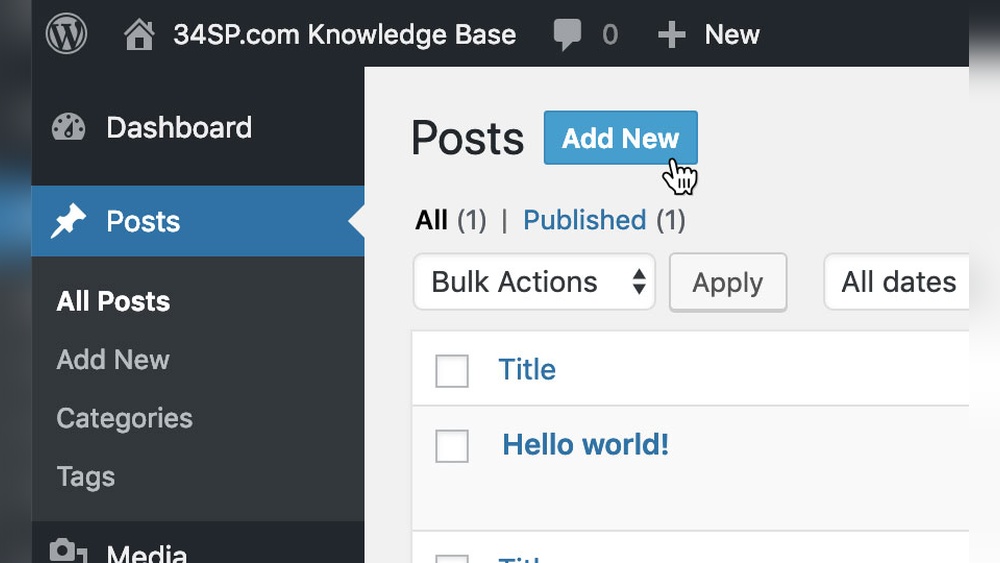
Are you struggling to make your WordPress buttons clickable? Adding a link to a button might sound tricky, but it’s actually simple once you know the steps.
Imagine your visitors easily finding the pages or offers you want to highlight, just by clicking a button. That’s exactly what you’ll learn here. By the end of this article, you’ll have the confidence to add links to your buttons quickly and boost your website’s user experience.
Ready to make your buttons work smarter for you? Let’s dive in!
Credit: www.hostinger.com
Choosing The Right Button
Choosing the right button for your WordPress site is important. A good button guides visitors to take action. It should look clear and fit your website style. The right button makes your site easier to use and helps achieve your goals.
Button Types In WordPress
WordPress offers many button types. You can use simple text links styled as buttons. There are also image buttons and icon buttons. Each type serves different purposes. Pick one that suits your website design and goal.
Selecting A Button Plugin
Button plugins add extra features to your site. They help create custom buttons with colors and animations. Some plugins include templates for easy use. Check plugin ratings and reviews before choosing. A good plugin should be easy and fast.
Using Gutenberg Block Buttons
The Gutenberg editor has built-in buttons. These blocks are simple to add and edit. You can change colors, size, and text quickly. Gutenberg buttons work well for most sites. Use them to keep your site fast and clean.
Adding Links To Buttons
Adding links to buttons in WordPress helps guide visitors to important pages. It makes your site easier to navigate. Buttons with links can lead users to products, contact forms, or other content. This improves user experience and site interaction. Below are simple ways to add links to buttons using different WordPress editors and methods.
Linking With Gutenberg Editor
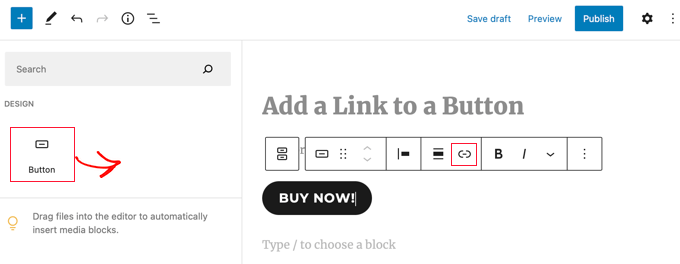
The Gutenberg Editor offers a block-based approach to add buttons. First, add a Button block to your page or post. Click on the button to select it. On the right side, find the link field. Enter the URL you want the button to lead to. Press Enter or click the Apply icon. The button now links to the chosen page.
You can also set the link to open in a new tab. This option appears near the link field. Enable it by toggling the switch. This keeps visitors on your site while opening the link separately.
Adding Links Via Classic Editor
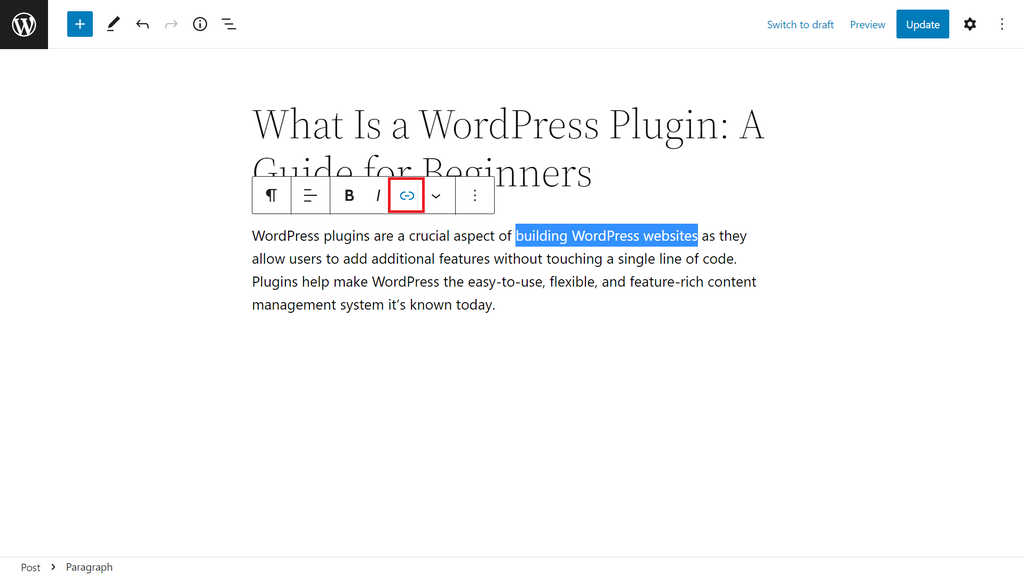
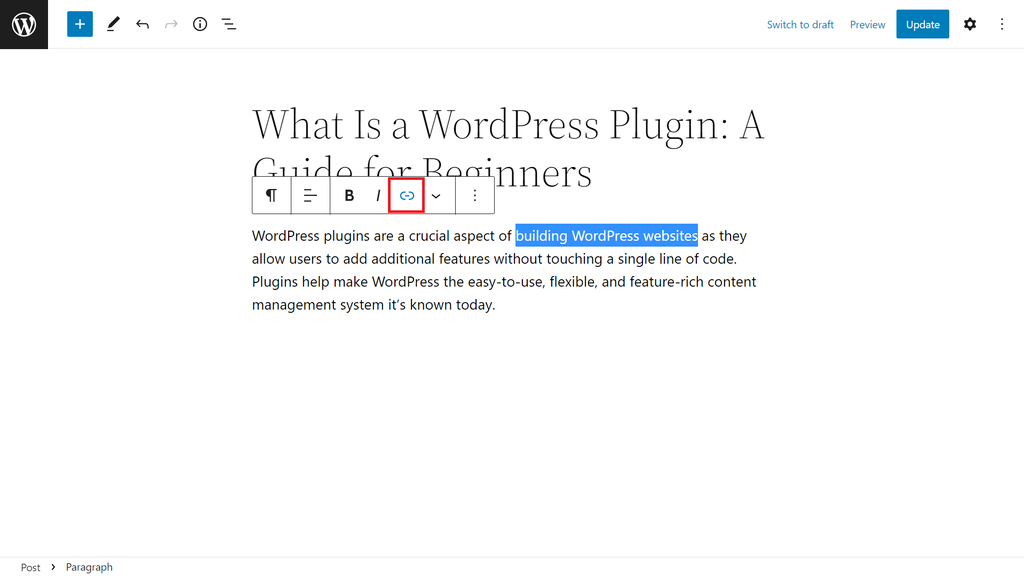
The Classic Editor uses a simple visual interface. Highlight the button text or select the button image. Click the Insert/edit link button in the toolbar. A popup will appear. Type or paste the URL in the box. Click Add Link to save.
To edit or remove the link, click on the linked button and use the same toolbar options. This method works well for text-based buttons and images. It keeps the process quick and straightforward.
Using Shortcodes For Buttons
Shortcodes allow adding buttons with links in posts or widgets. Many themes and plugins provide button shortcodes. The shortcode format looks like this:
Replace the URL with your desired link. Change the button text inside the shortcode. Paste the shortcode where you want the button to appear. This method is useful for consistent button styles across your site.
Customizing Button Appearance
Customizing your button’s appearance makes it fit your website style. It helps attract visitors and guides them to click. WordPress offers easy ways to change how buttons look. You can adjust colors, size, shape, and even add effects.
These changes improve user experience and make your buttons stand out. Below are simple steps to customize buttons on your WordPress site.
Changing Colors And Styles
Colors affect how visitors see your buttons. Choose colors that match your website theme. Use the WordPress editor to pick background and text colors. You can set solid colors or gradients for a modern look.
Styles like borders, shadows, and font types also help. Add a border to make the button clear. Use bold fonts to improve readability. These tweaks make your buttons more attractive and easy to find.
Adjusting Button Size And Shape
Button size matters for user clicks. Larger buttons are easier to tap on mobile devices. Adjust width and height in the button settings. Make sure the button is not too big or too small.
Shape changes include rounded corners or sharp edges. Rounded buttons look friendly and smooth. Sharp edges give a more formal feel. Pick the shape that suits your site style and audience.
Adding Hover Effects
Hover effects add interaction when users place their mouse over buttons. Simple changes like color shifts or shadows catch attention. WordPress lets you add these effects without coding.
Try changing the button color slightly on hover. Add a subtle shadow or scale effect for a nice touch. These effects make your site feel more dynamic and professional.
Credit: www.hostinger.com
Advanced Button Link Options
Advanced button link options let you control how links behave on your WordPress site. These options improve user experience and help with SEO. You can customize buttons to open links in new tabs, add special link attributes, and choose between internal and external URLs. Understanding these features helps you create better links that fit your website’s needs.
Opening Links In New Tabs
Opening links in new tabs keeps visitors on your site longer. This option is useful for external links or resource pages. In WordPress, you can set this by editing the button link settings. Simply check the box labeled “Open link in a new tab.” This action prevents users from leaving your site completely.
Adding Nofollow Attributes
NoFollow attributes tell search engines not to follow a link. This is helpful for paid links or untrusted content. In WordPress, you can add the NoFollow attribute by editing the button’s HTML or using SEO plugins. This keeps your site’s SEO strong and avoids passing link authority to unwanted places.
Linking To External Vs Internal Urls
Internal links connect pages within your website. They help visitors find related content and improve SEO. External links point to other websites. Use these for references or trusted resources. When creating buttons, choose internal links for navigation and external links for additional information. Clear distinction benefits both users and search engines.
Troubleshooting Button Links
Sometimes, button links in WordPress do not work as expected. Troubleshooting these issues helps keep your site user-friendly. Fixing problems fast improves visitor experience and site flow.
Fixing Broken Links
Check the URL in the button settings. Make sure it starts with “http://” or “https://”. A missing or wrong URL causes broken links. Test the link in a new tab to confirm it works. Correct any typos or outdated addresses immediately.
Resolving Styling Issues
Buttons may look wrong or unclickable due to style conflicts. Inspect the button’s CSS for color or size problems. Use a simple style first. Adjust colors and padding to make the button clear and clickable. Clear your browser cache to see style updates.
Checking Plugin Conflicts
Plugins sometimes interfere with button links. Disable all plugins and test the button. If it works, enable plugins one by one. Find the plugin causing the issue. Update or replace that plugin to fix the conflict. Keep plugins updated for smooth performance.
Credit: www.wpbeginner.com
Frequently Asked Questions
How Do I Add A Link To A Button In WordPress?
To add a link, select your button in the editor. Then, enter the URL in the link field. Save or update your page to apply the changes instantly.
Can I Link A Button To An External Website?
Yes, you can link buttons to external sites. Just paste the full URL, including “https://”, in the button’s link box before saving.
Is It Possible To Open Button Links In A New Tab?
Absolutely. When adding a link, enable the “Open in new tab” option. This improves user experience by keeping your site open.
How Do I Add Links To Buttons Using WordPress Block Editor?
In the block editor, click the button block. Enter your desired URL in the link box above the button text. Update the page afterward.
Conclusion
Adding a link to a button in WordPress is simple and quick. You just need to select the button and paste the URL. This helps visitors find important pages easily. Buttons with links improve your website’s navigation and user experience.
Try adding links to buttons on your site today. It makes your site more useful and interactive. Keep practicing to get comfortable with the process. Your website will look better and work well for everyone.



