
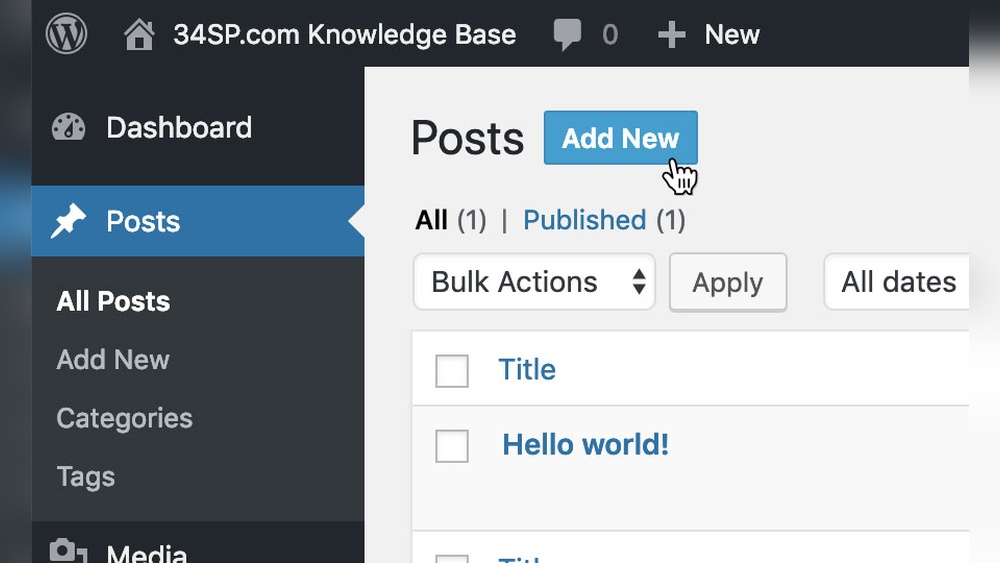
Are you struggling to make your WordPress buttons clickable? Adding a link to a button might seem tricky, but it’s actually simple once you know how.
Imagine turning your buttons into powerful tools that guide visitors exactly where you want them to go. In this post, you’ll learn step-by-step how to add links to your WordPress buttons quickly and easily. By the end, you’ll have the confidence to create buttons that boost engagement and drive action on your site.
Keep reading to unlock this essential skill!
Credit: www.hostinger.com
Choosing The Right Button Type
Choosing the right button type is important for your WordPress site. Buttons guide visitors to take action, like visiting a page or making a purchase. The right button looks good and works well on all devices. It matches your site’s style and purpose. There are different ways to add buttons in WordPress. Each method suits different needs and skills.
Using Gutenberg Button Block
The Gutenberg editor has a built-in button block. It is simple to use and fast. Just add the button block in your post or page. Then type the button text and add your link. You can change the color, size, and shape easily. It fits well with most WordPress themes. This method is perfect for beginners or quick edits.
Adding Buttons With Page Builders
Page builders like Elementor or Beaver Builder offer advanced button options. They let you design buttons with effects and custom styles. Drag and drop the button element where you want it. Add your link and customize fonts, colors, and shadows. This option is ideal for those who want more control over design. It works well for complex layouts and branding.
Custom Html Buttons
Custom HTML buttons give full control over how buttons look and behave. You write the HTML code and add your link manually. This method needs some basic coding knowledge. It is useful if you want a unique button style or special features. You can add CSS styles to change colors, borders, and animations. This option fits advanced users or developers.
Credit: www.hostinger.com
Adding Links In Gutenberg Editor
Adding links to buttons in the Gutenberg editor is simple and quick. Buttons help guide visitors to important pages or actions. You can create buttons and link them to any URL inside WordPress. This improves navigation and user experience.
The Gutenberg editor has a dedicated button block. It offers easy options for adding links and changing text. You do not need coding skills to use it. Just follow a few steps to make a linked button.
Creating A Button Block
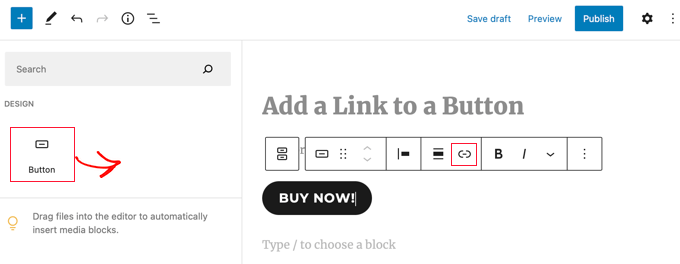
Open the page or post where you want the button. Click the plus (+) icon to add a new block. Search for the “Button” block and select it. The button block appears on your editor screen. You can drag it to the desired position.
Inserting The Url
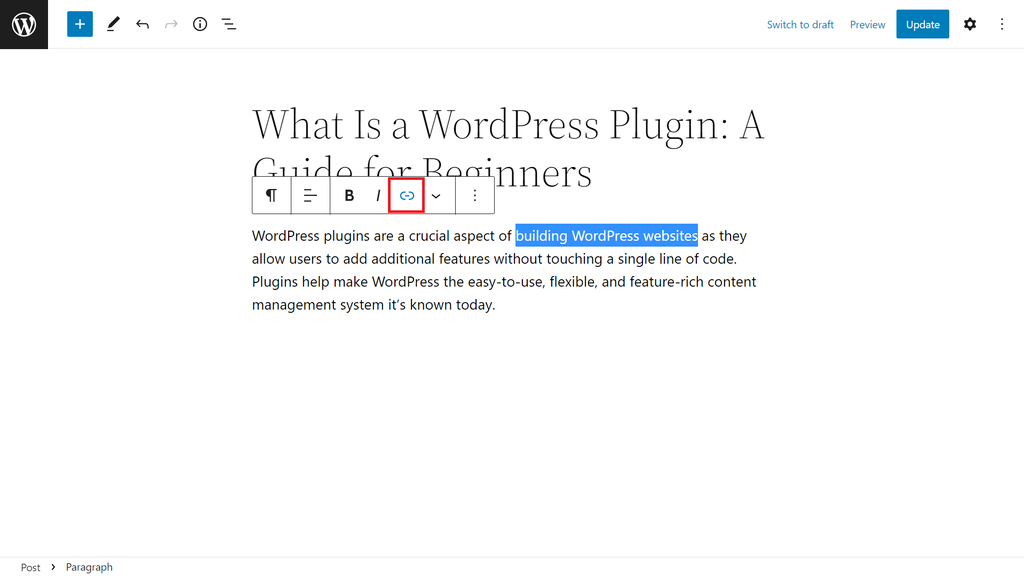
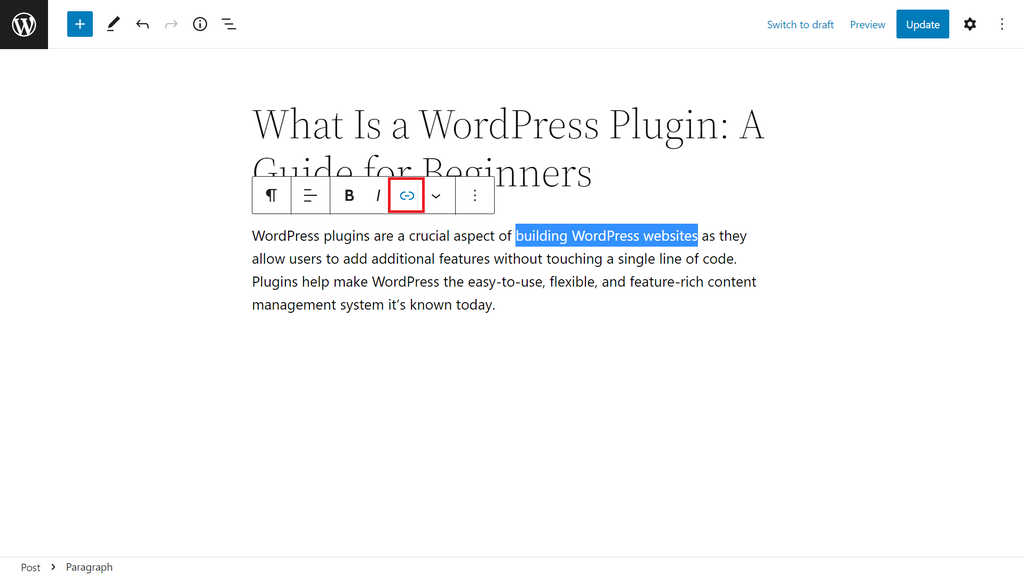
Click on the button to select it. You will see a small toolbar above the button. Click the link icon in this toolbar. A field appears to enter the URL. Paste or type the web address you want the button to link. Press Enter or click the apply button to save the link.
Customizing Button Text And Style
Click inside the button to change its text. Write clear and simple words that describe the action. Use the block settings on the right side for style options. Change the button color, shape, and size to fit your design. Adjust spacing and alignment for a neat look. Preview your page to check the button’s appearance.
Linking Buttons With Page Builders
Linking buttons with page builders in WordPress simplifies site navigation. Buttons guide visitors to important pages or actions. Page builders offer easy ways to add links without coding. This helps beginners create professional websites fast.
Each page builder has its own way to link buttons. Below, learn how to link buttons using popular builders like Elementor, Divi, and others.
Using Elementor Buttons
Elementor lets you add buttons with a simple drag-and-drop. Select the button widget and place it on your page. In the button settings, find the link field. Enter the URL of the page you want to link. You can also link to email addresses or phone numbers. Elementor allows linking to dynamic content too. Save your changes and preview the button. Click the button to test if the link works correctly.
Divi Button Module
Divi uses the Button Module for adding buttons. Insert the module into your layout. In the settings, locate the ‘Button URL’ box. Type or paste the link you want. Divi supports linking to internal pages or external sites. You can also set the link to open in a new tab. Customize the button style to match your site design. Save and check the button’s functionality on the live page.
Other Popular Builders
Many builders like Beaver Builder, WPBakery, and Thrive Architect use similar steps. Drag a button element into your design. Find the link option in the settings panel. Add your desired URL or action link. Choose if the link opens in the same or new tab. Customize button look and behavior easily. Always preview and test the button link before publishing.
Using Custom Html For Buttons
Using custom HTML for buttons in WordPress gives you full control. You can create buttons that fit your website style perfectly. This method works well when default button options are limited.
Custom HTML allows you to write your own code. You can add links and style buttons exactly how you want. It is a simple way to make your site look unique.
Writing Button Code
Start with the basic button tag. Use the
This code creates a simple button. But it does not link anywhere yet. Next, you need to add the link.
Inserting Link Attributes
Buttons do not support links directly. You must use JavaScript or a link tag. The easiest way is to use an tag styled as a button.
Write Your Button Text. Replace “your-link” with the URL you want. This makes the button clickable and directs users to the link.
For example: Visit Site.
Styling With Css
Use CSS to make the link look like a button. Add styles like background color, padding, and border-radius. This changes the plain link into a button shape.
Example CSS: background-color: blue; color: white; padding: 10px 20px; border-radius: 5px;.
Apply these styles in your theme or inside a
Testing Button Links
Testing button links ensures visitors reach the right pages. It prevents frustration from broken or wrong links. Careful testing improves user experience and website trust. Follow simple steps to check your button links work well.
Checking Link Functionality
Click the button after adding the link. See if it opens the correct page. Check for typos in the URL or link settings. Make sure the page loads quickly and fully. Test all buttons on your site to avoid errors.
Previewing On Different Devices
View your site on a phone, tablet, and desktop. Confirm buttons are visible and clickable on each device. Check that links work on mobile browsers and apps. Adjust button size or spacing if needed. This ensures all users can navigate easily.
Troubleshooting Common Issues
Troubleshooting common issues helps keep your WordPress buttons working well. Problems with links on buttons can stop visitors from reaching your pages. Fixing these problems fast improves user experience and site reliability.
Below are simple solutions for frequent button link issues. Follow the steps to fix broken links, unresponsive buttons, and link opening problems.
Broken Links
Broken links lead to error pages and frustrate visitors. Check the URL you entered for typos. Make sure the destination page still exists and is published. Use a link checker plugin to find broken links across your site. Update or remove any links that no longer work.
Button Not Responsive
Buttons that do not respond to clicks lose visitors. Check if a plugin or theme conflict blocks button clicks. Clear your site cache and browser cache to fix loading issues. Test the button on different browsers and devices. Replace the button if the problem continues.
Link Opening In New Tab
Links opening in a new tab may confuse some users. Check the button settings for the target attribute. Remove target="_blank" if you want the link to open in the same tab. Use this setting carefully to match your site’s navigation style.
Credit: www.wpbeginner.com
Frequently Asked Questions
How Do I Add A Link To A Button In WordPress?
To add a link, select the button block in the editor. Then, enter the URL in the link field. You can link to any web page or internal post easily this way.
Can I Link A Button To An External Website?
Yes, WordPress lets you link buttons to external websites. Just paste the full URL in the button’s link box. Ensure you include “https://” for proper linking.
How To Open Linked Button In A New Tab?
In the button settings, toggle the option “Open in new tab. ” This makes the linked page open separately, improving user experience and keeping visitors on your site.
Is It Possible To Link Buttons In WordPress Without Coding?
Absolutely. WordPress block editor allows you to add button links without any coding. It’s user-friendly and perfect for beginners wanting to add clickable buttons fast.
Conclusion
Adding a link to a button in WordPress is simple and quick. You just need to select the button and enter the URL. This helps visitors find important pages easily. Clear buttons improve your website’s navigation and user experience. Try adding links to buttons on your site today.
Small steps like this make your site better and more useful. Keep practicing to feel confident with WordPress tools. Your website will look professional and work well for everyone.



