
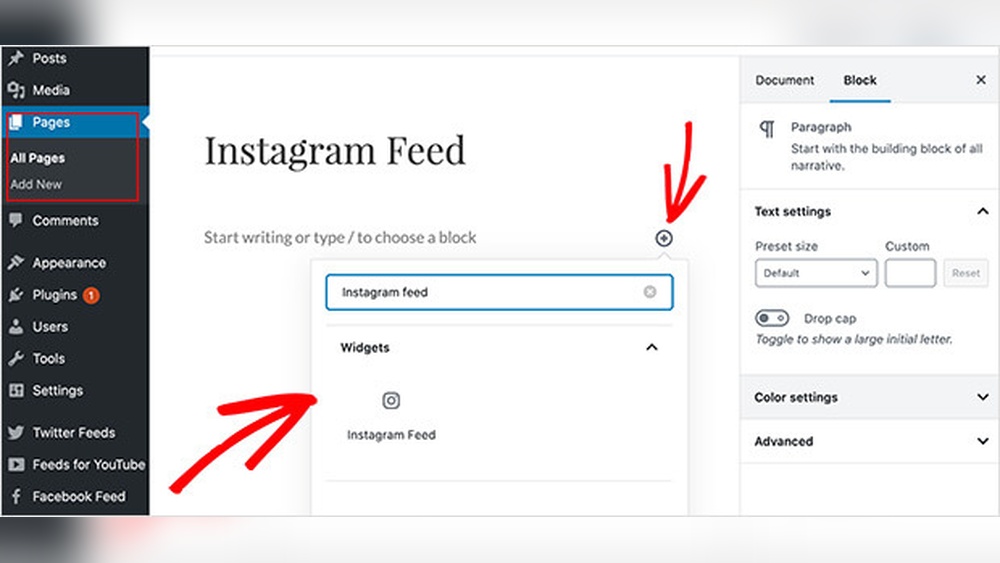
Want to make your WordPress site more engaging and visually appealing? Adding your Instagram feed is one of the easiest ways to do just that.
Imagine your visitors seeing your latest photos and stories without leaving your website. It’s a simple step that can boost your site’s appeal and keep people coming back for more. In this post, you’ll discover exactly how to add Instagram to your WordPress site quickly and effortlessly.
Stick with me, and by the end, you’ll have a stunning Instagram showcase ready to impress every visitor.
Credit: wpengine.com
Why Add Instagram To Your Site
Adding Instagram to your WordPress site brings many benefits. It connects your website visitors with your social media. This connection helps build trust and keeps your audience interested. Visitors can see your latest posts without leaving your site. This makes your content fresh and lively.
Boost Engagement
Instagram feeds on your site invite visitors to interact. They can like, comment, or follow you easily. This interaction increases the time people spend on your site. It also encourages them to explore more of your content. Engagement grows naturally with an active Instagram display.
Showcase Visual Content
Instagram is perfect for sharing photos and videos. Displaying this content on your site makes it more attractive. Visuals catch attention faster than text alone. They tell your story through images, making your message clear. A vibrant Instagram feed adds color and life to your pages.
Increase Followers
Embedding Instagram helps grow your follower base. Visitors can see your posts and decide to follow you. This creates a steady flow of new followers from your website. More followers mean a larger audience for your updates. It strengthens your brand’s presence on social media.
Choosing The Right Instagram Integration Method
Adding Instagram to your WordPress site helps connect your social media with your website. You can share photos and updates easily. Choosing the right integration method depends on your needs and skills. Some methods are simple but less flexible. Others require more steps but offer more control. Consider how often you want to update your feed and how much customization you need.
Below are common ways to add Instagram to WordPress. Each method has its own benefits and limits.
Using Plugins
Plugins offer an easy way to show Instagram feeds. They connect your Instagram account to WordPress automatically. Most plugins update your feed in real-time. You can customize how the feed looks on your site. Many plugins come with options like grids, slideshows, and lightboxes. Some popular plugins include Smash Balloon and Instagram Feed. Plugins save time and require little technical skill. They are ideal for users who want a quick setup.
Embedding Instagram Feed Manually
Manual embedding involves copying Instagram posts directly. Instagram provides an embed code for each post. You can paste this code into your WordPress editor. This method works well for showing a few specific posts. It does not update automatically with new posts. Manual embedding gives you full control over which posts appear. It suits users who want to highlight certain images or videos. This method requires no extra plugins or tools.
Using Widgets
Widgets allow adding Instagram feeds to sidebars or footers. WordPress has built-in widget areas for easy placement. Some themes support Instagram widgets natively. You can add simple Instagram links or feeds using widgets. Widgets are good for minimal, less complex displays. They do not offer as many customization options as plugins. This method is useful for quick and small Instagram displays. It helps keep your site design clean and simple.
Top Plugins For Instagram Integration
Instagram plugins help you show your photos and videos on your WordPress site. They make your site look fresh and active. These plugins also save time by updating your feed automatically. Choosing the right plugin helps keep your site fast and secure.
Smash Balloon Social Photo Feed
Smash Balloon Social Photo Feed is easy to set up. It lets you show Instagram photos from multiple accounts. You can customize the look to match your site style. The plugin updates your feed in real time. It works well on mobile devices and desktops.
10web Social Photo Feed
10Web Social Photo Feed offers smooth Instagram integration. It supports photos and videos in your feed. You can display feeds in grids or lists. This plugin has options to filter posts by hashtags. It also allows you to add a load more button.
Instagram Feed Wd
Instagram Feed WD provides a clean and simple design. It supports multiple Instagram accounts on one feed. You can choose from several layout styles. The plugin is easy to use with basic settings. It also supports lightbox view for images.
Credit: smashballoon.com
Step-by-step Plugin Installation
Adding Instagram to your WordPress site can boost engagement and showcase your social media content. Using a plugin makes this process simple and quick. Follow these steps to install and set up the plugin properly.
Installing The Plugin
First, log in to your WordPress dashboard. Go to the “Plugins” section and click “Add New.”
Type “Instagram feed” in the search bar. Choose a plugin with good ratings and reviews.
Click “Install Now” and wait a few seconds. Then, click “Activate” to enable the plugin.
Connecting Instagram Account
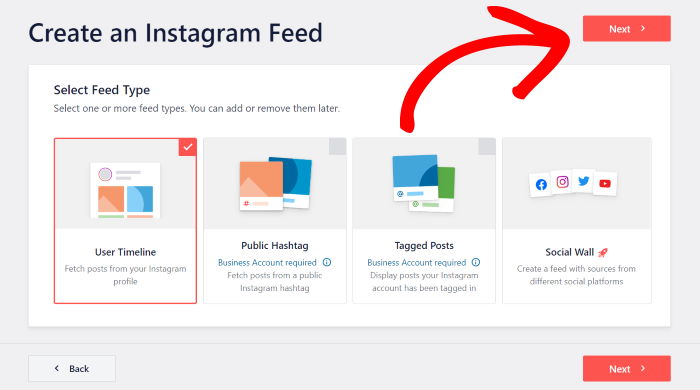
Next, open the plugin settings from your dashboard menu. Look for the option to connect your Instagram account.
Click “Connect” and log in to your Instagram account. Allow the plugin to access your profile and media.
Once connected, the plugin will sync your Instagram photos to your website automatically.
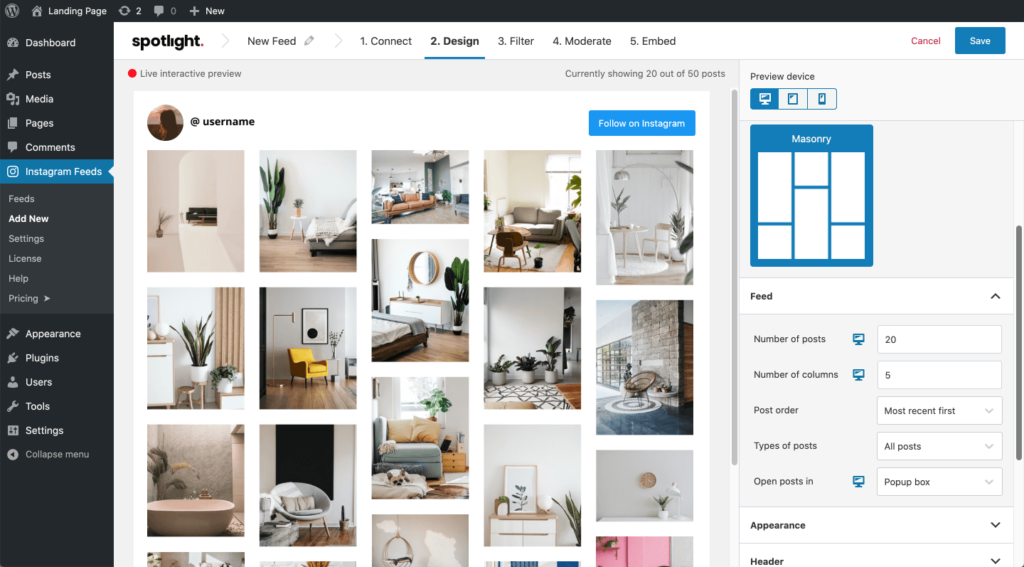
Customizing The Feed Appearance
Go to the plugin’s display settings. Choose the layout style that fits your site design.
Adjust the number of photos shown and set the feed width. Pick colors that match your website theme.
Save your changes. Preview the feed on your site to make sure it looks right.
Manual Instagram Embed Options
Manual Instagram embed options let you add Instagram content directly to your WordPress site. This method does not require plugins or extra tools. It gives you control over what to show and where to place it.
You can embed individual posts, share Instagram stories, or use widgets. Each option offers a unique way to display your Instagram feed. Below are simple steps for each method.
Embedding Individual Posts
Open Instagram and find the post you want to embed. Click the three dots on the post and select “Embed.” Copy the embed code shown. Go to your WordPress editor and switch to the HTML view. Paste the embed code where you want the post to appear. Publish or update your page. The post will show up exactly as it looks on Instagram.
Adding Instagram Stories
Instagram stories cannot be embedded directly like posts. You can capture your story as a video or image. Upload this file to your WordPress media library. Insert it into your post or page like any other media. This way, visitors can see your story content even after it disappears on Instagram.
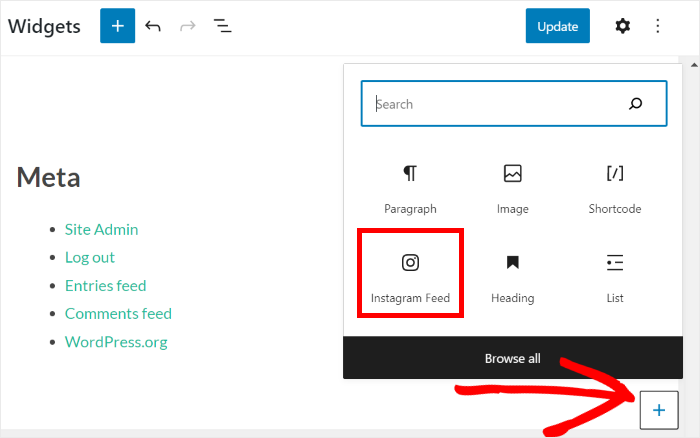
Using Instagram Widgets
Instagram widgets display a stream of your recent posts in a sidebar or footer. Some WordPress themes include built-in Instagram widgets. Go to Appearance > Widgets in your dashboard. Add the Instagram widget to your desired area. Enter your Instagram username or access token. Save the settings. Your Instagram feed will appear automatically on your site.
Credit: smashballoon.com
Optimizing Instagram Feed For Speed
Adding an Instagram feed to your WordPress site can slow down your page. Visitors expect fast loading times. Slow pages cause people to leave quickly. Optimizing the Instagram feed helps keep your site fast and smooth. This improves user experience and keeps visitors engaged longer.
Lazy Loading Images
Lazy loading delays loading images until they appear on screen. This reduces the initial load time of your page. Instagram feeds usually have many images. Loading them all at once can slow your site. Lazy loading only loads images when needed. This saves bandwidth and speeds up page display.
Caching Strategies
Caching saves a copy of your Instagram feed on your server. It means your site does not request new data every time someone visits. Cached data loads faster than fetching new content. Update the cache regularly to show fresh posts. This method reduces server load and speeds up page load times.
Minimizing Http Requests
Each image or script causes an HTTP request. Many requests slow down your page. Combine files and reduce the number of images shown at once. Use lightweight plugins for Instagram feeds. Fewer requests mean faster loading. This creates a smoother experience for visitors.
Design Tips For Instagram Display
Displaying your Instagram feed on your WordPress site can boost engagement and show fresh content. Design plays a big role in how visitors interact with your feed. A well-designed Instagram display fits your site and keeps visitors interested. Below are some tips to help your Instagram section look great and work well.
Grid Vs. Carousel Layouts
Choose between grid or carousel layouts for your Instagram display. A grid shows many photos at once in rows and columns. It gives a quick overview and looks clean. A carousel lets visitors scroll through images one by one. It saves space and highlights each photo. Pick a style that suits your site’s purpose and space.
Matching Site Theme
Your Instagram feed should match your site’s colors and style. Use similar fonts, borders, and background colors. This creates a smooth look and feel. Avoid clashing colors or styles that stand out too much. A consistent design helps visitors feel comfortable and keeps your brand strong.
Mobile Responsiveness
Most visitors use phones to browse websites. Your Instagram display must look good on small screens. Make sure images resize properly and text stays readable. Test your site on different devices to check this. A mobile-friendly feed improves user experience and keeps visitors longer.
Troubleshooting Common Issues
Adding Instagram to your WordPress site can sometimes cause issues. These problems may stop your feed from showing or updating. Fixing these issues quickly keeps your site looking fresh and active. The following sections explain common problems and how to solve them.
Feed Not Updating
Your Instagram feed may stop updating due to caching. Clear your WordPress cache and browser cache. Some plugins also cache data. Check plugin settings and refresh the feed manually. Slow internet or Instagram server problems can delay updates. Wait a few minutes and try again.
Authentication Errors
Authentication errors happen when WordPress cannot connect to Instagram. Check that your Instagram login details are correct. Reconnect your Instagram account in your plugin settings. Instagram may require you to reauthorize access after changes. Make sure your Instagram account is public, not private. Also, check if Instagram’s API limits have been reached.
Display Problems
Display issues include broken images or misaligned feeds. These often come from theme or plugin conflicts. Test your site by disabling other plugins one by one. Switch to a default WordPress theme temporarily to check compatibility. Update your theme and plugins to the latest versions. Use responsive design settings to improve feed appearance on all devices.
Measuring Impact Of Instagram On Site
Measuring Instagram’s impact on your WordPress site is key to improving results. It shows how visitors interact with your content. Tracking this data helps you understand what works and what doesn’t. It guides your decisions for better engagement and growth.
Tracking Engagement Metrics
Engagement metrics reveal user actions on your site. Look at likes, comments, shares, and follows linked to Instagram posts. Also, track how many visitors come from Instagram to your WordPress site. These numbers show how Instagram drives interest and interaction.
Using Google Analytics
Google Analytics provides detailed insights about visitor behavior. Set up tracking for Instagram traffic sources. Check sessions, bounce rates, and time spent on pages from Instagram users. This data uncovers how well Instagram attracts and keeps visitors on your site.
Adjusting Strategy Based On Data
Use gathered data to refine your Instagram and site strategy. Focus on content types that drive the most traffic. Post more of what engages users and less of what doesn’t. This approach improves user experience and boosts site performance over time.
Frequently Asked Questions
How Do I Embed Instagram On WordPress?
To embed Instagram, use the Instagram block or paste the post URL in a WordPress post or page. WordPress automatically converts it into an embedded post.
Which WordPress Plugins Add Instagram Feeds?
Popular plugins include Smash Balloon Social Photo Feed and Instagram Feed WD. They offer customizable Instagram feed displays on your site.
Can Instagram Feeds Slow Down My WordPress Site?
Yes, adding feeds can affect load speed. Use caching plugins and optimized Instagram plugins to minimize performance impact.
Is Instagram Integration Seo Friendly For WordPress?
Instagram embeds add engaging visual content, improving user experience. However, they don’t directly boost SEO rankings but can increase site traffic.
Conclusion
Adding Instagram to your WordPress site boosts user engagement. Visitors see fresh content from your profile easily. Choose a plugin or embed code that fits your needs. Keep your Instagram feed updated for best results. This simple step helps connect your website with social media.
Try it today to make your site more lively and interactive.



