

Want to make your WordPress site more connected and engaging? Adding your Instagram link is one of the easiest ways to do that.
It helps your visitors find you on Instagram, boosting your followers and keeping your audience hooked. If you’re wondering how to add your Instagram link quickly and without hassle, you’re in the right place. Keep reading, and by the end, you’ll have a simple step-by-step guide that anyone can follow.
Your Instagram and WordPress can work together perfectly—and I’ll show you exactly how.
Benefits Of Adding Instagram Link
Adding an Instagram link to your WordPress site brings many benefits. It connects your website visitors to your social media. This connection helps build a stronger online presence. It also makes it easier for people to find and follow you on Instagram.
Sharing your Instagram link can help grow your audience. It creates a smooth path from your website to your social media profile. This path encourages visitors to engage with your content more.
Increase Website Engagement
Instagram links invite visitors to explore your social media. Visitors spend more time interacting with your brand. This extra engagement can reduce bounce rates. It also improves user experience on your website.
Boost Social Media Presence
Linking Instagram helps grow your follower base. More followers mean better visibility on social media platforms. It raises your brand’s popularity outside your website. This presence strengthens trust and loyalty among users.
Drive Traffic To Instagram Profile
Instagram links send direct traffic to your profile. Increased visits can lead to more likes and comments. This activity helps your posts appear in more feeds. It supports organic growth and wider reach on Instagram.
Preparing Your Instagram Link
Preparing your Instagram link is an important step before adding it to your WordPress site. A clean and correct link helps visitors find your profile easily. It also looks better on your website. Follow simple steps to get your Instagram URL ready for use.
Finding Your Profile Url
First, open Instagram on your browser or app. Go to your profile page. The web address at the top is your profile URL. It usually looks like https://www.instagram.com/yourusername/. Copy this full link. This URL directs users straight to your Instagram profile. Make sure the username is correct and spelled right.
Shortening The Link For Clean Appearance
Long links can look messy on your website. Use a link shortener tool to tidy it up. Services like Bitly or TinyURL make links shorter and neat. Paste your Instagram URL into the tool. Then copy the new, short link. This link is easier to share and fits well in menus or footers. It also helps keep your site design clean and simple.
Adding Instagram Link In WordPress Menu
Adding an Instagram link to your WordPress menu helps visitors find your profile quickly. It improves your website’s connection with social media. This guide shows how to add the link in a few easy steps. No coding needed.
Accessing The WordPress Menu Settings
Start by logging into your WordPress dashboard. Look for the “Appearance” section on the left side. Click on “Menus” under Appearance. This opens the menu editor where you manage your site’s navigation. Choose the menu where you want the Instagram link to appear.
Inserting The Instagram Url
Find the “Custom Links” option on the menu page. Enter your full Instagram profile URL in the URL box. For example, https://www.instagram.com/yourusername. Type “Instagram” in the Link Text box. This text will show in your menu. Click “Add to Menu” to include the link.
Saving And Previewing Changes
After adding the link, drag it to the position you want in the menu. Check the order and placement carefully. Click the “Save Menu” button to keep your changes. Visit your website to see the Instagram link live in the menu. Test the link to ensure it opens your Instagram profile.
Credit: hevodata.com
Adding Instagram Link In WordPress Sidebar
Adding an Instagram link to your WordPress sidebar helps visitors find your social profile easily. It boosts your online presence and connects your blog to Instagram. You can add the link by using widgets available in WordPress.
This section explains how to add an Instagram link to your sidebar step by step. It covers using the Custom HTML widget, embedding an Instagram icon with a link, and arranging the widget placement.
Using The Custom Html Widget
Go to your WordPress dashboard and open the Appearance menu. Click on Widgets to see available widget areas. Find the Sidebar area where you want to add the Instagram link.
Choose the Custom HTML widget from the list. Drag and drop it into the Sidebar area. This widget allows you to add custom code for your Instagram link.
Embedding Instagram Icon With Link
Inside the Custom HTML widget, add the HTML code for the Instagram icon and your profile link. Use a simple anchor tag with an image for the icon.
Example code:

Replace the URL with your Instagram profile link. Use a small, clear icon for best display.
Arranging Widget Placement
After adding the widget, check your sidebar area on the website. Drag the widget to the top or bottom depending on your preference.
Make sure the Instagram icon is visible and not crowded by other widgets. Save your changes and refresh your site to see the link live.
Using Plugins To Add Instagram Link
Using plugins to add an Instagram link in WordPress makes the process simple and fast. Plugins help you connect your Instagram profile with your website without coding. They offer easy options to show your Instagram feed or just a clickable link. This method suits beginners and those who want quick setup.
Popular Instagram Plugins For WordPress
Several plugins work well for adding Instagram links. Some popular ones include “Smash Balloon Social Photo Feed,” “Instagram Feed,” and “WP Instagram Widget.” These plugins let you display Instagram content or add a direct link to your profile. Choose one based on the features you need and user reviews.
Installing And Activating Plugins
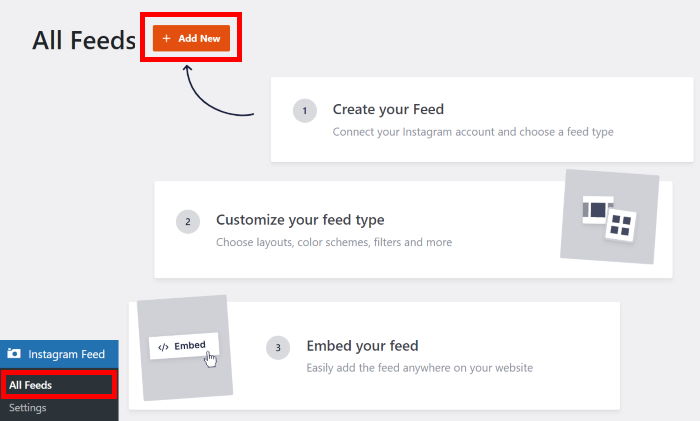
Start by logging into your WordPress dashboard. Go to the Plugins section and click “Add New.” Use the search bar to find your chosen Instagram plugin. Click “Install Now” and then “Activate.” The plugin is now ready to use on your site. No technical skills needed.
Configuring Plugin Settings
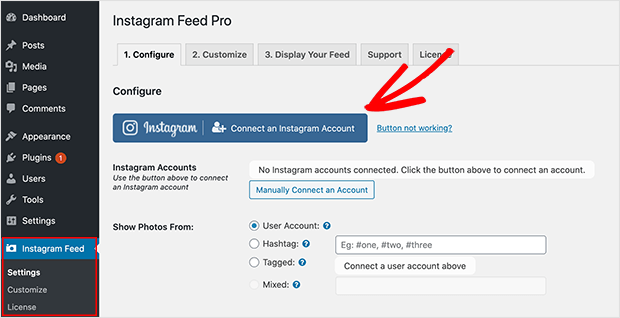
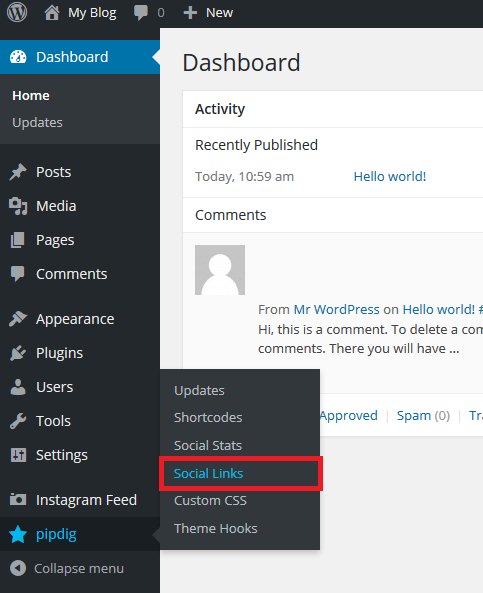
After activation, find the plugin settings in the dashboard menu. Enter your Instagram username or access token if needed. Adjust display options like showing photos or just the profile link. Save your settings and check your website to see the Instagram link live. Plugins usually have simple guides to help.
Credit: support.pipdig.co
Tips For Optimizing Instagram Links
Optimizing Instagram links on your WordPress site helps attract more clicks and engagement. It makes your visitors curious and guides them to your Instagram profile smoothly. Proper optimization also improves user experience and boosts your site’s performance.
Focus on simple techniques that make your Instagram links clear and effective. Small changes can have a big impact on how users interact with your links.
Using Clear Call-to-actions
Use short, direct phrases to tell visitors what to do. Examples include “Follow us on Instagram” or “See our latest photos.” Clear calls-to-action (CTAs) catch attention and increase clicks. Place CTAs near the Instagram link for better visibility. Avoid vague phrases that confuse users.
Ensuring Mobile Responsiveness
Most visitors use mobile devices to browse websites. Make sure your Instagram link looks good on phones and tablets. Use responsive design to adjust the link size and placement automatically. Test your website on different devices to confirm the link works well everywhere.
Tracking Link Clicks
Track how many visitors click your Instagram link to measure its success. Use tools like Google Analytics or link tracking plugins. Tracking helps you understand what works and what needs improvement. Adjust your strategies based on the data for better results.
Credit: smashballoon.com
Frequently Asked Questions
How Do I Add Instagram Link To WordPress Menu?
Go to WordPress Dashboard > Appearance > Menus. Add a Custom Link with your Instagram URL. Save the menu to display it on your site.
Can I Embed Instagram Posts In WordPress?
Yes, copy the Instagram post URL. Paste it directly into a WordPress post or page editor. WordPress auto-embeds the post.
Which Plugin Helps Add Instagram Links Easily?
Plugins like “Smash Balloon Social Photo Feed” allow easy Instagram integration. They display feeds and link your Instagram profile seamlessly.
How To Make Instagram Link Open In New Tab?
In WordPress Menus, enable “Open link in a new tab” for your Instagram link. This keeps visitors on your site while viewing Instagram.
Conclusion
Adding an Instagram link to your WordPress site is simple and effective. It helps visitors find your profile quickly. Use the steps shared to place the link where it fits best. Keep your website connected with your social media for better engagement.
Regular updates keep your audience interested. Try these tips today to improve your site’s reach and user experience.



