

Want to make it easy for your website visitors to find and follow your Instagram? Adding an Instagram icon to your WordPress site is a simple but powerful way to boost your social media presence.
Imagine your visitors clicking that little icon and instantly connecting with your brand on Instagram. It’s a small step that can lead to big results. You’ll discover exactly how to add the Instagram icon to your WordPress site quickly and without any tech headaches.
Ready to make your website more social and engaging? Let’s dive in!
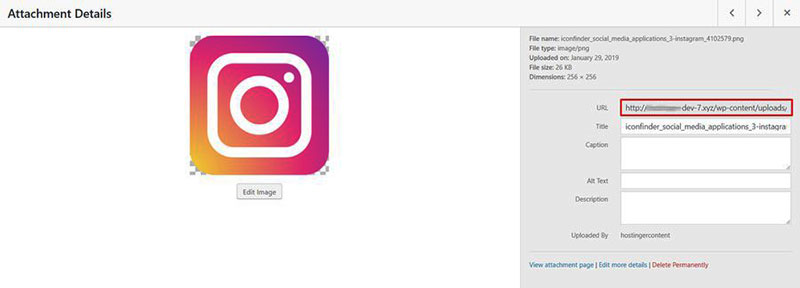
Credit: wpdatatables.com
Choose The Right Instagram Icon
Choosing the right Instagram icon is key for a clean website look. The icon shows your visitors where to find your Instagram profile. It must fit your site’s style and be easy to spot. Using the correct icon builds trust and keeps your site professional.
Download Official Instagram Icons
Start with official Instagram icons from Instagram’s brand resources page. These icons follow Instagram’s guidelines. They keep your site legal and safe from copyright issues. Official icons come in different formats like PNG and SVG. SVG icons work well for sharp images on all screen sizes.
Select Icon Styles And Sizes
Pick icon styles that match your website’s design. Choose from solid, outline, or colored icons. Simple styles blend well with most themes. Match the icon size to other social icons on your site. Common sizes are 24px, 32px, or 48px. Proper size keeps your site neat and balanced.
Credit: www.hostinger.com
Upload Icon To WordPress
Uploading the Instagram icon to WordPress is a simple step in customizing your site. This step lets you place the icon wherever you want, like in menus or sidebars. Use clear and good-quality icons to keep your site looking neat and professional.
Follow easy steps to upload your icon and prepare it for use on your website. This ensures fast loading and great appearance on all devices.
Use Media Library For Upload
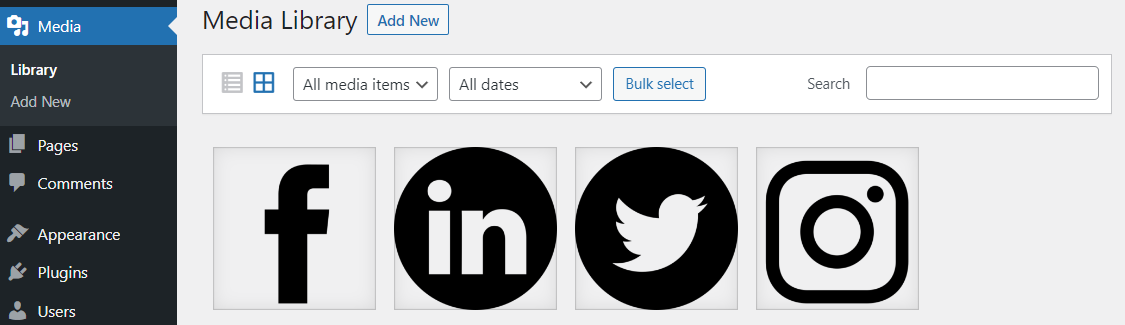
Start by opening your WordPress dashboard. Find the “Media” tab and click on “Add New.” Click “Select Files” and pick your Instagram icon from your computer. Wait for it to upload. Once uploaded, the icon appears in your Media Library. You can now insert it into posts, pages, or widgets.
Optimize Icon For Web
Before uploading, save your icon in a web-friendly format like PNG or SVG. Keep the file size small to help your site load faster. Resize the icon to about 32×32 pixels or 64×64 pixels for clear display. Use tools like TinyPNG or SVGOMG to reduce file size without losing quality. Smaller files improve site speed and user experience.
Add Instagram Icon To Menu
Adding an Instagram icon to your WordPress menu helps visitors find your profile quickly. It also makes your site look modern and connected. You can place the icon next to your other menu items for easy access. This guide shows simple steps to add an Instagram icon to your menu.
Create A Custom Link
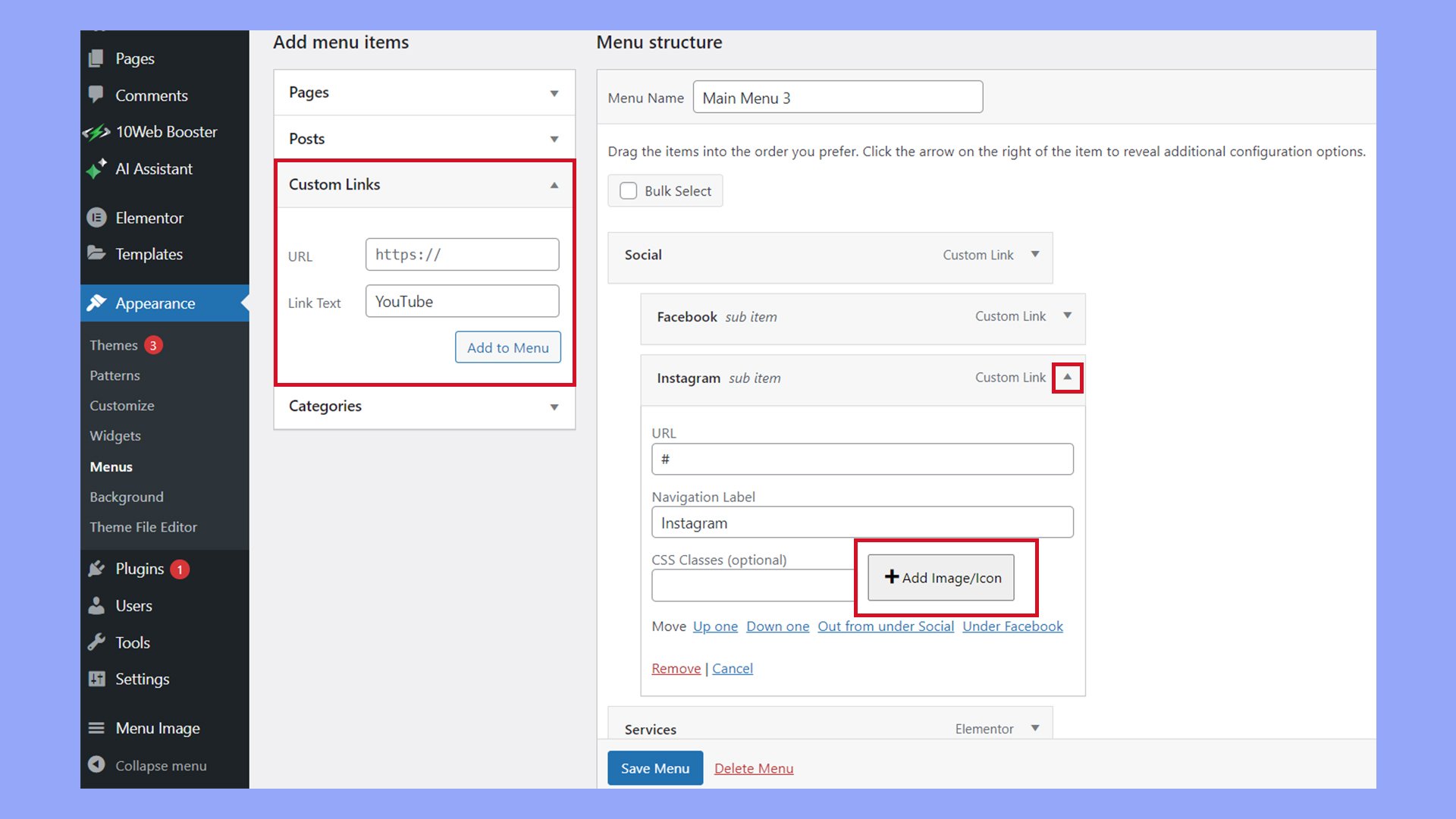
Go to your WordPress dashboard and open the Menus page. Click “Custom Links” on the left side. Enter your Instagram profile URL in the URL box. Type “Instagram” or any name you want in the Link Text box. Click “Add to Menu” to add this link to your menu structure. Drag the new menu item where you want it to appear.
Assign Icon To Menu Item
To show the Instagram icon, install a plugin like “Menu Icons.” After activating it, go back to Menus. Find the Instagram menu item and click the icon button next to it. Search for the Instagram icon and select it. Save your menu to see the icon appear on your site. The icon now links directly to your Instagram profile.
Insert Icon Using Widgets
Using widgets to insert your Instagram icon on WordPress is simple and effective. Widgets let you place icons in sidebars, footers, or other widget-ready areas. This method does not require coding skills and works well for most themes.
Add Image Widget
First, go to your WordPress dashboard. Navigate to Appearance > Widgets. Find the “Image” widget in the list. Drag and drop it into the sidebar or footer area where you want the icon to appear.
Next, click on the “Add Image” button inside the widget. Upload your Instagram icon image or select one from your media library. Make sure the icon is clear and the right size for your site.
Link Icon To Instagram Profile
After adding the image, add your Instagram profile URL in the widget’s link field. This makes the icon clickable, sending visitors to your Instagram page. Check the option to open the link in a new tab. It keeps visitors on your site while they explore your Instagram.
Save the widget settings. Visit your site to see the Instagram icon live. The icon should be visible and clickable in the selected widget area.
Use Plugins For Instagram Icons
Adding an Instagram icon to WordPress is simple with plugins. Plugins help you place social icons quickly. No coding skills needed. Just install and activate the plugin. Then follow a few easy steps to show your Instagram link.
Top Plugins For Social Icons
Several plugins offer Instagram icons for WordPress. “Smash Balloon Social Photo Feed” displays Instagram posts directly. “Simple Social Icons” lets you add and customize icons fast. “Social Icons Widget & Block” supports many social networks. Choose one that fits your website style and needs.
Configure Plugin Settings
After installing the plugin, open its settings page. Enter your Instagram profile URL to link the icon. Adjust icon size and color to match your site design. Choose where to display the icon, like sidebar or footer. Save changes and check your website to see the icon live.
Credit: 10web.io
Customize Icon Placement And Style
Customizing the Instagram icon on your WordPress site helps it fit your design. Changing size, color, and position makes the icon clear and attractive. You can match it with your site’s style and improve user experience. This section shows how to adjust these settings easily.
Adjust Icon Size And Color
Start by selecting the Instagram icon in your WordPress editor or plugin. Look for options to change the icon size. Increase or decrease the size to fit your site’s look. Small icons work well in footers, while larger ones suit headers.
Next, choose a color for the icon. Pick a color that matches your website’s palette. Use the official Instagram colors for brand consistency or pick a neutral shade. Make sure the color stands out but does not clash with other elements.
Position Icon On Header Or Footer
Decide where the Instagram icon should appear. The header is good for visibility on every page. Place the icon near your menu or site title for easy access.
The footer is less intrusive and works well on all pages too. It’s a great choice if you want a clean header. Use your WordPress theme’s customization tools to move the icon. Drag it to the header or footer area as needed.
Test Icon Functionality
Testing the Instagram icon functionality is key after adding it to your WordPress site. This step ensures visitors can easily reach your Instagram profile. A working icon improves user experience and keeps your site professional.
Check the icon’s behavior on different devices and browsers. Make sure it looks right and works perfectly. Testing helps spot and fix issues early.
Check Link Accuracy
Click the Instagram icon to verify the link directs correctly. The URL must lead to your exact Instagram profile page. Typos or broken links confuse visitors and reduce trust.
Use both desktop and mobile browsers to test the link. Confirm it opens the Instagram app or website without errors. Correct links boost engagement and site credibility.
Ensure Mobile Responsiveness
Most users access websites via mobile devices. The Instagram icon must display well on small screens. Check if the icon resizes and aligns properly on phones and tablets.
Test the icon’s tap area to ensure it is easy to click. Small or misplaced icons frustrate mobile users. Responsive design keeps your site user-friendly and accessible.
Frequently Asked Questions
How Do I Add Instagram Icon To WordPress Menu?
To add the Instagram icon, use a plugin or custom HTML. Go to Appearance > Menus, add a custom link to your Instagram profile, and insert the icon shortcode or HTML. Save changes to display the icon in your WordPress menu.
Which Plugin Is Best For Instagram Icons On WordPress?
Plugins like “Social Icons Widget” or “Smash Balloon Social Photo Feed” are popular. They simplify adding Instagram icons with customization options. Choose a plugin based on ease of use, design flexibility, and compatibility with your theme.
Can I Link Instagram Icon To My Profile Directly?
Yes, you can link the Instagram icon directly to your profile. Use a custom URL like https://instagram. com/yourusername when adding the icon. This ensures visitors click the icon and reach your Instagram page instantly.
Is It Possible To Add Instagram Icon Without A Plugin?
Yes, you can add the Instagram icon using custom HTML or CSS. Upload the icon image and link it manually in your WordPress widgets or theme files. This method requires basic coding knowledge but avoids extra plugins.
Conclusion
Adding an Instagram icon to your WordPress site is simple and quick. It helps visitors find your social profile easily. Use plugins or manual methods based on your comfort level. Make sure the icon fits your site’s design. Check how it looks on phones and computers.
Keep your social links updated for best results. This small step can improve user connection. Try it today and see the difference.



