
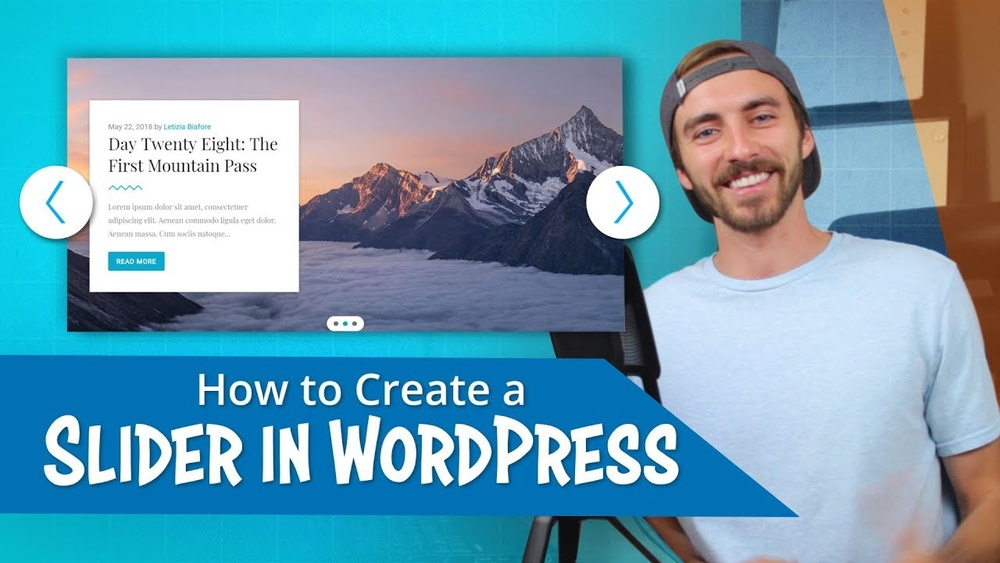
Are you looking to make your WordPress site more engaging and visually appealing? Adding an image slideshow is one of the easiest ways to grab your visitors’ attention and keep them interested.
Whether you want to showcase your portfolio, highlight products, or simply add some flair to your homepage, a slideshow can do the trick. You’ll discover simple, step-by-step methods to add an image slideshow to your WordPress site—no technical skills needed.
Keep reading, and by the end, you’ll have a stunning slideshow that makes your website stand out.
Choosing The Right Slideshow Plugin
Choosing the right slideshow plugin for your WordPress site matters a lot. A good plugin makes your images look great and loads fast. It also should be easy to use and work well with your site’s theme. Picking the right one saves time and avoids problems later.
Popular Plugins Comparison
Some plugins stand out because many users trust them. Plugins like MetaSlider, Smart Slider 3, and Soliloquy are popular choices. MetaSlider is simple and good for beginners. Smart Slider 3 offers more design options. Soliloquy is known for fast loading and responsive design. Comparing these helps find what fits your needs best.
Free Vs Premium Options
Free plugins work well for basic slideshows. They include essential features and easy setup. Premium plugins cost money but offer more tools. You get advanced effects, better support, and more customization. Decide what features you need before choosing free or premium.
Key Features To Look For
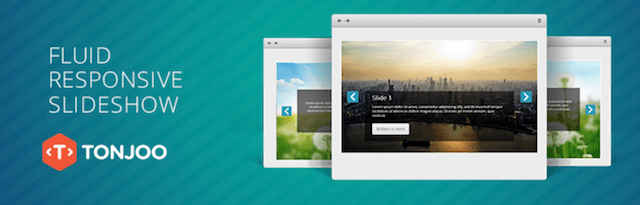
Look for features like responsive design so slides work on all devices. Easy navigation controls help visitors move through slides. SEO-friendly plugins let search engines read your images. Fast loading speed is important to keep visitors happy. Also, check if the plugin supports different image formats.
Credit: www.godaddy.com
Preparing Images For Your Slideshow
Preparing your images is a key step before adding a slideshow in WordPress. Good preparation helps your slideshow load faster and look better. It also keeps your site running smoothly on all devices. Focus on three main parts: optimizing size, choosing the right format, and organizing your files. Each part makes a difference in how your slideshow performs and appears to visitors.
Optimizing Image Size
Large images slow down your website. Resize images to a width between 800 and 1200 pixels. This range fits most screens and keeps files small. Use tools like Photoshop or free online editors to reduce image dimensions. Save your images with a file size under 200 KB for faster loading. Smaller images improve user experience and SEO rankings.
Selecting Image Formats
Choose the right format for quality and speed. JPEG works well for photos with many colors. PNG is better for images with text or transparent backgrounds. Use WebP format for the best balance of quality and small size. WordPress supports these formats, so pick the one that fits your images best. Proper formats keep your slideshow sharp and quick.
Organizing Images For Upload
Keep your images easy to find by creating a folder on your computer. Name your files clearly, like “slide1.jpg” or “summer-event.png.” Consistent naming helps when uploading to WordPress. Group images by theme or date if you have many. Organized files save time and reduce errors during slideshow creation. This step makes your workflow smooth and stress-free.
Installing And Activating The Plugin
Installing and activating a plugin is the first step to add an image slideshow in WordPress. This process lets you use new features without coding. Plugins extend your website’s functions quickly and safely. Follow simple steps to install and start the plugin correctly.
Plugin Installation Steps
Log in to your WordPress dashboard. Navigate to the “Plugins” menu on the left side. Click “Add New” to open the plugin search page. Type the slideshow plugin name in the search box. Find the plugin that fits your needs. Click the “Install Now” button next to it. Wait a few seconds for the plugin to download. The installation finishes automatically.
Activating The Plugin
After installation, an “Activate” button appears. Click this button to enable the plugin. Activation connects the plugin to your website functions. Without activation, the plugin remains inactive and useless. Confirm the plugin is active by checking the “Installed Plugins” list. The active plugin usually shows a highlighted status.
Initial Plugin Setup
Once activated, a new menu item may appear. This menu holds the plugin’s settings and options. Open the settings page to start configuration. Upload your images or select existing ones from the media library. Adjust slideshow settings like speed, size, and style. Save your changes to apply them. Your slideshow is now ready to use.

Credit: rankmath.com
Creating Your First Image Slideshow
Creating your first image slideshow in WordPress is simple and fun. A slideshow displays multiple images in one space. It helps show your pictures clearly and attract visitors to your site. Follow these easy steps to build your slideshow.
Adding Images To The Slideshow
Start by opening your WordPress dashboard. Go to the page or post where you want the slideshow. Click the “Add Block” button and select “Gallery” or “Slideshow” if your theme supports it. Upload images from your computer or choose from your media library. Select the pictures you want. Arrange the images by dragging them in the order you prefer. This lets you control how the slideshow flows.
Customizing Slideshow Settings
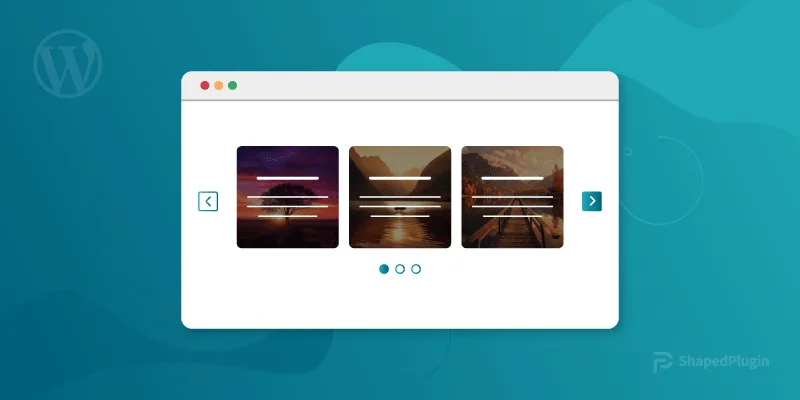
After adding images, adjust the slideshow settings. Choose how fast the images change. You can set the transition time between slides. Pick the slide style, like fade or slide effects. Decide if the slideshow should loop or stop after the last image. Add navigation arrows or dots to help visitors move through the slides. These settings make your slideshow look just right.
Previewing The Slideshow
Before publishing, preview the slideshow on your page. Click the “Preview” button to see how it works. Check the image order, transitions, and navigation tools. Make sure the slideshow fits well on different screen sizes. Adjust settings if needed. Previewing helps you find and fix any issues early. Your slideshow will look smooth and professional.
Embedding The Slideshow In WordPress
Enhancing your slideshow experience makes your website more attractive and user-friendly. A well-designed slideshow keeps visitors interested and helps share your message clearly. Small improvements can create a big impact on how your images appear and feel.
Adding Captions And Descriptions
Captions and descriptions give context to your images. They explain what each photo shows or why it matters. Adding text helps visitors understand your story better. Keep captions short and clear. Use simple words that everyone can read fast.
Enabling Transitions And Effects
Transitions make slides change smoothly from one to the next. Effects add style and movement to your slideshow. Choose simple transitions like fade or slide. Avoid too many effects that distract from your images. Set timing so slides change at a good pace, not too fast or slow.
Mobile Responsiveness Tips
Many visitors view websites on phones or tablets. Your slideshow must look good on small screens. Use responsive design settings in your slideshow plugin. Check that images resize properly and text stays readable. Test your slideshow on different devices to ensure it works well everywhere.
Credit: shapedplugin.com
Enhancing Your Slideshow Experience
Troubleshooting common issues helps keep your slideshow working smoothly. Problems can stop your images from showing or slow your site down. Fixing these issues improves user experience and site performance.
Check these common problems and simple fixes to get your slideshow running well again.
Slideshow Not Displaying
First, clear your browser cache. Old files may block new changes. Check if the slideshow plugin is active. Inactive plugins stop slideshows from showing. Make sure your images are uploaded correctly. Missing images cause empty slides. Confirm your theme supports the slideshow plugin. Some themes block certain scripts. Try switching to a default theme to test.
Slow Loading Images
Large image files load slowly. Resize images to smaller dimensions before uploading. Use compressed image formats like JPEG or WebP. Enable lazy loading to delay off-screen images. This speeds up initial page load. Avoid using too many images in one slideshow. Limit slides to keep load times fast.
Plugin Conflicts
Plugins sometimes interfere with each other. Deactivate other plugins one by one to find conflicts. Update all plugins to their latest versions. Outdated plugins cause issues with new WordPress versions. Use plugins from trusted sources only. Poorly coded plugins can break your slideshow. Consider switching to a different slideshow plugin if conflicts persist.
Frequently Asked Questions
How Do I Add An Image Slideshow In WordPress?
You can add an image slideshow using plugins like MetaSlider or Smart Slider 3. Install, activate, and create a new slideshow. Upload images, configure settings, then embed the slideshow using a shortcode or block on your page or post.
Which WordPress Plugins Are Best For Image Slideshows?
Popular plugins include MetaSlider, Smart Slider 3, and Soliloquy. These plugins offer easy setup, responsive designs, and customization options. Choose one based on your needs and user experience. Most plugins have free versions with essential features.
Can I Add An Image Slideshow Without A Plugin?
Yes, you can use the built-in WordPress Gallery block with a slideshow or carousel style. This method is simple but has limited customization. For advanced features, using a dedicated slideshow plugin is recommended.
How To Optimize Slideshow Images For Better Performance?
Compress images before uploading to reduce file size and improve loading speed. Use tools like TinyPNG or ShortPixel. Also, choose appropriate image dimensions and enable lazy loading to enhance page performance and user experience.
Conclusion
Adding an image slideshow to your WordPress site is simple and effective. It helps show your pictures clearly and attract visitors. Choose the right plugin or tool that fits your needs. Upload your images and customize the slideshow to match your style.
Test it to make sure it looks good on all devices. Keep your site fresh by updating images often. A slideshow makes your website more lively and interesting. Start adding one today to improve your site’s visual appeal.



