
Are you looking to make your WordPress page more dynamic and engaging? Adding an iframe is a simple way to embed videos, maps, forms, and other content directly into your site.
But if you’re unsure how to do it without breaking your design or slowing down your page, this guide is made just for you. By the end, you’ll have a clear, step-by-step method to add iframes easily and safely. Keep reading to unlock the secret to boosting your site’s functionality with just a few clicks.
What Is An Iframe
An iframe is a small window inside a webpage. It shows another webpage or content from a different source. This helps you display videos, maps, or other websites without leaving your page.
Iframes keep your visitors on your site but let them see extra content. This makes your page more useful and interactive. Many websites use iframes for sharing content easily.
What Does An Iframe Do?
An iframe loads content from another web address. It acts like a frame or box on your page. You can see a video, a map, or a form inside it.
The content inside an iframe works separately from your page. It does not change your site’s code or style.
How Does An Iframe Work?
An iframe uses a simple HTML tag. This tag tells the browser where to find the content. Then, it shows that content inside a box on your page.
You can set the size, border, and other options for the iframe. This helps it fit well with your page design.
Why Use Iframes On WordPress?
Iframes let you add rich content easily. No need to upload files or write complex code. WordPress supports iframes inside posts and pages.
This means you can share videos, maps, or even social media posts quickly. It makes your site more engaging and useful to visitors.
Why Use Iframes On WordPress
Iframes allow you to embed content from other websites directly into your WordPress page. This helps you share videos, maps, forms, or documents without hosting them yourself. Iframes keep your site clean and organized by displaying external content neatly within your page.
Using iframes saves time and effort. It prevents you from recreating content that already exists online. Visitors see the content instantly without leaving your site. This improves user experience and engagement.
What Can You Embed With Iframes?
You can embed videos from YouTube or Vimeo. Maps from Google Maps also work well. Forms from services like Google Forms or Typeform fit nicely. Even entire web pages can appear inside an iframe. This variety makes iframes very useful.
How Iframes Improve Website Speed
Iframes load external content separately from your page. This means your main page loads faster. Visitors do not wait for heavy files to download. It also reduces the risk of your site crashing.
Better Control Over External Content
Iframes let you control the size and placement of content. You decide how it fits on your page. This helps maintain your site’s design and style. You can show only what matters to your visitors.
Preparing Your Iframe Code
Preparing your iframe code is the first step to embedding content on your WordPress page. This step ensures your iframe works correctly and looks good. You need to get the right URL and adjust the settings to fit your site’s style.
Careful preparation helps avoid common issues like broken links or poor display. It makes the iframe load faster and look neat. Let’s explore how to find the source URL and customize iframe attributes for the best results.
Finding The Source Url
The source URL is the web address of the content you want to show. It could be a video, map, or another website. Copy the exact URL from the provider’s embed option or browser address bar.
Make sure the URL is correct and starts with “http” or “https.” Test the link in a new tab to confirm it loads the content properly. Avoid URLs that require login or have restrictions.
Customizing Iframe Attributes
Iframe attributes control how the content appears on your page. Common settings include width, height, border, and scrolling. Adjust these values to match your page design and layout.
Use “width” and “height” to size the iframe. Set them in pixels or percentages for flexibility. Adding “frameborder=0” removes the border for a cleaner look.
The “allowfullscreen” attribute lets users view videos in full screen. Use “scrolling=no” to hide scroll bars if the content fits well. These small tweaks improve user experience and page appearance.
Credit: www.wpzoom.com
Adding Iframe Using WordPress Block Editor
Adding an iframe to a WordPress page is easy with the Block Editor. This method helps you display content from other websites directly on your page. You can use the Block Editor to insert iframe code quickly and safely. It gives you full control over how the iframe looks and works.
The Block Editor offers two main ways to add iframes. You can use a Custom HTML block or embed the iframe using a shortcode. Both methods are simple and work well for different needs.
Using Custom Html Block
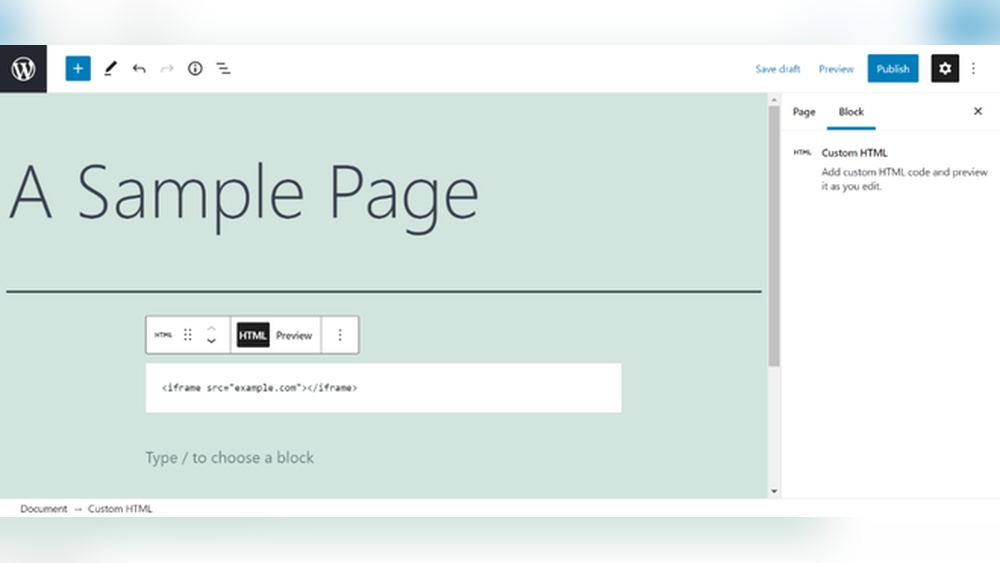
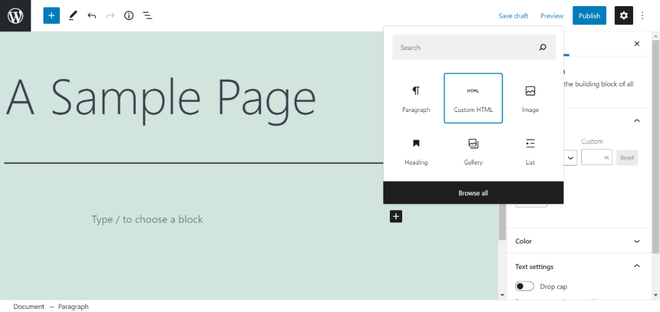
Start by opening the page or post where you want the iframe. Click the plus (+) button to add a new block. Choose the “Custom HTML” block from the list. Paste your iframe code into this block. Make sure the iframe code is correct and complete. You can preview the block to see how the iframe will appear. After that, save or update your page. The iframe should now show on your WordPress page.
Embedding Via Shortcode
WordPress lets you create shortcodes to embed iframes too. First, add a shortcode in your theme’s functions.php file or a site-specific plugin. The shortcode will include the iframe code. Then, add the shortcode block in the Block Editor. Type the shortcode exactly as you created it. This method keeps your iframe code clean and easy to manage. It also works well if you want to reuse the iframe in many places.
Adding Iframe With Classic Editor
Adding an iframe to a WordPress page is easy with the Classic Editor. This editor gives you a simple way to insert code directly into your content. It works well for embedding videos, maps, and other content from external sites.
Using the Classic Editor, you can switch between a visual view and a text view. The text view lets you paste HTML code, including iframe tags. This method keeps your page clean and functional.
Switching To Text View
Open the Classic Editor on your WordPress page. Look at the top right of the editor box. You will see two tabs: Visual and Text. Click the Text tab. This switches the editor to a code view. You can now add HTML directly.
Pasting The Iframe Code
Copy the iframe code from the source website. Return to the Text view in your editor. Paste the iframe code exactly where you want it on your page. Avoid adding extra spaces or characters. Switch back to Visual view to check if the iframe appears correctly.

Credit: themegrill.com
Using Plugins To Insert Iframes
Using plugins to insert iframes in WordPress simplifies the process. Plugins handle code safely and make embedding easier. This helps avoid errors that can break your page.
Plugins also offer extra features. Some let you customize iframe size and style. Others improve page loading speed and security.
Recommended Iframe Plugins
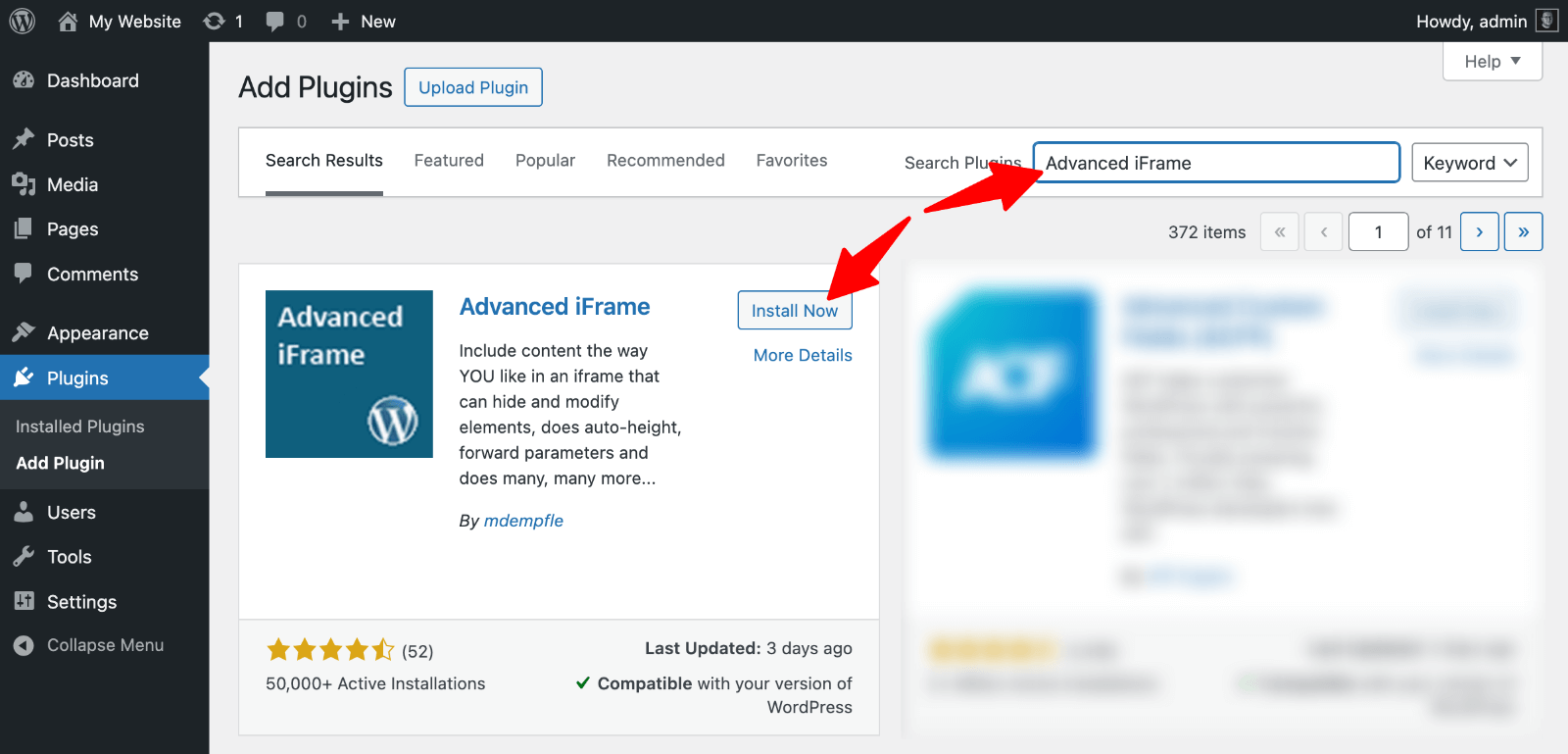
Several plugins work well for iframe embedding. “Advanced iFrame” is popular for its flexibility and control. It lets you show parts of external pages inside your site.
“Iframe” plugin is simple and user-friendly. It allows easy iframe insertion with a shortcode. Great for beginners who want fast results.
“WP Iframe” offers responsive iframe support. This ensures your iframes look good on all devices. It includes basic styling options too.
Plugin Setup And Usage
First, install the chosen plugin from the WordPress dashboard. Go to Plugins > Add New, then search the plugin name. Click Install and Activate.
Next, open the plugin settings page. Adjust options like iframe width, height, and border style. Save changes before adding iframes to pages.
To insert an iframe, use the plugin’s shortcode or block. Paste the external URL inside the shortcode brackets. Preview the page to check how it looks.
Make sure the iframe content is allowed by the external site. Some websites block iframe embedding for security reasons. Test different sources if needed.
Ensuring Mobile Responsiveness
Ensuring your iframe works well on mobile devices is important. Many people use phones or tablets to visit websites. A fixed-size iframe might look bad or break the page layout on small screens. Making your iframe responsive helps it adjust to different screen sizes. This creates a better user experience for everyone.
Making Iframes Responsive
Use CSS to make iframes flexible. Wrap the iframe in a container with a relative position. Give the container a padding-bottom based on the aspect ratio, like 56.25% for 16:9. Set the iframe to absolute position with width and height at 100%. This method scales the iframe smoothly on all devices.
Example CSS:
.iframe-container { position: relative; width: 100%; padding-bottom: 56.25%; height: 0; } .iframe-container iframe { position: absolute; width: 100%; height: 100%; left: 0; top: 0; border: 0; } Place your iframe inside this container in your WordPress page. This approach keeps the content inside visible without overflow or scroll bars.
Testing On Different Devices
Check your page on several devices to ensure the iframe looks right. Test on phones, tablets, and desktops. Use browser tools to simulate different screen sizes. Make sure the iframe scales correctly without cutting content. Fix any issues by adjusting the CSS or iframe code.
Testing helps catch problems early. A responsive iframe keeps your website professional and user-friendly.
Credit: www.geeksforgeeks.org
Troubleshooting Common Iframe Issues
Adding an iframe to a WordPress page can sometimes cause issues. These problems may stop the iframe from showing or slow down your site. Understanding common iframe problems helps fix them fast. Below are common issues and how to solve them.
Iframe Not Displaying
An iframe might not show because the URL is wrong or blocked. Check the web address inside the iframe tag. Some websites block their pages from being shown inside iframes. Use a different URL or ask the site owner for permission.
Sometimes, WordPress or your browser blocks iframes for security. Try clearing your browser cache or using a different browser. Also, make sure your WordPress theme supports iframe code. If not, switch to a theme that does.
Security Restrictions
Browsers and websites use security rules to protect users. These rules can stop iframes from loading content. For example, some sites use “X-Frame-Options” to block embedding. You cannot bypass this from your WordPress site.
Use trusted sources for iframe content. Avoid embedding unsafe or unknown websites. This keeps your site safe and avoids browser warnings. Also, update WordPress and plugins to keep security strong.
Performance Considerations
Iframes can slow down your page loading speed. Too many iframes or large content inside them cause delays. Limit the number of iframes on your page. Use smaller iframe sizes to improve speed.
Lazy loading can help. It loads iframes only when users scroll to them. This improves page speed and user experience. Use WordPress plugins that support lazy loading for iframes.
Frequently Asked Questions
How Do I Embed An Iframe In A WordPress Page?
To embed an iframe in WordPress, switch to the HTML editor. Paste your iframe code where you want it to appear. Update or publish your page to see the iframe live.
Can I Add An Iframe Without A Plugin In WordPress?
Yes, you can add an iframe directly via the WordPress block editor’s Custom HTML block. No plugin is needed for basic iframe embedding.
Why Is My Iframe Not Displaying On WordPress?
Your iframe might be blocked due to security settings or content restrictions. Check if the source allows embedding and confirm your site supports iframes.
How Do I Customize Iframe Size In WordPress?
You can set the iframe’s width and height attributes in the iframe code. Adjust these values to fit your WordPress page layout perfectly.
Conclusion
Adding an iframe to your WordPress page is simple and quick. Just copy the iframe code and paste it into the editor. You can show videos, maps, or other content easily this way. Make sure the source is safe to keep your site secure.
Try different iframe sizes to fit your page well. Now, your site can have more useful content for visitors. Keep practicing to get comfortable with iframes.



