
Are you looking to make your WordPress posts more engaging and interactive? Adding a hyperlink is one of the simplest ways to guide your readers to important information, related content, or external sources.
But if you’re unsure how to do it, don’t worry—you’re in the right place. This quick guide will show you exactly how to add a hyperlink in WordPress, step by step. By the end, you’ll have the skills to connect your content effortlessly and keep your readers coming back for more.
Let’s get started!
Why Use Hyperlinks In WordPress
Hyperlinks play a key role in WordPress websites. They connect your content to other pages or sites. This helps visitors find more information quickly. Using hyperlinks also improves the overall user experience. Visitors stay longer on your site and explore more content.
Search engines like Google use hyperlinks to understand your site better. Links help search engines find related pages. This can improve your site’s ranking in search results. Well-placed links also guide visitors to important pages you want to highlight.
Enhances User Navigation
Hyperlinks guide visitors through your website smoothly. They connect different pages, making browsing easy. Visitors can jump from one topic to another without confusion. This creates a clear path for users to follow.
Improves Seo Rankings
Search engines see hyperlinks as signals of trust. Links from and to your pages boost your site’s authority. This can lead to higher search rankings. Internal links help search engines index your pages efficiently.
Increases Website Engagement
Links encourage visitors to explore more content. This raises the time they spend on your site. More engagement means visitors find your site useful. It also reduces the bounce rate, which is good for SEO.
Supports Content Credibility
Adding links to reputable sources builds trust. Visitors feel confident about your information. Links show you have researched your topic well. This enhances your site’s authority and reliability.
Types Of Hyperlinks
Hyperlinks connect different parts of your website or other websites. They help visitors navigate and find useful information fast. Knowing the types of hyperlinks in WordPress makes your content clear and user-friendly. Each type serves a specific purpose.
Internal Links
Internal links connect one page to another within the same website. They guide users to related articles or important pages. These links improve site structure and help search engines find your content. Use clear text to describe where the link leads.
External Links
External links point to pages on other websites. They provide extra information or sources for your readers. These links build trust and add value to your content. Make sure to link only to reliable and relevant sites.
Anchor Links
Anchor links jump to a specific part of the same page. They help visitors find key sections quickly. Use them in long posts or FAQs to improve user experience. Anchor links use special tags to mark the target spot.
Preparing Your Link
Preparing your link is an important step before adding a hyperlink in WordPress. It helps ensure the link works well and makes sense to readers. Good preparation also improves your website’s SEO and user experience.
Two main parts need attention: the URL and the link text. Both should be clear and relevant. This makes clicking the link easy and useful for visitors.
Choosing The Url
Select a URL that points directly to the right page. Avoid using long or complicated URLs. A clean, simple link is easier to manage and share. Make sure the URL starts with “http://” or “https://” for proper linking. Double-check the URL to avoid broken links that frustrate users.
Selecting Link Text
Pick words that explain where the link goes. Use short and clear text. Avoid vague phrases like “click here” or “read more.” Instead, describe the page or content behind the link. This helps readers and search engines understand the link’s purpose. Keep link text natural and easy to read within your sentence.

Credit: www.greengeeks.com
Adding Hyperlinks In The Block Editor
Adding hyperlinks in the WordPress Block Editor makes your content interactive. Links guide readers to more information. They improve user experience and SEO. The process is simple and quick.
Use the block editor to select text and insert links. It works smoothly for all blocks with text. Follow easy steps to create effective hyperlinks.
Highlighting Text
First, select the text you want to link. Click and drag your cursor over the words. Highlight only the part that needs the link. This step is crucial for adding accurate hyperlinks.
Inserting The Link
After highlighting, a small toolbar appears above the text. Click the link icon that looks like a chain. A box will pop up asking for the URL. Paste or type the full web address here. Press enter or click the apply button to confirm. The text now becomes a clickable link.
Setting Link Options
Click the linked text again to see more settings. Choose if the link opens in a new tab or the same page. You can also add “nofollow” to tell search engines not to follow. Adjust these options to control how your link behaves. Proper settings improve user navigation and SEO.
Adding Hyperlinks In The Classic Editor
Adding hyperlinks in the Classic Editor is simple and effective. Hyperlinks connect your readers to other pages or sites. They improve navigation and user experience. The Classic Editor offers easy tools to insert and customize links. This section explains how to add links using the toolbar and adjust link attributes.
Using The Toolbar
Start by selecting the text you want to link. Click the link icon in the toolbar. It looks like a chain or a link. A box will appear where you can enter the URL. Type or paste the web address carefully. Press the Enter key or click the Apply button. Your selected text now becomes a clickable link. You can also remove a link by selecting the linked text and clicking the unlink icon.
Adding Link Attributes
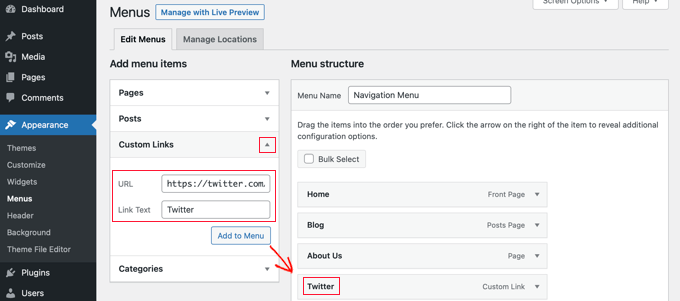
Link attributes control how links behave and look. Click the link icon and then the gear icon next to the URL box. This opens the Link Options window. You can add attributes like “Open link in new tab.” This option is useful for external links. Another attribute is the “Title” tag. It shows extra information when users hover over the link. Adding these attributes improves user experience and accessibility. After setting attributes, click Update to save the changes.
Credit: www.wpbeginner.com
Linking Images And Buttons
Linking images and buttons helps visitors navigate your site easily. Images can serve as clickable links, making your pages more interactive. Buttons guide users to important pages or actions quickly. Adding links to these elements improves user experience and site flow.
Hyperlinking Images
To hyperlink an image in WordPress, first select the image block. Click the image, then choose the link icon in the toolbar. Enter the URL you want the image to link to. Press enter or click apply. The image now acts as a clickable link.
You can link images to pages, posts, or external sites. This method makes your site more engaging. Always test the link to ensure it works correctly.
Adding Links To Buttons
Adding links to buttons is simple in WordPress. Select the button block you want to edit. In the block settings, find the link field. Type or paste the URL into this field.
Buttons should lead users to important pages or actions. Use clear text on the button to show where the link goes. Check your links after adding them to avoid mistakes.
Best Practices For Hyperlinks
Hyperlinks connect your content to other valuable pages. They guide readers and improve your site’s SEO. Following best practices makes links clear and useful.
Using Descriptive Anchor Text
Anchor text is the clickable part of a link. Use words that describe the linked page well. Avoid phrases like “click here” or “read more.” Clear text helps readers and search engines understand the link’s purpose.
Opening Links In New Tabs
Set external links to open in new tabs. This keeps visitors on your site longer. Use the target=”_blank” attribute in your link code. It improves user experience by not losing your page.
Avoiding Broken Links
Broken links frustrate visitors and hurt SEO. Check links regularly to ensure they still work. Use tools or plugins to find broken URLs fast. Fix or remove broken links promptly to keep your site healthy.

Credit: www.authormedia.com
Troubleshooting Common Issues
Troubleshooting common issues helps keep your WordPress links working smoothly. Problems can stop your links from opening or looking right. Fixing these quickly improves user experience and site performance.
Link Not Working
Check the URL carefully. Typos or missing parts break links. Use full URLs starting with “http://” or “https://”.
Make sure the linked page exists. Dead links frustrate visitors and harm SEO.
Clear your browser cache. Old data can prevent new links from loading.
Disable plugins temporarily. Some plugins block links or scripts.
Formatting Problems
Links may look strange if styles conflict. Inspect your theme’s CSS for link styles.
Use the WordPress editor’s link tool to add links correctly. Manual HTML mistakes cause formatting issues.
Check for extra spaces or broken tags around your links. These affect how links display.
Preview your post on different devices. Formatting may vary on phones or tablets.
Frequently Asked Questions
How Do I Add A Hyperlink In WordPress Editor?
To add a hyperlink, highlight the text, click the link icon in the editor toolbar, then enter the URL. Press Enter or click Apply to save the link.
Can I Link To External Websites In WordPress?
Yes, WordPress lets you link to any external website by entering the full URL when adding a hyperlink. This directs visitors outside your site.
How To Make Hyperlinks Open In A New Tab?
When adding a link, click the gear icon for link options and check “Open in new tab. ” This keeps visitors on your site while viewing the link.
Is It Possible To Add Hyperlinks In WordPress Widgets?
Yes, you can add hyperlinks within text widgets by using the editor’s link tool or by writing HTML anchor tags manually.
Conclusion
Adding hyperlinks in WordPress is simple and quick. Just select the text or image, then click the link icon. Enter the URL and hit apply. Links help readers find useful information easily. They also improve your site’s navigation and SEO.
Practice a few times to get comfortable. Soon, you will add links without thinking twice. Keep your links clear and relevant for best results. This skill will make your WordPress posts more helpful and engaging.



