
Are you looking to make your WordPress page stand out with custom HTML? Adding HTML to your WordPress page gives you full control over how your content looks and functions.
Whether you want to embed a special widget, style your text uniquely, or add custom code snippets, knowing how to insert HTML is a game-changer. In this guide, you’ll learn simple, step-by-step methods to add HTML to your WordPress page quickly and easily.
By the end, you’ll have the confidence to customize your site exactly the way you want. Keep reading to unlock these powerful tips!
Accessing The WordPress Editor
Accessing the WordPress editor is the first step to add HTML to your page. The editor is where you create and edit content. WordPress offers different types of editors. Each editor works differently for adding HTML code. Knowing which editor you use helps you add HTML easily.
WordPress mainly uses two editors: the Block Editor and the Classic Editor. Both have options to insert HTML but in different ways. Let’s explore how to access and use each editor for HTML.
Using The Block Editor
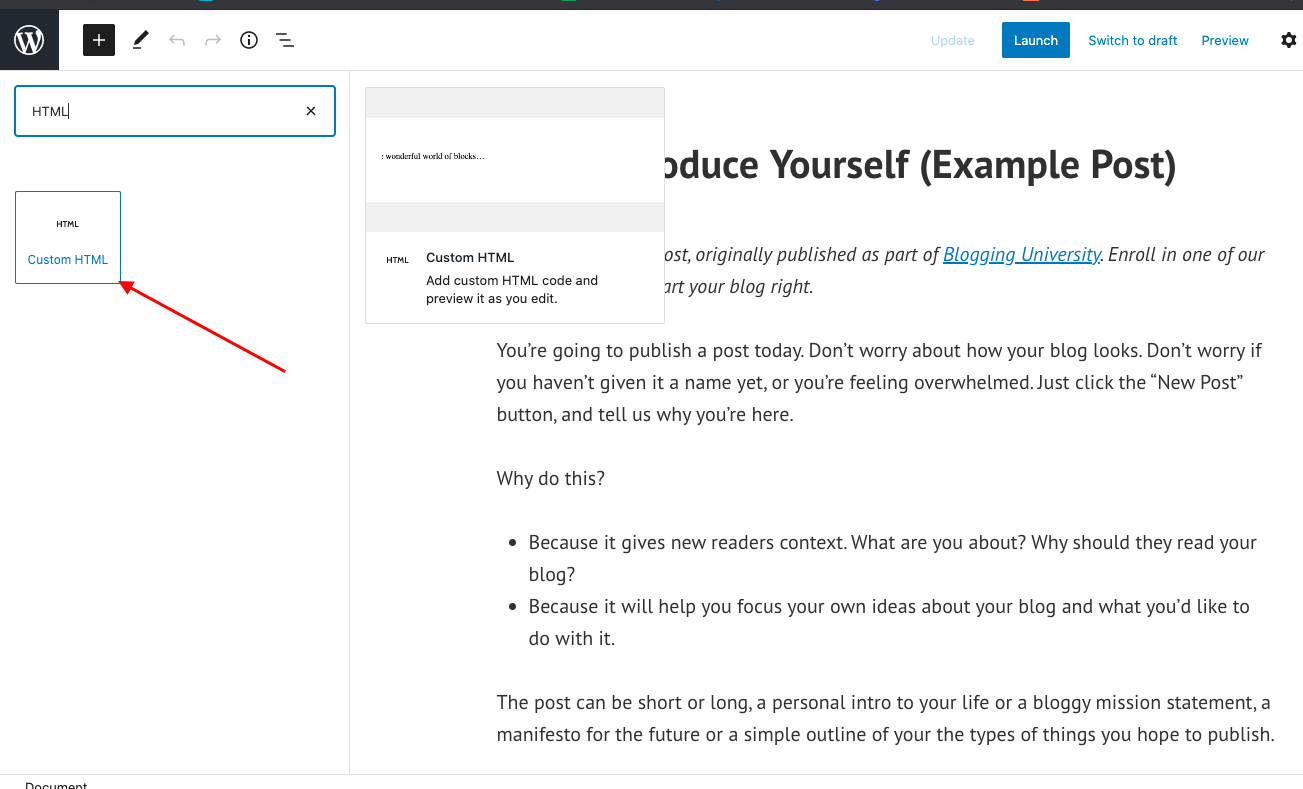
The Block Editor is the default editor in recent WordPress versions. It divides your content into blocks. Each block can be text, image, or code. To add HTML, you use the Custom HTML block. Click the plus (+) icon to add a new block. Then search for “Custom HTML.” Select it and paste your HTML code inside.
This editor shows a preview of your HTML. You can switch between editing code and viewing output. The Block Editor is user-friendly for adding small or large HTML snippets. It keeps your page organized with separate blocks.
Classic Editor Vs Block Editor
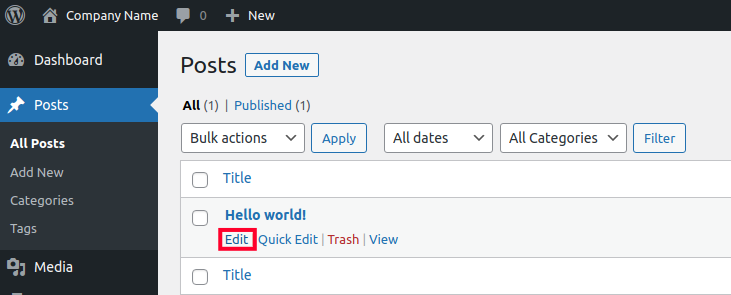
The Classic Editor looks like a simple text box. It resembles old word processors. You add HTML by switching to the “Text” tab. This tab shows the raw HTML code of your content. Paste or type your HTML directly here. Then switch back to the “Visual” tab to see how it looks.
The Block Editor uses blocks for content. The Classic Editor uses one large box. The Classic Editor suits users who prefer a simple interface. The Block Editor offers more control and flexibility. Both editors let you add HTML but in different ways.
Credit: www.inmotionhosting.com
Adding Html With Custom Html Block
Adding HTML to a WordPress page is simple with the Custom HTML block. This tool lets you place your own code directly into the page. It gives more control over the page design and content. You can use it to add special features or style that standard blocks don’t offer.
Inserting A Custom Html Block
Open the WordPress editor for your page. Click the plus (+) icon to add a new block. Scroll to find the “Custom HTML” option or type “Custom HTML” in the search box. Click on the block to insert it into your page. The block appears where you placed it. Now you have a space to type or paste your HTML code.
Writing And Editing Html Code
Type your HTML code directly inside the Custom HTML block. You can write simple tags like for paragraphs or
Embedding Html In Classic Editor
Embedding HTML in the Classic Editor of WordPress lets you customize pages easily. This method gives you full control over the page layout and design. You can add buttons, forms, or other elements not available in the visual editor.
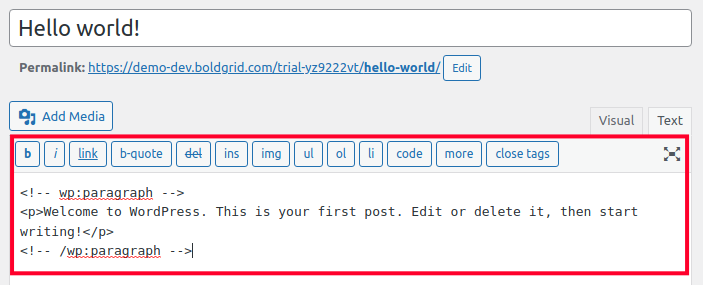
The Classic Editor has two modes: Visual and Text. You need to switch to Text mode to add HTML code directly. This process is simple and quick, even for beginners.
Switching To Text Mode
Open the Classic Editor on your WordPress page or post. Look at the top right of the editor box. You will see two tabs: Visual and Text. Click on the Text tab to switch modes.
This mode shows the raw HTML code of your content. It lets you add or edit HTML easily. Avoid switching back to Visual mode after editing. Doing so might change your code.
Pasting Html Code
Once in Text mode, place your cursor where you want the HTML to appear. Paste your HTML code directly into the editor. Make sure your code is clean and error-free.
After pasting, save or update the page to see your changes live. Preview the page to confirm the HTML works as expected. Editing HTML this way helps you create unique content.
Credit: www.inmotionhosting.com
Using Plugins For Html Insertion
Using plugins to insert HTML into your WordPress page makes the process simple. Plugins provide easy tools to add custom code without touching theme files. They help keep your site safe and organized. This method suits users who prefer not to edit code directly in WordPress editors.
Popular Html Plugins
Several plugins help you add HTML to pages effortlessly. “Insert Headers and Footers” lets you place code in the header or footer areas. “Simple Custom CSS and JS” allows adding HTML, CSS, or JavaScript anywhere. “WPCode” offers a user-friendly interface for inserting code snippets. These plugins support many coding needs for WordPress users.
Installing And Activating Plugins
Go to your WordPress dashboard to add a plugin. Select “Plugins” then click “Add New.” Type the plugin name in the search box. Click “Install Now” next to the plugin you want. After installation, press “Activate” to enable the plugin on your site. Your plugin is now ready to use for HTML insertion.
Previewing And Testing Html Code
Previewing and testing HTML code is important before publishing a WordPress page. It helps catch errors and see how the content looks. This step saves time and prevents broken layouts on the live site.
Testing your HTML ensures the page works well on different devices and browsers. It also confirms that your code follows web standards. This practice improves user experience and search engine rankings.
Previewing Changes Before Publishing
WordPress offers a preview option to check your HTML code live. Click the “Preview” button to open a new tab with your changes. This shows exactly how the page will look once published.
Use the preview mode to verify images, links, and formatting. Make sure all HTML elements display correctly. This avoids surprises after publishing the page.
Troubleshooting Common Issues
Sometimes HTML code may not work as expected. Check for missing tags like
Clear your browser cache if changes do not appear. Use online validators to find errors in your HTML. Fix these issues before publishing for best results.
Credit: blog.hubspot.com
Best Practices For Adding Html
Adding HTML to a WordPress page can improve design and functionality. Following best practices ensures your code works well and stays easy to manage. Clean, well-organized code helps avoid errors and speeds up page loading.
Mobile devices are the main way many users browse websites. HTML should support mobile responsiveness to give visitors a smooth experience. This means your content looks good and works well on any screen size.
Keeping Code Clean And Organized
Write clear and simple HTML code. Use proper indentation to show the structure. It helps you and others understand the code easily.
Comment your code to explain sections or functions. This is useful for future edits or teamwork. Avoid unnecessary tags or inline styles. They can clutter your code and slow down the page.
Ensuring Mobile Responsiveness
Use flexible layouts and relative units like percentages or ems. This makes your design adjust to different screen sizes. Test your page on phones and tablets to check how it looks.
Include the viewport meta tag in your HTML. It controls the page’s scale on mobile devices. Avoid fixed widths that break layouts on small screens.
Frequently Asked Questions
How Do I Add Html Code To A WordPress Page?
To add HTML, open the WordPress editor and switch to the “Text” or “HTML” view. Paste your HTML code directly into the editor. Save or update the page to apply the changes. This method ensures your custom HTML displays correctly on the page.
Can I Use Html In The WordPress Block Editor?
Yes, the WordPress block editor lets you add HTML using the “Custom HTML” block. Insert this block anywhere on your page and paste your HTML code inside. This feature allows you to customize page content without affecting other elements.
Is It Safe To Add Custom Html In WordPress?
Adding custom HTML is safe if you use clean, trusted code. Avoid using scripts from unverified sources to prevent security risks. Always preview and test your page after adding HTML to ensure it works correctly and looks as expected.
How Can I Add Html To A WordPress Widget?
Go to Appearance > Widgets in your dashboard. Add a “Custom HTML” widget to your desired widget area. Paste your HTML code inside and save. This lets you display custom HTML in sidebars or footers easily.
Conclusion
Adding HTML to a WordPress page is simple and useful. It lets you customize your site easily. Just follow the steps carefully, and you will see great results. Use the WordPress editor to insert your code. Test your page to make sure everything works well.
Keep practicing to get better with HTML. This skill helps your website look unique and professional. Try adding small code bits first. Soon, you will feel more confident editing your pages. Keep your site fresh and engaging with simple HTML changes.



