
Are you looking to make your WordPress site more engaging and user-friendly? Adding HTML links is one of the simplest ways to guide your visitors exactly where you want them to go.
Whether you want to link to another page, a resource, or an external website, knowing how to add HTML links can boost your site’s functionality and improve your readers’ experience. You’ll discover easy, step-by-step instructions that anyone can follow—no technical skills needed.
Keep reading, and you’ll be adding links like a pro in no time!
Credit: easywpguide.com
Why Add Html Links In WordPress
Adding HTML links in WordPress improves your website’s usability and reach. Links connect pages inside your site and to other websites. They guide visitors to useful content and resources. Links also help search engines understand your website structure. This boosts your site’s visibility in search results.
Using HTML links gives more control over how links appear and work. You can customize link text, URLs, and attributes easily. This flexibility helps create a better user experience and improves site navigation.
Why Html Links Improve User Experience
Links help visitors find related articles or products quickly. They reduce the need to search manually for information. Clear links make your site easier to explore and understand. Visitors stay longer and return more often.
How Html Links Boost Seo
Search engines use links to crawl your website. Proper links show the relationship between pages. This helps improve your site ranking in search results. Well-placed links send traffic to important pages.
Control And Customization With Html Links
HTML links allow you to set link targets and styles. You can open links in new tabs or add titles for clarity. This helps improve accessibility and user interaction. Custom links fit your site design and goals better.
Types Of Links You Can Add
Links are essential in WordPress posts and pages. They guide readers to more information. Different types of links serve different purposes. Knowing these types helps improve your website’s navigation and user experience.
Internal Links
Internal links connect one page to another within the same website. They help visitors find related content easily. These links keep users on your site longer. They also improve your site’s SEO by showing the structure of your content.
External Links
External links point to pages on other websites. Use them to share useful resources or references. They build trust by providing additional information. Make sure these links open in a new tab to keep visitors on your site.
Anchor Links
Anchor links jump to a specific part of the same page. They are helpful on long pages or posts. Readers can quickly find the section they want. Use anchor links in your table of contents for easy navigation.
Email Links
Email links open the visitor’s email program. They let users send you messages quickly. These links use the mailto: format in HTML. Email links make it simple for readers to contact you.
Using The WordPress Block Editor
The WordPress Block Editor is a simple tool to build pages and posts. It uses blocks to add different content types. Adding links in this editor is quick and easy. You can link text, images, or buttons without coding knowledge.
Each block has its own settings to manage links. This makes your content interactive and user-friendly. Let’s explore how to add and edit links using the Block Editor.
Adding Links In Paragraph Blocks
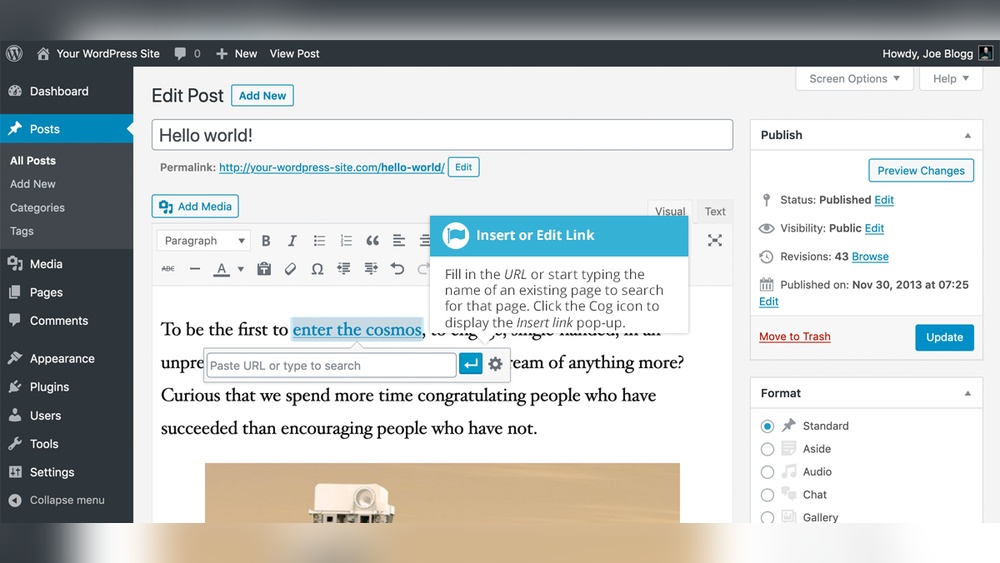
Click inside the paragraph block where you want the link. Highlight the text you want to turn into a link. A small toolbar appears above the text. Click the link icon, shaped like a chain.
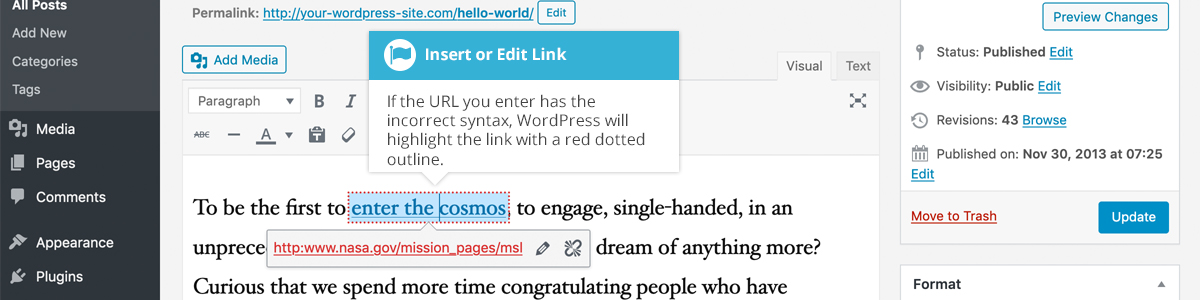
Enter the URL in the box that appears. Press Enter or click the Apply button. The highlighted text becomes clickable. You can link to external websites or other pages on your site.
Linking Images And Buttons
Select the image or button block you want to link. In the block settings on the right, find the link option. Enter the URL in the link field.
For images, you can choose to open the link in a new tab. Buttons work the same way. This feature makes your images and buttons interactive and useful.
Editing And Removing Links
To change a link, click on the linked text, image, or button. The link toolbar appears again. Click the edit icon to update the URL. Type the new link and apply it.
To remove a link, select the linked element. Click the unlink icon, which looks like a broken chain. The link is removed, but the text or image stays. You can always add a new link later.

Credit: www.wonderplugin.com
Adding Html Links In Classic Editor
Adding HTML links in the Classic Editor of WordPress helps you control your links easily. It allows you to insert links directly into your content using HTML code. This method is simple and perfect for those who want more control over how links appear.
Using HTML links can improve your blog’s SEO and user experience. You can link to other pages, websites, or resources clearly and cleanly. The Classic Editor makes it easy to switch between visual and text modes, letting you write or edit HTML code directly.
Switching To Text Mode
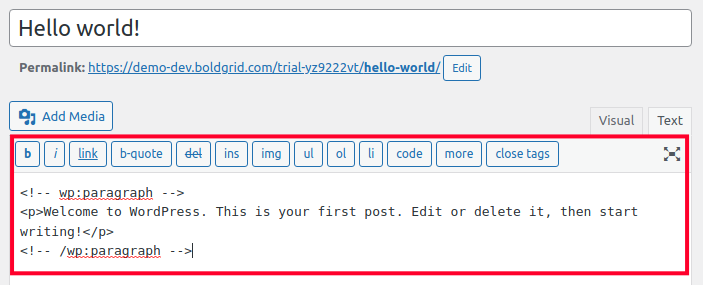
First, open the Classic Editor for your post or page. At the top right of the editor, find two tabs: Visual and Text. Click on the Text tab to switch to the HTML editing mode. Here, you can write or edit your HTML code. This mode shows your content as raw HTML, not as formatted text.
Writing Anchor Tags
To add a link, use the anchor tag in the Text mode. The basic syntax is Link Text. Replace URL with the web address you want to link to. Replace Link Text with the words users will click on. This tag creates a clickable link inside your post.
Customizing Link Attributes
You can add more attributes to your anchor tag for better control. Use target="_blank" to open links in a new tab. Add rel="nofollow" to tell search engines not to follow the link. Example: Link Text. These attributes improve user experience and SEO.
Using Html In Widgets And Menus
Using HTML in widgets and menus lets you control your site’s links better. HTML gives you the power to add links that look and work exactly how you want. This helps your visitors find important pages quickly.
Widgets and menus are common places for links. Adding HTML here improves navigation. It also lets you include special links that WordPress might not offer by default.
Adding Links In Text Widgets
Text widgets let you add custom content to your sidebar or footer. You can use HTML here to create clickable links. Start by opening the WordPress dashboard and going to Appearance > Widgets. Find the Text widget and drag it to your chosen widget area.
Inside the Text widget, write your HTML code for the link. For example: Visit Example. Save the widget and check your site. The link will appear where you placed the widget. This method allows adding any link with custom text and URL.
Custom Links In Navigation Menus
Navigation menus help users move through your website. WordPress lets you add custom links easily. Go to Appearance > Menus in the dashboard. Choose the menu you want to edit or create a new one.
Look for the Custom Links section. Enter the URL and link text you want. Click Add to Menu. Drag the new link to arrange its position in the menu. Save the menu to apply changes. This method creates clean, clickable links in your main navigation.
Credit: www.inmotionhosting.com
Tips For Seo-friendly Links
Creating SEO-friendly links helps search engines understand your content better. Good links improve your website’s ranking and user experience. Follow simple tips to make your HTML links work well for SEO.
Using Descriptive Anchor Text
Anchor text is the clickable part of a link. Use clear and descriptive words that tell users what to expect. Avoid vague phrases like “click here” or “read more.”
Descriptive text helps search engines know the linked page’s topic. It also makes your content easier to scan. Choose relevant keywords but keep the text natural and simple.
Adding Nofollow And Target Attributes
The rel="nofollow" attribute tells search engines not to pass ranking value through a link. Use it for paid links or untrusted sites. It helps protect your site’s SEO.
The target="_blank" attribute opens the link in a new tab. Use it to keep visitors on your site longer. Combine it with rel="noopener noreferrer" for better security and speed.
Troubleshooting Common Link Issues
Troubleshooting common link issues in WordPress can save time and improve user experience. Links that do not work or look wrong may hurt your site’s credibility. This section helps you identify and fix typical problems quickly. Understanding these issues ensures your links always perform well.
Broken Links
Broken links lead visitors to pages that no longer exist. This frustrates users and lowers your site’s ranking. Check the URL for typos or missing parts. Update links if the target page moved or deleted. Use a plugin to scan your site for broken links regularly.
Link Styling Problems
Link styling issues can make links hard to see or click. Inspect your theme’s CSS for link colors and hover effects. Make sure links contrast well with the background. Adjust font size and underline styles for clarity. Test links on different devices to ensure consistent appearance.
Frequently Asked Questions
How Do I Add A Hyperlink In WordPress Editor?
To add a hyperlink, highlight the text and click the link icon. Enter the URL, then press “Apply” or hit Enter. This creates a clickable link within your WordPress content quickly and easily.
Can I Add Html Links In WordPress Without Plugins?
Yes, you can add HTML links directly in the WordPress text editor. Switch to the “Text” or “HTML” tab and insert the link text code manually.
How To Open WordPress Links In A New Tab?
In the link settings, check the box labeled “Open in new tab. ” This makes the link open in a new browser tab, improving user experience and site navigation.
Are Html Links Seo Friendly In WordPress?
Yes, properly formatted HTML links are SEO-friendly. They help search engines understand your content structure and improve site authority when linking to relevant sources.
Conclusion
Adding HTML links in WordPress is simple and useful. You can connect pages, share resources, or guide visitors easily. Just follow the steps carefully and practice a bit. This skill helps make your site clearer and more interactive. Keep your links relevant and check them often.
Doing this improves user experience and keeps your site professional. Start adding links today to make your WordPress posts better.



