
Your website’s header is the first thing visitors see. Adding a background image there can make your site stand out instantly.
But if you’re unsure how to do it, don’t worry—you’re in the right place. This guide will show you simple steps to add a header background image in WordPress, even if you’re not a tech expert. By the end, your site will look more professional and inviting.
Ready to transform your header? Let’s dive in!
Choosing The Right Image
Choosing the right image for your WordPress header is important. The image sets the tone for your website and grabs visitor attention. A good header image looks clear and fits the space well. It should also load quickly to keep visitors happy.
Image Size And Quality
Select an image size that fits your header area perfectly. Too large can slow down your site. Too small can look blurry or pixelated. Aim for a balance between size and sharpness. Use high-quality images with clear details and good lighting.
Image Format Options
Common image formats include JPEG, PNG, and WebP. JPEG works well for photos with many colors. PNG is best for images with transparency or simple graphics. WebP offers good quality with smaller file sizes. Choose the format that fits your image type and website needs.
Optimizing For Web
Compress your image to reduce file size without losing quality. Smaller files load faster and improve user experience. Use free tools or plugins to optimize images before uploading. Always check how the image looks on different devices. Fast and clear images keep visitors engaged.
Preparing Your WordPress Site
Before adding a header background image, prepare your WordPress site. This step is important for smooth editing and to keep your content safe. Taking time now helps avoid problems later. Follow these simple steps to get ready.
Backup Your Site
Create a backup to save your current website. A backup protects your data from loss during changes. Use a plugin or your hosting service’s backup tool. Store the backup in a safe place. Regular backups keep your website secure.
Accessing The Dashboard
Log in to your WordPress dashboard. This is the control center for your site. You can manage themes, plugins, and settings here. Use your username and password to access it. The dashboard gives you full control for customization.
Updating Themes And Plugins
Check for updates for your themes and plugins. Updates fix bugs and improve security. Outdated tools can cause errors when adding images. Update everything before making changes. This keeps your site running smoothly and safely.
Adding Header Background Via Theme Customizer
Adding a header background image through the Theme Customizer is simple and quick. It lets you change your site’s look without touching any code. This method works well with most WordPress themes. You can see your changes live as you make them. This makes it easy to choose the best image for your header.
Navigating To The Customizer
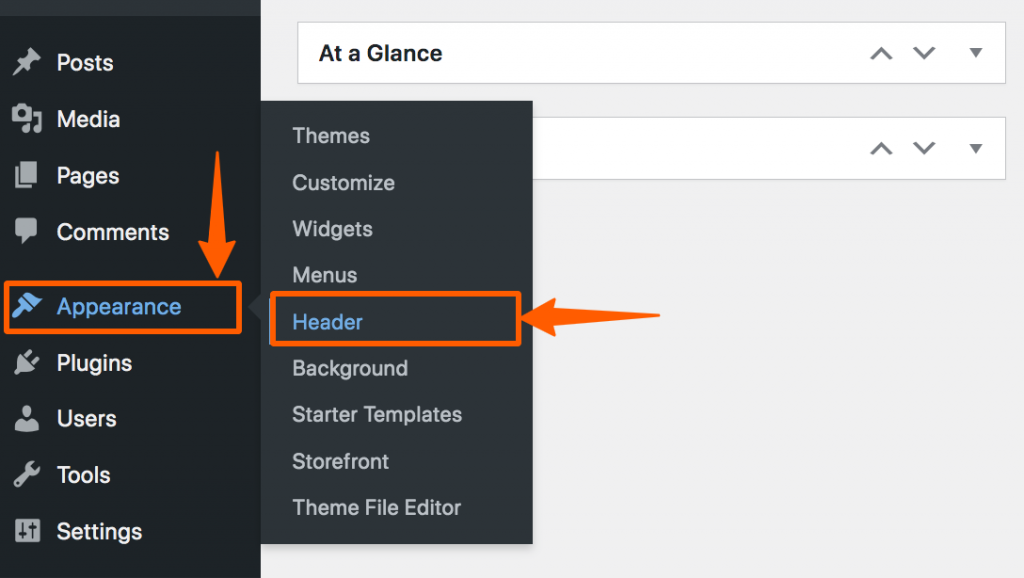
Start by logging into your WordPress dashboard. On the left menu, find and click “Appearance.” Then click “Customize.” This opens the Theme Customizer. Here, you can change many parts of your site’s design. Look for the header or background image section. The exact name may differ by theme.
Uploading The Image
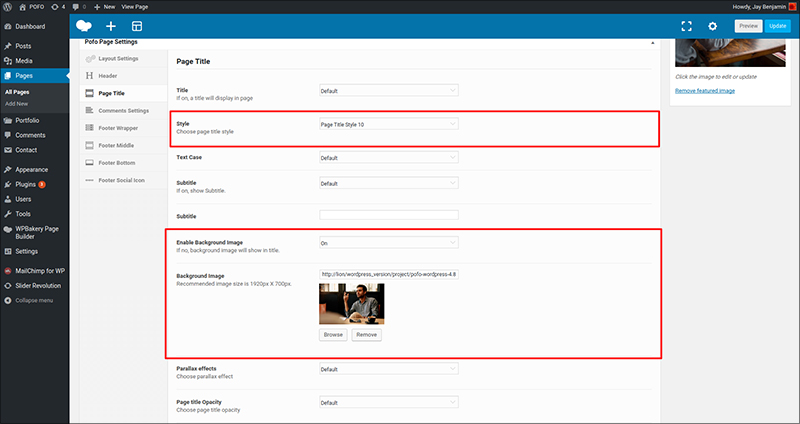
Inside the header image area, click the button to add a new image. Choose an image file from your computer. Pick one that fits your header size well. After uploading, you can crop the image if needed. Save your changes to apply the new header background.
Adjusting Header Settings
Some themes let you adjust the header image position. You can set it to center, left, or right. You may also control the image size or enable a fixed background. Experiment with these settings to find what looks best. Always preview your site to check the result before saving.
Credit: pofo.themezaa.com
Using Custom Css For Header Background
Using custom CSS to add a header background image in WordPress gives you full control over the design. This method works well if your theme does not have a built-in option for header backgrounds. By writing your own CSS code, you can choose the image, size, position, and repeat style.
Custom CSS lets you style your header exactly how you want. It also keeps your design clean and fast. Below are the steps to add a header background image using custom CSS.
Locating The Additional Css Section
First, log in to your WordPress dashboard. Go to Appearance and then click Customize. This opens the theme customizer.
Inside the customizer, find the Additional CSS tab. This is where you can add your own CSS code safely. Changes here apply immediately, and you can preview them live.
Writing Css For Background Image
In the Additional CSS box, type the CSS to target your header. For example:
.header { background-image: url('your-image-url.jpg'); background-size: cover; background-position: center; background-repeat: no-repeat; } Replace your-image-url.jpg with your actual image link. The background-size: cover; makes the image fill the header area.
The background-position: center; keeps the image centered. background-repeat: no-repeat; stops the image from repeating across the header.
Testing And Adjusting The Css
After adding the CSS, preview your site. Check if the image fits the header nicely. Resize your browser to see if the image stays in place.
Adjust the CSS values if needed. Change background-position to top, left, or other positions. Use background-size: contain; if you want the entire image visible.
Clear your browser cache to see the latest changes. Repeat testing until the header looks right on all devices.
Utilizing Page Builders
Utilizing page builders makes adding a header background image simple and fast. These tools offer drag-and-drop features. You can see your changes in real time. This helps you create a unique header without coding skills. Page builders often come with ready templates and customization options. This lets you design a header that fits your site’s style and needs.
Popular Page Builders Compatible With Headers
Elementor, Beaver Builder, and Divi are popular page builders. They support header customization easily. These builders work well with most WordPress themes. They let you add images, colors, and overlays to headers. Their large user base means many tutorials and support options. This makes them beginner-friendly choices for adding header backgrounds.
Adding Background Images With Builders
Open the page builder editor on your WordPress site. Select the header section or create a new one. Find the background settings in the builder panel. Upload your chosen image or select one from the media library. Adjust image size and position for the best look. Save and preview your changes to check how it appears.
Customizing For Mobile Responsiveness
Many page builders include mobile editing tools. Switch to mobile view in the editor. Resize or reposition the header image for small screens. Use options like background image scaling or cropping. Ensure text remains visible over the image. Test on different devices to confirm the header looks good everywhere.

Credit: www.youtube.com
Troubleshooting Common Issues
Troubleshooting common issues can save time and frustration when adding a header background image in WordPress. Problems may arise due to theme settings, image size, or browser cache. This section covers simple fixes for frequent challenges.
Image Not Displaying
Check if the image file is uploaded correctly in the media library. Confirm the image URL is accurate in the header settings. Clear your browser cache and refresh the page. Sometimes, theme restrictions prevent images from showing. Try switching to a default theme to test if the problem persists.
Header Overlapping Content
This happens when the header height is too large or CSS conflicts occur. Adjust the padding or margin in the header area. Use custom CSS to set clear space below the header. Ensure no other elements have negative margins that push content upward. Preview changes on different devices to verify layout consistency.
Slow Loading Times
Large image files cause slow loading. Compress images before uploading using online tools. Use the correct file format, like JPEG for photos and PNG for graphics. Enable caching plugins to speed up site loading. Avoid using multiple large images in the header. Optimize your website for better performance overall.
Enhancing Header With Additional Effects
Enhancing your WordPress header with extra effects can make your website more attractive. These effects help your header stand out and keep visitors interested. You can easily add colors, movement, or depth to your header background image. Each effect adds a unique touch to your site’s look.
Adding Overlay Colors
Overlay colors add a layer over your header image. This helps text or buttons become easier to see. Use transparent or solid colors to create contrast. You can set overlay colors using CSS or page builder tools. Choose colors that match your site’s theme for a consistent look.
Using Parallax Scrolling
Parallax scrolling makes your header image move slower than other content. This adds depth and a modern feel to your site. Many WordPress themes support parallax effects. You can also add parallax with plugins or custom code. It gives visitors a smooth and dynamic scrolling experience.
Incorporating Animation
Animations bring life to your header background image. Simple effects like fade-ins or zooms catch the eye without distraction. Use CSS animations or WordPress plugins to add motion. Keep animations subtle to maintain a professional look. Well-done animations make your site feel fresh and engaging.
Credit: wpcred.com
Frequently Asked Questions
How Do I Add A Header Background Image In WordPress?
To add a header background image, go to Appearance > Customize > Header Media. Upload your image and save changes. Some themes may have different settings, so check your theme’s documentation for specifics.
Can I Use Any Image Size For WordPress Header Background?
Image size depends on your theme’s recommended dimensions. Using the correct size ensures the image looks sharp and loads fast. Check your theme guide for exact width and height requirements before uploading.
Will Adding A Header Background Image Affect Site Speed?
A large image can slow down your site. Optimize the image by compressing it without losing quality. Use tools like TinyPNG or WP Smush to keep your site fast.
How To Make The Header Background Image Responsive In WordPress?
Most modern themes automatically make header images responsive. If not, use custom CSS with background-size: cover; and background-position: center; for better responsiveness across devices.
Conclusion
Adding a header background image makes your WordPress site look better. It helps catch visitors’ attention right away. You can choose a picture that shows your style or brand. Changing the header is simple and takes just a few steps.
Try different images to see what fits best. Keep your site fresh and inviting with this small update. Enjoy creating a unique look for your website today.



