
Are you struggling to make your WordPress site look complete and professional? Adding a header and footer is one of the easiest ways to improve your website’s appearance and usability.
But if you’re not sure where to start, it can feel confusing and overwhelming. Don’t worry—this guide will walk you through simple, step-by-step methods to add a header and footer to your WordPress site quickly. By the end, you’ll have a polished website that keeps visitors engaged and coming back for more.
Ready to make your site stand out? Let’s dive in!
Choosing The Right Method
Choosing the right method to add a header and footer in WordPress depends on your skill level and needs. Some methods are simple and safe for beginners. Others require more control and coding knowledge. Picking the right approach saves time and avoids mistakes.
Using The WordPress Customizer
The WordPress Customizer lets you change your header and footer without touching any code. It has a live preview that shows changes immediately. This method is perfect for beginners. You can add text, images, or menus easily. Many themes support this feature for quick edits.
Installing Header And Footer Plugins
Plugins add extra features to your WordPress site. Header and footer plugins help you insert code or content quickly. They work well if you want to add scripts like Google Analytics. Most plugins have simple settings and guides. This method is safe and does not require coding skills.
Editing Theme Files Directly
Editing theme files gives you full control over your header and footer. You work with PHP and HTML code inside your theme. This method suits advanced users or developers. It allows unique designs and custom functions. Always back up files before making changes. Mistakes here can break your website.
Credit: kinsta.com
Adding A Header
Adding a header to your WordPress site helps visitors know your brand instantly. The header sits at the top of every page. It can show your logo, site title, and menus. A clear, well-designed header improves user experience and site navigation. WordPress offers simple ways to customize your header without coding. Let’s explore how to add and customize your header step-by-step.
Customizing Header Via Customizer
Start by going to your WordPress dashboard. Click on Appearance, then select Customize. This opens the WordPress Customizer. Inside, find the Header section. Here, you can change header settings like the site title, tagline, and colors. Use live preview to see changes immediately. Adjust font sizes or colors to match your brand style. Save changes once you are happy with the look.
Uploading A Custom Header Image
Headers often look better with images or logos. To upload a custom header image, go to Appearance > Customize > Header Media. Click on “Add new image” to upload your picture. Choose an image that fits well at the top of your site. WordPress will show you a preview. Crop the image if needed. This image will appear on every page’s header area. It makes your site look professional and unique.
Adding Text And Navigation Menus
Headers usually have text and menus for easy navigation. Use the Customizer to add or edit your site title and tagline. To add navigation menus, go to Appearance > Menus. Create a new menu or edit an existing one. Add pages, categories, or custom links to the menu. Assign the menu to the header location. This lets visitors find important pages quickly. Well-organized menus improve user experience and SEO.
Adding A Footer
The footer is the bottom section of your website. It shows important information on every page. Adding a footer helps visitors find key details easily. This includes contact info, links, or copyright notes. WordPress makes it simple to add and customize your footer.
Using Widgets For Footer Content
Widgets are blocks you can place in your footer. They add text, images, menus, or other elements. To use widgets, go to Appearance > Widgets in your dashboard. Find the footer widget area. Drag and drop widgets into this area. You can add multiple widgets for different content sections.
Inserting Footer Text And Links
Adding simple text or links is easy. Use a Text widget in the footer area. Write your message or paste links in the text box. Format your links with HTML for better style. For example, Link Text makes clickable links. This helps visitors navigate your site quickly.
Customizing Footer Layout
Footer layout changes how content appears. Some themes let you choose columns or rows. Go to Appearance > Customize > Footer to see layout options. Choose the number of columns for widgets. Arrange content to make it clear and neat. A clean footer improves user experience and site look.
Using Plugins For Headers And Footers
Using plugins to add headers and footers in WordPress is a simple and effective method. Plugins save time and avoid coding. They offer easy tools to customize your site’s header and footer areas. This approach works well for beginners and those who want quick results.
Popular Header And Footer Plugins
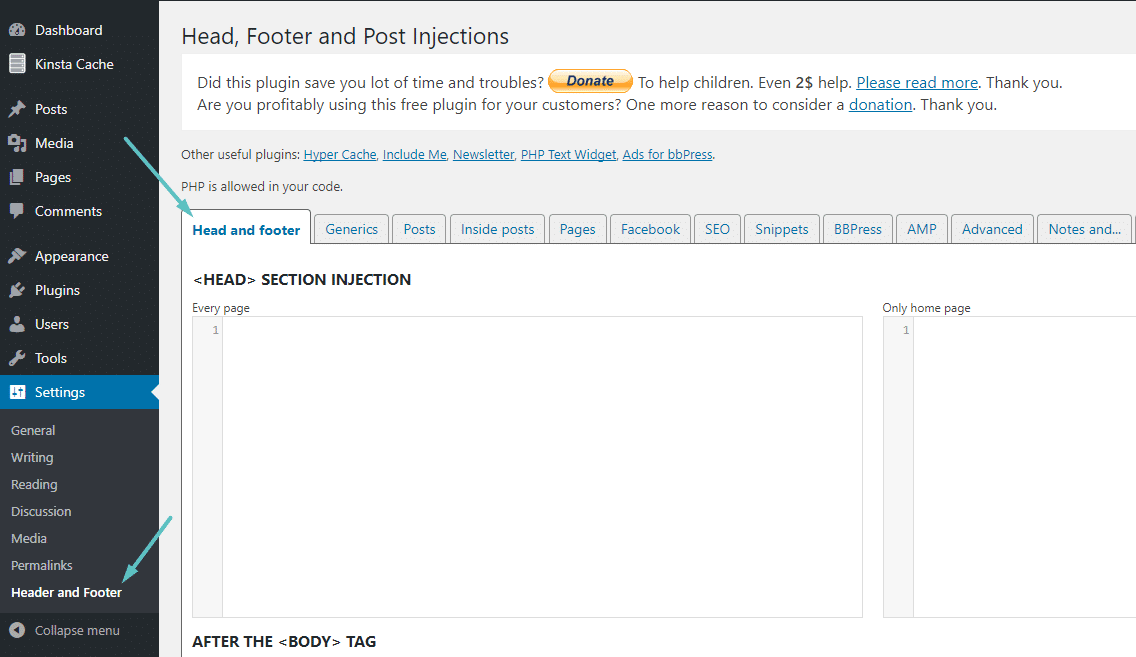
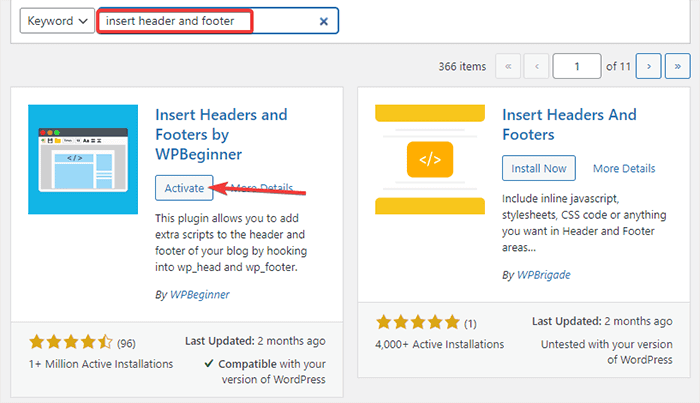
Several plugins make adding headers and footers easy. “Insert Headers and Footers” is widely used for adding code snippets. “Header Footer Code Manager” helps manage scripts without editing theme files. “Elementor” offers drag-and-drop tools for custom headers and footers. Choose plugins based on your needs and skill level.
Installing And Activating Plugins
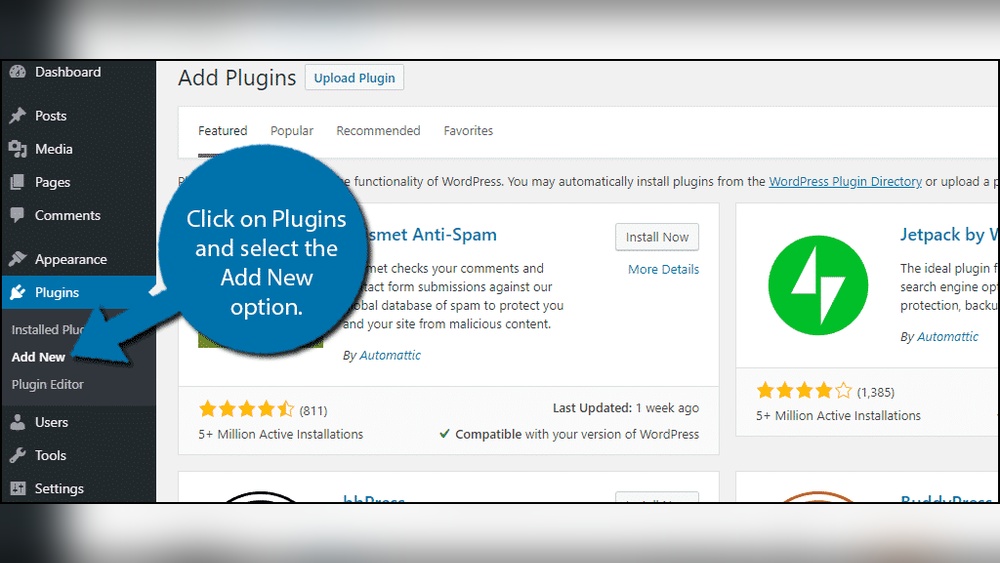
To install a plugin, go to your WordPress dashboard. Click on “Plugins” and select “Add New.” Search for the plugin by name. Click “Install Now” and then “Activate.” The plugin is now ready to use. Always check plugin compatibility with your WordPress version.
Configuring Plugin Settings
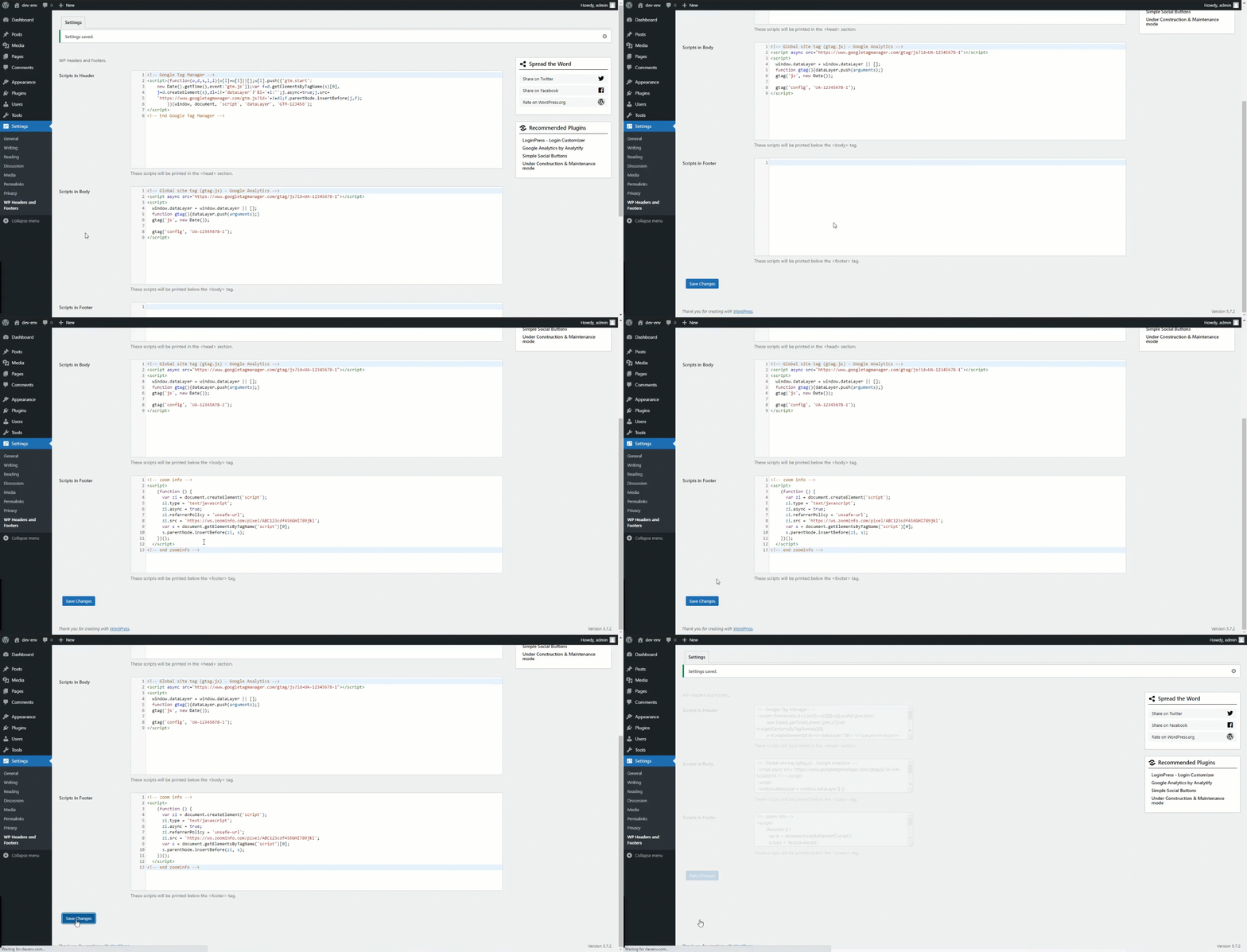
After activation, find the plugin settings in the dashboard. Each plugin has different options to customize headers and footers. Follow the plugin’s instructions carefully. Add your code or design elements as needed. Save changes and check your site to see the updates. Make sure the header and footer look good on all devices.
Editing Theme Files Safely
Editing theme files in WordPress lets you customize your site’s look. It changes the header and footer areas. These are important parts of your website. Editing files directly can break the site if done wrong. Always take steps to keep your site safe.
Back up your site before making changes. This way, you can restore it if needed. Use tools that make editing easier and safer. Follow simple rules to avoid common mistakes.
Accessing Theme Editor
Log in to your WordPress dashboard. Go to Appearance > Theme Editor. Here, you see files that build your theme. Look for header.php and footer.php. These files control your site’s top and bottom parts. Edit them carefully. Avoid changing other files unless you know what you do.
Adding Code To Header.php And Footer.php
Find the spot in header.php where you want new code. Add your HTML, CSS, or scripts here. Do the same with footer.php for footer content. Save changes and check your site. Make sure everything looks right and works well. Small errors can break your website.
Using Child Themes To Preserve Changes
Direct edits get lost after theme updates. Child themes keep your changes safe. Create a child theme that copies your main theme. Edit header.php and footer.php in the child theme instead. Updates will not erase your custom code. This method keeps your site stable and easy to manage.
Tips For Effective Headers And Footers
Headers and footers are important parts of any website. They help visitors navigate and find key information quickly. Good headers and footers improve user experience and keep people on your site longer. Follow these tips to create effective headers and footers that look great and work well.
Keeping Design Consistent
Use the same colors and fonts in your header and footer as the rest of your site. This creates a unified look. Consistent design builds trust and makes your site feel professional. Avoid using too many different styles or fonts. Keep it simple and clean for easy reading.
Optimizing For Mobile Devices
Many people visit websites on phones or tablets. Make sure your header and footer look good on small screens. Use responsive design to adjust layout automatically. Buttons and links should be easy to tap. Avoid crowded or cluttered areas that confuse users.
Adding Calls To Action
Headers and footers are great spots for calls to action. Invite visitors to contact you, sign up, or follow on social media. Keep messages short and clear. Use buttons or links that stand out but don’t distract. A good call to action helps guide visitors to the next step.
Troubleshooting Common Issues
Troubleshooting issues with headers and footers in WordPress can be simple. Knowing common problems helps fix them quickly. This section covers the most frequent issues and easy solutions.
Header Or Footer Not Showing
Sometimes, the header or footer does not appear on your site. Check if you saved changes correctly. Clear your browser cache and reload the page. Also, verify that the theme supports custom headers and footers. Some themes hide these areas by default.
Plugin Conflicts
Plugins can sometimes cause conflicts with headers or footers. Deactivate all plugins and see if the header or footer appears. Reactivate plugins one by one to find the problem. Once found, consider replacing the conflicting plugin or contact the plugin developer for help.
Restoring Default Settings
If changes cause more problems, restoring default settings is a good option. Go to the theme settings or the plugin settings used for header and footer. Look for a reset or restore option. This returns your header and footer to the original state, fixing many issues.
Credit: wordpress.org
Credit: rarathemes.com
Frequently Asked Questions
How Do I Add A Header In WordPress?
To add a header, go to Appearance > Customize > Header in your WordPress dashboard. Upload your logo or text and save changes. You can also use page builders or custom code for advanced headers.
Can I Customize The WordPress Footer Easily?
Yes, you can customize the footer via Appearance > Customize > Footer. Add widgets, text, or links. For more control, use plugins or edit the footer. php file in your theme.
What Plugins Help Add Headers And Footers?
Popular plugins like Insert Headers and Footers or Header Footer Code Manager simplify adding custom code. They allow you to insert scripts without editing theme files, making customization safe and easy.
Is Coding Required To Add Headers And Footers?
No, coding is not necessary if you use WordPress themes or plugins with header and footer options. However, basic HTML/CSS knowledge helps in advanced customization.
Conclusion
Adding a header and footer in WordPress is simple and useful. These sections help organize your site and improve user experience. You can customize them to fit your style and brand. Use built-in tools or plugins to make changes quickly.
Keep your design clean and easy to navigate. Regular updates keep your site fresh and professional. Try adding headers and footers today to make your website better. Small steps lead to big improvements.



