

Are you looking to make it easier for your visitors to find your location? Adding a Google Map to your WordPress site can do just that.
It’s a simple step that builds trust and boosts engagement. Imagine your customers quickly spotting where you are without any confusion. In this guide, you’ll discover easy ways to add a Google Map to your site, even if you’re not tech-savvy.
Keep reading, and by the end, your site will be more user-friendly and professional. Let’s get started!
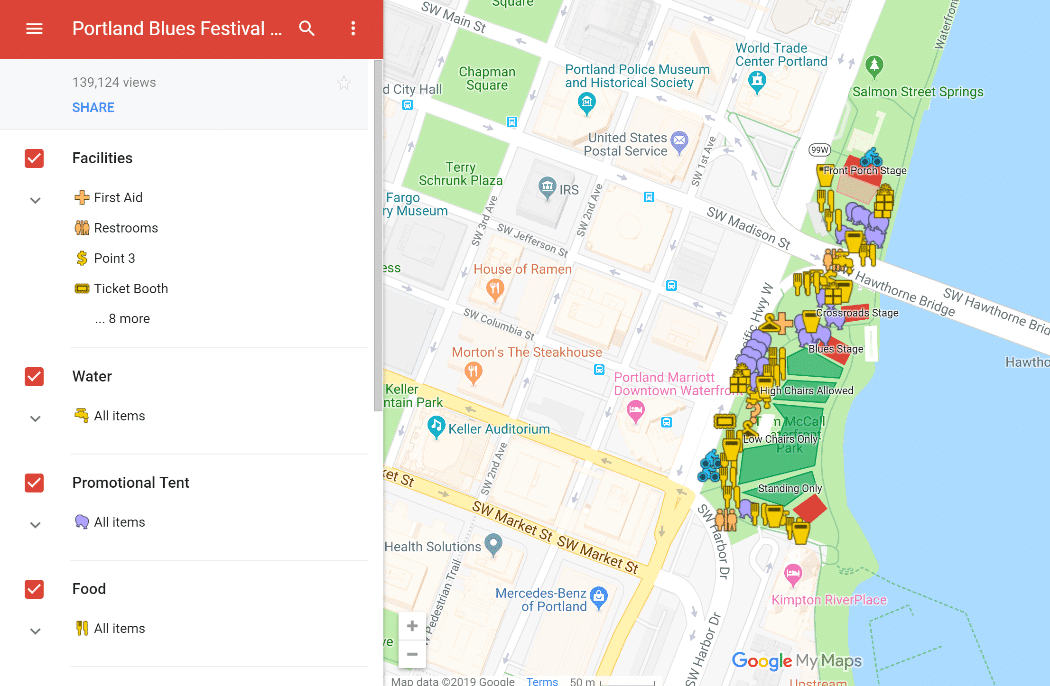
Credit: kinsta.com
Choose The Right Google Map Type
Choosing the right Google Map type is important for your WordPress site. The map should fit your needs and your visitors’ expectations. Picking the best map type helps users find locations easily. It also improves the overall look of your site.
Different map types serve different purposes. Some maps are simple and show just one spot. Others let users explore and interact with the map. Knowing the differences helps you decide what to use.
Static Vs Interactive Maps
Static maps are images that do not move or change. They load fast and are easy to add. Use static maps if you want to show one location clearly. Visitors cannot zoom in or out on static maps.
Interactive maps let users zoom, move, and explore. These maps offer more details and options. They are good for showing multiple locations or routes. Interactive maps take longer to load but provide a richer experience.
Selecting Map Features
Think about what features your map needs. Should it show traffic, transit, or biking routes? Do you want to add markers or info windows? Choose features that help visitors understand the map quickly.
Keep your map simple if you want fast loading times. Extra features may slow down your site. Focus on what your audience needs most. Customize the map to match your site’s style and purpose.
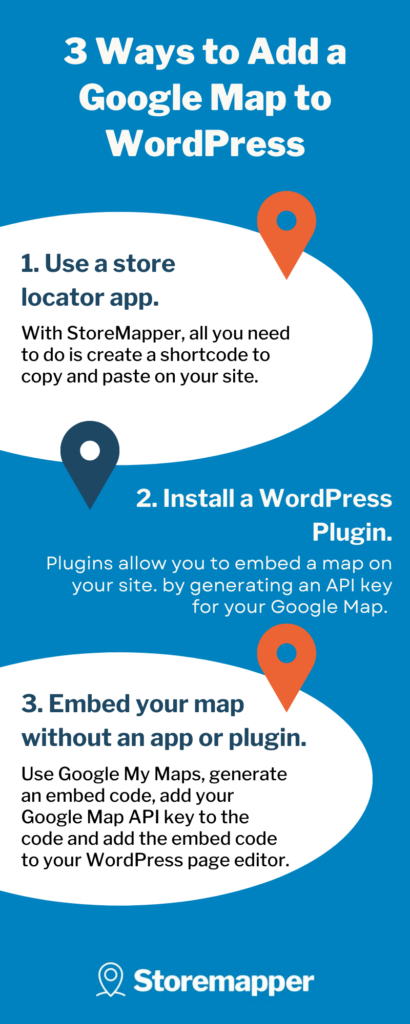
Credit: www.storemapper.com
Get Google Maps Api Key
To add Google Maps to your WordPress site, you need a Google Maps API key. This key allows your website to communicate with Google’s servers. It helps display maps and location data correctly. Obtaining this key is a simple process. It involves setting up a Google Cloud account, enabling the Maps API, and creating a secure API key.
Create Google Cloud Account
First, visit the Google Cloud Platform website. Sign up using your Google email address. If you already have an account, just log in. You might need to enter billing details. Google offers a free trial credit to start. This account will manage your API keys and services.
Enable Maps Api
After logging in, open the Cloud Console dashboard. Find the “APIs & Services” menu. Click on “Library” and search for “Maps JavaScript API.” Select it and click “Enable.” This step allows your site to load Google Maps correctly. Without enabling, the map will not show.
Generate And Restrict Api Key
Next, go to “Credentials” in the APIs & Services section. Click “Create Credentials” and choose “API Key.” Copy the generated key for use in WordPress. Restrict the key for security. Set limits by HTTP referrers to your website domain. This prevents others from using your key without permission.
Add Google Map Using Plugin
Adding a Google Map to your WordPress site helps visitors find your location easily. Using a plugin makes this task simple and quick. Plugins handle the technical details and let you focus on customizing the map. This method works well for beginners and saves time.
Install Recommended Plugins
Start by going to your WordPress dashboard. Click on “Plugins” and then “Add New.” Search for popular Google Map plugins like “WP Google Maps” or “MapPress.” Choose one with good reviews and active updates. Click “Install Now” and then “Activate” to enable the plugin on your site.
Configure Plugin Settings
After activation, find the plugin settings in the dashboard menu. Enter your Google Maps API key if required. Set your default location by typing an address or coordinates. Customize map size, zoom level, and style to match your site design. Save changes to apply your preferences.
Embed Map With Shortcode
The plugin generates a shortcode for your map. Copy this shortcode from the plugin’s interface. Paste it into any post, page, or widget where you want the map to appear. Update or publish your content. Your Google Map will display exactly where you placed the shortcode.
Add Google Map Manually
Adding a Google Map manually to your WordPress site is simple and effective. It lets visitors see your location directly on your page. This method uses the embed code from Google Maps and places it in your WordPress editor. You can control the size and position of the map to fit your site’s style. Follow these steps to add a map without any plugins or extra tools.
Generate Embed Code From Google Maps
Open Google Maps in your browser. Search for the location you want to show. Click the “Share” button on the left panel. Select the “Embed a map” tab. Choose the size you prefer from the dropdown menu. Copy the HTML iframe code provided. This code will display the map on your site.
Insert Code In WordPress Editor
Go to your WordPress dashboard and open the page or post editor. Switch to the “Text” or “HTML” view, not the visual editor. Paste the iframe code where you want the map to appear. Save or update your page. Preview it to see the map embedded successfully.
Adjust Map Size And Position
Inside the iframe code, find the width and height attributes. Change the numbers to fit your design, like width=”600″ height=”400″. To center the map, wrap the iframe in a div with a style attribute:
Optimize Map For Mobile And Speed
Optimizing your Google Map for mobile and speed improves user experience. Fast loading maps keep visitors engaged. Mobile-friendly maps fit any screen size. This ensures easy navigation on phones and tablets. Slow maps can frustrate users and increase bounce rates. Focus on responsive design and lazy loading to enhance performance.
Responsive Design Tips
Make your map flexible and adaptive. Use CSS to set width to 100%. Height should adjust based on screen size. Avoid fixed pixel sizes. Test the map on multiple devices. Ensure the map looks good on small screens. Use viewport meta tags for better scaling. This helps the map resize smoothly and stay usable.
Lazy Loading Maps
Load the map only when users scroll to it. This saves bandwidth and speeds up the initial page load. Use plugins or code snippets to enable lazy loading. It reduces the time visitors wait before seeing content. Lazy loading improves overall site speed and keeps users happy. It is especially helpful for pages with many elements.
Troubleshoot Common Issues
Adding a Google Map to your WordPress site can improve user experience. Sometimes, issues may stop the map from showing correctly. This section helps you fix common problems fast. Follow the tips below to get your map working smoothly again.
Api Key Errors
Google Maps needs a valid API key to work. Check if your API key is active and entered correctly. Make sure the key has permissions for Maps JavaScript API. If the key is restricted, update settings to allow your website’s domain. Invalid or missing keys cause the map to break or show errors.
Map Not Displaying
The map might not appear for many reasons. Clear your browser cache and reload the page. Check your internet connection to ensure it is stable. Confirm your WordPress theme supports embedding Google Maps. Sometimes, JavaScript errors in the theme can block the map. Disable browser extensions that may interfere with scripts.
Plugin Conflicts
Other plugins may stop Google Maps from loading. Deactivate all plugins except the map plugin. Check if the map shows up. If yes, activate plugins one by one to find the conflict. Update all plugins to their latest versions. Using many plugins can slow your site and cause errors too.

Credit: wp-eventmanager.com
Frequently Asked Questions
How Do I Embed A Google Map In WordPress?
To embed a Google Map, get the map’s embed code from Google Maps. Paste this code into your WordPress page using the Custom HTML block or editor.
Is A Google Maps Plugin Necessary For WordPress?
No, a plugin isn’t necessary. You can embed maps manually using Google’s embed code. Plugins offer extra features like customization and responsiveness.
Can I Customize The Google Map On My Site?
Yes, Google Maps allows you to customize size, zoom level, and map type before embedding. Some plugins also offer advanced styling and controls.
How To Get A Google Maps Api Key For WordPress?
Visit Google Cloud Platform, create a project, and enable the Maps JavaScript API. Then generate and copy your API key for WordPress use.
Conclusion
Adding a Google Map to your WordPress site is simple and useful. It helps visitors find your location quickly. You only need a few steps to set it up. Using plugins or embedding code works well. Keep your map clear and easy to use.
This small change can improve user experience a lot. Try it today and see the difference on your site.



