
Are you looking to make your WordPress site more engaging and visually appealing? Adding a gallery is one of the easiest ways to showcase your photos, products, or projects in a clean and attractive way.
But if you’re not sure where to start or worried it might be too complicated, don’t worry. This guide will walk you through simple, step-by-step methods to add a gallery to your WordPress site—no technical skills needed. By the end, you’ll have a stunning gallery that grabs your visitors’ attention and keeps them coming back for more.
Ready to transform your site? Let’s dive in!
Choosing The Right Gallery Plugin
Choosing the right gallery plugin is key for a WordPress site. It affects site speed, appearance, and ease of use. Pick a plugin that fits your needs and skill level. Some plugins work better for simple galleries, others for complex ones. Consider your site’s theme and future updates too.
Popular Free Plugins
Many free gallery plugins offer good features. They fit small to medium websites well. Plugins like “Envira Gallery Lite” and “NextGEN Gallery” are favorites. They allow basic image organization and display options. Free plugins often have user-friendly interfaces.
Premium Options
Paid plugins offer extra features and support. They provide advanced layouts, effects, and customization. Premium plugins like “Modula Pro” and “FooGallery Pro” give more control. These work well for professional portfolios or stores. They often include faster updates and dedicated help.
Plugin Compatibility
Check if the plugin works with your WordPress version. Ensure it fits your theme and other plugins. Some plugins cause conflicts or slow down the site. Test the plugin on a staging site before full use. Compatibility keeps your site stable and secure.
Credit: www.elegantthemes.com
Preparing Your Images
Preparing your images is a key step before adding a gallery to WordPress. Well-prepared images load faster and look better on your site. It also helps keep your website organized and easy to manage.
Optimizing Image Size
Large images slow down your website. Resize images to fit your gallery dimensions. Use tools like Photoshop or free online compressors. Aim for a balance between quality and file size. Smaller files speed up page loading and improve user experience.
Selecting Image Formats
Choose the right format for your images. JPEG works well for photos with many colors. PNG is better for images with text or transparent backgrounds. WebP offers good quality with smaller file sizes. Pick formats that keep images clear and fast to load.
Organizing Images
Sort images into folders on your computer. Use clear names that describe each image. Group similar pictures together. This makes uploading easier and faster. Good organization saves time and reduces mistakes when building your gallery.
Creating A Gallery With The Default WordPress Block
Creating a gallery with the default WordPress block is simple and fast. WordPress offers a built-in gallery block that lets you showcase multiple images neatly. This tool helps you display photos without extra plugins or complex setups.
You can add pictures from your library or upload new ones. The block also allows basic customization of the gallery’s look. This makes it easy for anyone to create a clean, attractive photo display.
Adding The Gallery Block
Start by opening the post or page editor in WordPress. Click the plus (+) icon to add a new block. Search for the “Gallery” block and select it. The block will appear in your content area, ready for images.
Uploading And Selecting Images
Choose images from your media library or upload new files. Click “Upload” to add photos from your computer. Select “Media Library” to pick existing images. You can add many pictures at once for a complete gallery.
Customizing Gallery Layout
Adjust the number of columns to control the gallery’s grid. Use the block settings on the right side to change columns. Decide if you want cropped or uncropped images. Add captions under each photo for extra details.
Setting Up A Gallery Using Plugins
Using plugins to set up a gallery in WordPress is a simple way to display images beautifully. Plugins offer many options to customize your gallery. They save time and provide features not available in the basic WordPress editor. Below are clear steps to help you create a gallery using plugins.
Installing And Activating Plugins
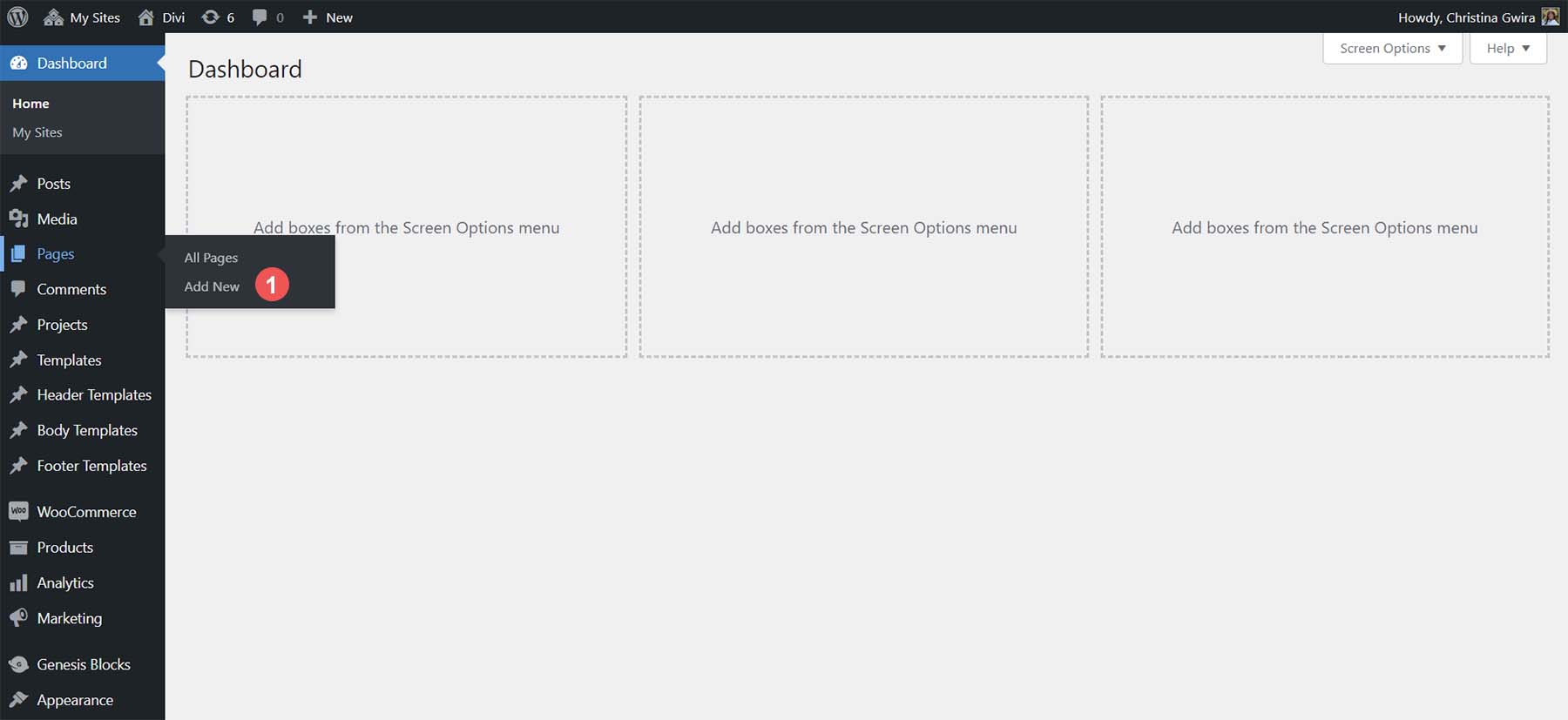
First, go to your WordPress dashboard. Find the “Plugins” menu on the left side. Click “Add New.” Use the search bar to find gallery plugins like “Envira Gallery” or “NextGEN Gallery.”
Once you find a plugin, click “Install Now.” After installation, click “Activate.” The plugin will now be ready to use on your site.
Configuring Plugin Settings
After activation, locate the plugin’s menu in your dashboard. Open it to access the settings page. Adjust the settings to fit your needs. You can set image sizes, layout styles, and gallery behavior.
Some plugins allow you to enable lightbox effects or add captions. Take time to explore all options. Proper settings improve the look and function of your gallery.
Adding Galleries Via Shortcodes
Most gallery plugins create shortcodes for your galleries. Shortcodes are small pieces of code you add to pages or posts. They tell WordPress where to display the gallery.
To add a gallery, create or edit a page. Paste the shortcode in the content area. Publish or update the page. Your gallery will appear where you placed the shortcode.
Enhancing Galleries With Advanced Features
Enhancing galleries with advanced features makes your WordPress site more attractive. These features improve user experience and keep visitors engaged. They help showcase images in a clearer and more interactive way.
Lightbox Effects
Lightbox effects let visitors see images in full size without leaving the page. Clicking an image opens it in a pop-up window over the content. This effect keeps visitors focused on your gallery. Many WordPress plugins offer easy lightbox setup. It helps create a smooth viewing experience on any device.
Slideshow Options
Slideshows show images one after another automatically or by user control. They save space and add movement to your gallery. You can set the speed and style of the slideshow. Some plugins allow pause, next, and previous buttons. Slideshows keep visitors interested in browsing your photos.
Filtering And Sorting
Filtering lets visitors choose images by categories or tags. Sorting arranges images by date, name, or popularity. These features help users find photos quickly. They make large galleries easier to navigate. WordPress gallery plugins often include filtering and sorting tools. This improves the overall gallery experience for your audience.
Optimizing Gallery Performance
Optimizing gallery performance is key to a smooth user experience on your WordPress site. Fast-loading galleries keep visitors engaged and reduce bounce rates. Slow galleries, on the other hand, can frustrate users and harm your site’s ranking on search engines.
Focus on smart techniques that enhance speed and reduce resource use. Proper optimization balances image quality and load times. Let’s explore some effective ways to improve gallery performance.
Lazy Loading Images
Lazy loading delays image loading until they appear on the screen. This reduces initial page load time. Visitors see the page faster, even with many images in the gallery.
Most WordPress themes and plugins support lazy loading. You can enable it with simple settings or use plugins designed for this feature. This method saves bandwidth and improves user experience on mobile devices.
Caching Strategies
Caching stores copies of your gallery pages. It lets the server deliver pages quickly without processing every request. Use caching plugins to create static versions of your gallery pages.
Browser caching also helps by storing images on the visitor’s device. Returning visitors load galleries faster. This method reduces load on your server and speeds up repeat visits.
Minimizing Plugin Impact
Too many plugins can slow down your website. Choose lightweight gallery plugins that do not add much load. Avoid plugins with redundant or heavy features.
Regularly update plugins to keep them optimized. Disable or remove unused plugins to reduce server strain. Testing your gallery’s speed after plugin changes helps maintain performance.
Troubleshooting Common Gallery Issues
Adding a gallery to WordPress can sometimes cause small problems. These issues stop your images from showing or make your gallery look wrong on phones and tablets. Fixing these problems is easy with the right steps. This section helps you solve common gallery troubles fast.
Images Not Displaying
Images may not show due to wrong file paths. Check if image URLs are correct. Clear your browser cache to load new files. Sometimes, image permissions block display. Make sure images have proper access rights. Also, check if images are uploaded fully. Incomplete uploads cause blank spaces.
Plugin Conflicts
Plugins can fight each other and break galleries. Deactivate other plugins one by one to find the conflict. Update all plugins to their latest versions. Old plugins often cause problems. Use only trusted and well-rated gallery plugins. Avoid running many similar plugins at once.
Responsive Design Fixes
Galleries may look bad on small screens without fixes. Use plugins that support responsive design. Check gallery settings for mobile options. Add custom CSS to adjust image sizes on phones. Test your gallery on different devices often. This keeps your site user-friendly everywhere.
Credit: enviragallery.com
Credit: www.greengeeks.com
Frequently Asked Questions
How Do I Create A Gallery In WordPress?
To create a gallery, go to the post editor, click ‘Add Media,’ select ‘Create Gallery,’ choose images, and insert. WordPress will display your gallery with default settings, which you can customize for layout and size.
Can I Add A Gallery Without Plugins In WordPress?
Yes, WordPress has a built-in gallery feature. Use the ‘Add Media’ button in the editor and select ‘Create Gallery’ to add images. No plugins are needed for basic galleries.
How To Customize WordPress Gallery Layout?
You can customize gallery layout by selecting columns, image size, and linking options in the gallery settings. Themes and plugins also offer advanced layout customization for galleries.
What’s The Best Plugin For WordPress Galleries?
Popular plugins include NextGEN Gallery, Envira Gallery, and FooGallery. They offer advanced features like lightboxes, albums, and easy drag-and-drop gallery creation.
Conclusion
Adding a gallery to WordPress is simple and useful. It helps show pictures clearly on your site. Choose the right tool or plugin for your needs. Organize images well to keep your site neat. Visitors will enjoy browsing through a clean, easy gallery.
Keep practicing to improve your skills. Your site will look more attractive and professional. Start adding galleries today and see the difference.



