
Are you looking to make your WordPress page more interactive and user-friendly? Adding a form is one of the best ways to do that.
Whether you want to collect feedback, gather contact details, or create surveys, a form lets your visitors connect with you easily. In this guide, you’ll learn simple, step-by-step methods to add a form to your WordPress page—no coding skills needed.
By the end, you’ll have a smooth, professional form that works perfectly for your site. Ready to boost your website’s engagement? Let’s get started!
Credit: crocoblock.com
Choose The Right Form Plugin
Choosing the right form plugin is key to adding forms to your WordPress page. The plugin controls how easy it is to create and manage forms. It also affects the look and function of your forms. A good plugin makes your site user-friendly and professional.
Many form plugins exist. Each has different features and levels of complexity. The right one fits your needs and skill level. It works well with your WordPress theme and other tools.
Popular Form Plugins For WordPress
Contact Form 7 is simple and free. It suits basic contact forms. WPForms offers a drag-and-drop builder for easy form creation. It works well for beginners. Gravity Forms is powerful but paid. It supports advanced forms with many options. Ninja Forms provides a free core plugin with paid add-ons. It balances ease and flexibility.
Factors To Consider When Selecting A Plugin
Check the plugin’s ease of use. Choose one with a clear interface. Look for customization options. The plugin should match your design needs. Consider if it supports spam protection. This keeps your site safe and clean. Ensure it integrates with email services if needed. Also, verify the plugin updates regularly for security.
Install And Activate The Plugin
Adding a form to your WordPress page starts with installing and activating the right plugin. This step is essential to get your form working smoothly. Plugins add new features without touching code. Follow the steps below to install and activate a form plugin easily.
Step-by-step Installation Guide
Log in to your WordPress dashboard. Go to Plugins on the left menu. Click Add New. Use the search box to find a form plugin like “Contact Form 7” or “WPForms”.
Once you find the plugin, click Install Now. Wait a few seconds. Then click Activate. The plugin is now ready to use. You can find its settings in the dashboard menu.
Troubleshooting Common Installation Issues
Sometimes, the plugin may not install or activate properly. Check your internet connection first. Make sure your WordPress version supports the plugin. Clear your browser cache and try again.
If you see an error, check your site’s storage space. Some hosts limit plugin installations. Disable other plugins to avoid conflicts. Contact your hosting provider if problems continue.
Create A New Form
Creating a new form on your WordPress page is simple and quick. It helps visitors contact you, sign up, or send information. This guide shows how to make a form that fits your needs perfectly. Follow these steps to build a clean, easy-to-use form.
Selecting Form Fields
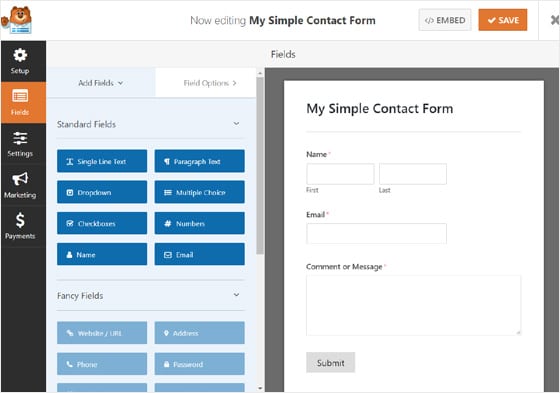
Start by choosing the form fields you want. Common fields include name, email, and message. Pick only what you need to keep the form short. Use checkboxes or dropdowns for multiple choices. Text fields work well for short answers. Make sure each field is clear and easy to understand.
Customizing Form Settings
Next, adjust the form settings to fit your site. Set the form title and description. Choose where form responses go, like your email address. Turn on notifications to know when someone fills the form. Set confirmation messages to thank users after submission. Check spam protection options to avoid unwanted messages.
Credit: www.monsterinsights.com
Add The Form To Your Page
Adding a form to your WordPress page lets visitors contact you easily. It can collect feedback, questions, or orders. You can add forms in several simple ways. Choose the best method for your site and skill level.
Using Shortcodes
Shortcodes are small codes that insert forms quickly. Copy the shortcode from your form plugin. Paste it into the WordPress editor where you want the form to show. The form appears automatically when you publish the page. This method works well with classic and block editors.
Embedding With Block Editor
The WordPress block editor has a special block for forms. Open your page in the editor. Click the plus (+) icon and search for your form plugin’s block. Select it, then choose the form you want from the dropdown menu. The form displays immediately on the page preview. This way is visual and easy for beginners.
Adding Forms Via Widgets
Widgets add forms to sidebars or footers. Go to Appearance > Widgets in your dashboard. Find the widget for your form plugin. Drag it to the sidebar or footer area. Select the form you want to show. Save changes, and the form appears on your site’s widget area. This method is perfect for site-wide forms.
Test Your Form
Testing your form is a key step after adding it to your WordPress page. It ensures the form works well and collects data correctly. Testing helps catch problems early. It also improves user experience and keeps your site professional.
Test your form on different devices and browsers. Check that all fields accept the right information. Make sure the form sends data to your email or database. Testing avoids lost leads and confused users.
Checking Form Functionality
Start by filling out the form like a visitor would. Enter different types of data to see if the form accepts them. Test required fields by leaving them empty. The form should warn you to fill these fields.
Submit the form and watch for confirmation messages. These messages tell users their form sent successfully. Check if you receive the form data by email or in your dashboard. Test the form multiple times to be sure.
Fixing Submission Errors
If the form does not submit, check for error messages. These messages show what is wrong with the form. Fix errors like missing fields or invalid data types. Adjust field settings in your form plugin if needed.
Check your email spam folder if you do not get submissions. Sometimes emails get marked as spam. Use a plugin or SMTP service to improve email delivery. Retest the form after making fixes to confirm it works.
Optimize Form For Better Results
Optimizing your form improves the chance of getting better responses. A well-designed form makes visitors feel comfortable and willing to share information. Small changes in design and function can boost form completion rates. Focus on clarity, ease, and security to enhance form performance.
Improving Form Design
Use clear labels for each field. Avoid asking for too much information. Keep the form short and simple. Use a clean layout with enough space between fields. Choose readable fonts and contrast colors for text and background. Highlight the submit button with a distinct color. Make important fields easy to identify.
Enhancing User Experience
Make the form mobile-friendly. Test it on phones and tablets. Add helpful placeholder text inside input boxes. Provide instant feedback for errors or missing fields. Use progress indicators for longer forms. Allow users to save and continue later. Keep instructions short and direct.
Adding Spam Protection
Use CAPTCHA or reCAPTCHA to stop bots. Limit the number of submissions per user. Add a simple math question for humans. Use hidden fields to catch automated submissions. Enable email verification to confirm real users. Regularly check and remove spam entries from your database.
Credit: wpmailsmtp.com
Frequently Asked Questions
How Do I Add A Contact Form To A WordPress Page?
To add a contact form, install a plugin like WPForms or Contact Form 7. Create your form using the plugin, then embed it on your WordPress page using a shortcode or block editor.
Which Plugins Are Best For WordPress Forms?
Popular plugins include WPForms, Contact Form 7, and Gravity Forms. They offer easy drag-and-drop builders, customization, and spam protection to create professional forms efficiently.
Can I Customize WordPress Forms Without Coding?
Yes, most form plugins offer drag-and-drop builders. You can customize fields, layout, and design without any coding skills, making it simple to create forms tailored to your needs.
How Do I Embed A Form On A WordPress Page?
After creating your form, copy the shortcode provided by the plugin. Paste this shortcode into the page editor where you want the form to appear, then publish or update the page.
Conclusion
Adding a form to your WordPress page is simple and useful. It helps visitors contact you or share information easily. Choose a plugin, create the form, and place it where needed. Test it to make sure it works well. Regularly update your form for best results.
This small step can improve your website’s interaction and user experience. Keep it clear and easy to use. Your visitors will appreciate the effort.



