
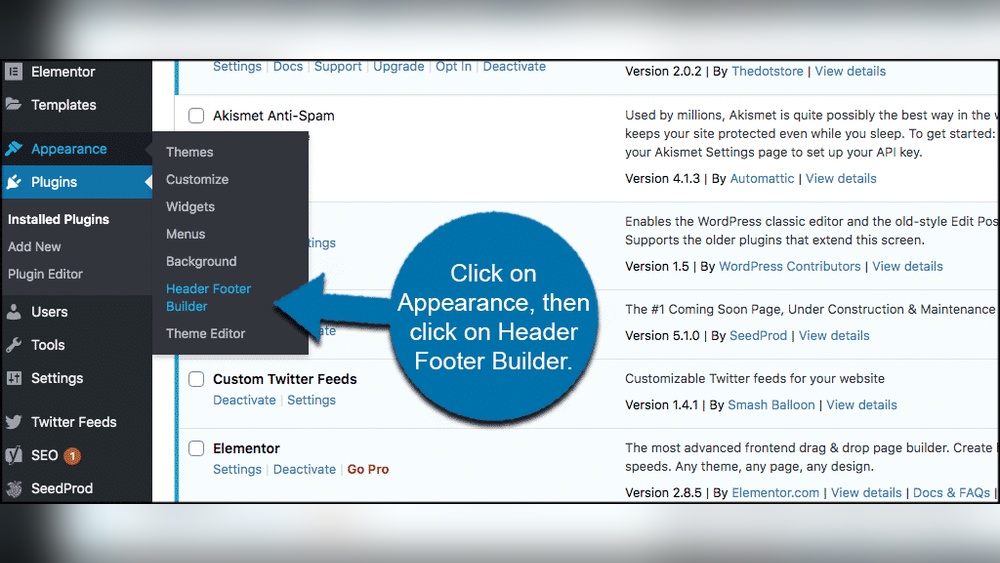
Are you struggling to add a footer to your WordPress site using Elementor? You’re not alone, and the good news is it’s easier than you think.
A well-designed footer can boost your site’s professionalism and keep visitors engaged longer. In this guide, you’ll discover simple steps to create and customize a footer that fits your brand perfectly. By the end, you’ll have a footer that not only looks great but also enhances your website’s user experience.
Ready to make your site stand out? Let’s dive in!
Why Footers Matter
Footers are a key part of any website. They appear at the bottom of every page. Footers help visitors find important links and information easily. A well-designed footer improves user experience. It also supports your site’s brand and goals.
Role Of Footers In Web Design
Footers provide a clear space for essential details. They often contain contact info, social media links, and legal notices. Visitors expect to find this information there. Footers also guide users to other parts of the site. This keeps visitors engaged longer. A good footer balances design and function well.
Benefits Of Custom Footers
Custom footers let you control what visitors see last. You can highlight promotions, newsletter sign-ups, or key pages. This helps drive user actions. Custom footers also strengthen your brand identity. Using consistent colors, fonts, and logos builds trust. They make your site look professional and complete.
Credit: websensepro.com
Preparing Elementor For Footers
Preparing Elementor for footers is the first step to create a unique website design. It sets the stage for smooth editing and customization. Proper setup helps avoid problems later. Follow these steps to get ready.
This guide shows how to install and choose the best version of Elementor for footer design.
Installing And Activating Elementor
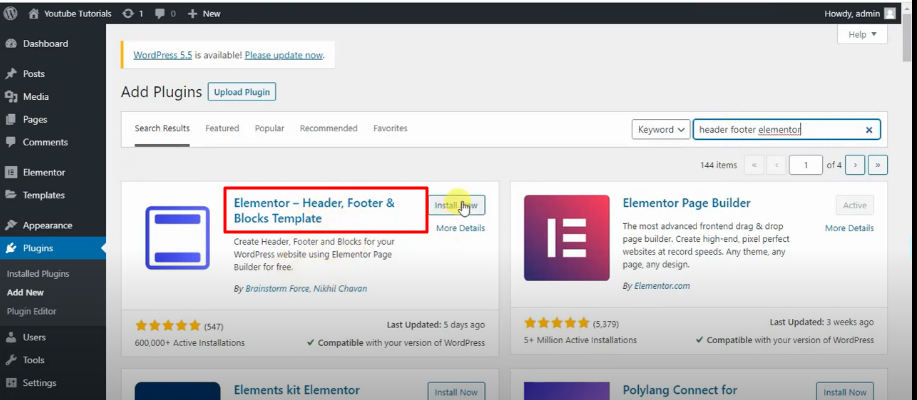
Start by logging into your WordPress dashboard. Go to the Plugins section and select Add New. Search for “Elementor” in the search bar. Click Install Now and then Activate.
Activation allows you to use Elementor’s drag-and-drop editor easily. Make sure the plugin is active before creating your footer. This step is quick and sets the base for your design work.
Choosing The Right Elementor Version
Elementor offers free and Pro versions. The free version works for basic footer designs. It includes simple widgets and templates.
The Pro version provides more advanced options. Use it if you want custom headers, footers, and theme builder access. This version costs money but adds powerful tools.
Decide based on your needs and budget. Either version will help you add footers, but Pro offers more flexibility.
Creating A Footer Template
Creating a footer template in Elementor is an easy way to control your website’s footer. A footer holds important details like contact info, links, and social media icons. Designing a custom footer helps make your site look unique and professional.
Elementor’s Theme Builder lets you build footers that show on every page. You can design it once and use it everywhere. This saves time and keeps your site consistent.
Accessing Theme Builder
Start by opening your WordPress dashboard. Find the Elementor menu on the left side. Click on “Theme Builder” to open it.
Inside the Theme Builder, select the “Footer” tab. Here, you can create a new footer template or edit an existing one. Click “Add New” to start a fresh footer design.
Designing The Footer Layout
After creating the footer template, choose a layout. Elementor offers blocks, columns, or blank pages. Pick a style that fits your website.
Add elements like text, images, menus, or social icons by dragging widgets. Adjust colors, fonts, and spacing to match your brand. Preview your footer to ensure it looks good on all devices.

Credit: wpmet.com
Adding Footer Elements
Setting footer display rules in Elementor lets you control where your footer appears. You decide if the footer shows on all pages or only on certain ones. This flexibility helps you create a better user experience. It also keeps your site organized and professional.
Assigning Footer To Entire Site
To show your footer on every page, set it as the global footer. In Elementor, go to the Display Conditions. Choose “Entire Site” from the options. This setting applies the footer everywhere on your website. It saves time and keeps your design consistent. Visitors will see the same footer no matter where they are.
Customizing Footer For Specific Pages
You can also show different footers on specific pages. Use the Display Conditions to choose “Singular” or “Archive.” Then select the pages or post types. This lets you tailor footers for unique content. For example, a different footer on your blog page or contact page. Custom footers improve navigation and user focus.
Setting Footer Display Rules
Publishing and testing your footer in Elementor is an important step. This ensures your footer looks good and works well on all devices. After designing, you must save and activate the footer. Then, preview it on different screen sizes to check its appearance and function.
Saving And Activating Footer
Once you finish designing your footer, click the “Publish” button. Elementor will ask where you want to display the footer. Choose “Entire Site” or select specific pages. This step makes your footer visible to all visitors.
After publishing, go to the WordPress dashboard. Check the footer settings in Elementor’s Theme Builder. Make sure the footer is active. This confirms your footer is live and ready for visitors.
Previewing On Different Devices
Elementor offers a preview mode for desktop, tablet, and mobile views. Use these tools to check how your footer looks on each device. This helps you spot any layout or design issues.
Look for text size, spacing, and button placement. Make sure everything fits well on smaller screens. Adjust as needed to improve user experience. Testing ensures your footer is clear and functional everywhere.
Publishing And Testing Footer
Adding a footer in Elementor is simple, but sometimes issues appear. These problems can stop the footer from showing or cause styling troubles. Understanding common problems helps fix them fast. This section covers two major issues and how to solve them.
Fixing Footer Not Showing
Sometimes the footer does not appear on your site. First, check if the footer template is published. Draft or private templates won’t show on the live site.
Next, confirm the display conditions are set correctly. The footer must be assigned to the entire site or specific pages you want it on. If no conditions are set, the footer stays hidden.
Clear your site cache and browser cache. Cached pages can block new footer changes from appearing. Use Elementor’s tools or a caching plugin to clear the cache.
Disable other plugins temporarily. Some plugins may conflict with Elementor and stop the footer from loading. Reactivate plugins one by one to find the culprit.
Resolving Styling Conflicts
Footer styling may not look right due to conflicts with themes or plugins. Check if your theme’s CSS overrides Elementor’s styles. Sometimes theme styles have higher priority.
Use Elementor’s custom CSS feature to add specific styles. Adding “!important” to CSS rules can force style priority. Be careful to avoid breaking other parts of your site.
Inspect the footer using your browser’s developer tools. This helps identify which styles cause conflicts. You can then adjust or remove problematic CSS rules.
Make sure Elementor and your theme are updated. Updates often fix compatibility issues and improve style handling.

Credit: elementor.com
Frequently Asked Questions
How Do I Create A Footer In Elementor?
To create a footer in Elementor, go to Templates > Theme Builder > Footer. Click “Add New,” design your footer using Elementor widgets, and publish it to display on your site.
Can I Customize Footer Layout Using Elementor?
Yes, Elementor lets you fully customize your footer layout. You can add widgets, change colors, fonts, and structure without coding.
How To Make Footer Responsive In Elementor?
Use Elementor’s responsive mode to adjust footer design for mobile, tablet, and desktop. Preview and tweak settings for each device.
Is It Possible To Add Social Icons In Elementor Footer?
Absolutely. Elementor offers social icon widgets. Simply drag them into your footer template and link your social profiles.
Conclusion
Adding a footer in WordPress Elementor is simple and fast. You control the look and content easily. This helps make your website more complete and professional. Footers guide visitors and add important info at the page bottom. Use the steps shared here to create your footer today.
Keep your site clear and user-friendly with this small but useful addition. Your website will feel polished and well-organized. Try it now and see the difference it makes.



