
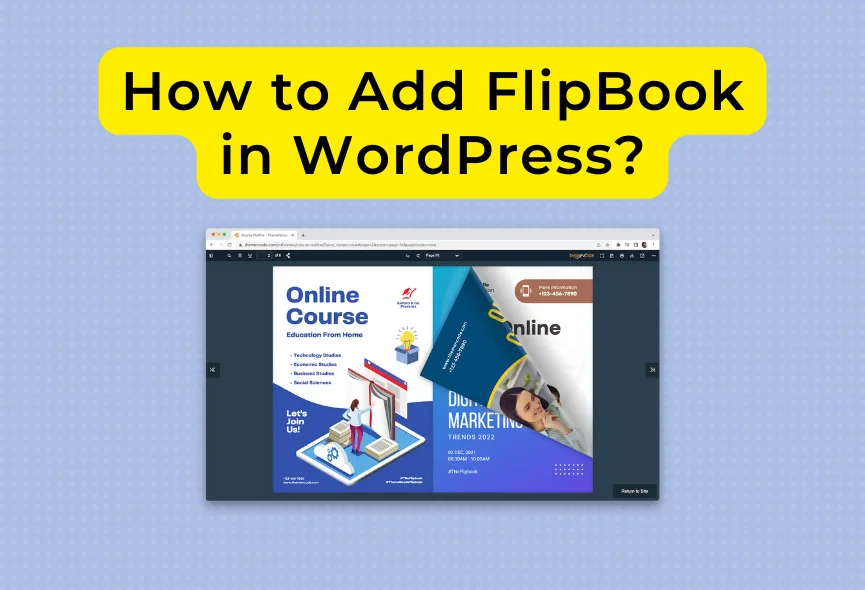
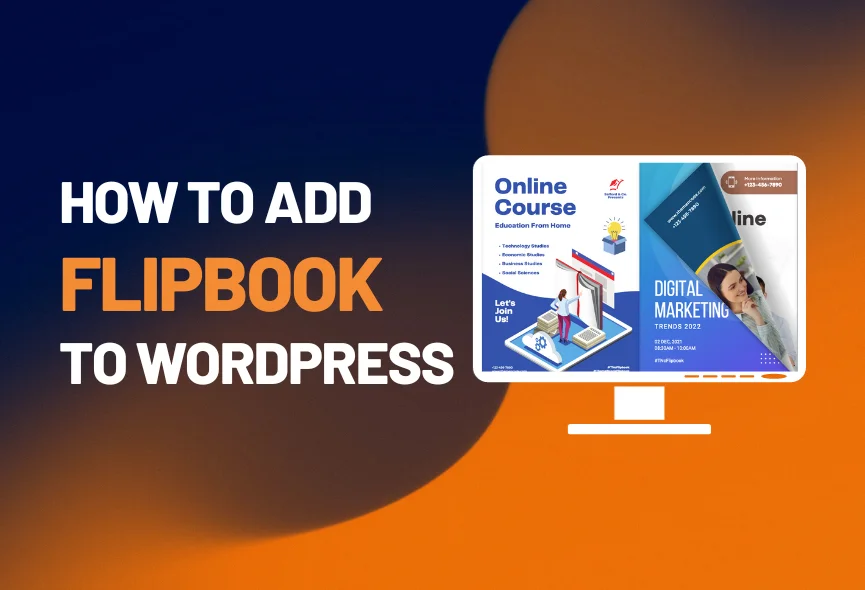
Are you looking to make your WordPress site more engaging and interactive? Adding a flipbook is a smart way to showcase your content with a sleek, page-flipping effect that grabs attention instantly.
Whether you want to display catalogs, brochures, or magazines, a flipbook can turn ordinary PDFs into an exciting digital experience. In this guide, you’ll learn exactly how to add a flipbook to your WordPress site step-by-step—no technical skills needed. Keep reading, and you’ll discover simple tricks to boost your site’s appeal and keep visitors coming back for more.
Choose The Right Flipbook Plugin
Choosing the right flipbook plugin is important for your WordPress site. It affects how your flipbook looks and works. The plugin should be easy to use and fit your needs. Picking the best one saves time and makes your content look professional. Consider features like design options, speed, and device compatibility. Good plugins also offer support and updates. This helps keep your flipbook running smoothly.
Popular Flipbook Plugins For WordPress
Many plugins offer flipbook features for WordPress. Some popular choices include 3D FlipBook, Flip PDF, and Real3D Flipbook. These plugins have strong user reviews and regular updates. They support images, PDFs, and other file types. Each plugin has unique tools for customization. Try demos or free versions to see which fits best.
Key Features To Consider
Look for simple setup and user-friendly interface. The plugin should work well on phones and tablets. Fast loading speed is key to keep visitors happy. Check if it supports multiple file formats like PDF and images. Customization options help match your site’s style. Regular updates and good support ensure long-term use. Also, choose plugins that use SEO best practices.
Credit: themencode.com
Install And Activate The Plugin
Installing and activating a flipbook plugin on WordPress is the first step to create interactive digital content. This process is simple and does not require advanced skills. A plugin helps convert your PDFs or images into a flipbook that visitors can easily browse.
Choosing the right plugin is important. After that, installation and activation bring the flipbook feature to your website. This section shows you how to install and activate the plugin quickly.
Step-by-step Installation Guide
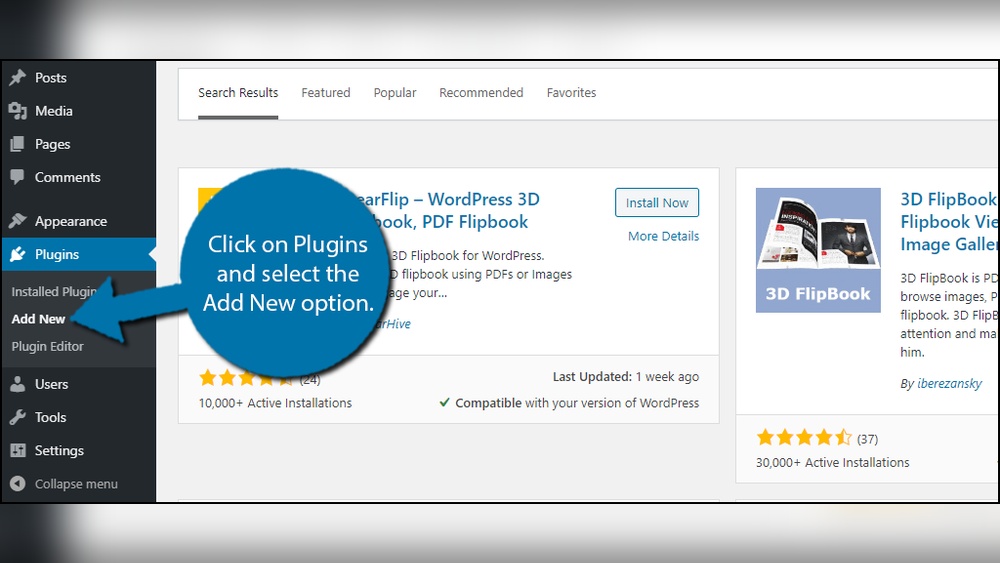
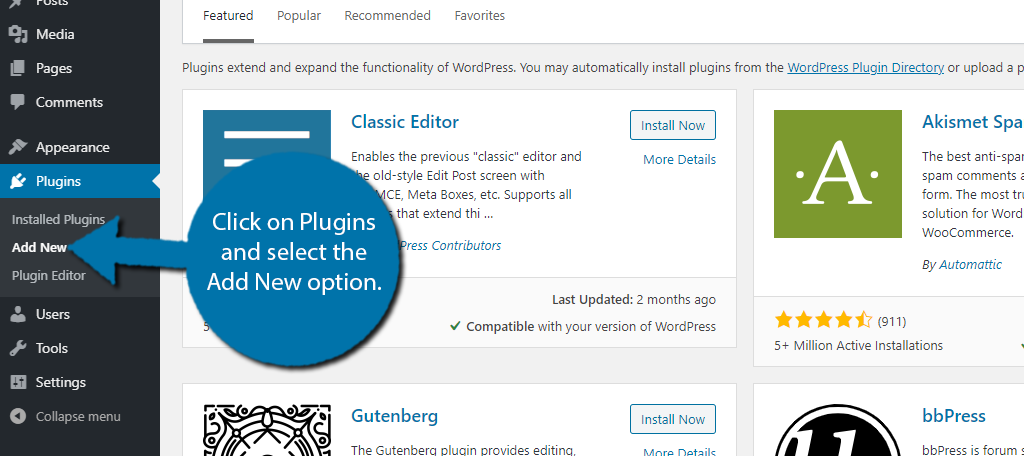
Log in to your WordPress dashboard. On the left menu, click “Plugins.”
Click “Add New” at the top of the page. In the search box, type the flipbook plugin name.
Find the plugin in the results list. Click “Install Now” to begin installation.
Wait for the process to finish. Once done, click “Activate” to enable the plugin.
Check the plugin settings to customize your flipbook. Now, you can upload files and create flipbooks easily.
Troubleshooting Common Issues
Plugin does not install? Check your internet connection first.
Make sure your WordPress version supports the plugin. Update WordPress if needed.
Activation button missing? Try clearing your browser cache.
Conflicts with other plugins may cause errors. Disable other plugins temporarily to test.
Still stuck? Contact the plugin support for help or read the FAQ section.
Create Your First Flipbook
Creating your first flipbook in WordPress is simple and fun. It allows you to show documents or images with a page-flip effect. This makes your content more interactive and easy to read.
Follow these steps to upload your files and set up the flipbook’s look and feel. You do not need advanced skills. Just a few clicks and your flipbook will be ready to share.
Uploading Your Pdf Or Images
Start by choosing the flipbook plugin or tool in WordPress. Most plugins let you upload PDF files or images directly. Click the upload button and select your file from your computer.
Wait a few seconds for the file to upload. Larger files may take a bit longer. After uploading, the plugin will convert your file into a flipbook format.
Check that all pages appear correctly. You can usually preview the flipbook before saving. This step ensures your content looks good to your readers.
Customizing Flipbook Settings
After uploading, adjust the settings to fit your style. Change the flipbook size to match your website layout. Select colors that match your brand or theme.
Set navigation options like arrows or thumbnails. These help readers move through pages easily. Enable or disable sound effects if the plugin supports it.
Save your settings once you are happy. Your flipbook is now ready to embed on any page or post. This customization makes your flipbook clear and user-friendly.
Credit: www.greengeeks.com
Embed Flipbook In WordPress Pages Or Posts
Embedding a flipbook in WordPress pages or posts enhances user experience. It allows visitors to view interactive content directly on your site. You can showcase brochures, magazines, or catalogs in an engaging format. WordPress supports easy methods to embed flipbooks without coding skills.
Two common ways to embed flipbooks are using shortcodes and Gutenberg blocks. Both methods work well with most flipbook plugins. Choose the method that fits your editing style and site setup.
Using Shortcodes
Shortcodes are simple codes that embed flipbooks anywhere on your site. Copy the shortcode provided by your flipbook plugin. Paste it inside the WordPress editor on the page or post where you want the flipbook.
Shortcodes look like this: [flipbook id="123"]. Replace the ID with your flipbook’s unique number. Update or publish the page to see the flipbook live. Shortcodes keep your content clean and easy to manage.
Adding Via Gutenberg Block
The Gutenberg editor offers blocks for different content types. Some flipbook plugins add a dedicated block for easy embedding. Click the plus icon to add a new block on your page or post.
Search for the flipbook block by typing “flipbook”. Select it and choose your flipbook from the list. The block will display a preview in the editor. Save or publish your post to show the flipbook to visitors.
Using Gutenberg blocks provides a visual way to add flipbooks. It fits well with the block editing style of WordPress. Both shortcodes and blocks make flipbook embedding simple and effective.
Optimize Flipbook For Mobile Devices
Optimizing your flipbook for mobile devices improves user experience and engagement. Mobile users expect smooth, easy-to-read content. Flipbooks that look great on desktops may not display well on smaller screens. Make sure your flipbook adjusts to different screen sizes. This keeps your content accessible and enjoyable for all visitors.
Responsive Design Tips
Choose a flipbook plugin with built-in responsive design. Responsive flipbooks adapt to screen size automatically. Use flexible layouts that resize images and text. Avoid fixed-width settings that break layouts on mobile. Test your flipbook’s font size for readability on small screens. Include touch-friendly navigation buttons for easy flipping. Limit heavy animations that slow down mobile loading times.
Testing On Different Screens
Check your flipbook on various devices before publishing. Test on smartphones, tablets, and different operating systems. Use browser developer tools to simulate screen sizes. Confirm that pages load quickly and content fits well. Ensure buttons and links are easy to tap on small screens. Ask friends or colleagues to review on their devices. Fix any display or usability issues found during testing.
Credit: themencode.com
Enhance Flipbook With Interactive Features
Interactive features make your flipbook more engaging and user-friendly. They help keep readers interested and improve the reading experience. Adding links, videos, and navigation tools allows readers to interact with your content easily. These features also make your flipbook look more professional and dynamic.
Adding Links And Multimedia
Insert clickable links to direct readers to other websites or pages. Links can guide readers to related content or important resources. Embedding videos or audio clips adds rich media to your flipbook. Multimedia elements make your content more lively and appealing. Use simple tools in your WordPress flipbook plugin to add these features easily.
Enabling Zoom And Navigation Tools
Allow readers to zoom in for a closer look at details. Zoom tools help users read small text or see images clearly. Navigation buttons let readers move smoothly between pages. These tools improve usability and keep readers comfortable. Most flipbook plugins offer easy options to activate zoom and navigation features.
Boost Flipbook Performance
Boosting the performance of your flipbook on WordPress helps your visitors have a smooth experience. Fast loading flipbooks keep readers interested and reduce site bounce rates. Optimizing how your flipbook loads saves bandwidth and improves overall site speed.
Focus on key techniques that improve loading time and resource use. These methods reduce delays and make the flipbook ready quickly.
Caching And Lazy Loading
Caching stores flipbook pages so they load faster next time. It saves the server from sending the same data repeatedly.
Lazy loading delays loading of flipbook pages until the user scrolls to them. This reduces the initial load time and data use.
Combining caching and lazy loading cuts down the time users wait to see content. It also lowers the load on your hosting server.
Improving Load Times
Compress flipbook images to reduce file size without losing quality. Smaller files load faster on all devices.
Use a Content Delivery Network (CDN) to serve flipbook data from servers near your visitors. This cuts down the time data travels.
Choose a lightweight flipbook plugin designed for speed. Avoid plugins with unnecessary features that slow down loading.
Common Mistakes To Avoid
Adding a flipbook to your WordPress site can boost engagement and showcase content effectively. Avoid common mistakes to ensure your flipbook works well. These errors can hurt user experience and reduce the impact of your flipbook. Focus on what matters most for your audience.
Overloading With Too Much Content
Too much content in a flipbook can overwhelm readers. Keep pages clear and focused. Large files slow down your site and annoy visitors. Choose key points and images carefully. Break long content into smaller parts for easier reading. A simple flipbook keeps users interested and coming back.
Ignoring Mobile Compatibility
Many users browse on phones and tablets. A flipbook that does not work well on mobile loses visitors. Test your flipbook on different devices before publishing. Use responsive plugins that adapt to screen sizes. Easy navigation and quick loading improve mobile user experience. Mobile-friendly flipbooks reach a wider audience.
Frequently Asked Questions
How Do I Install A Flipbook Plugin On WordPress?
To install a flipbook plugin, go to your WordPress dashboard. Navigate to Plugins > Add New. Search for “flipbook” and click “Install Now” on your chosen plugin. Finally, activate the plugin to start adding flipbooks to your site.
Can I Add Flipbooks Without Coding Knowledge?
Yes, most flipbook plugins offer easy drag-and-drop interfaces. They require no coding skills, making it simple for beginners to create interactive flipbooks quickly.
Which Flipbook Formats Are Supported In WordPress?
WordPress flipbook plugins typically support PDF, images, and sometimes HTML files. PDFs are the most common format used for creating flipbooks on WordPress sites.
How Do I Customize Flipbook Appearance In WordPress?
Most plugins allow you to customize flipbook colors, backgrounds, and navigation buttons. These settings help match the flipbook style to your website’s branding.
Conclusion
Adding a flipbook to your WordPress site is simple and effective. It makes your content more interactive and fun to explore. Choose the right plugin, upload your files, and customize the settings. Visitors will enjoy flipping through your pages easily.
This small change can improve user experience and keep readers longer. Start adding flipbooks today and see the difference on your website.



