
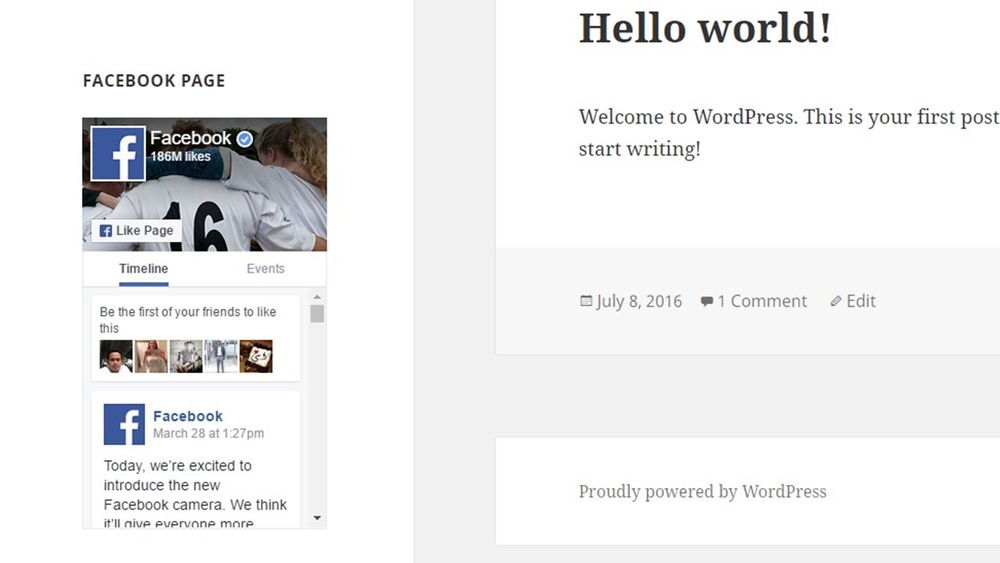
Are you looking to boost your website’s reach and connect with more visitors? Adding Facebook to your WordPress site is one of the easiest ways to do just that.
Imagine your visitors liking, sharing, or commenting on your content right from your site. Sounds powerful, right? You’ll discover simple steps to integrate Facebook into your WordPress site—no tech skills needed. Keep reading, and by the end, you’ll have a more engaging website that drives real interaction.
Credit: www.seedprod.com
Benefits Of Facebook Integration
Integrating Facebook with your WordPress site offers many clear benefits. It helps connect your website with a large audience. This connection supports growth and interaction in simple ways.
Facebook integration makes your site more active and user-friendly. It brings social elements directly to your pages. These benefits improve how visitors experience your content.
Boosting Website Traffic
Facebook has billions of users daily. Sharing your WordPress content there can attract many visitors. More visitors mean more chances to grow your site.
Facebook posts with links lead people directly to your pages. This direct path increases your site’s traffic quickly. Traffic growth also helps with better search engine rankings.
Enhancing User Engagement
Facebook tools like comments and likes keep visitors active on your site. Engagement makes visitors spend more time exploring your content. It also builds a community around your website.
Active users often return and share your content. This cycle keeps your site lively and growing. Engaged users provide valuable feedback and ideas.
Simplifying Content Sharing
Facebook integration offers easy sharing buttons on your pages. Visitors can share articles with just one click. This simplicity increases the reach of your content.
Shared content appears on friends’ feeds, attracting new visitors. Simple sharing encourages more people to spread your message. It saves time for users and helps your site grow organically.
Choosing The Right Method
Choosing the right method to add Facebook to WordPress depends on your needs and skills. Each method offers different benefits and fits different situations. Some methods are easy but less flexible. Others give more control but need technical knowledge. Understanding these options helps you pick the best way for your site.
Using Plugins
Plugins make adding Facebook simple and fast. They do most work for you. Just install and activate the plugin. Many plugins show Facebook feeds, buttons, or comments. No coding is needed. Plugins are great for beginners or quick setup. Some popular plugins have good support and updates. But plugins can slow down your site if not chosen carefully.
Manual Code Integration
Manual code integration means adding Facebook code yourself. You copy code snippets from Facebook and paste them into your site. This method gives full control over how Facebook features look and work. It requires some knowledge of HTML and WordPress editing. This is best for users who want a custom design or fewer plugins. It can be harder but creates a clean result.
Third-party Tools
Third-party tools are services that connect Facebook with WordPress. These tools often offer widgets or embed codes. They help display Facebook content with extra options. Some tools focus on speed or design features. They work well if you want something specific and easy to manage. But some tools may cost money or need accounts outside WordPress.
Installing Facebook Plugins
Installing Facebook plugins on your WordPress site helps connect your content with your Facebook audience. These plugins make it easy to share posts, show your Facebook page, or add comments. They improve user engagement and keep visitors longer on your site.
Choosing the right plugin and setting it up correctly is key. The process is simple and does not require coding skills. Follow the steps below to find and install the best Facebook plugins for your website.
Top Plugins For Integration
Several popular plugins work well for Facebook integration. “Facebook for WordPress” allows easy sharing and page embedding. “Smash Balloon Social Post Feed” shows your Facebook posts on your site. “WP Facebook Comments” adds Facebook comment boxes under posts. Each plugin has unique features to match different needs.
Step-by-step Plugin Installation
Go to your WordPress dashboard and click on “Plugins” then “Add New.” Type the plugin name in the search bar. Click “Install Now” and then “Activate” after installation. The plugin is now ready to use on your site. Repeat this for any Facebook plugin you want to add.
Configuring Plugin Settings
After activation, find the plugin settings in the WordPress menu. Enter your Facebook page URL or app ID if needed. Customize display options like colors and layout to fit your site design. Save the settings and preview your site to check the plugin’s appearance. Adjust settings until it looks right.
Adding Facebook Manually
Adding Facebook manually to your WordPress site gives you full control over how the social features look and work. This method requires adding some code directly to your site, but it is simple and effective.
You can use Facebook’s official tools to embed buttons, feeds, or comments. These tools help visitors interact with your content and share it easily.
Follow the steps below to generate the necessary code, add social plugins, and customize their appearance to fit your site style.
Generating Facebook Sdk Code
The Facebook SDK is a code library that makes Facebook features work on your site. Start by going to the Facebook for Developers page.
Create an app or use your existing one to get an App ID. This ID links your site to Facebook’s services.
Copy the SDK code snippet provided by Facebook. Paste this code into your WordPress theme header, just before the tag.
This step loads Facebook scripts needed for all plugins to work properly.
Embedding Social Plugins
Facebook offers many plugins like Like buttons, Share buttons, and Comment boxes. Choose the plugin you want from Facebook’s Social Plugins page.
Customize the plugin settings such as size, layout, and language. Facebook will generate the code snippet for your chosen plugin.
Copy this code and paste it into the WordPress post, page, or widget area where you want the plugin to appear.
Test the plugin on your site to make sure it works and looks good.
Customizing Appearance
You can change how Facebook plugins look with CSS. Add custom styles in your theme’s style.css file or use the WordPress Customizer.
Adjust colors, fonts, and sizes to match your website design. Keep the buttons visible and easy to use.
Make sure your site remains fast by avoiding heavy styling or too many plugins.
Check the plugin on different devices to ensure it looks good everywhere.
Connecting Facebook Page To WordPress
Connecting your Facebook page to your WordPress site helps visitors find your social media easily. It builds trust and keeps users updated with your latest posts. This connection also increases your reach and engagement.
Linking Your Facebook Page
First, find your Facebook page URL. Copy the web address from your browser’s address bar. Next, go to your WordPress dashboard. Open the “Appearance” menu and click “Menus.”
Choose the menu where you want to add your Facebook link. Click “Custom Links” on the left side. Paste your Facebook page URL in the URL box. Type “Facebook” in the link text box. Then click “Add to Menu.”
Drag the new link to your desired position. Save your menu changes. Your visitors can now click the link to visit your Facebook page.
Displaying Page Feed
Showing your Facebook feed on your WordPress site keeps content fresh. It also encourages visitors to interact with your posts. To do this, use a Facebook feed plugin.
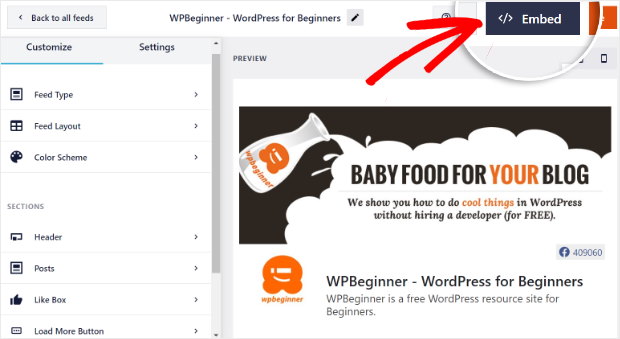
Install and activate a Facebook feed plugin. Connect the plugin with your Facebook page by following the plugin’s instructions. Choose the feed style that fits your site’s look.
Place the feed on any page or widget area using shortcodes or blocks. Your visitors will see your recent Facebook posts without leaving your site.
Adding Like And Share Buttons
Like and share buttons let visitors engage with your content easily. They help spread your posts on Facebook. Add these buttons to posts, pages, or your sidebar.
Use a social sharing plugin or Facebook’s official tools. Configure the buttons to show on all or specific pages. Choose the button style that matches your site design.
Test the buttons to make sure they work correctly. This simple step encourages more likes and shares from your visitors.
Credit: smashballoon.com
Troubleshooting Common Issues
Adding Facebook to WordPress can sometimes cause issues. These problems can stop your site from working well. Knowing how to fix these common problems helps keep your site smooth and user-friendly.
Below are key steps to troubleshoot and solve typical issues with Facebook integration on WordPress sites.
Fixing Plugin Conflicts
Plugins can clash and cause errors. Deactivate all plugins except the Facebook one. Check if the problem remains. If it stops, activate plugins one by one. Find the conflicting plugin and keep it off or replace it.
Keep plugins updated to reduce conflicts. Use trusted plugins only.
Resolving Display Problems
Facebook elements may not show properly on your site. Clear your browser cache and refresh the page. Check your theme settings for any restrictions on external scripts.
Try switching to a default WordPress theme. If the issue clears, your theme may need adjustments.
Ensure your Facebook plugin settings are correct. Sometimes wrong settings block content from loading.
Ensuring Mobile Compatibility
Many visitors use mobile devices. Facebook features must work well on small screens. Test your site on different phones and tablets.
Use responsive design settings in your plugin. Avoid fixed widths that break layouts on mobiles.
Regularly update your plugin and theme. Updates often improve mobile performance.
Optimizing Facebook Integration
Optimizing Facebook integration on your WordPress site improves performance and user interaction. It helps your site load faster, keeps visitors happy, and tracks how users engage with your content. These steps make your website more effective and useful for your audience.
Improving Load Speed
Use Facebook plugins that load asynchronously. This method prevents slowdowns by loading Facebook features after your main content. Compress images and scripts related to Facebook tools. Also, limit the number of Facebook widgets on each page. These steps reduce page load times and improve overall speed.
Enhancing User Experience
Place Facebook buttons where visitors can easily see them. Make sure they fit your website design and do not clutter the page. Use clear calls to action like “Like” or “Share.” Ensure these features work well on mobile devices for all users. A smooth experience encourages visitors to interact more.
Tracking Engagement Metrics
Use Facebook Pixel to monitor user actions on your site. It helps you see which posts get the most likes and shares. Analyze these metrics to understand your audience better. Adjust your content and Facebook features based on what works best. This data-driven approach improves your site’s reach and impact.
Credit: smashballoon.com
Frequently Asked Questions
How Do I Connect Facebook To WordPress?
To connect Facebook to WordPress, install a plugin like “Facebook for WordPress. ” Then, link your Facebook account by following plugin instructions. This allows content sharing and social integration easily.
Can I Embed Facebook Posts On My WordPress Site?
Yes, you can embed Facebook posts on WordPress. Copy the post URL from Facebook, then paste it directly into your WordPress editor. The post will automatically appear on your site.
What Plugins Help Add Facebook Features To WordPress?
Popular plugins include “Smash Balloon Social Post Feed,” “Facebook for WordPress,” and “Social Media Share Buttons. ” These tools enable Facebook feeds, share buttons, and login integration.
Will Adding Facebook Slow Down My WordPress Site?
Using Facebook plugins may affect load speed if not optimized. Choose lightweight plugins and enable caching for faster performance and minimal impact on your WordPress site.
Conclusion
Adding Facebook to your WordPress site is simple and useful. It helps visitors connect and share your content easily. You can choose plugins or manual methods to fit your needs. Keep your site updated to avoid problems. Try different options and see what works best for your audience.
This small step can improve how people find and enjoy your site. Give it a try today!



