

Want to connect your Facebook page directly to your WordPress site without relying on plugins? You’re in the right place.
Adding your Facebook page can boost your social proof and keep visitors engaged, but plugins can slow down your site or cause compatibility issues. What if you could do it yourself, quickly and cleanly? This guide will show you exactly how to add your Facebook page to WordPress without any extra tools.
Stick with me, and you’ll have your page integrated in no time—making your site more dynamic and trustworthy. Ready to get started?
Benefits Of Adding Facebook Page
Adding a Facebook page directly to your WordPress site offers clear benefits. It helps connect your website visitors with your social media presence. This connection can boost engagement and increase your audience size. Visitors see your latest posts and updates without leaving your site. This keeps them interested and informed.
Embedding your Facebook page also builds trust. People like to see active social profiles. It shows your business or brand is real and responsive. This can improve your site’s credibility and encourage visitors to follow you.
Improved User Engagement
Visitors can interact with your Facebook page right on your website. They can like, comment, and share your posts easily. This interaction keeps visitors on your site longer. It also helps create a community around your brand.
Increased Social Media Followers
Showing your Facebook page attracts new followers. Visitors who like your content on your site often follow your page. This grows your social media audience naturally. More followers mean more chances to share your message.
Better Website Traffic
Embedding your Facebook page can drive more traffic to your site. Visitors may click through to your website from Facebook posts. This creates a cycle of visits between your site and social media. It helps boost your website’s visibility.
Brand Consistency
Displaying your Facebook page keeps your brand message clear. Your website and social media stay connected and consistent. This makes your brand more recognizable. It helps visitors remember your business easily.

Credit: www.youtube.com
Prepare Your Facebook Page
Before adding your Facebook page to WordPress, you need to prepare it properly. This step ensures your visitors see the right content. Proper preparation helps your Facebook page display correctly on your website. Follow these simple steps to get ready.
Get Your Facebook Page Url
First, open your Facebook page on a web browser. Look at the address bar at the top of the browser. Copy the entire URL. This link is what you will use to connect your page to WordPress. Make sure the URL starts with “https://www.facebook.com/”.
Keep this URL handy for the next steps. It is essential for adding your page without a plugin. Double-check the URL to avoid errors.
Check Page Visibility Settings
Next, check if your Facebook page is visible to the public. Go to your Facebook page settings. Find the “Page Visibility” option. It should say “Page published”.
If your page is unpublished, visitors will not see it on your website. Change the setting to publish the page. This step makes your Facebook content accessible to all visitors.
Choose The Right WordPress Location
Choosing the right place for your Facebook page on WordPress matters a lot. It affects how visitors see it and how often they use it. Pick a spot that fits your site’s look and feels natural to users. This helps your Facebook page get more clicks and followers.
Sidebar Widget Area
The sidebar is a common place for social links. It shows on many pages, so visitors notice your Facebook page easily. Use simple HTML code to add the Facebook page here without a plugin. This keeps your site light and fast. The sidebar works well for blogs and news sites.
Footer Section
The footer appears at the bottom of every page. It is a good spot for a Facebook page link that doesn’t distract visitors. Place the Facebook page code in the footer to stay visible but subtle. This area is perfect for business sites and portfolios.
Within A Post Or Page
Embed your Facebook page inside a post or page to target specific readers. Use the HTML code directly in the content editor. This method fits well for product pages or blog posts about your brand. It helps connect with visitors interested in that topic.

Credit: www.youtube.com
Generate Facebook Page Embed Code
Generating the Facebook Page embed code is the first step to show your Facebook content on WordPress. This code lets you display your Facebook page directly on your site without extra plugins. It is simple and fast to get the code from Facebook itself. You can then paste it into your WordPress editor to share your page with visitors.
Use Facebook Page Plugin Tool
Go to the Facebook Page Plugin tool on Facebook’s developer site. Enter your Facebook Page URL in the box provided. The tool will create a preview of your page as it will appear on your site. This preview helps you see how visitors will view your Facebook content. After confirming the page looks right, the tool generates the embed code below.
Customize Display Options
The Facebook Page Plugin allows basic customization. Choose the width and height for the embedded page. You can decide whether to show the page’s timeline, events, or messages. Also, select if you want to show the cover photo and friends’ faces. Adjust these options to fit your website’s layout and style. Once done, copy the final embed code for use in WordPress.
Add Embed Code Without Plugin
Adding a Facebook page to your WordPress site can boost interaction. You do not need a plugin to do this. Using Facebook’s embed code is a simple and fast way. It keeps your site light and loads faster. This method works well for any WordPress theme or setup. Follow these steps to add the code directly to your site.
Insert Code In Widget
Go to your WordPress dashboard. Click on Appearance and select Widgets. Find the Custom HTML widget and drag it to your sidebar or footer area. Paste the Facebook embed code into the widget box. Click Save to apply the changes. Now, your Facebook page appears in the chosen widget area. Visitors can see and interact with your page easily.
Embed Code In Post Or Page
Open the WordPress editor for the post or page you want. Switch to the Text or HTML view. Paste the Facebook embed code where you want it to show. Update or publish your post or page. The Facebook page will display inside the content. This method works well for posts, pages, or any content area.
Troubleshoot Common Issues
Troubleshooting issues when adding a Facebook page to WordPress without a plugin is common. Many problems arise from simple mistakes. Fixing these quickly saves time and keeps your site functional. This section covers key checks to solve common errors.
Check For Code Errors
Errors in your code can stop Facebook content from showing. Carefully review the HTML and JavaScript you added. Look for missing tags or misplaced characters. Even one wrong symbol can break the code.
Use a code editor with syntax highlighting. It helps spot mistakes easily. Validate your code with online tools to ensure it meets web standards. Clear errors before refreshing your site.
Ensure Https Compatibility
Your WordPress site must use HTTPS for Facebook features to work. Facebook blocks content from unsecured (HTTP) sources. Check if your website URL starts with https://.
If not, get an SSL certificate for your domain. Many hosts offer free SSL via Let’s Encrypt. After enabling HTTPS, update your site settings and Facebook code. This prevents mixed content warnings and keeps your page secure.
Tips For Better Integration
Integrating your Facebook page into WordPress without a plugin needs some care. The right approach keeps your website fast and user-friendly. These tips help you blend the Facebook page smoothly into your site layout. They also ensure your site looks good on all devices.
Optimize Page Load Speed
Slow websites lose visitors quickly. Loading a Facebook page can add extra weight to your site. Use Facebook’s official embed code instead of heavy scripts. Limit the number of Facebook widgets on one page. Compress images and clean up your site code to improve speed. Test your page loading time regularly to catch issues early.
Maintain Responsive Design
Many users visit websites from phones and tablets. Your Facebook page section must adapt to different screen sizes. Use flexible width and height settings in the embed code. Avoid fixed sizes that cause horizontal scrolling. Check your site on multiple devices to ensure the Facebook embed fits well. Responsive design keeps your site professional and easy to use everywhere.
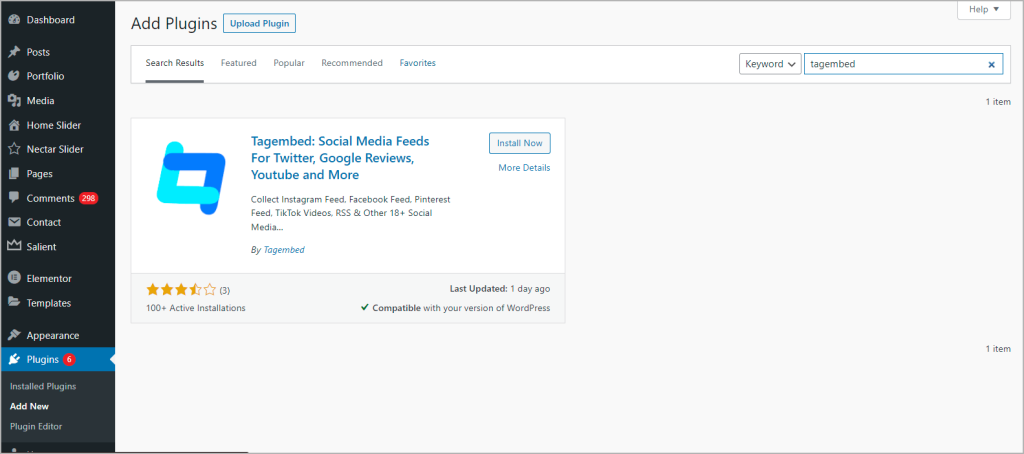
Credit: tagembed.com
Frequently Asked Questions
How To Embed A Facebook Page In WordPress Manually?
You can embed a Facebook page by copying its plugin code from Facebook’s Page Plugin tool. Paste this code into your WordPress page or post using the Text editor.
Can I Add A Facebook Page Without Using Plugins?
Yes, you can add a Facebook page to WordPress without plugins by using Facebook’s Page Plugin code. This method is lightweight and avoids plugin conflicts.
What Are The Steps To Get Facebook Page Plugin Code?
Visit Facebook’s Page Plugin website, enter your Facebook page URL, customize settings, then copy the generated HTML code for embedding into WordPress.
Will This Method Affect My Website’s Loading Speed?
Adding Facebook’s page code manually has minimal impact on loading speed compared to plugins, which often load extra scripts and styles.
Conclusion
Adding a Facebook page to WordPress without a plugin is simple and fast. Just use the Facebook Page Plugin code and paste it into your site. This keeps your website light and loads quickly. Visitors can see your Facebook updates right on your page.
No extra tools needed. Try this method to connect your site with Facebook easily. It helps keep your website clean and user-friendly. Keep sharing your content and growing your audience step by step.



